
Meet AiX Brain: The Free ResultsAiX Hub Now Reads Your Plugins And Does The Work

Ask AiX Brain anything about your business and it reads the answer straight from your ResultsAiX plugins. Tell it what to do, check the card, press the button. Plus one menu style for every plugin and Ctrl+K to find any page.
For years my plugins each had their own screens, their own menus and their own numbers. You opened the Mailer to see your emails, WP Conversion Tracker to see your sales, the Support Desk to see your tickets, and you added it all up in your head.
Not any more. The free ResultsAiX Hub now has AiX Brain, an AI assistant that reads every ResultsAiX plugin on your site, answers in plain English, and now does the work for you when you ask. And every plugin got a brand new menu, the same in each one, with a Top Menu or a Side Menu, whichever you prefer.
This post shows you everything that is new, with real screenshots of the real screens. It is a long one, because a lot has happened in a few weeks.
The Short Version
- AiX Brain answers questions about your business. Sales, leads, emails, visitors, tickets, members, webinars, split tests and more, read straight from your plugins, with every step shown.
- Analyse my business. One click reads every ResultsAiX plugin on your site and tells you what is working, what needs attention and what to do next.
- AiX Brain now does the work. Over 200 actions across your plugins: write an email draft, schedule a live webinar, reply to a ticket, create a tracking link, approve testimonials and much more.
- You stay in charge. AiX Brain shows you exactly what it will do on a card. Nothing happens until you press the button, and most changes have an Undo.
- One AI tab for every plugin. Connect Claude, OpenAI, Google Gemini, OpenRouter, Grok, DeepSeek or Mistral once, and choose how each plugin uses it.
- New family menus. Every ResultsAiX plugin now has the same menu, as a Top Menu with dropdowns or a Side Menu, and your choice follows you into every plugin.
- Find anything with Ctrl+K. Jump to any page of any ResultsAiX plugin on your site, or ask AiX Brain, from one search box.
What Is The ResultsAiX Hub?
The ResultsAiX Hub is a free WordPress plugin that brings all your ResultsAiX plugins together. It keeps your licences in one place, updates your plugins for you, and gives you one Overview screen with the numbers from every plugin you run: new people, sales, revenue, emails, visitors, tickets, members and more, each counted once.
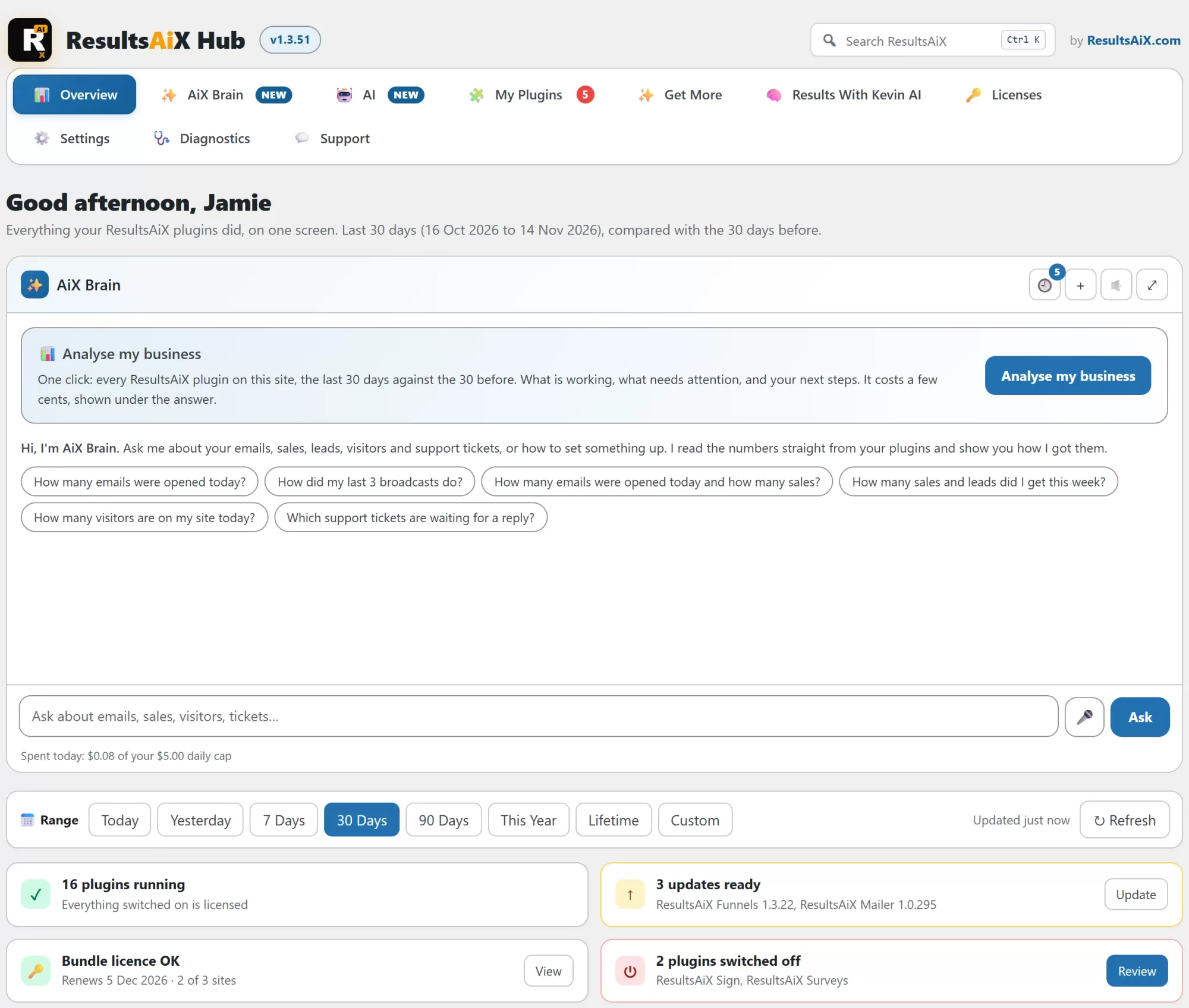
If you already use the Hub, all of this is in your copy now. If you do not, it takes about a minute to install, and everything in this post works on the plugins you already have.
Meet AiX Brain, Your AI Business Assistant
AiX Brain lives inside the Hub. You ask it a question in your own words, the same way you would ask a member of your team, and it goes and looks.
“How many sales and leads did I get this week?” It reads WP Conversion Tracker, the Funnels checkout and the Membership checkout for the same days, counts every sale once, and tells you the total and where each one came from. It reads your sign-up plugins too, so you see every new person once, by plugin.
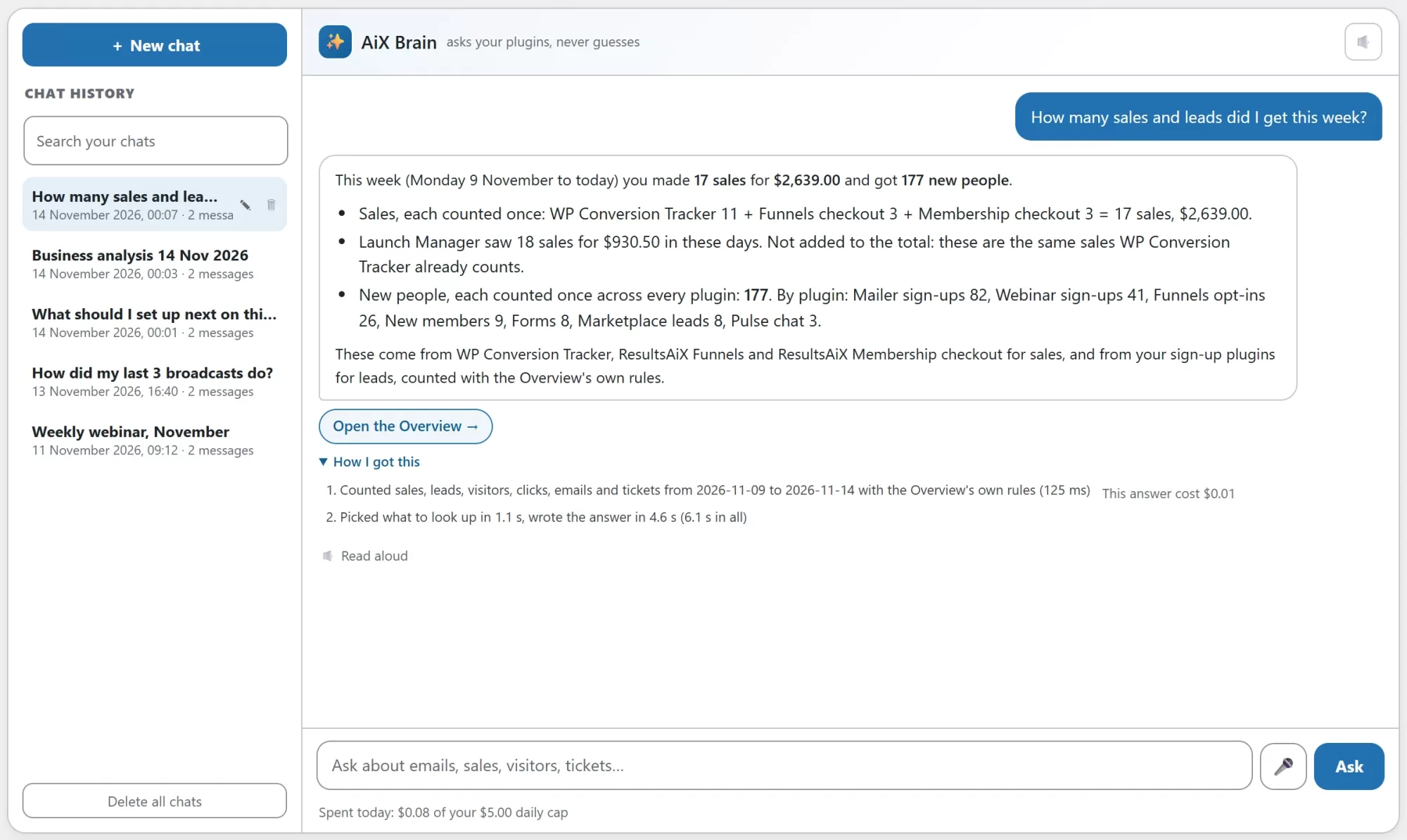
Three things make AiX Brain different from a general AI chat window:
- It reads your plugins, it never guesses. Every number comes from the same place your plugin’s own screen gets it from. If WP Conversion Tracker shows 11 sales this week, AiX Brain says 11.
- It shows its work. Open “How I got this” under any answer to see which plugins it read, for which days, and how long each part took.
- It shows the cost. Every answer shows what it cost, usually a few cents at most, and a daily spending cap keeps your AI bill in check.

Ask from anywhere
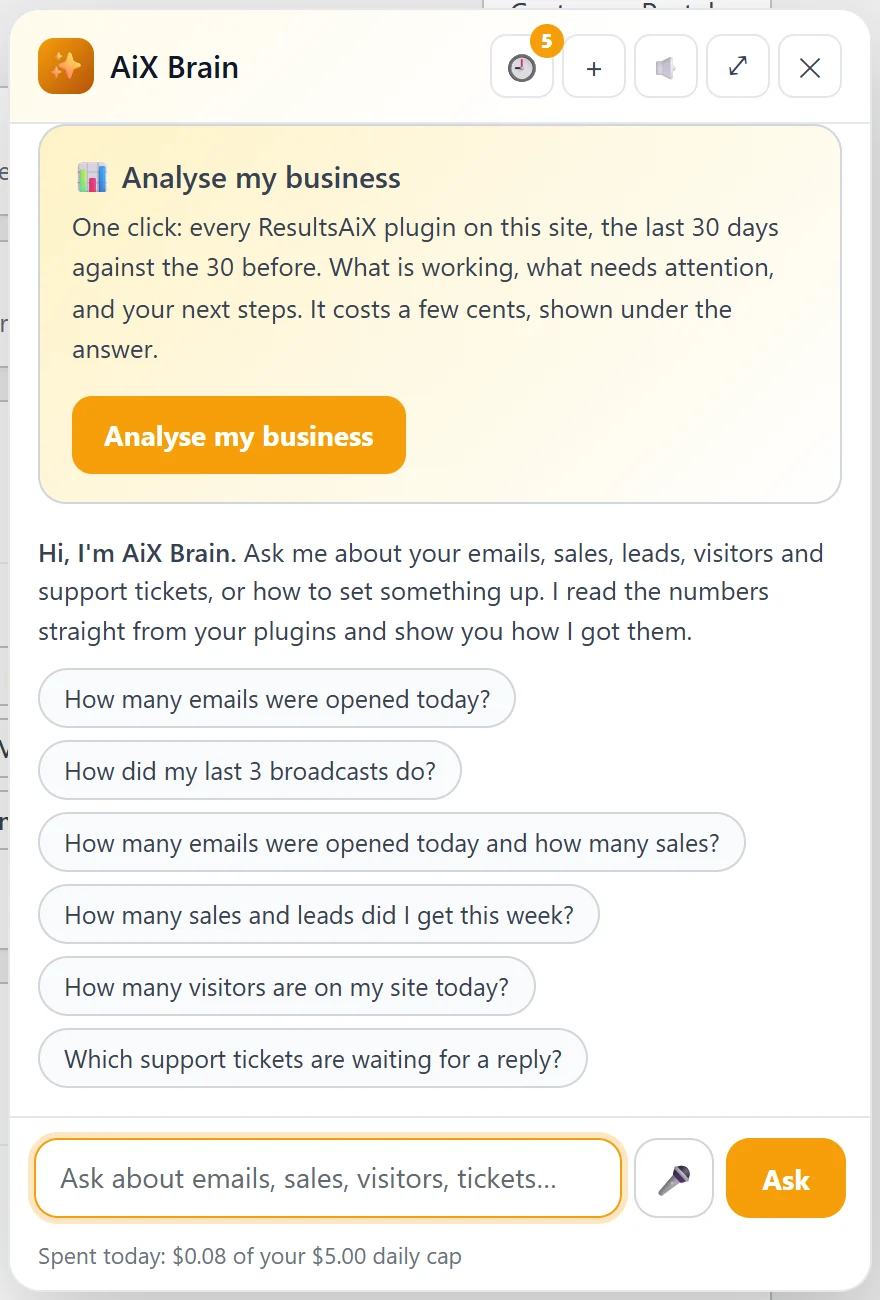
AiX Brain has its own page in the Hub, a box at the top of the Overview, and a button on every ResultsAiX screen. You can type, or press the microphone and talk to it. Switch on read aloud and it reads the answer back to you.
Your chats are saved
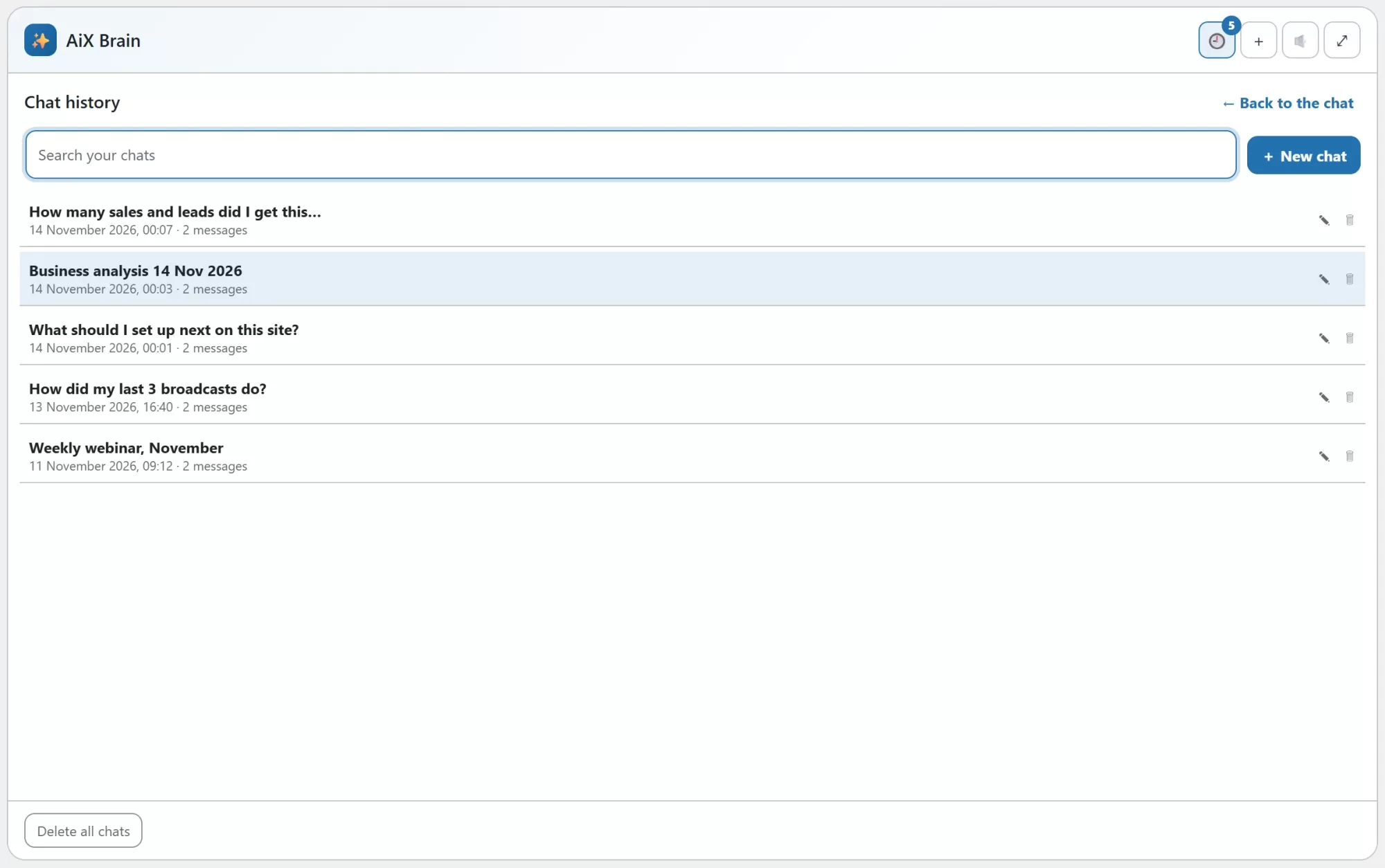
Every chat is kept in Chat history. Search your chats, open an old one and carry on, rename it or delete it. Follow-up questions work the way you expect: ask “how many sales this week?”, then “and last week?”, and it reads the same things again for last week.
Analyse My Business In One Click
Start here. “Analyse my business” reads every ResultsAiX plugin on your site, compares the last 30 days with the 30 days before, and writes you a short report: a summary, what is working, what needs attention and three to five next steps, each with a link to the screen where you do it.
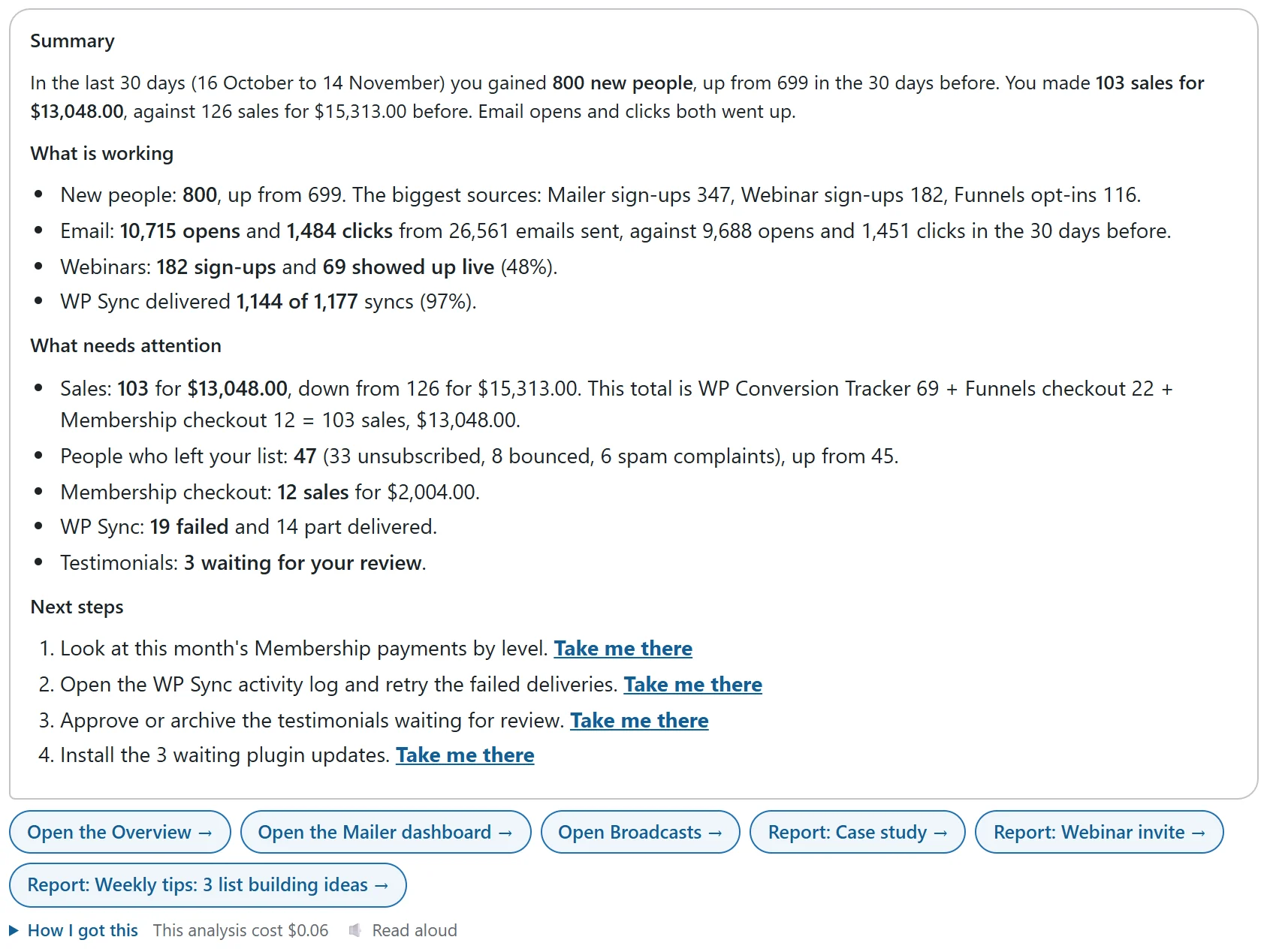
A brand new site gets a getting-started plan instead, so even on day one it tells you the next useful thing to set up.
AiX Brain Reads Every ResultsAiX Plugin
AiX Brain started with emails, sales, visitors and tickets. It now reads what every ResultsAiX plugin’s own screens show. Here is a taste of what you can ask:
| Ask about | For example |
|---|---|
| AiX Mailer | “How did my last 3 broadcasts do?”, “Who left my list this month?”, “What is in my Newsletter list?” |
| Sales and leads | “What did I earn yesterday?”, “Which tracking links sold most this month?” |
| Visitors | “How many people are on my site right now?” (ResultsAiX Pulse) |
| Support Desk | “Which tickets are waiting for me?”, “Read me ticket 1187” |
| Webinars | “How many people booked for Tuesday?”, “Who came live last week?” |
| Optimize | “Which split tests are running and who is winning?” |
| Membership | “How many new members this week, and on which levels?” |
| WP Sync | “Are all my bridges running?” |
| Funnels, Forms, Surveys, Engage | “Which funnel converts best?”, “How many form entries today?” |
| Launch Manager | “Which partners are confirmed for my next launch?” |
| Podcasts, Bonus Builder, Testimonials, Sign, Video, Image, Publisher, Consent, Accessibility, Search | “How many listens this week?”, “Which testimonials are waiting?”, “Which documents are not signed yet?” |
In total AiX Brain now has over 70 ways to read your business, and it picks the ones your question needs. A question about emails reads the Mailer. A question about sales reads your sales plugins. It never reads more than it needs to.
Now AiX Brain Does The Work Too
This is the big one. Answering questions was useful. But what I really wanted was to say “resend that to the people who did not open it” and have it done.
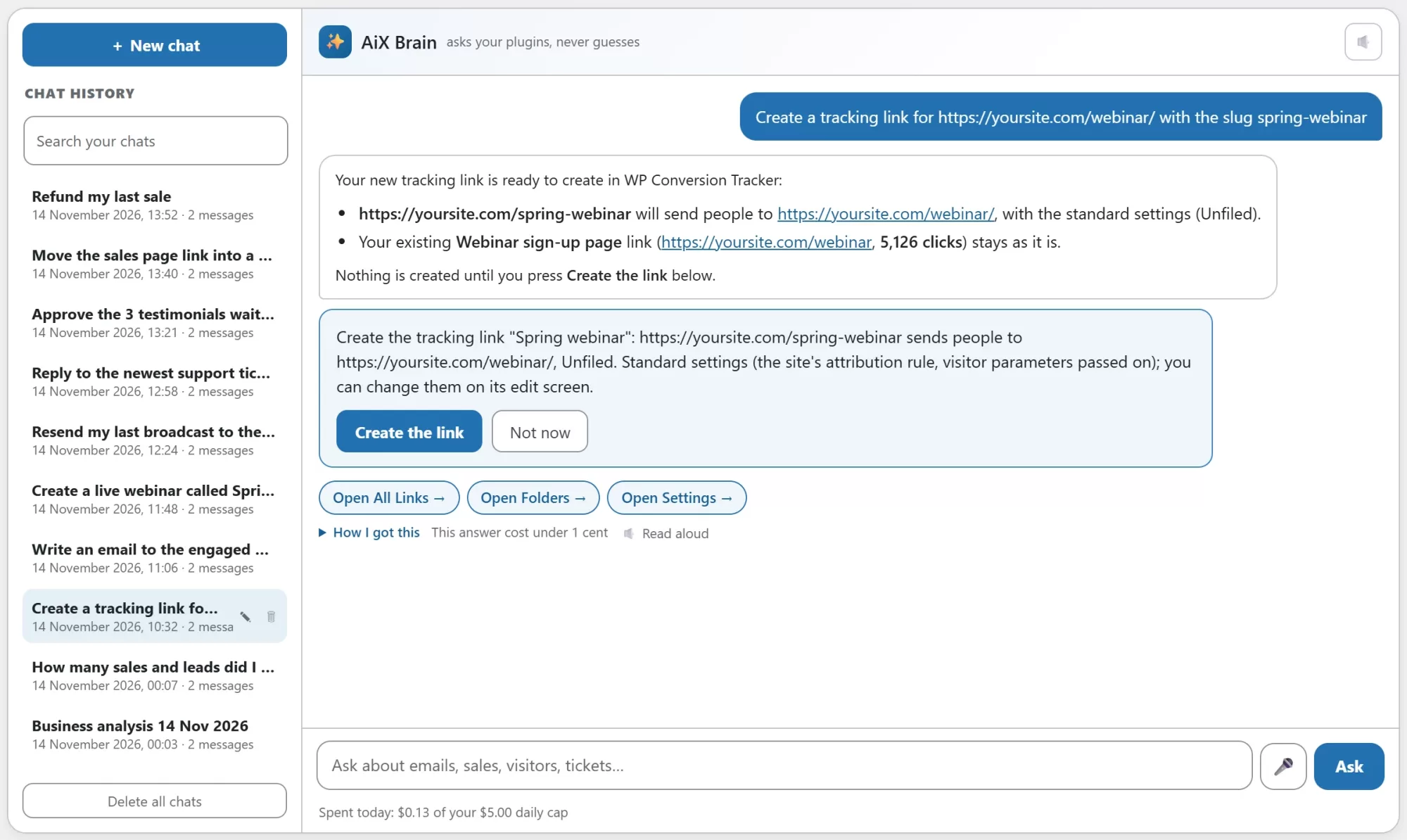
So now AiX Brain can act. It has over 200 actions across your ResultsAiX plugins. You ask in your own words, and it prepares the job and shows it to you on a card: what it will do, to what, and for how many people. You read it, and you press the button. That is it.
How an action works
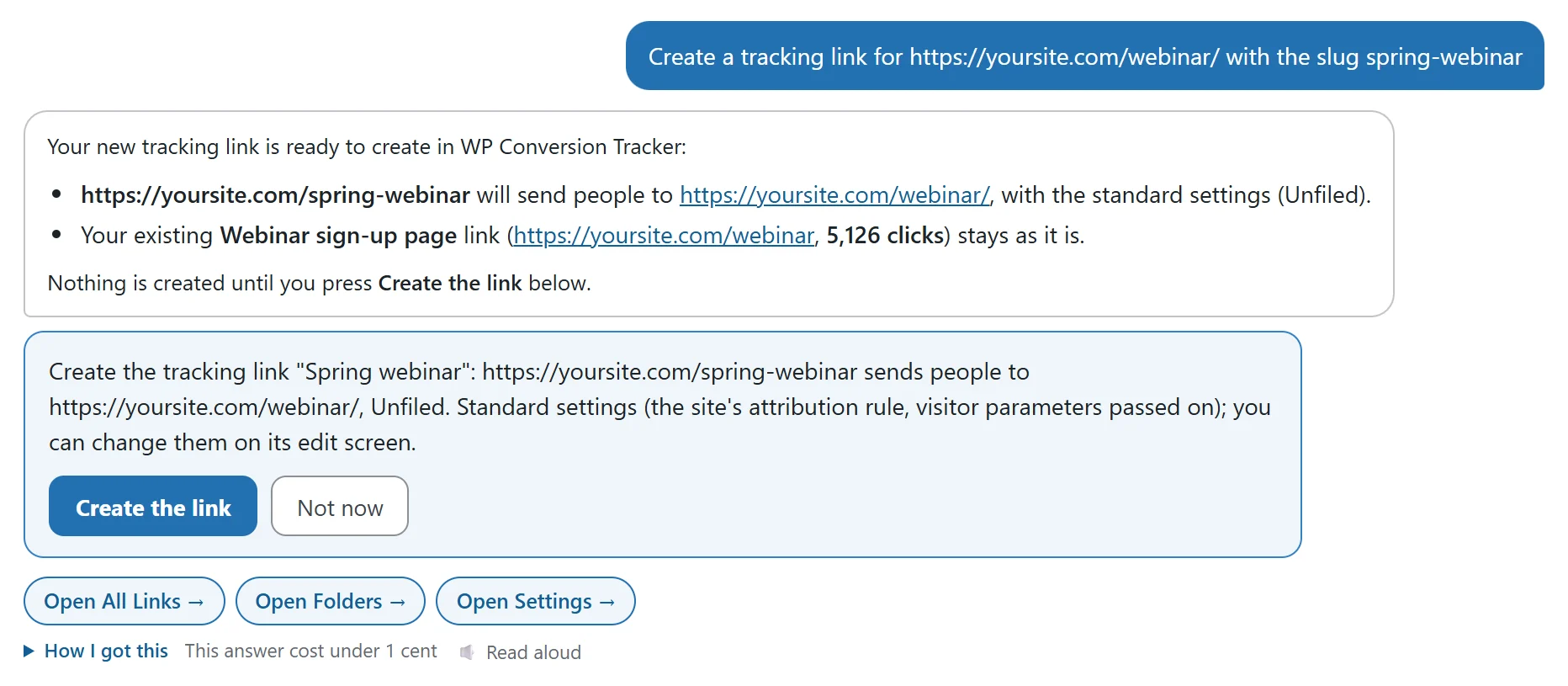
- You ask. “Create a tracking link for my webinar page with the slug spring-webinar.”
- AiX Brain finds the right action and the right item. It works out which plugin does the job, finds the item you mean, and checks it can be done.
- It shows you a card. The card spells out exactly what will happen, with real names and counts. Nothing has changed yet.
- You press the button. The plugin does the job with its own code, the same code its own buttons use.
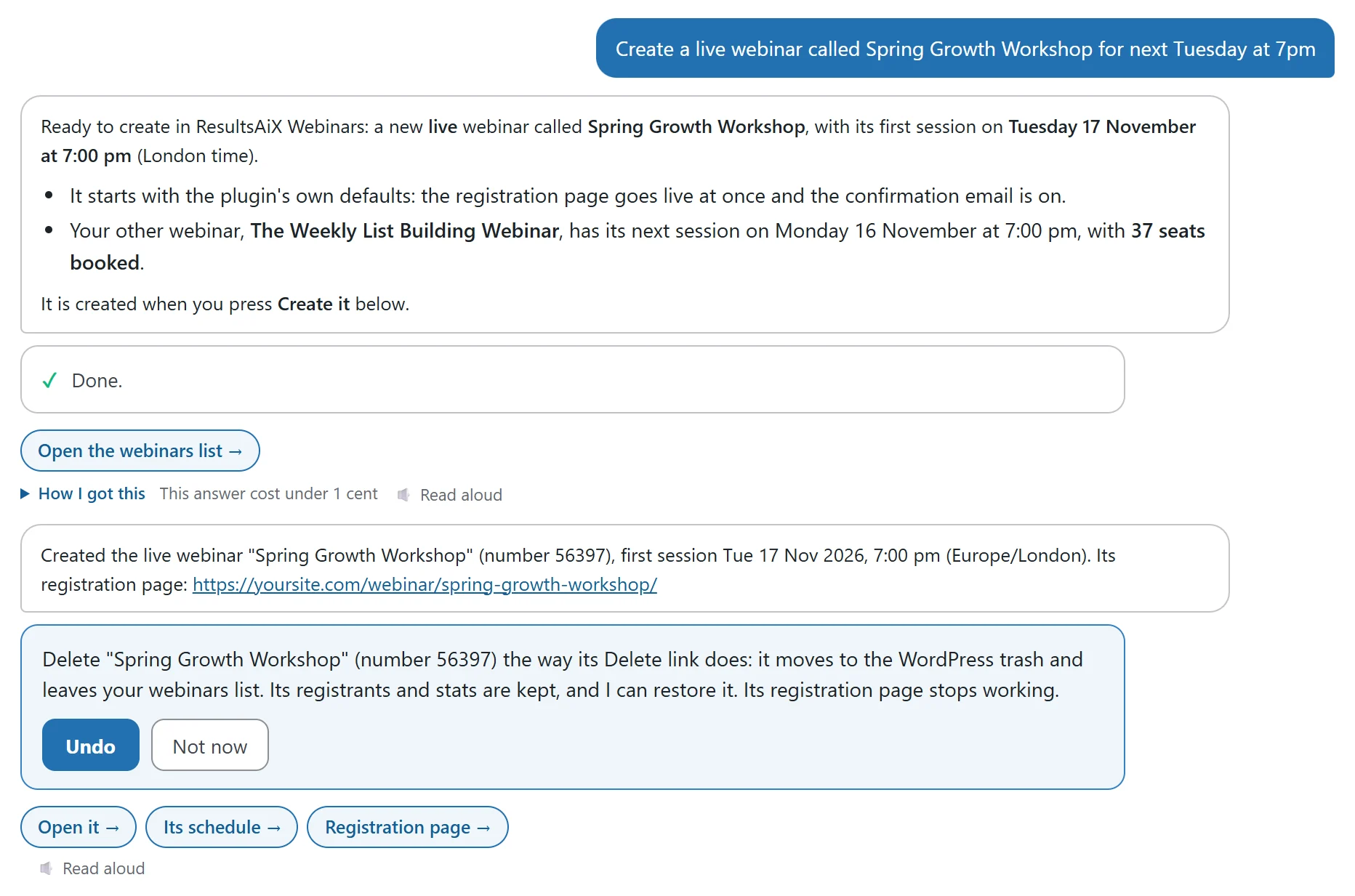
- Undo if you change your mind. Most changes come back with an Undo button, and every action is kept in the Hub log.
Write And Send Emails In Your Own Voice
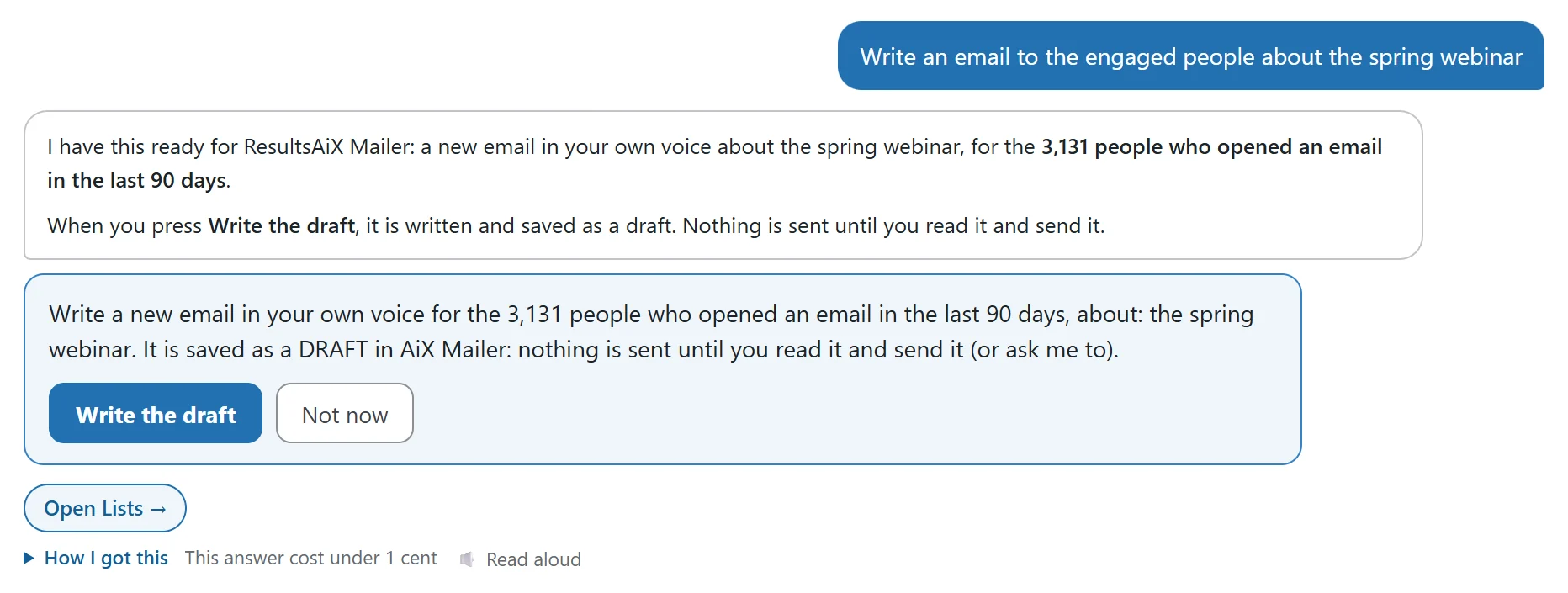
“Write an email to the engaged people about the spring webinar.” AiX Brain finds the people, counts them, and shows you who it is for. Press the button and AiX Mailer’s own AI writes the email in your trained voice and saves it as a draft. Read it, change anything you like, then send it yourself or tell AiX Brain “send it tomorrow at 9am”. Before it schedules anything it shows you the subject, the number of people and how the email starts.
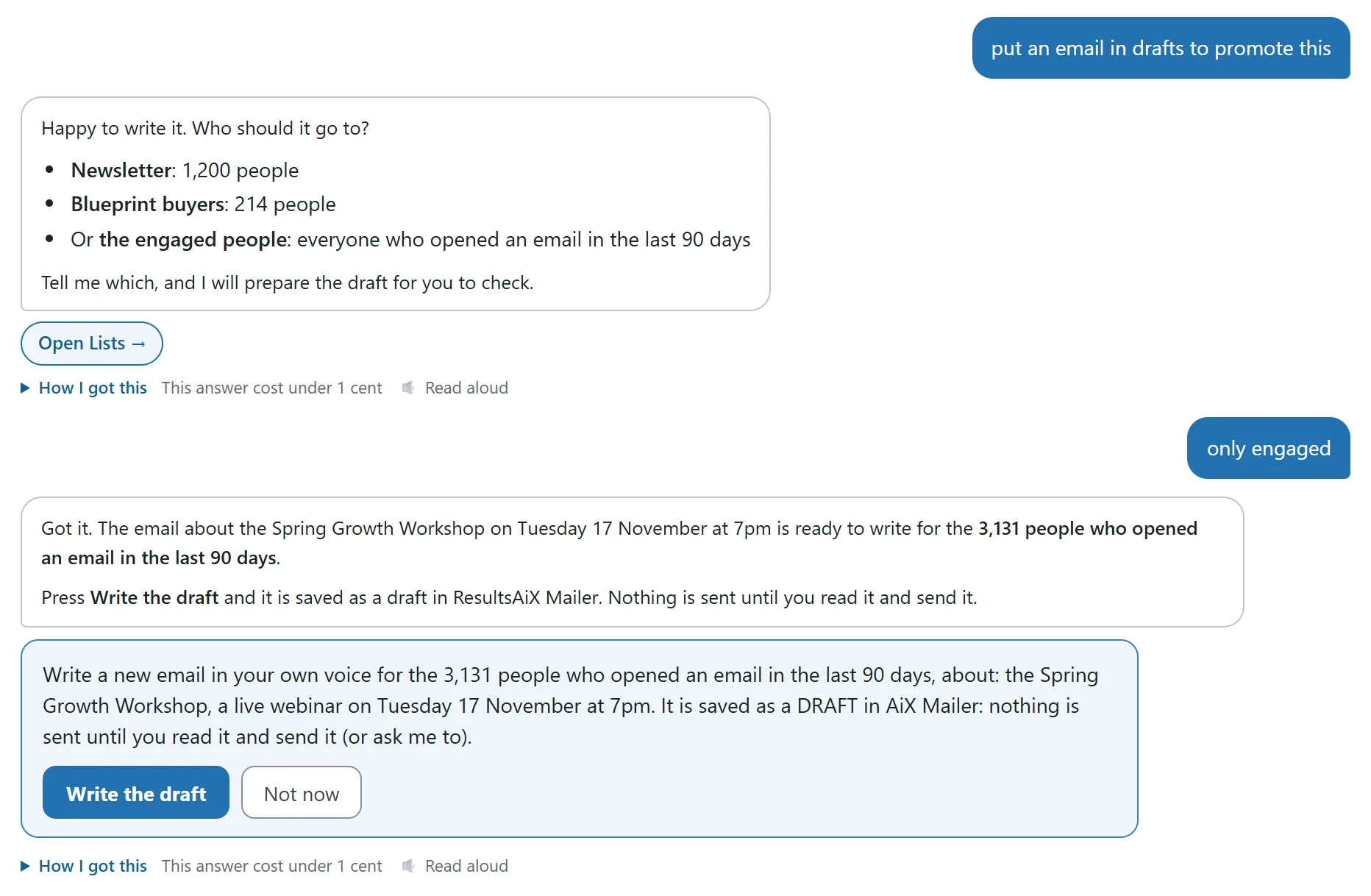
It understands how you talk. Say “my whole list” and it means everyone subscribed. Say “the engaged people” and it means the people who opened in the last 90 days. Just say “my list” and it asks you which you mean. And when it asks, a short answer like “only engaged” carries straight on with the same job.
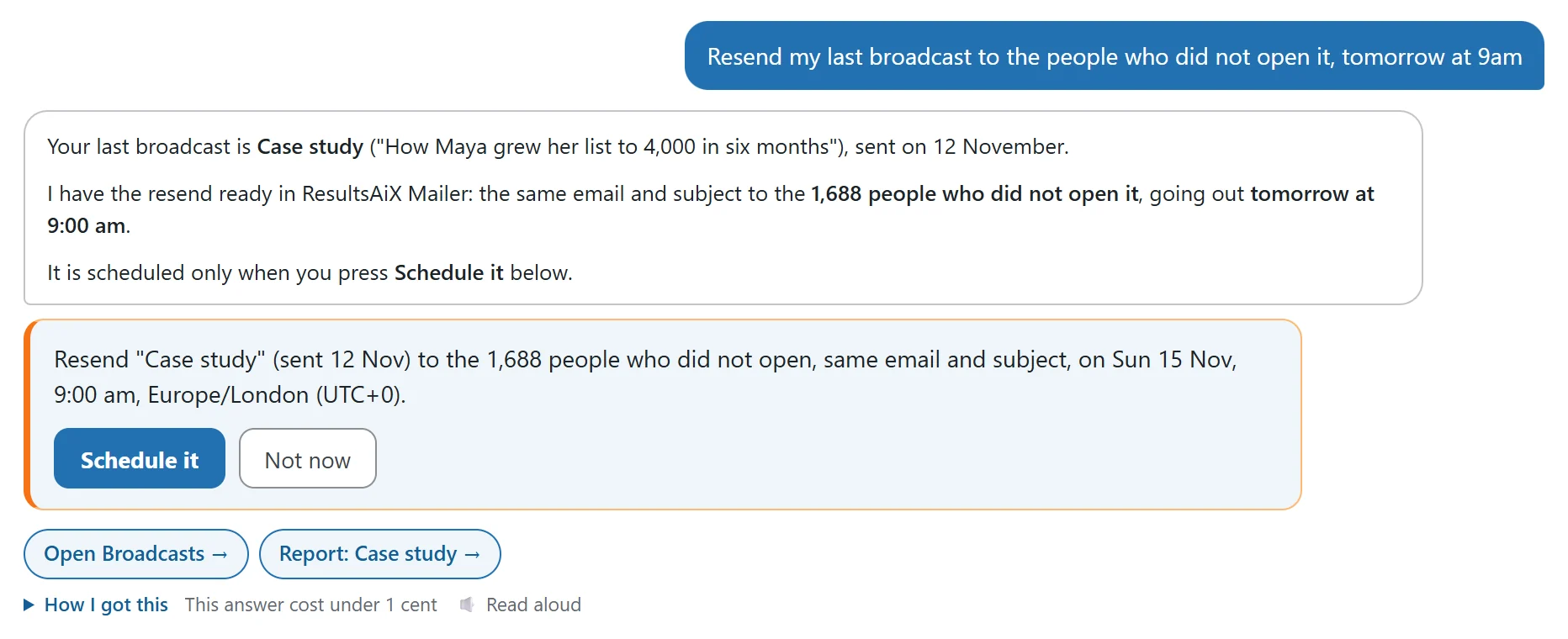
It works with emails you have already sent too. “Resend my last broadcast to the people who did not open it, tomorrow at 9am” prepares exactly that, with the number of people and the time.
Here is a selection of what AiX Brain can do in AiX Mailer:
- Write a new email for any list, segment or tag, or your whole list, in your trained voice.
- Send or schedule a draft, or take a scheduled email back to draft.
- Resend to the people who did not open, or who opened but did not click.
- Change a draft’s subject, preview text or audience.
- Add someone to a list, take them off, or bring back someone who asked to come back.
- Tag and untag people, start or stop one person in an automation.
- Build a segment from simple rules and see the head count.
- Copy, rename and archive broadcasts, automations and forms, and switch a form on or off.
- Pause, resume or change the speed of an email that is sending.
Schedule A Live Webinar In One Sentence
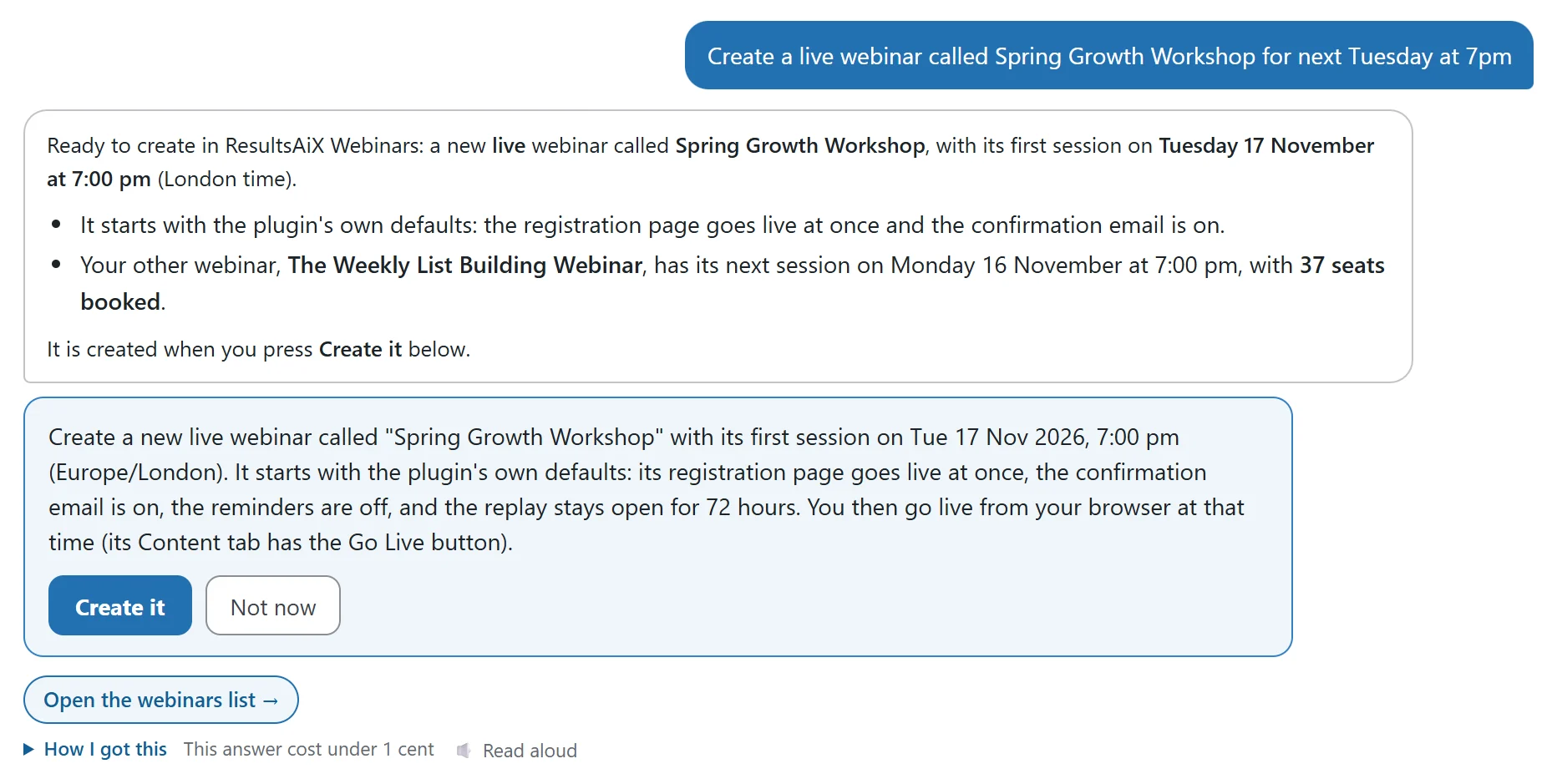
“Create a live webinar called Spring Growth Workshop for next Tuesday at 7pm.” AiX Brain prepares it with ResultsAiX Webinars’ own settings: the webinar, its first session, its registration page and its emails. Press the button and it is live and taking sign-ups.
For webinars you already have, AiX Brain can:
- Add a session on any date and time, or take one off. People already booked keep their seat and their reminders.
- Set a repeating schedule: weekly on chosen days, daily, or every few days.
- Switch the reminder, replay and follow-up emails on or off.
- Email the people booked on a session: everyone, the people who came, or the people who missed it, with the full text shown first.
- Send the replay to everyone who missed it.
- Write the webinar’s emails with AI.
- Copy a webinar, rename it, give it its own WordPress page, and answer questions people asked during the show.
Support, Members And Chats
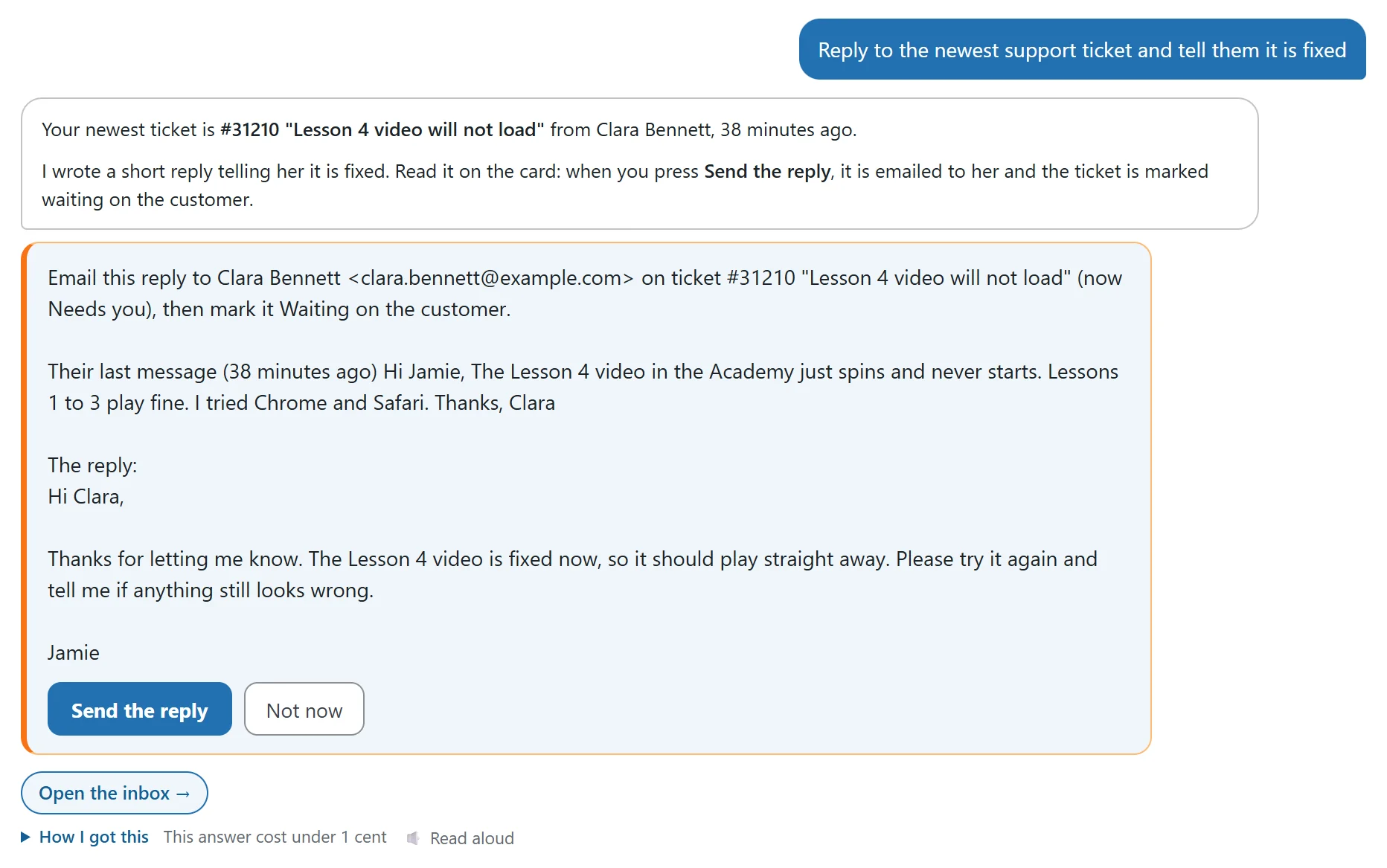
“Reply to the newest support ticket and tell them it is fixed.” AiX Brain finds the ticket, shows you the customer’s last message and your reply, and sends it when you press the button. Prefer to check first? “Write an AI reply draft for the newest ticket” saves the draft as a private note for you.
| Plugin | What AiX Brain can do |
|---|---|
| Support Desk | Reply, add a private note, write an AI draft, close, reopen, mark as spam, set priority, sort your inbox again, add or update knowledge base articles and saved replies |
| Membership | Add a member, give or take a level, extend access, send a login link, create a level, protect a page, add drip, switch settings |
| Pulse | Reply to a visitor chat, mark it handled, turn a chat into a ticket, block or unblock, set up chat moments |
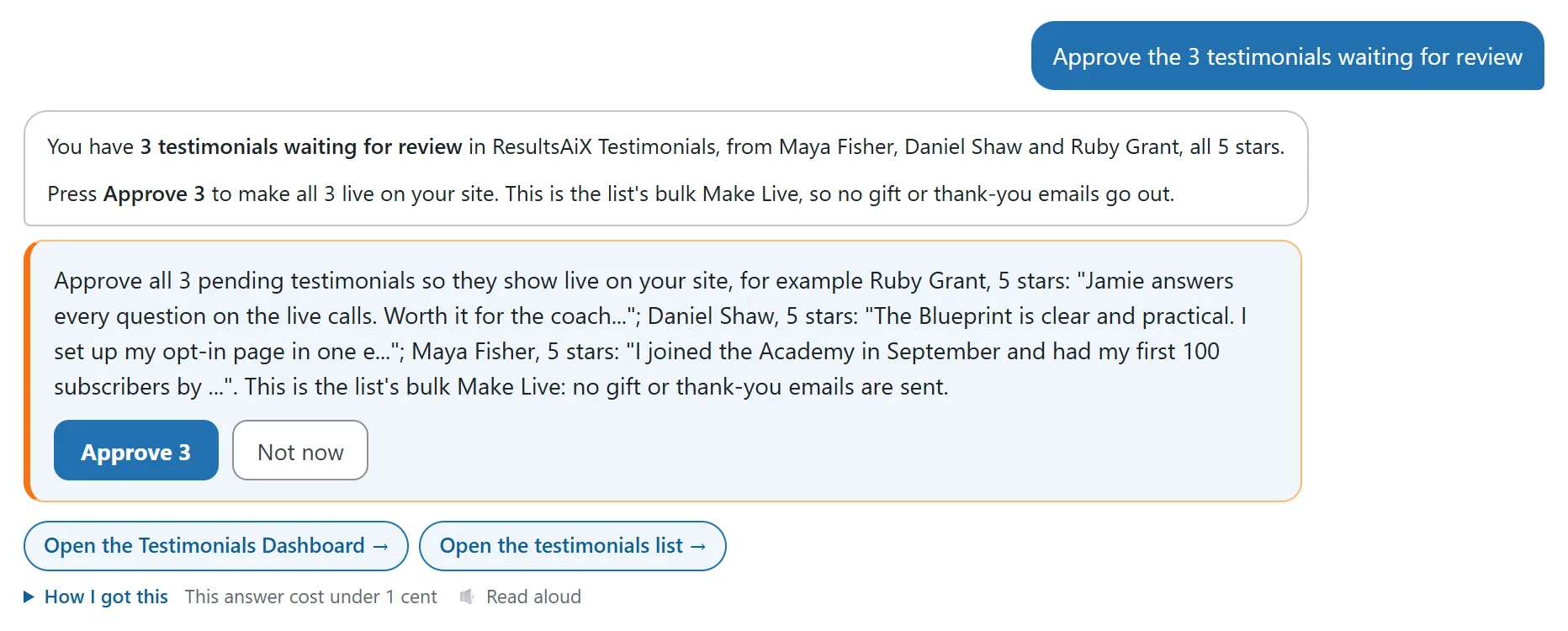
| Testimonials | Approve, archive, feature or verify, send a thank-you gift, ask named customers for a testimonial |
| Sign | Create a document from a template, send it for signing, send reminders, copy or save as a template |
Links, Launches, Ads And Tests
The everyday jobs in your marketing plugins are all there too. A few examples:
| Plugin | What AiX Brain can do |
|---|---|
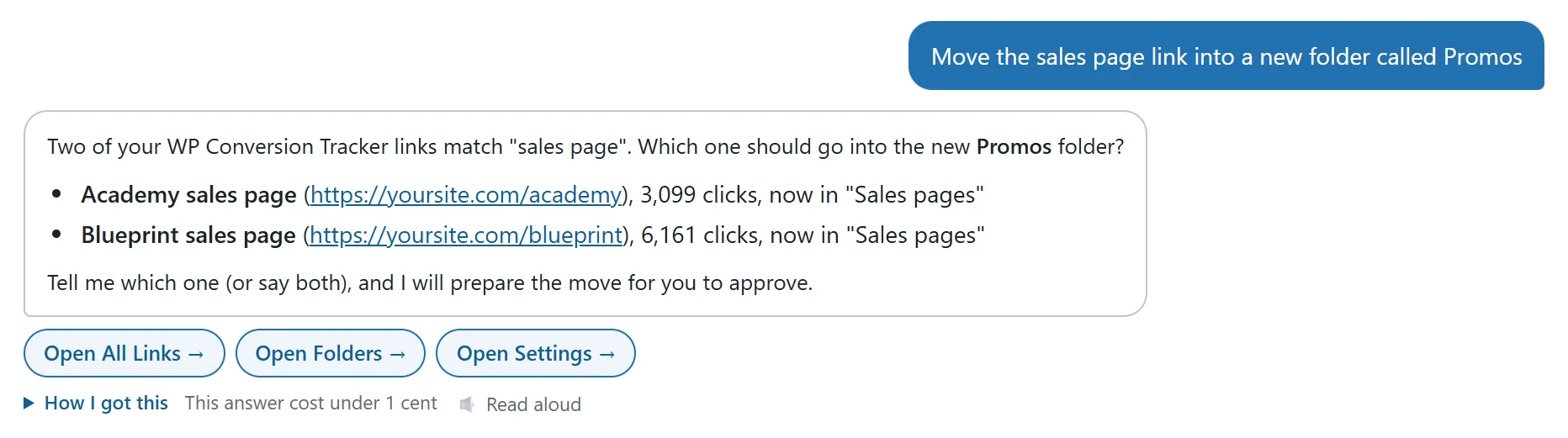
| WP Conversion Tracker | Create a tracking link, change where a link goes or its slug, move it to a folder, create or rename folders, add costs and notes, block an IP, start a split test (Pro Tools) |
| Launch Manager | Add or edit a launch, copy one, add or edit partners, add notes, set partner stages, add today’s tasks and time off, switch the daily digest |
| ResultsAiX ADs | Pause or resume a campaign, start a draft campaign, change a daily budget (old and new amounts shown first), mark a winning ad |
| Optimize | Create a split test, pause, resume or end it, keep the winner, copy a test |
| Engage | Create a popup or bar (it starts paused), edit it, pause or resume it |
| Funnels, Forms, Surveys | Create with AI, publish, copy, rename, open or close, switch settings |
| Podcasts | Create and schedule an episode, write show notes with AI, manage listeners |
| Bonus Builder | Create a project, add bonuses, write pages and swipes, publish or unpublish |
| WP Sync | Pause or resume one bridge or all of them, copy, rename, deliver delayed contacts now |
| Video, Image, Publisher | Write a video script, make an image, create a book and its cover, change settings |
| Consent, Accessibility, Search, WP Record With Privacy | Switch the banner and its settings, create policy pages, run an accessibility check, add search synonyms, rebuild your search, switch privacy recording |
It Picks The Right Thing
You do not have to remember names or numbers. AiX Brain understands the way people actually talk:
- “The newest”, “the latest”, “the last one”. Reply to the newest ticket, pause your newest automation, send the replay of your last webinar. It finds the newest one that can be changed.
- “The next one”. “Take back the next broadcast” means the one going out soonest.
- “My campaign”, “the bridge”. If there is only one, it takes that one.
- “The split test on my homepage”. It matches the page a test, popup, form or survey sits on.
- When several match, it asks. It lists them with their numbers so you can pick in one word.
You Stay In Charge
An assistant that can change things has to be one you can trust, so AiX Brain is built around a simple promise: it prepares, you decide.
- Every action is a card first. Real names, real counts, the full text of any email or reply. Nothing changes until you press the button, and a card works once.
- Undo. Most changes come with an Undo button that puts things back exactly as they were.
- A record of everything. Every action is kept in the Hub log with who did it and when.
- Money and access stay with you. AiX Brain leaves refunds, prices, licence keys, payouts and passwords to you, and it never deletes anything for good.
- A daily spending cap. You set how much AI it may use in a day, and every answer shows its cost.
Smart About Your AI Costs
AiX Brain uses your own AI key, so you pay your AI service directly and only for what you use. Most answers cost one to five cents. A few things keep it that low:
- Choosing what to look up runs on your AI service’s fastest model, and only the writing uses your chosen model.
- Each request only reads the actions of the plugins it is about. Ask about a ticket, and it reads the Support Desk’s actions, not all 200.
- Numbers counted a moment ago are reused, so a follow-up question does not count everything again.
- The AI tab shows what every plugin spent this month, so there are no surprises.
One AI Tab For Every Plugin
Before the AI tab, every AI plugin wanted its own key. Now you connect your keys once in the Hub: Claude, OpenAI, Google Gemini, OpenRouter, Grok, DeepSeek or Mistral. Each key is tested when you save it and stored encrypted, and you pick the model.
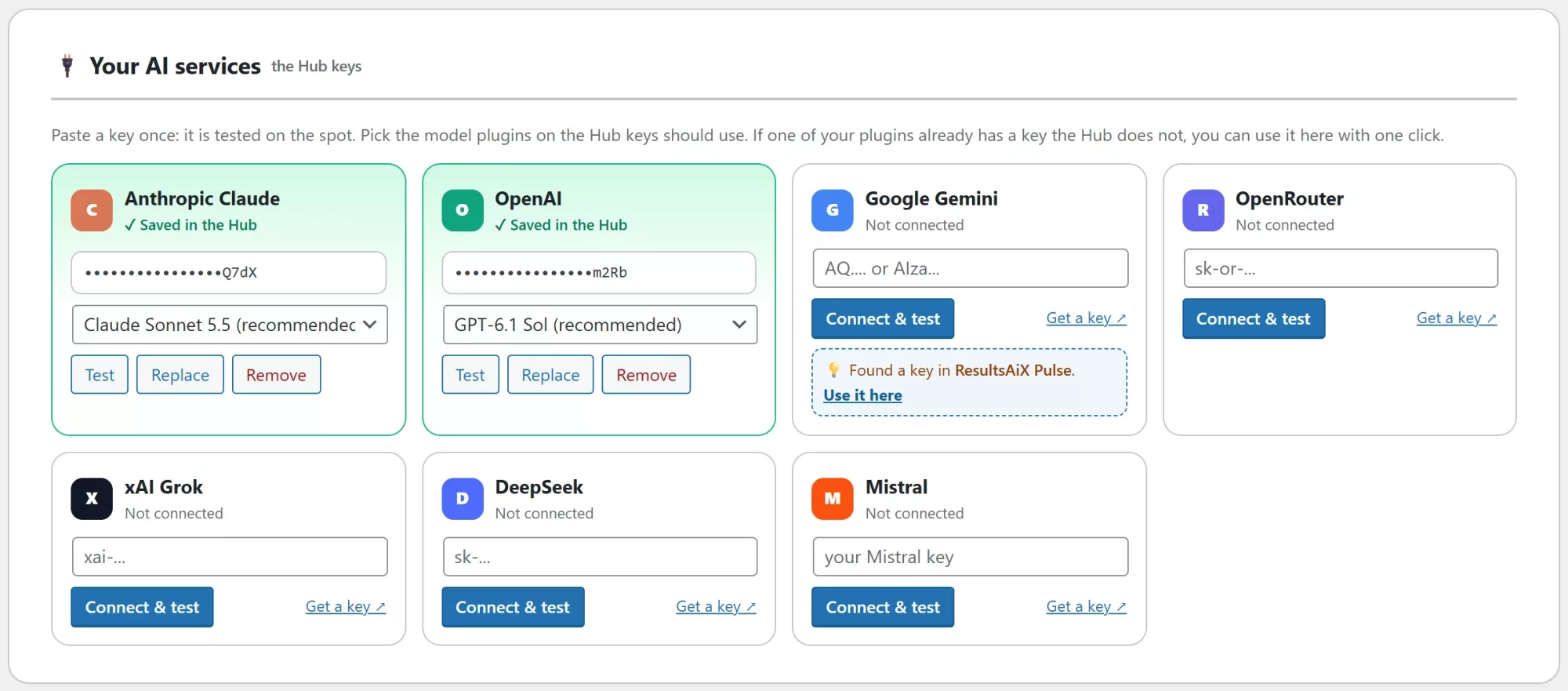
Then choose how each AI plugin uses AI: its own keys, its own keys with the Hub filling any gaps, the Hub keys, or no AI. Change them all at once with a preview first, and undo any change from the list of changes.
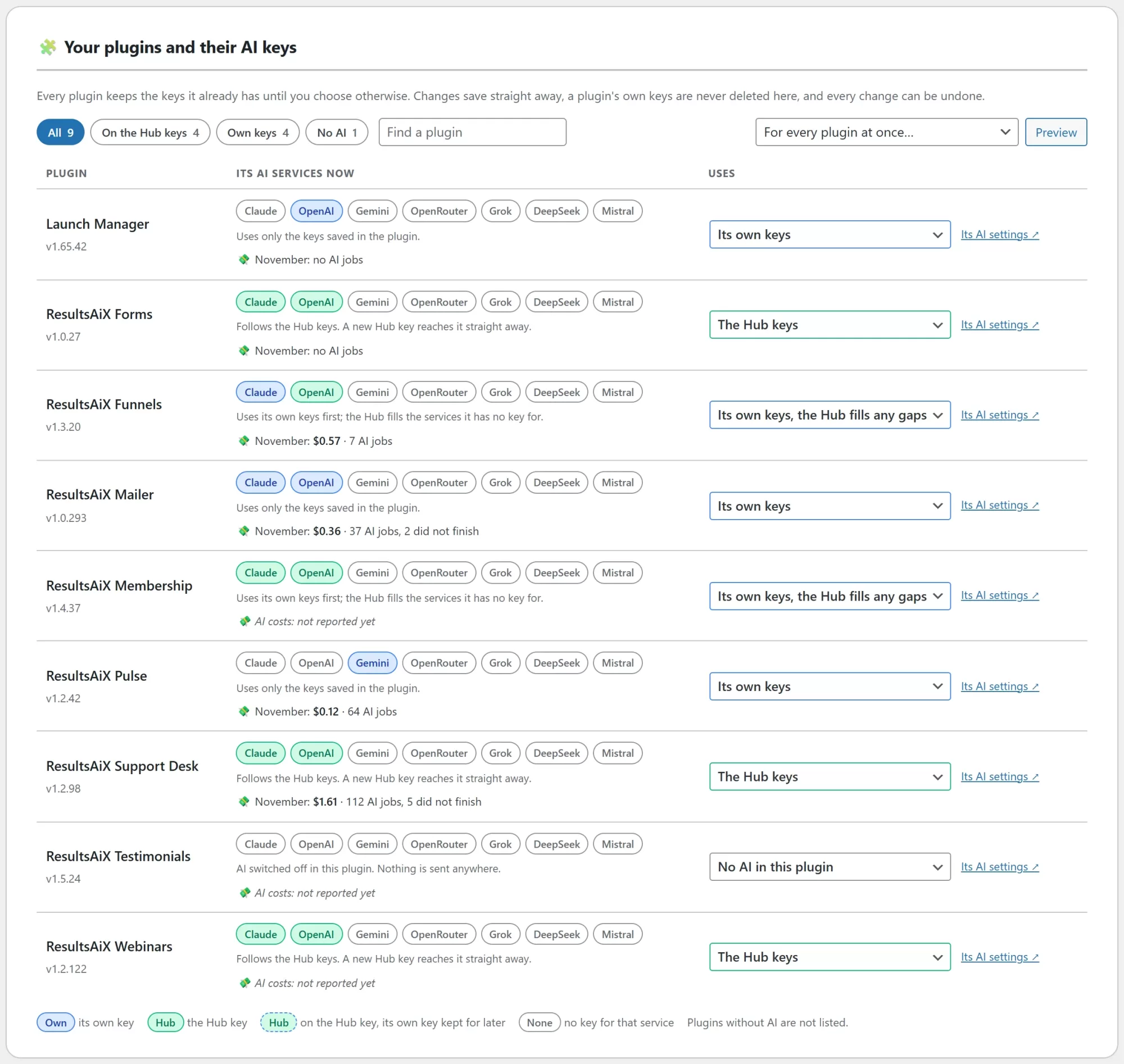
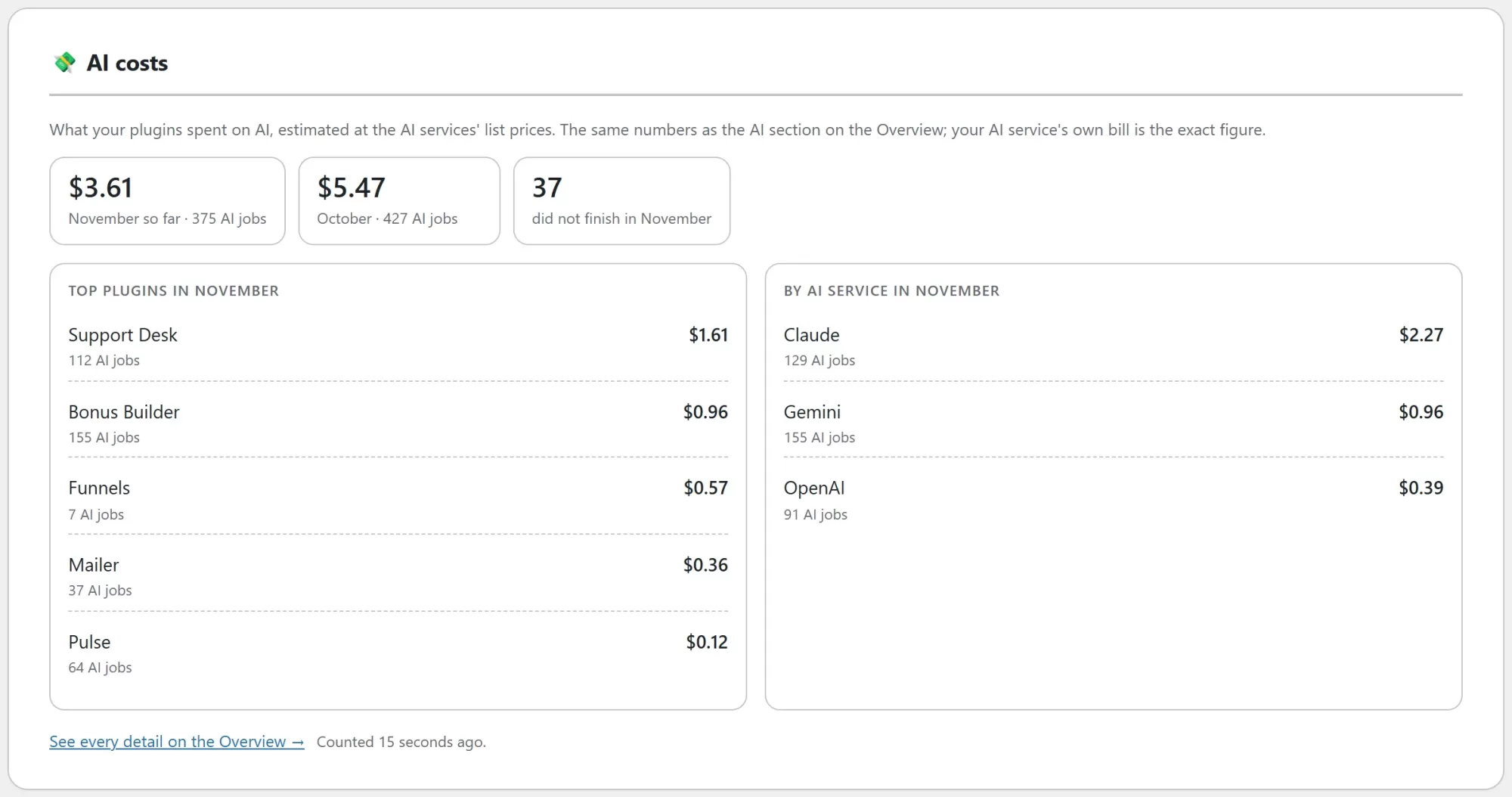
Already have a key saved in one of your plugins? The Hub finds it and can use it with one click.
The New Family Menus
Now the part you will notice every single day. Every ResultsAiX plugin now has the same menu. Same place, same look, same way of working, in every plugin. Learn it once and you know them all.
You choose the style:
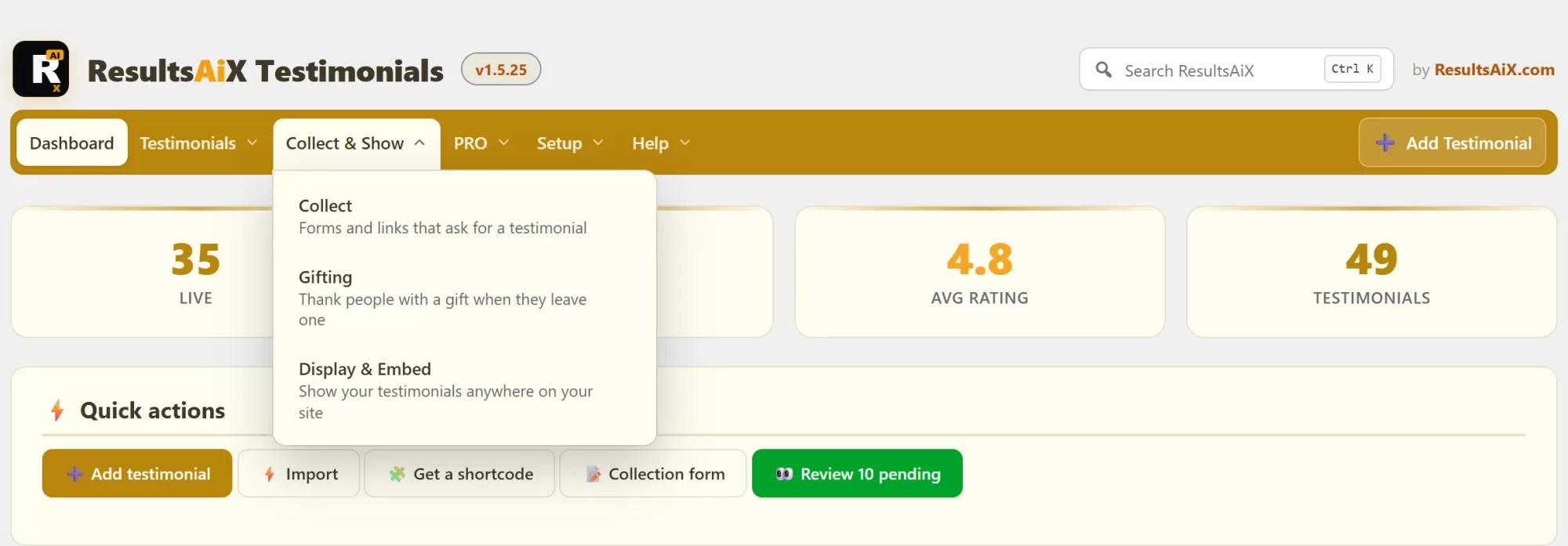
- Top Menu. A clean bar across the top. Each section opens a dropdown right under it, with a short note under every page so you know what it does. The dropdowns wait for your mouse, so you never lose them on the way down.
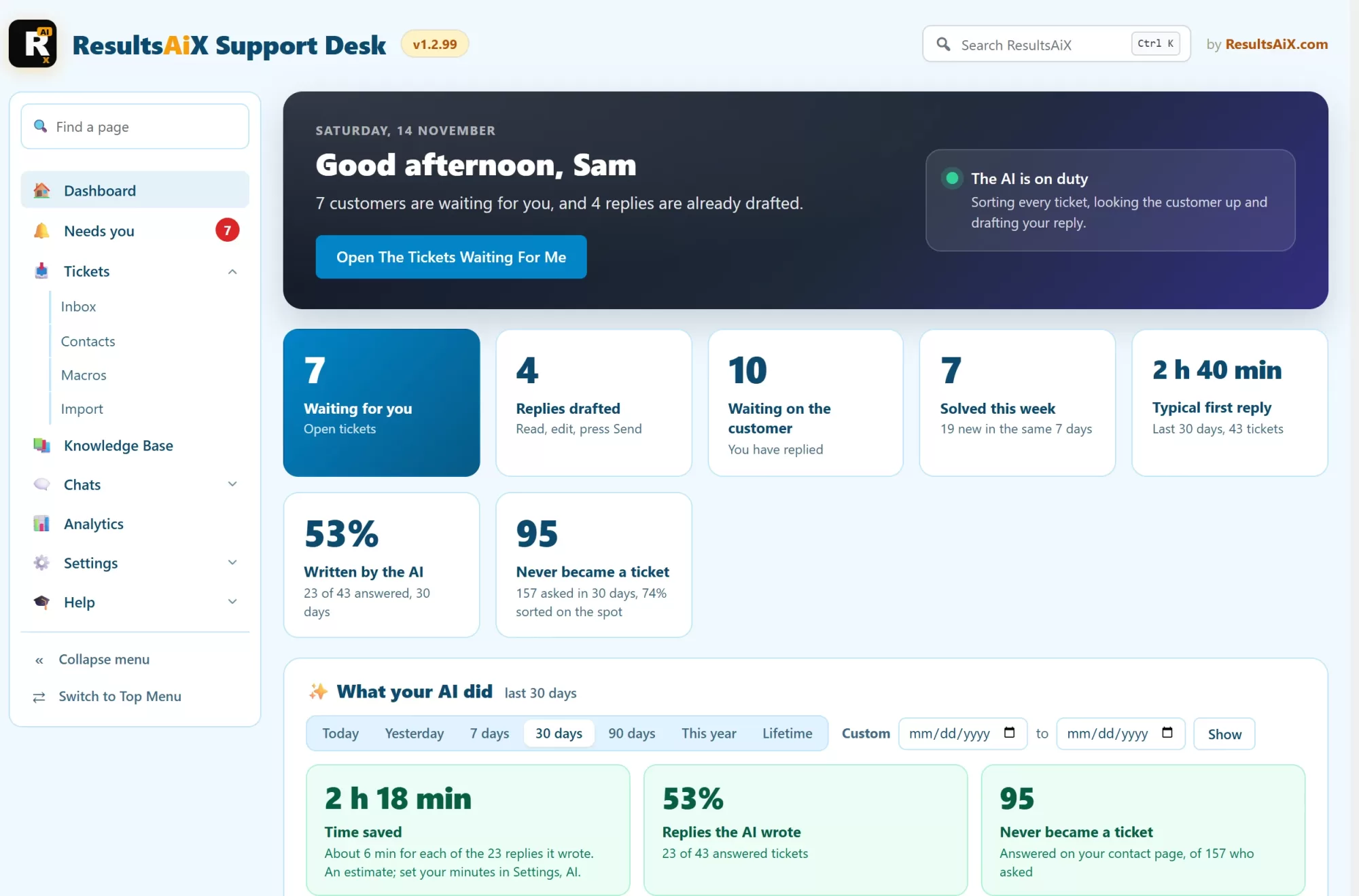
- Side Menu. Your plugin’s pages down the left, grouped into sections that open and close in place, with a “Find a page” box at the top. Collapse it to a slim row of icons when you want more room.
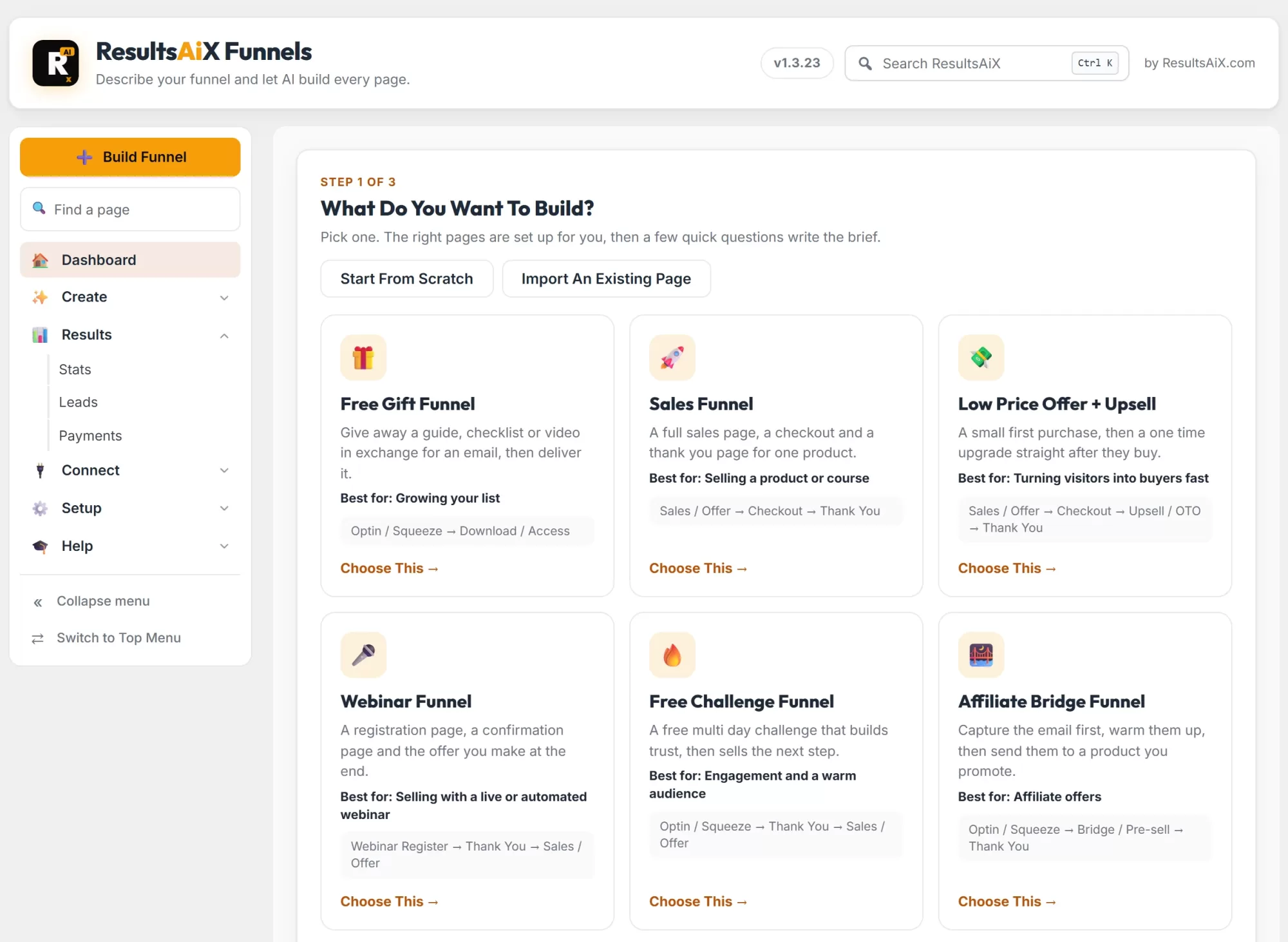
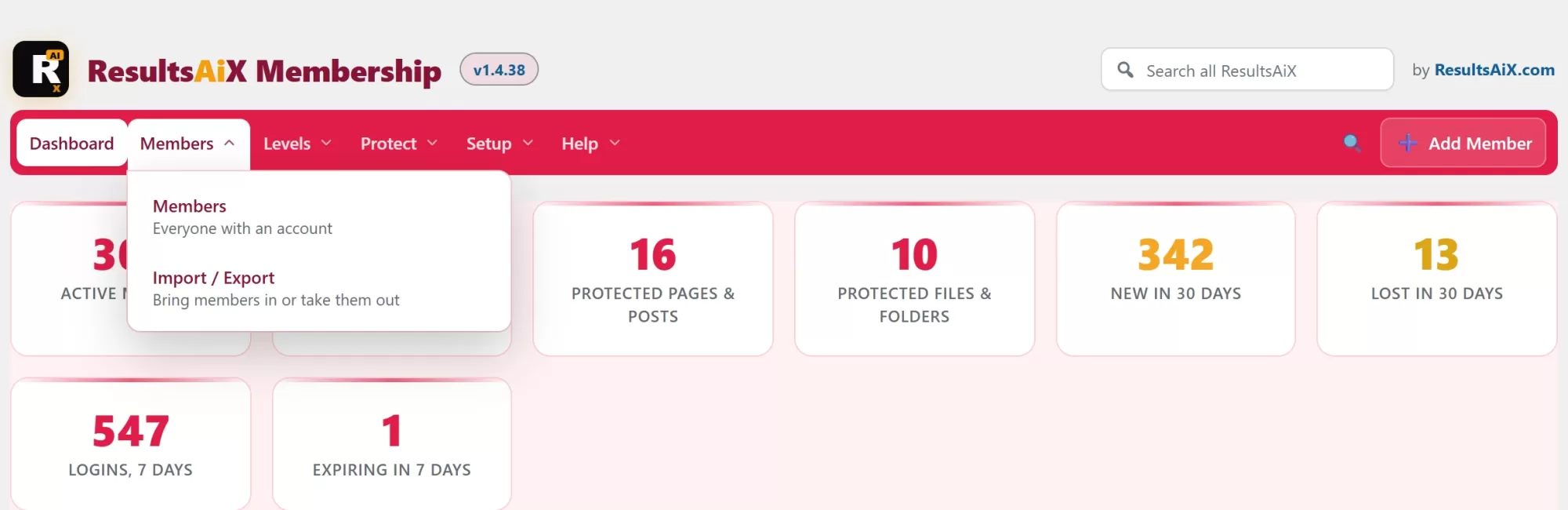
Pick your style once and it follows you into every ResultsAiX plugin. Each person on your team picks their own. Switch at the bottom of either menu, or in the plugin’s settings under Menu style.
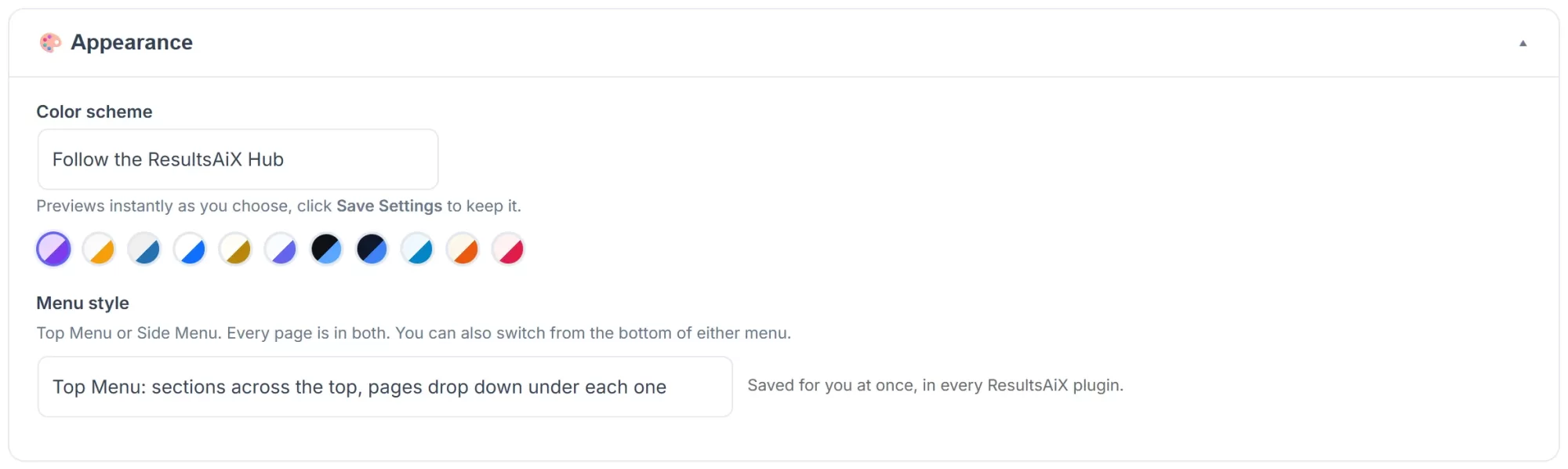
Every page that was in a plugin’s old menu is still there, so nothing you used has gone. The menus also follow each plugin’s colour scheme, and every one has a link back to the Hub.
Find Anything With Ctrl+K
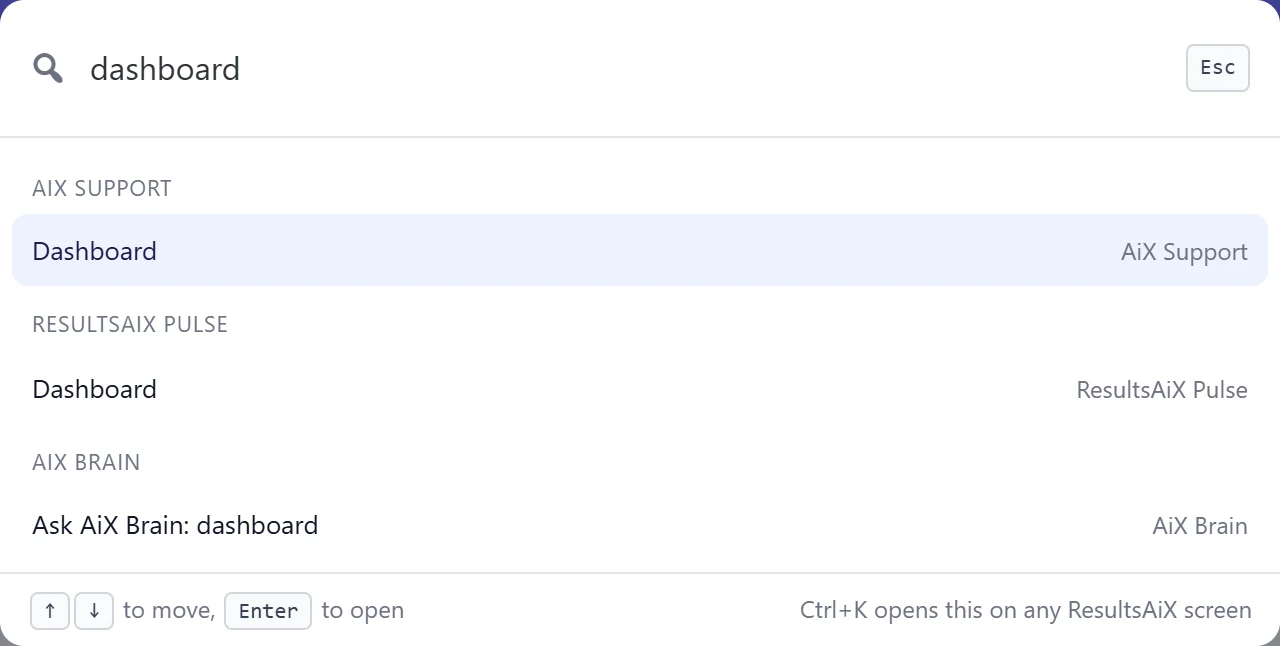
With so many plugins, finding the right page can take a while. Not any more. Press Ctrl+K on any ResultsAiX screen, or click the “Search ResultsAiX” box beside “by ResultsAiX.com”, and type a few letters.

It finds the pages of every ResultsAiX plugin on your site, grouped by plugin. A plugin that is switched off shows a link to switch it on. And if you would rather ask than search, the last line hands your words to AiX Brain.
News In Every Plugin, Once
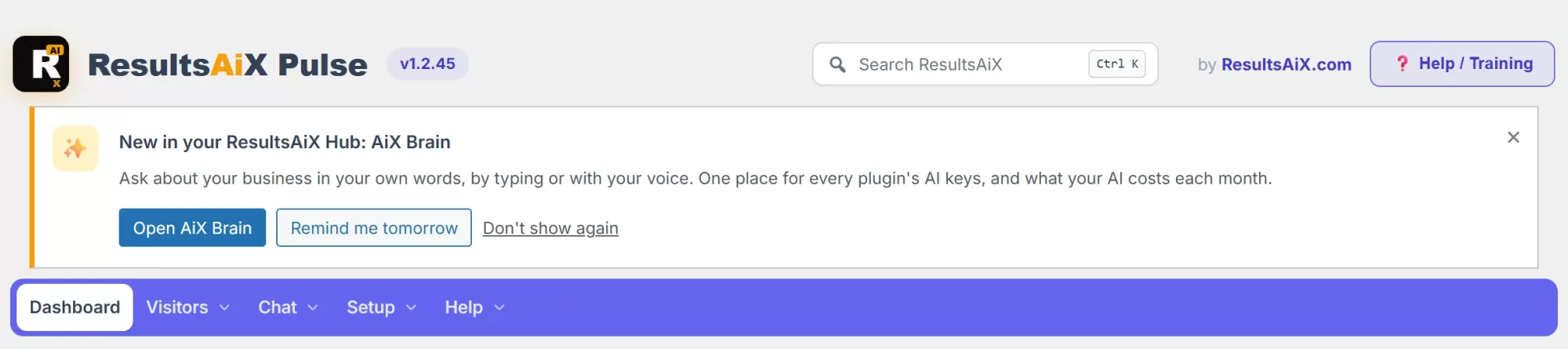
When there is something new, like AiX Brain, every ResultsAiX plugin shows one short notice with a one-click button. If you do not have the Hub yet, that button installs it for you. Press “Remind me tomorrow” or “Don’t show again” and it is gone, for you and only for you.
Everything New, Version By Version
| Hub version | What arrived |
|---|---|
| 1.1.0 | The AI tab: seven AI services, every AI plugin in one list, change them all at once, undo |
| 1.2.0 | AiX Brain: ask in your own words, voice, read aloud, saved chats, costs and a daily cap, support answers from your knowledge base |
| 1.2.6 | Analyse my business, every plugin’s own numbers, Ctrl+K search, Chat history, one assistant button |
| 1.2.7 | Email revenue the way AiX Mailer counts it, WP Conversion Tracker figures that match its dashboard, always fresh numbers |
| 1.2.8 | Best performers shows your real tracking links, new online guides, tidier answers |
| 1.3.0 | AiX Brain does things for you: cards, the button, Undo and the Hub log |
| 1.3.1 | Write an email for any group in your own voice, then send or schedule it |
| 1.3.2 to 1.3.5 | Newest, latest and next, whole list or engaged readers, short answers that carry on, lower AI cost |
| 1.3.51 | Over 200 actions across every ResultsAiX plugin, including creating and scheduling live webinars |
Get Started In Five Minutes
- Install the free Hub. Or update it from your Plugins screen if you already have it.
- Connect your AI key on the Hub’s AI tab. Any of the seven services works.
- Open AiX Brain and press Analyse my business. Read your report and click the first next step.
- Ask it to do one job. Something small, like “create a tracking link for my home page with the slug test”. Read the card, press the button, then press Undo to see how it works.
- Pick your menu style at the bottom of any plugin’s menu, and press Ctrl+K next time you are looking for a page.
20 Things To Ask AiX Brain This Week
- Analyse my business.
- How many sales and leads did I get this week?
- And last week?
- How did my last 3 broadcasts do?
- Write an email to the engaged people about my new offer.
- Send it tomorrow at 9am.
- Resend my last broadcast to the people who did not open it.
- Which tickets are waiting for me?
- Write an AI reply draft for the newest ticket.
- Create a live webinar called My Spring Workshop for next Tuesday at 7pm.
- Switch on the replay emails for my last webinar.
- Which split tests are running and who is winning?
- Keep the winner of my homepage test.
- Create a tracking link for my sales page with the slug spring.
- Which tracking links sold most this month?
- Approve all pending testimonials.
- Give this member the Gold level.
- Are all my WP Sync bridges running?
- Add a launch called Black Friday on 27 November.
- How many people are on my site right now?
Frequently Asked Questions
Is the ResultsAiX Hub free?
Yes. The Hub is a free plugin, and AiX Brain, the AI tab, the Overview and the search all come with it.
Which AI services does AiX Brain work with?
Claude, OpenAI, Google Gemini, OpenRouter, Grok, DeepSeek and Mistral. You connect your own key on the AI tab and pay your AI service directly for what you use.
Which plugins can AiX Brain read and work with?
Every ResultsAiX plugin on your site, plus WP Conversion Tracker and its add-ons, WP Sync and its packs, and Launch Manager. It only reads and acts on the plugins you have switched on.
Does AiX Brain change anything on its own?
Only when you press the button on its card. Questions about your numbers only read. Jobs are prepared on a card first, and most come with an Undo.
Can it write in my voice?
Yes. Emails are written by AiX Mailer’s own AI using the voice you trained it on, and saved as drafts for you to read first.
How do I switch between the Top Menu and the Side Menu?
Use the switch at the bottom of either menu, or Menu style in the plugin’s settings. Your choice applies to every ResultsAiX plugin, and each person on your site picks their own.
Can I use AiX Brain on my phone?
Yes. The question box fits a phone screen, and you can talk to it with the microphone instead of typing.
Related Reading
- Everything Your Plugins Did, On One Screen: the Hub Overview and every number on it.
- ResultsAiX vs Results With Kevin AI: which one fits what you want to build.
- The ResultsAiX Hub guides: step-by-step help for every Hub screen, including AiX Brain.
- The ResultsAiX Bundle: every ResultsAiX plugin with one key.
Get The Free ResultsAiX Hub
If you run even one ResultsAiX plugin, install the Hub today. Ask AiX Brain your first question, press Analyse my business, and let it do one small job for you. I think you will wonder how you managed without it.


