
The ResultsAiX Theme Is Here

You’ve got the ResultsAiX Theme, or you’re thinking about it, and you want to know what the first afternoon looks like. This is it, step by step: from a fresh install to a site with real pages, a trained AI, a first post and a publishing schedule.
I’ve kept it in the order I’d do it myself. For the full list of what the theme can do, read the complete feature guide.
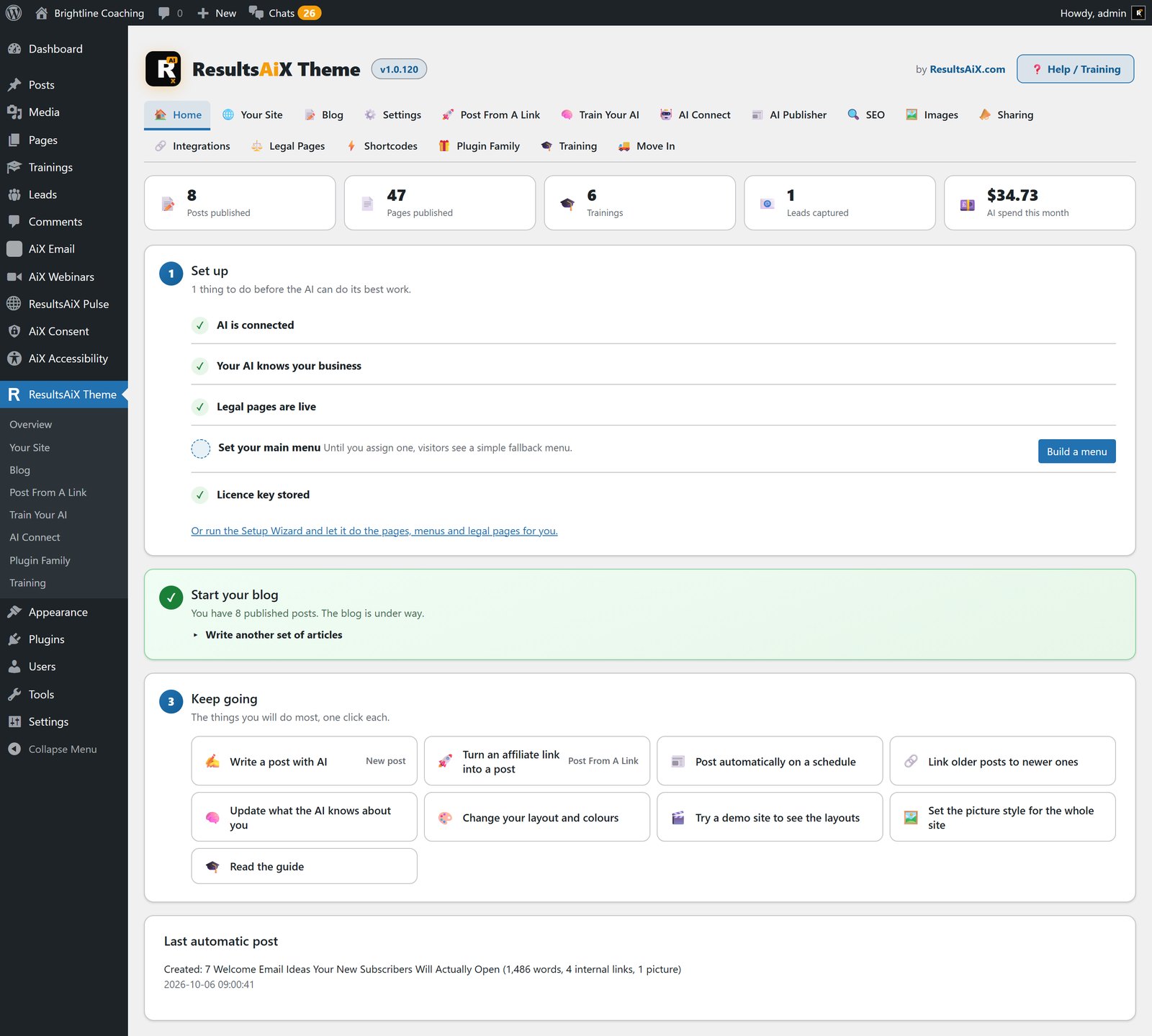
Before You Start
You need a WordPress site running WordPress 6.0 or newer on PHP 7.4 or newer. That’s it for the technical side. It helps to have three things to hand: your business details for the legal pages (name, address, contact email, and company and tax numbers if you have them), an AI key from Anthropic, OpenAI or Google if you want the writing features, and the addresses of the offers you want the AI to point people at.
Switching an established site rather than starting fresh? Run the free Theme Switch Audit plugin first. It lists what your old theme leaves behind, so nothing surprises you afterwards.
Step 1: Install It And Add Your Licence
Your licence key and download arrive by email when you order. Install the theme the normal way, under Appearance, Themes, Add New, Upload, and activate it. Then paste your key into the licence panel in the theme’s own screens. One key covers three of your sites, and you can move a site off and another on whenever you like.
Updates arrive in your normal WordPress updates screen from then on, one click like any other theme.
Starting with the free edition? That works too. It’s the same code with the AI left out, and when you move up, the full theme installs over it and keeps everything you’ve set.
Step 2: Run The Setup Wizard
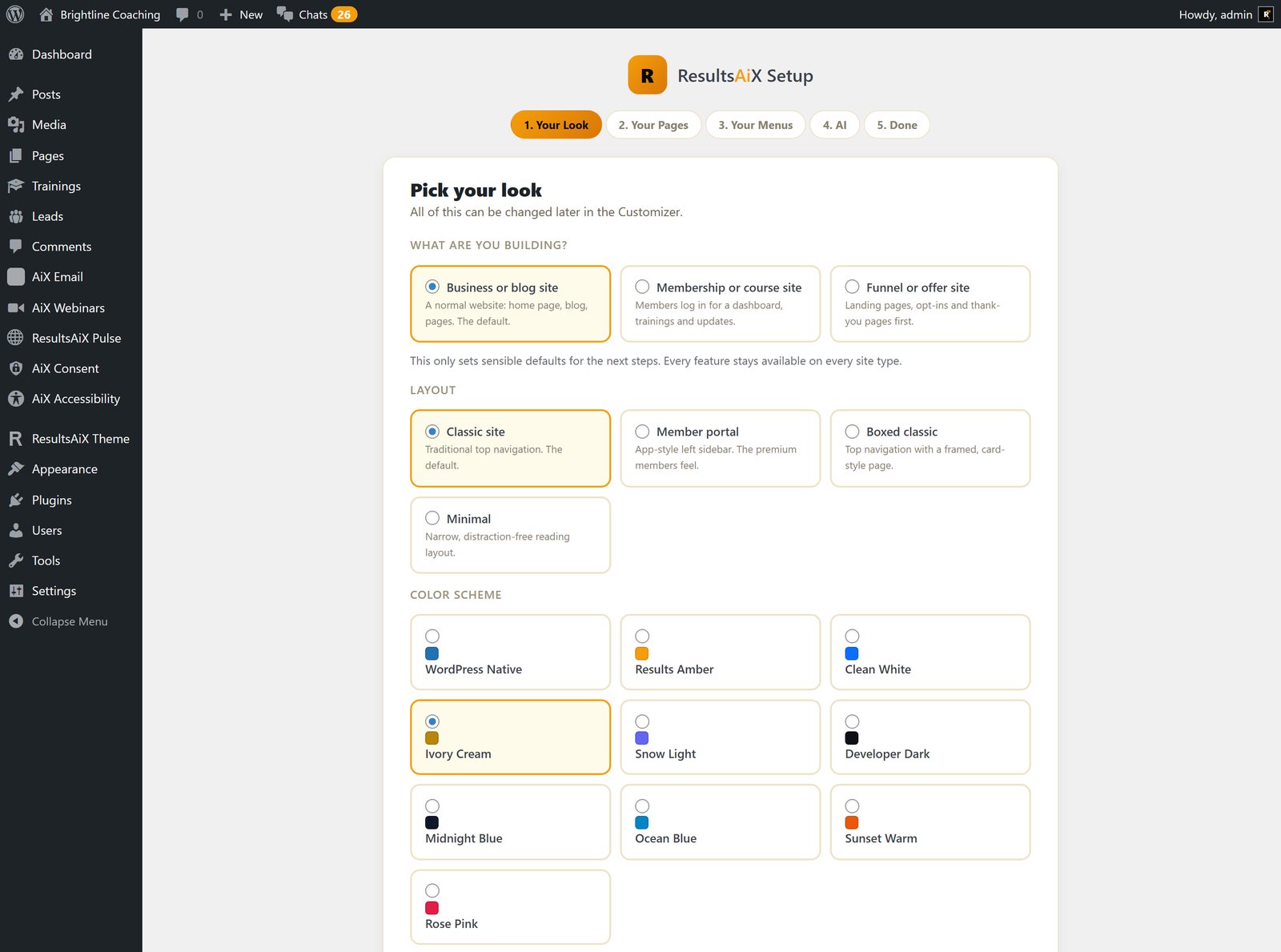
The wizard asks one question first: what are you building? A business or blog site, a membership or course site, or a funnel site. Answer it and the theme creates your pages, your menus and your legal pages, with the right layout already chosen. It asks which login page layout you want too.
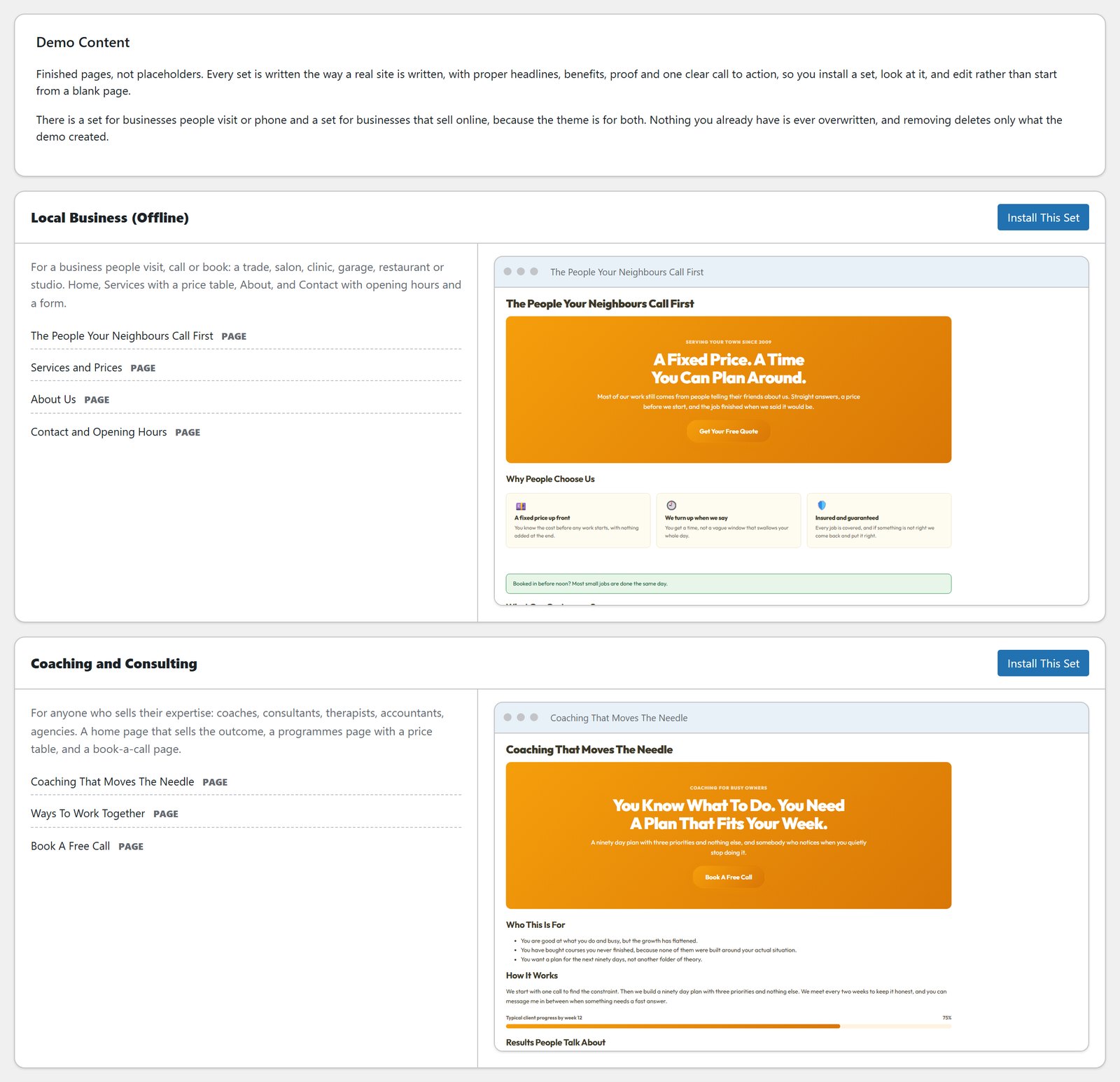
If you’d rather see a finished site before you make your own, install one of the six demo sets: local business, coaching, online business, membership, funnel or blog. Real pages, real menus and real wording you can edit. Remove Demo Content takes out only what the demo created, and anything you’ve edited is left alone.
Step 3: Pick Your Layout And Colour Scheme
Open Appearance, Customize, ResultsAiX Theme. There are four site layouts: classic with top navigation, the app-style member portal with a left sidebar, boxed, and minimal. Then ten colour schemes. Pick one and override any single colour you want.
While you’re there, choose a page width, a corner style and a blog layout: list, card grid, magazine or classic. Your visitors can switch the blog view themselves, so don’t agonise over it. Any single page can pin its own layout later from the ResultsAiX Layout box on its edit screen.
Step 4: Connect Your AI Key
Paste a key from Anthropic, OpenAI or Google and press Test Connection. A key that works is saved there and then. You can add a backup provider and choose separately who draws your pictures, so you can write with one and draw with another. You pay the provider directly, at their price.
No key yet? Every non-AI part of the theme works without one, and the AI buttons stay hidden until you add it.
Step 5: Train Your AI On Your Business
This is the step that makes everything after it sound like you, so give it ten minutes. On the Train Your AI tab, fill in what you sell, who you sell to, how you talk and the words you never use. Or paste your website address and let it read your own pages and fill the brief in for you. Then correct whatever it didn’t quite get.
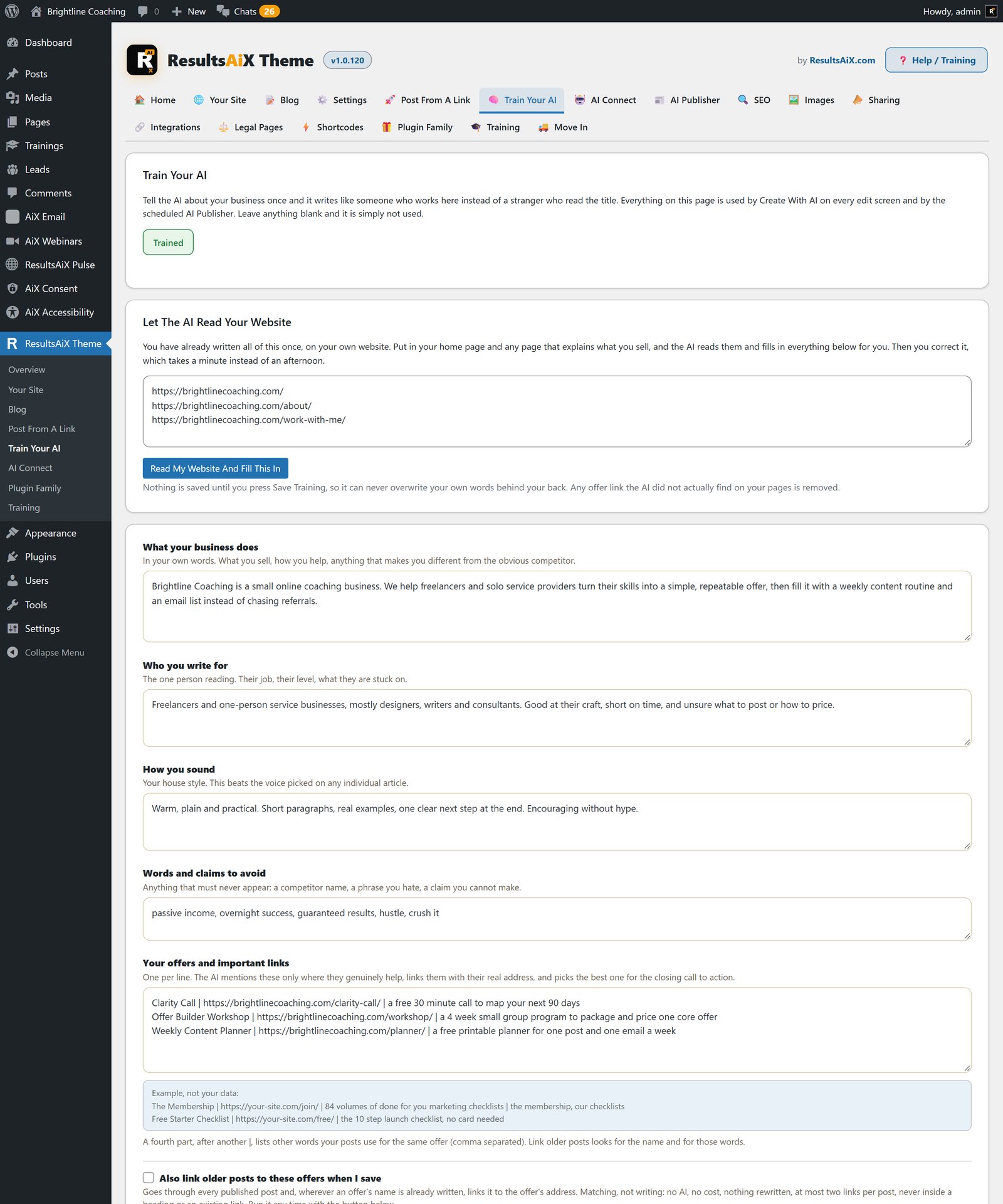
Add your offers with their real links. That list is what the AI is allowed to mention, so every call to action it writes points at a page that exists. Then set your house picture style and press the sample button to see one test picture before you commit.
Step 6: Write Your First Post With Create With AI
Open Posts, Add New, type a working title and press the gold Create With AI button. Type a line about what you want, or press Talk and say it. Blank mind? Give Me Ideas suggests eight articles based on your business, and one click turns any of them into the brief.
Choose the length and voice, add a target keyword if you have one, tick pictures, internal links and an FAQ, and press Write Full Draft. You’ll get a finished article with headings, pictures in your media library, links to your own posts, a category from the ones you already use, and the SEO title and description filled in. Press Preview to see it the way a reader will. Read it, change what you want, and publish.
Got an empty blog? Auto Start My Blog plans three to ten articles in one go, shows you the plan first, then writes them one at a time with pictures, tags and SEO.
Step 7: Try Post From A Link
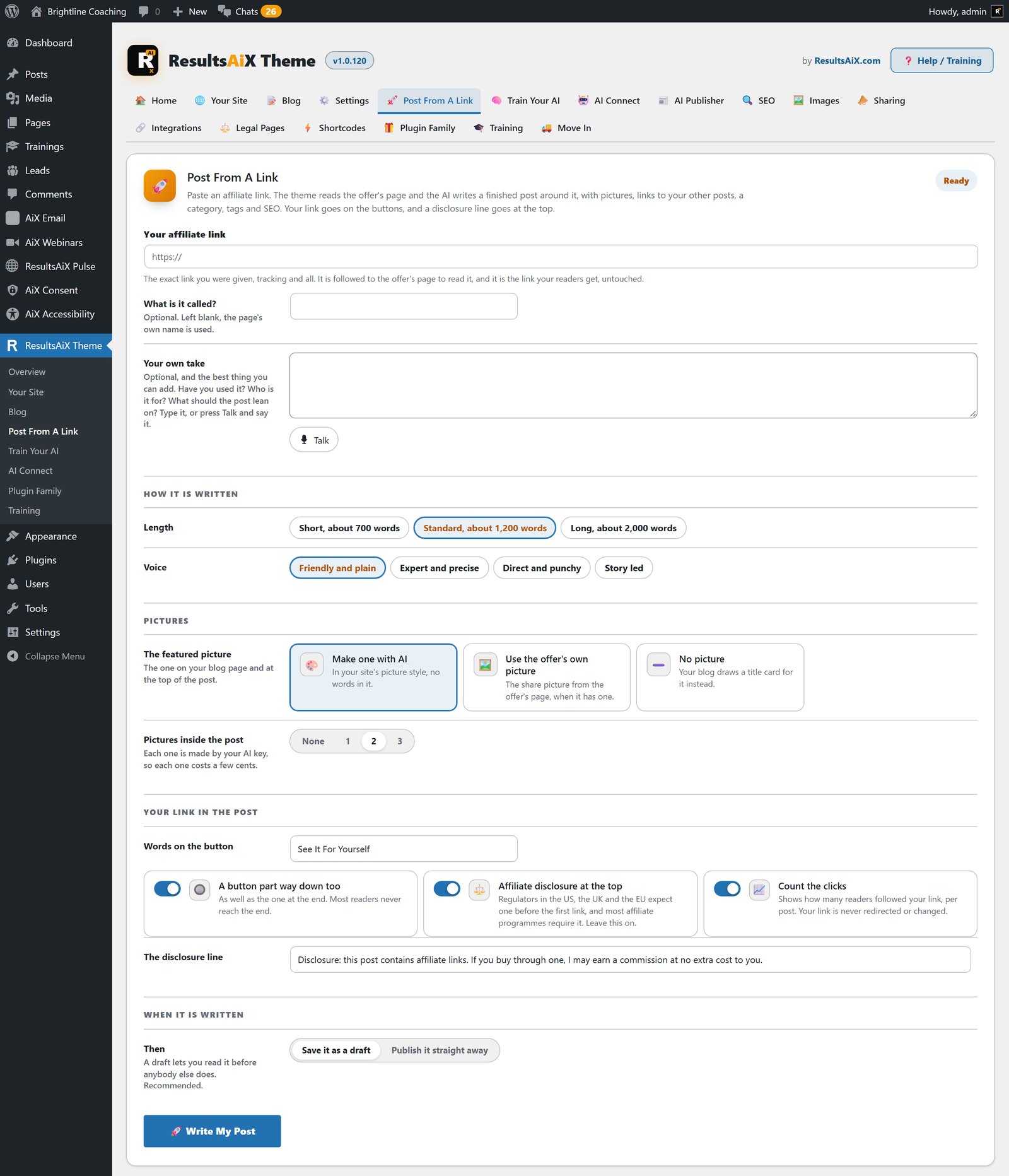
If you promote other people’s products, open the Post From A Link tab and paste an affiliate link, with a sentence of your own take if you like. The theme follows the link to the offer’s page, reads it, and writes the post around it. Your exact link goes on the buttons, marked sponsored, with a disclosure line at the top. It saves as a draft so you read it before it goes live, and it counts the readers each post sends to your link.
Step 8: Put The AI Publisher On A Schedule
Now the part that keeps the site moving when you’re busy. On the Publisher tab, add your topics one per line, choose daily or weekly, and decide whether posts go live or wait as drafts for you to approve. I’d start with drafts for the first week.
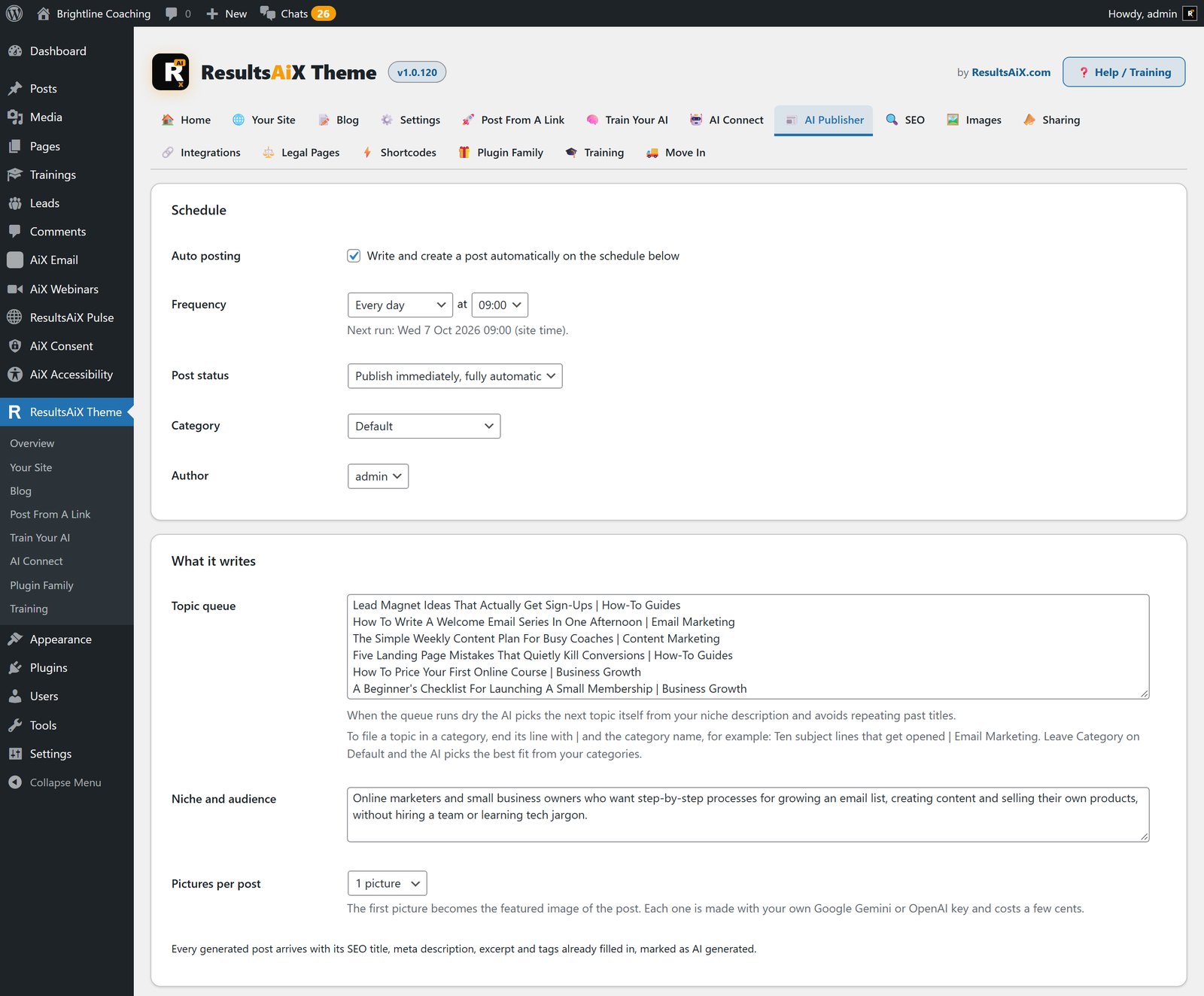
To send a topic to a particular category, add a bar and the category name to the end of its line. Leave Category on Default and the AI picks the best fit from your categories. Choose how many pictures each post gets, from none to three, and tick the featured picture headline if you want a bold hook of a few words on each post’s main picture.
Step 9: Legal Pages And The Cookie Notice
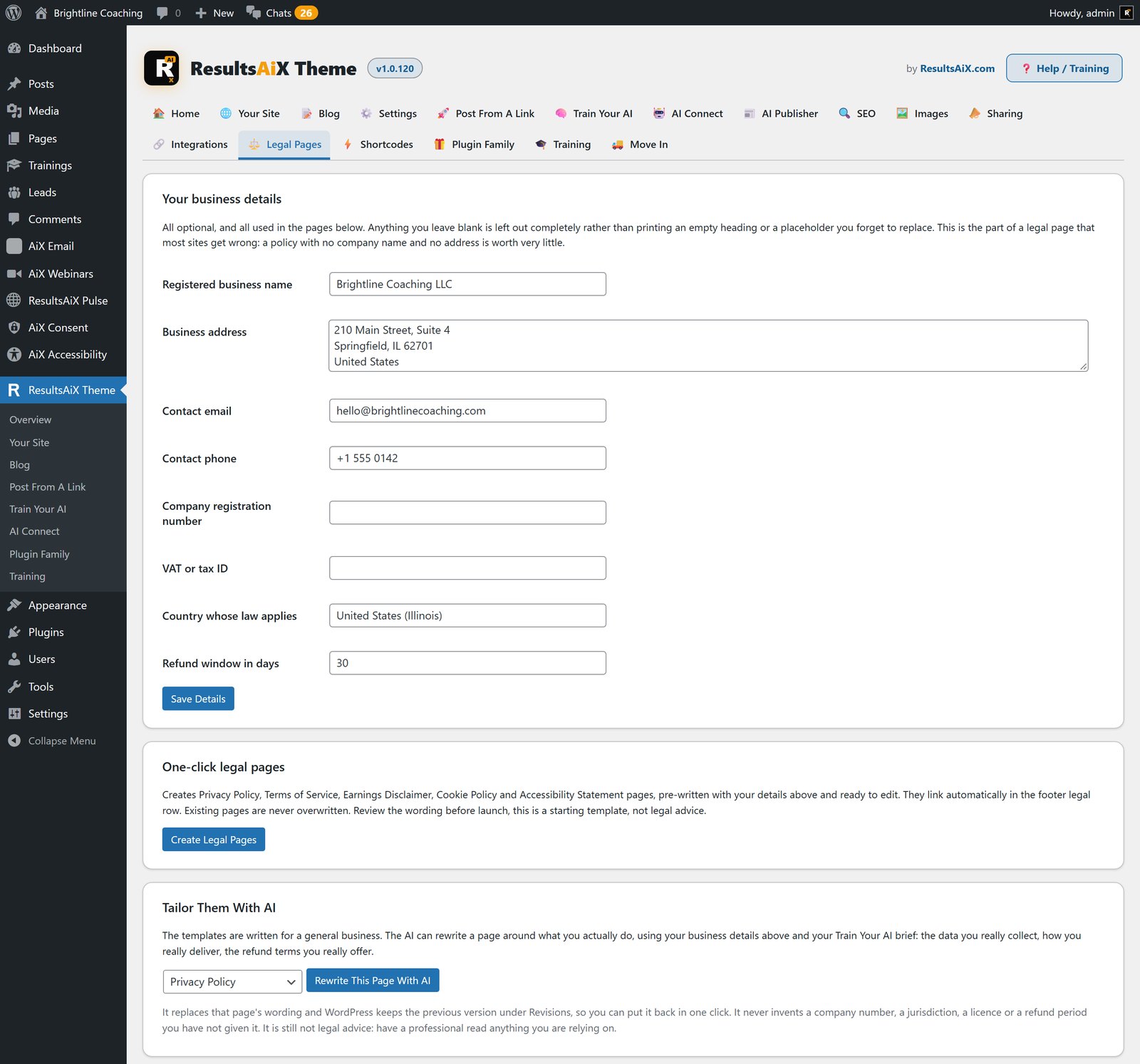
Open the Legal tab and fill in your business details: name, address, contact, company and tax numbers, governing country and refund window. The theme writes your Privacy Policy, Terms of Service, Earnings Disclaimer, Cookie Policy and Accessibility Statement from those details, and AI can tailor each one to what you actually do.
Switch on the cookie notice from the same tab, then press Scan Now. It reads your own pages, finds every cookie and tracker, and writes the table into your Cookie Policy. Add Google Analytics, Tag Manager or the Meta pixel by ID and they wait for the visitor’s consent on their own.
While you’re in the settings, set the name and address WordPress’s own emails come from, so password resets arrive from your business rather than from WordPress.
Step 10: Menus, Footer And Sidebar
The wizard built your menus, so this is tidying. Under Appearance, Menus, adjust the main menu and assign a Legal menu if you want your own. The Manage Cookies and accessibility links are added to the end of it for you.
For the footer, open the Widgets screen and drop in the ready-made patterns: About this site, Join the list, Latest articles, Browse by topic, Search the site or Get help. Put your support page address in the Customizer so the Help link sends people to the right place. The sidebar is off by default. Tick it on in the Customizer if you want one, and any post can show or hide it for itself.
Step 11: Add A Members Area, If You Want One
Skip this if you’re running a blog or a sales site. If you sell training, add your first lessons under the Trainings menu, group them by topic and set the order. Make a page on the Member Dashboard template, and use the signed-in and signed-out blocks to show the right content to the right people.
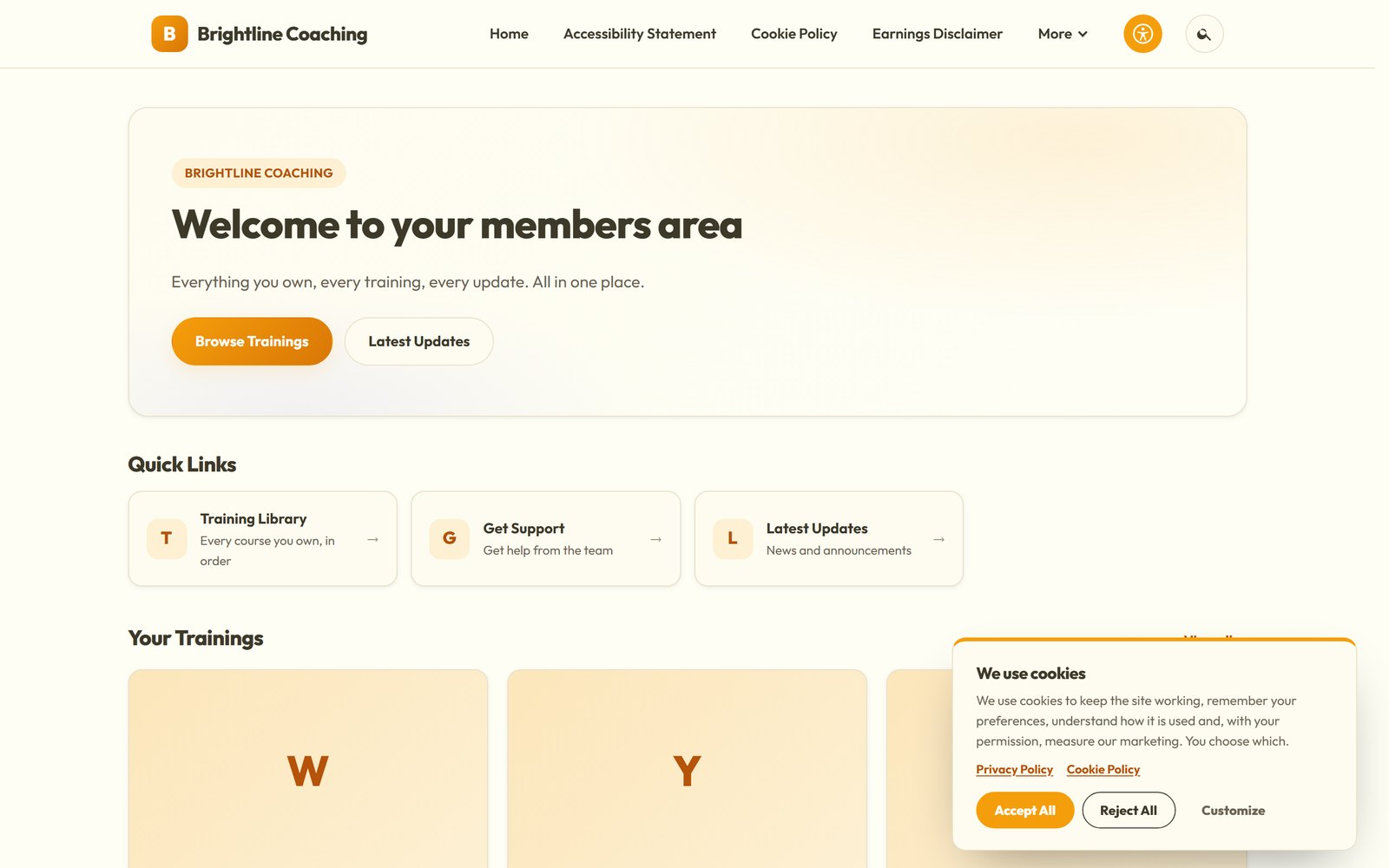
The theme handles the look and the lessons. For levels, protection and payments, pair it with ResultsAiX Membership, or with the membership plugin you already run.
What You’ve Got By The End Of The Afternoon
A site with real pages and menus, legal pages built from your own details, a cookie notice that holds your tracking until it’s allowed, an AI that knows your business, a first post that sounds like you, and a schedule that keeps publishing while you get on with everything else.
When you’re ready to go further, there’s the Accessibility panel with Listen, the Images tab that makes your whole media library lighter, share cards, the sliding banner and plenty more. It’s all in the feature guide, and the theme is also included in the ResultsAiX Bundle with every plugin in the family.
Get Your Site Built This Afternoon
Real pages and menus, legal pages built from your own details, an AI that knows your business and a publishing schedule, all on your own WordPress site.
Every plugin, every update, every plugin still to come
One bundle covers everything mentioned in these updates and everything that ships after them, at no extra charge, running on your own WordPress site.


