
ResultsAiX Mailer Is Now Available

ResultsAiX Mailer is my email marketing platform, and it runs inside WordPress. Your subscribers live in your own database. There’s no per-subscriber bill, no sending cap from us, and no monthly AI fee stacked on top.
This guide is the order I’d set it up in if I were starting again from a blank install. Follow it and you’ll go from nothing to a working form, a running automation and your first broadcast, without a single email going out by accident.
What Mailer Is, And What It Isn’t
Mailer gives you broadcasts, visual automations with triggers, waits and if/else branches, opt-in forms, segments, reports and a full subscriber database. Unlimited subscribers. One flat yearly price that doesn’t move when your list does.
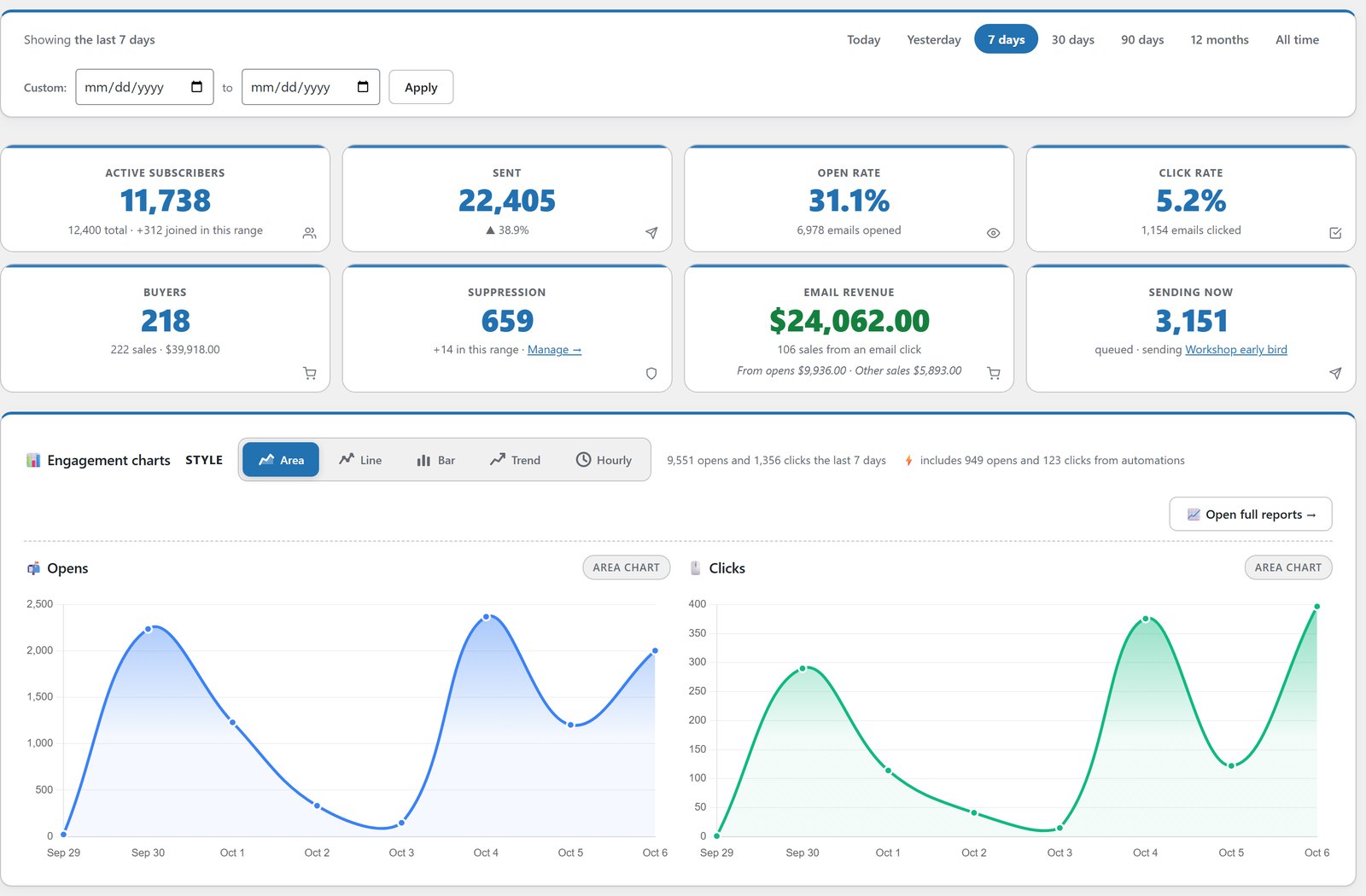
What it isn’t is a sending service. Your emails go out through a sending service you connect, such as Amazon SES, Resend or SMTP2GO. You pay that provider directly, often cents per thousand emails. That’s the trade that makes the whole thing work: you stop renting the list, and you pay wholesale for the delivery.
What You Need Before You Start
- A WordPress site on hosting you control.
- An account with a sending service, free or paid. Free tiers will get you sending up to around 1,000 emails a month.
- Your sending domain authenticated with DKIM at that provider.
- Optional: your own Claude or OpenAI key if you want the AI features.
- Optional: a CSV export of your list from your current provider.
Step 1: Install, Activate, And Check Your Timezone
Upload the plugin like any other, then paste your licence key. If you own the ResultsAiX Bundle, it’s the same key you already use.
Then do the boring thing that saves you later. Go to Settings, then General in WordPress and check the timezone. Scheduled sends and the times on screen follow that setting, and WordPress ships set to UTC. If you’re not on UTC and you leave it, a broadcast set for 7:30 won’t go out at 7:30 where you are.
Step 2: Connect Your Sending Service
Mailer works with 12 sending services. Each one has step-by-step setup beside it and a written guide covering DNS, keys and regions, plus a guide to choosing the right service for your list size and budget. Pick one, press the test button, and it tells you whether the connection works.
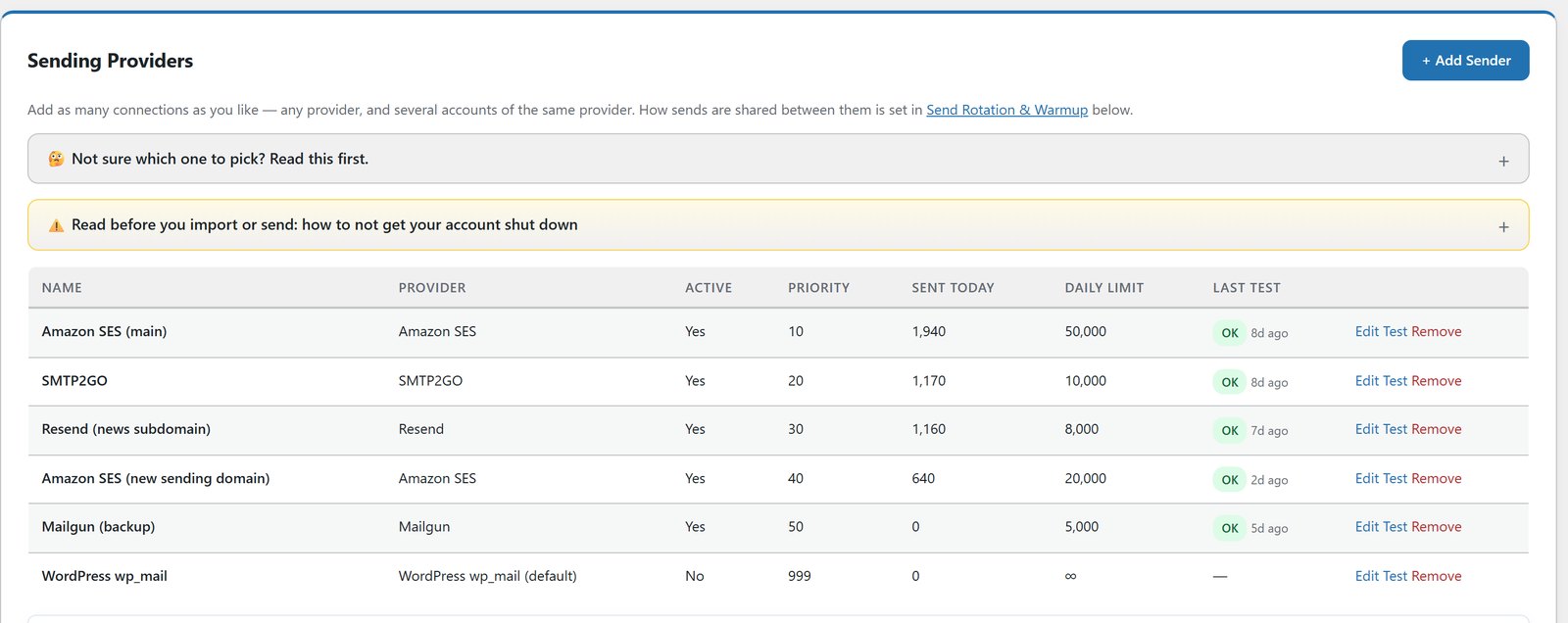
If you add a second service, Mailer fails over to it automatically when the first one errors or hits its daily limit. Later on you can rotate sends across several connections and warm up new ones gradually. I covered that properly in SMTP rotation and email warmup. For now, one healthy, authenticated connection is enough.
Step 3: Bring Your List Across Safely
This is where most migrations go wrong, so Mailer is built to be careful by default. Safe Mode ships switched on. You can import everyone, build every automation and design every form, and not one email reaches a subscriber until you deliberately flip that switch.
Drop in the CSV from your old provider and it recognises the columns on sight: status, signup date, unsubscribe date, signup IP, country, source and tags. Anything it doesn’t recognise becomes a custom field, so nothing is left behind. People who unsubscribed at your old provider stay unsubscribed. You can also import a suppression file so old opt-outs are protected from day one.
Imported people sit behind a silent lock, so they never trip a “joins a list” automation or a welcome email. If your host times out halfway through a big file, the import pauses and picks up at the exact row. If you change your mind, one-click rollback removes the import, and it refuses to touch anyone who has already been emailed, updated or engaged. The uploaded file itself is deleted from your server the moment the import finishes.
Moving from another platform with a live list? WP Sync can mirror subscribers from one autoresponder into another while you run both, so you don’t have to switch everything in one night.
Step 4: Tidy The List Before You Mail It
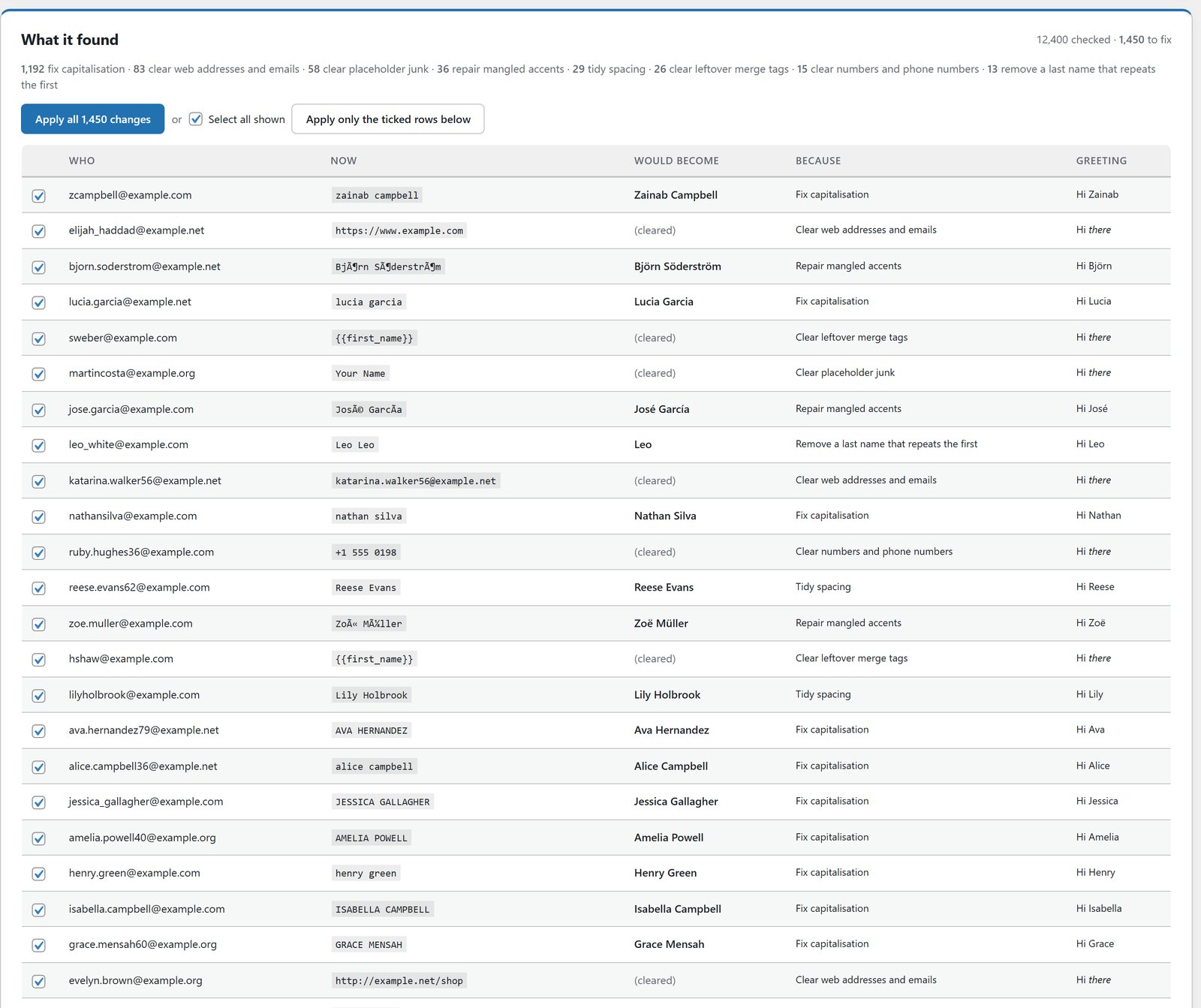
Run Tidy Names before your first send. It finds names shouted in capitals, web addresses sitting in the first name field, mangled accents and leftover merge tags, then shows you every fix and the greeting each person would get. Nothing changes until you press Apply, and one button undoes the whole run. The full walkthrough is in how to clean up email list names after an import.
Step 5: Teach The AI How You Write
This step is optional, and it’s the one people thank me for. Plug in your own Claude or OpenAI key. You pay the provider at their published rates, with no markup from us. Then paste in some of your best emails and press Learn My Voice. It reads up to 150 of them and writes a plain text style guide: your greeting, your sign-off, your rhythm, the phrases you really use and the things you never do.
From then on, every AI feature writes in that voice. You can read the style guide, edit it, and add your own rules. Every AI box also has a Talk button, so you can say what you want out loud instead of typing.
Step 6: Put Up Your First Form
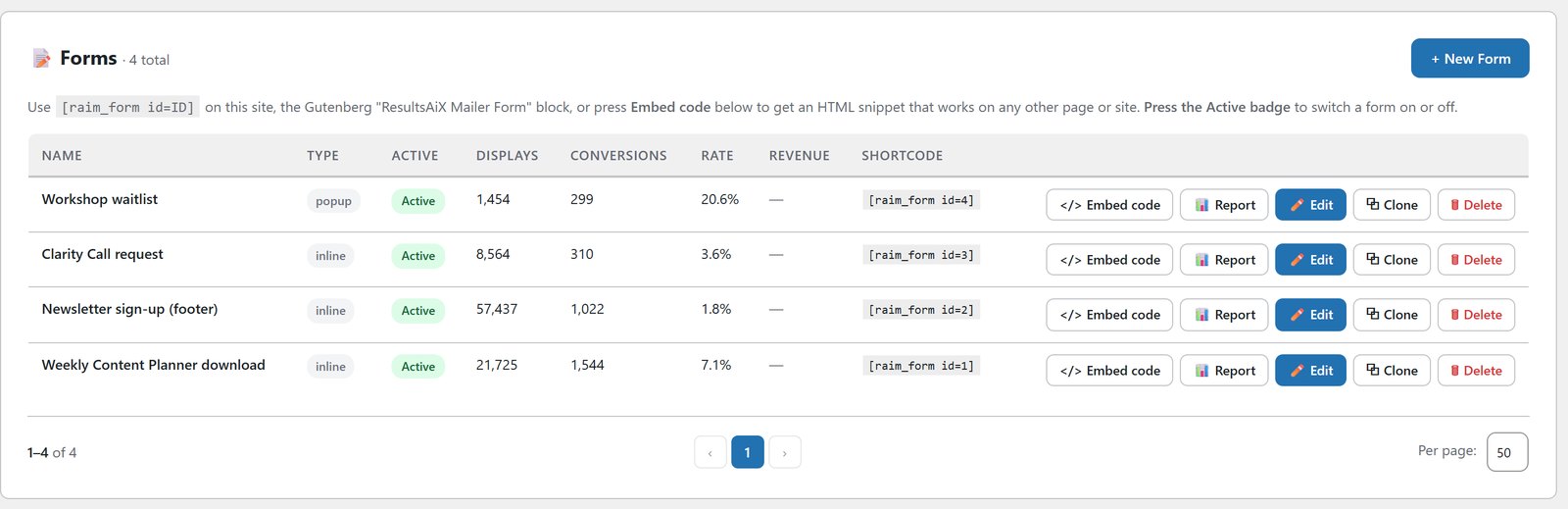
Mailer builds inline, embedded, popup, floating bar and slide-in forms, with GDPR consent and double opt-in set per list. With AI connected, type or say something like “a floating bar for my blog, first name and email, amber button on a dark background” and press Build My Form. The preview is rendered by the same code your visitors get.
You’re not limited to WordPress either. There’s a script embed that stays in sync with your design and a plain HTML version for pages that strip scripts. Every signup lands back in your database.
Step 7: Switch On An Automation
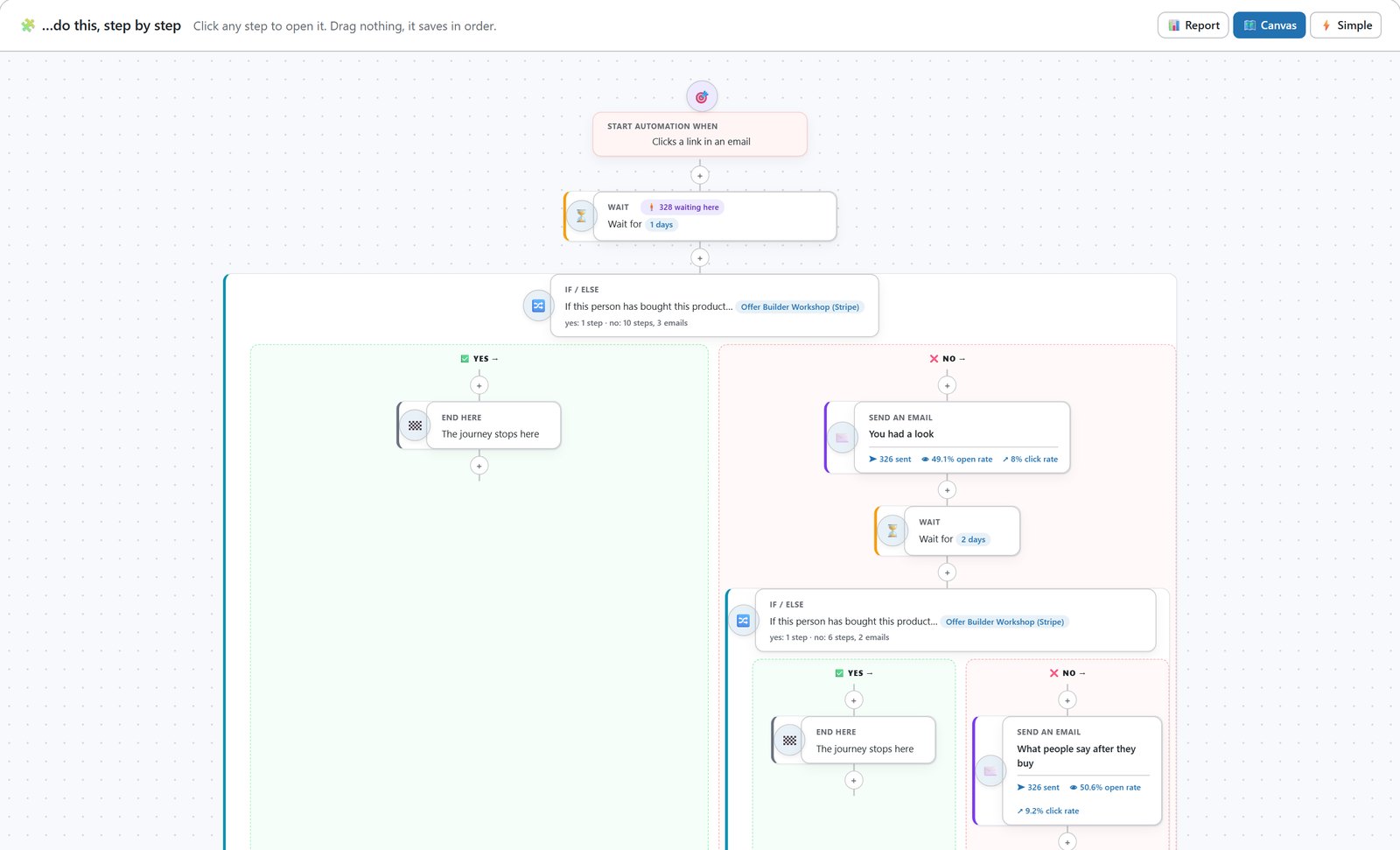
Don’t start from a blank canvas. Mailer comes with 25 prebuilt automations: a five-day welcome series, lead magnet delivery, cold list warm-up, launch runway, new customer onboarding, win-back, webinar reminders and more. Pick one, answer a question or two, and it lands as a draft with the trigger, the waits, the branches, the tags and every email already written. Each email carries a note saying why it exists and what to change.
With AI connected, you can describe a series instead, and it writes every email in your voice with the waits set. Either way, it’s a draft until you read it and switch it on. Every step shows how many people are standing on it right now.
Step 8: Send Your First Broadcast
Write it in the full-screen editor, preview it on desktop and mobile, and run the inbox placement score. It rates the email out of 100 and lists what to fix, such as spam trigger words or a missing merge code. Set up an A/B subject test and Mailer sends the winner to everyone left without you watching the clock.
When you press send, you get a confirmation showing exactly how many people are about to receive it. Then turn Safe Mode off, and you’re live.
Where To Go Next
Once the basics are running, the real value starts showing up in the reports, the tagging and the buyer data. I’ve written that up in what Mailer does once your list is in. If you’d rather watch than read, the Mailer training page has the videos.
Questions People Ask
Is sending included?
No. Mailer sends through your own sending service, paid to that provider. ResultsAiX adds no subscriber limits and no sending limits.
Do I need an AI key?
Only for the AI features. Broadcasts, automations, forms, the prebuilt flows, Tidy Names and reports all work without one.
How many sites can I use it on?
Three sites on one licence. It’s also included in the ResultsAiX Bundle, alongside every other plugin we make.
Where does my list actually live?
In your own WordPress database, on your own hosting. Nobody else’s platform sits between you and the people who asked to hear from you.
Can anything go out by accident while I set up?
No. Safe Mode ships switched on. You can import everyone, build every automation and design every form, and not one email reaches a subscriber until you deliberately flip that switch.
Can I bring my list from another provider?
Yes. Drop in the CSV and it recognises the columns on sight, tags included. People who unsubscribed at your old provider stay unsubscribed, and one-click rollback removes an import if you change your mind.
Run Your List On Your Own WordPress
Broadcasts, visual automations, forms, segments and reports, with unlimited subscribers and one flat yearly price that doesn't move when your list does.
Every plugin, every update, every plugin still to come
One bundle covers everything mentioned in these updates and everything that ships after them, at no extra charge, running on your own WordPress site.


