This page lists every option on the ⚙️ Settings screen in the order you meet it, with its default and a good value. Each section has its own article with the full detail.
How saving works:

Everything on this screen is saved with the Save Settings button at the bottom, except two things that save on their own: Point & Mask picks (saved the moment you pick) and Deactivate License (which acts straight away after you confirm). After saving you'll see Settings saved. at the top of the screen. Settings can be changed whether Privacy Recording Mode is on or off, and they apply on your next page load.
License:
- Status: Active or Inactive. Read only.
- Email: the email you activated with. Read only.
- Deactivate License: releases this site and clears the saved registration. Default: not needed.
Mask Style:

- Style cards: Placeholder, Asterisks, Partial reveal, Fake data, Redacted blocks or Blurred. Default: Partial reveal. Good value: Partial reveal for tutorials, Fake data for demos.
- Mask character: Asterisk, Bullet, Capital X, Lower x, Hash or Block. Default: Asterisk. Used by Asterisks and Partial reveal, and for avatar initials. Good value: Bullet for a softer look on camera.
Privacy Filters:
- Email Addresses: default on.
- Names (any format): default on.
- First Names, Last Names, Usernames, IP Addresses, Phone Numbers, Street Addresses, Prices / Revenue, Company Names: default off. Switch on the ones your screens show.
- Visible URLs: default off. An advanced filter: switch it on only when your screens show web addresses you want hidden.
- Custom mask box on every card: default empty, which uses the built-in text. Only used by the Placeholder style.
Smart Detection:
- Table columns, Field labels, Avatar neighbours, Email neighbours: all default on. Good value: leave them on, and turn one off only for a screen where it over-reaches.
Point & Mask:
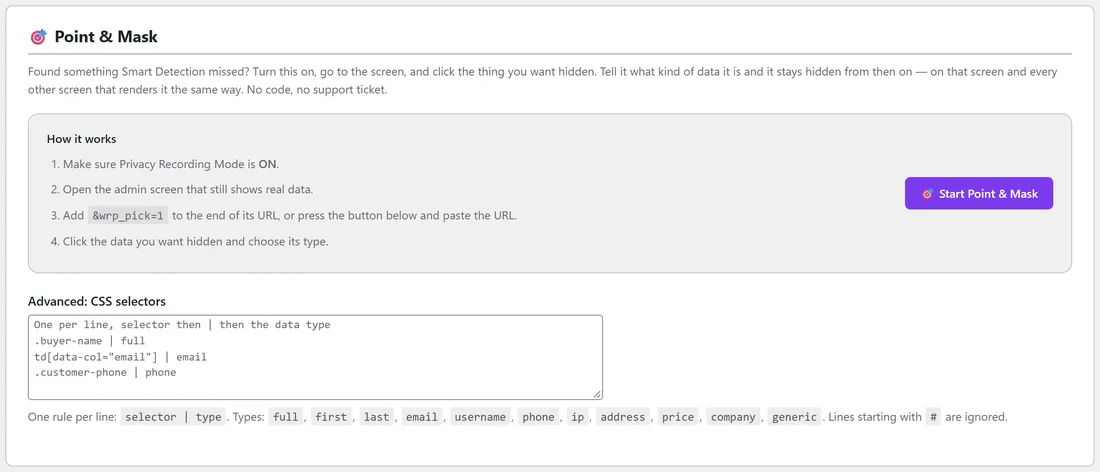
- 🎯 Start Point & Mask: asks for the address of a screen and opens it with the picker running.
- Saved by Point & Mask: your picks, each with an x to remove it. Up to 200.
- Clear all saved selections: removes every pick after you confirm.
- Advanced: CSS selectors: your own rules, one per line as selector | type. Up to 200 lines of up to 300 characters. Default: empty.
Appearance:
- Color scheme and swatches: Follow the ResultsAiX Hub (default) or one of ten schemes. Only changes the plugin's own screens.
Help & your account:
Four shortcut cards under the Save Settings button: Ask Support, Contact Support, Open Diagnostics and Open Training.
Three ready-made set-ups:
- Blog comments video: Email Addresses, Names (any format), IP Addresses. Partial reveal.
- Members or subscribers walkthrough: add First Names, Last Names and Usernames. Partial reveal with the Bullet character.
- Shop or CRM demo: every filter except Visible URLs. Fake data.