A listener is anyone you give a private podcast to with just their email address. They need no account and no password on your site. Each listener gets their own private link by email, with one-tap buttons for their podcast app, and you can take it away at any time.
Listeners get members-only shows, so make a show members only first (on the show, Who can listen). Until you do, the Listeners screen says so and offers Add a show.
Where to find it:
Podcasts, Listeners. The top card, Listeners with no login, shows how many listeners you have and holds Add one listener and Import a CSV. Under it is Your listeners.
Add one listener:
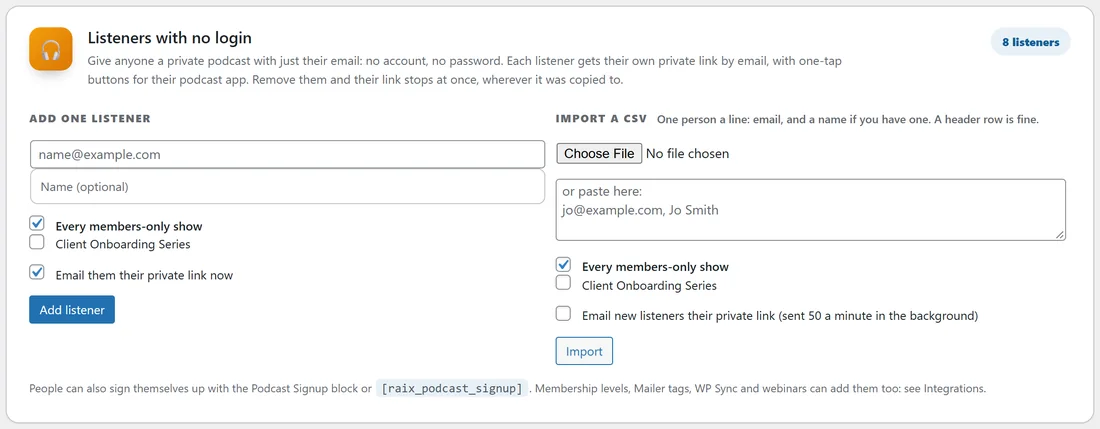
- Type their email and, if you like, their name (Name (optional)).
- Tick the shows they get. Every members-only show is ticked to start with, which also covers members-only shows you add later. Untick it and tick single shows instead if you want.
- Leave Email them their private link now ticked to send the welcome email straight away.
- Press Add listener.
The message at the top confirms it: the person is a listener now and their private link is on its way by email. Add someone who is already a listener and their shows are simply added to. They keep the same private link.
Import a CSV:
- Under Import a CSV, press Choose File and pick your file, or paste the addresses into the box underneath.
- One person a line: the email, and a name if you have one. A header row is fine.
- Tick the shows they get.
- Tick Email new listeners their private link if you want the welcome email to go out.
- Press Import.
What the import reads: commas, semicolons or tabs between columns. With a header row it finds the email column by a name such as email or email address, and the name from name, full name, or first name and last name. With no header, the email can be in any column.
Welcome emails from an import are sent 50 a minute in the background, so a big list never slows your site. Only new listeners are emailed.
The result tells you how many were new, how many were already there and updated, how many lines had no email address, and how many repeated lines were skipped.
The signup form:

Put the Podcast Signup block on any page, or the shortcode [raix_podcast_signup show="3"] where 3 is the show's ID (on the show's screen). People type their first name and email, press Get the podcast, and their private link arrives by email.
Leave show out and the form uses the shows ticked under The signup form gives on the Settings tab, or every members-only show when none are ticked.
In the block's sidebar you choose the show (or Every members-only show), a Heading (optional) and the Button words.
Shortcode options:
- show="3" for one show, or show="3,5" for two.
- button="Your button text".
- name="no" to ask for the email only.
- title="A heading above the form".
- thanks="Your own thank-you message".
Someone who signs up again simply gets their link sent again, which is the easiest way back for anyone who lost it. The form works on cached pages, has a hidden field that stops robots, and takes up to 10 signups an hour from one internet address.
Your listeners list:
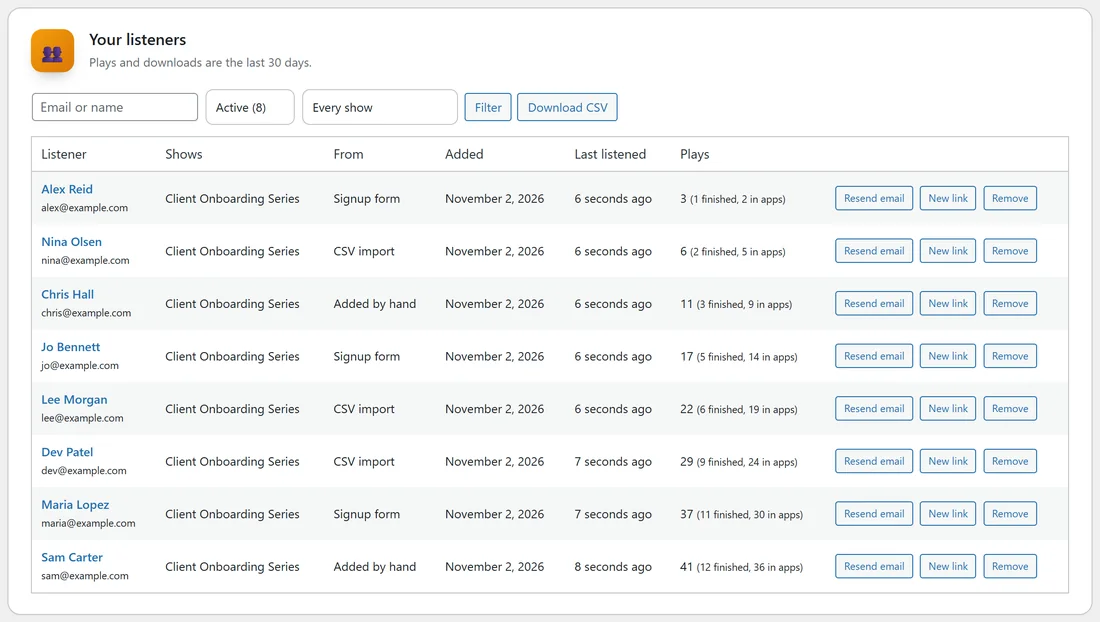
The Listeners screen lists everyone, newest first, 50 to a page, in these columns.
- Listener: name and email. Click it to open the listener.
- Shows: the shows they have.
- From: where they came from (Added by hand, Signup form, CSV import, Membership level, Mailer tag, WP Sync or Webinar).
- Added, and Last listened.
- Plays over the last 30 days, with how many they finished and how many times their podcast app fetched an episode.
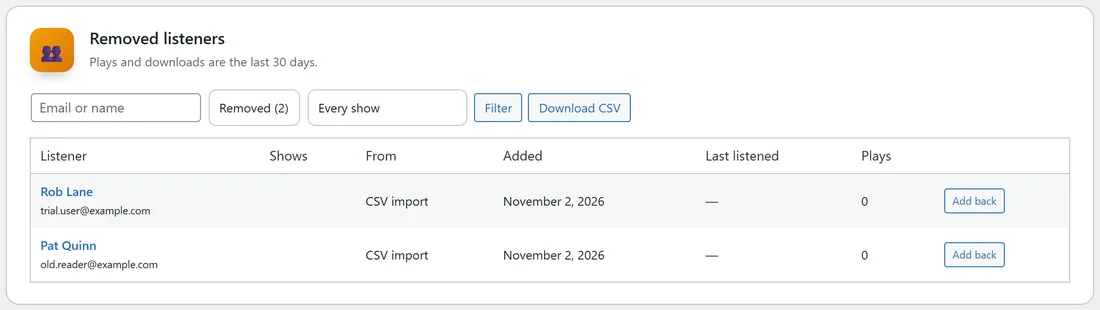
Search by email or name, filter by show, and switch between Active and Removed, then press Filter. Download CSV exports the list you are looking at (Active or Removed) with email, name, shows, source, date added and last listened.
The buttons on each listener:
- Resend email sends their private link again.
- New link makes them a fresh private link and emails it. The old one stops working in every app at once. It asks first.
- Remove stops their private link at once, in every app, even if they copied it somewhere. It asks first. Removed listeners stay in the Removed list.
- Add back, in the Removed list, returns a removed listener with a new private link and every members-only show. Use Resend email to send it.
One listener's page:
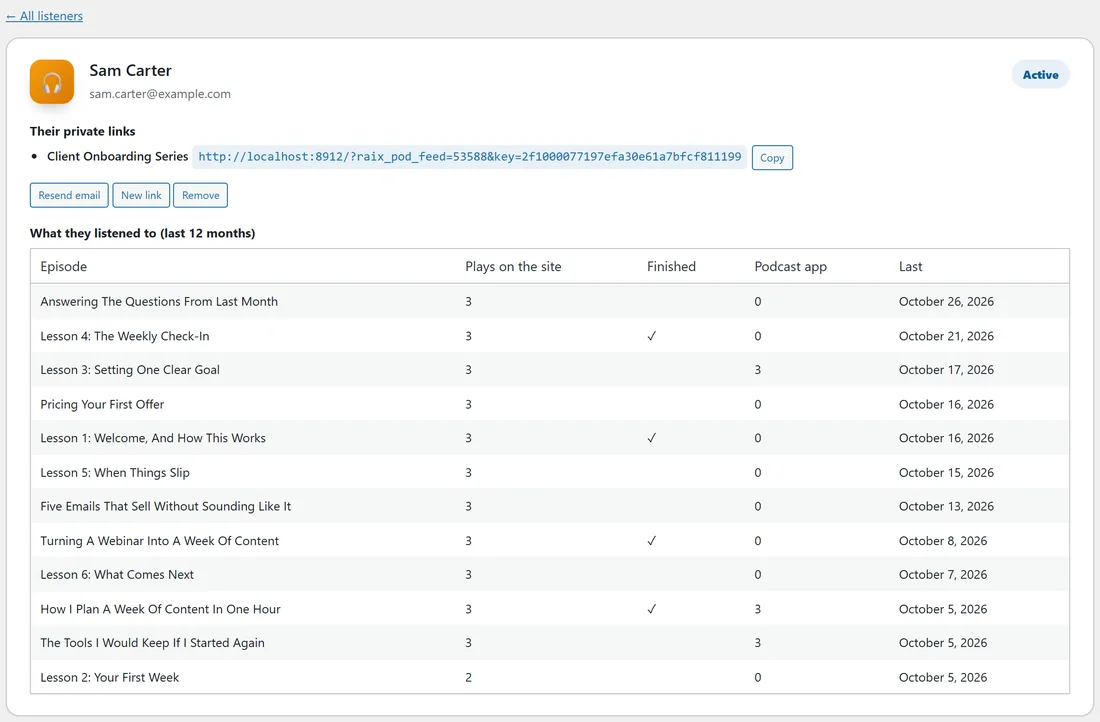
Click a listener to see Their private links, one for each show with a Copy button, the Resend email, New link and Remove buttons, and What they listened to (last 12 months): each episode with plays on the site, a tick if they finished it, podcast app fetches and the last day.
A real example:
yoursite.com welcomes new coaching clients with the Client Onboarding Series. You import the 38 clients from your old system as a CSV with Email new listeners their private link ticked, put the Podcast Signup block on a page called Get The Onboarding Series for new clients, and check Podcasts, Listeners each week to see who is keeping up.
Tips:
- Use a Mailer tag or a membership level to add listeners for you. See Working With Your Other ResultsAiX Plugins.
- See The Welcome Email And Each Listener's Private Link for what the email looks like.