A show is the podcast itself: its name, its cover art, its description and who can listen. Every episode belongs to a show (or stands alone), and you can run as many shows as you like. Set the show up once and every episode inherits it.
Where to find it:
Podcasts, Shows lists your shows. Add Show (or Add a show on the Dashboard tab) makes a new one. The Show settings box sits under the editor.
Make a show:
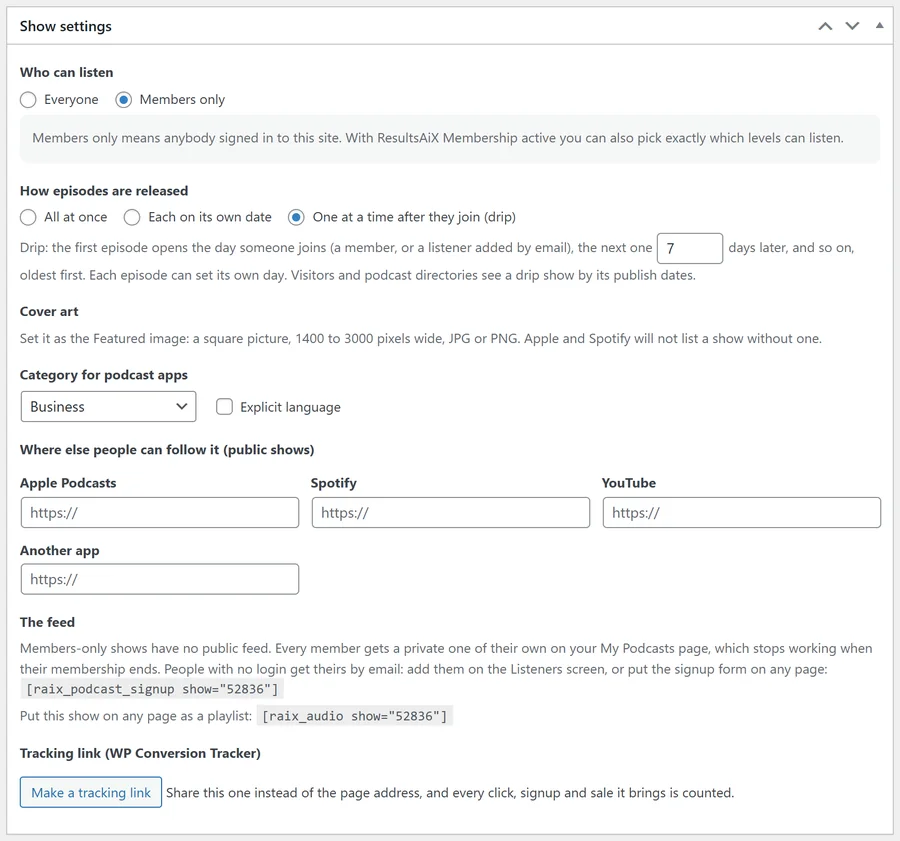
- Go to Podcasts, Shows, Add Show.
- Type the show's name as the title, and write a longer description in the editor. It appears on the show's page.
- Write a short description in the Excerpt box. This is the description podcast apps show, and it sits under the title on the show's page.
- Set the Featured image as your cover art: square, 1400 to 3000 pixels wide, JPG or PNG.
- In Show settings, choose Who can listen.
- Choose How episodes are released.
- Pick the Category for podcast apps and tick Explicit language if it applies.
- For a public show, add the Where else people can follow it links once you have them.
- Publish.
Every setting in the Show settings box:
- Who can listen: Everyone makes a public show with one feed for every app. Members only makes a private show with no public feed; every member and every listener you add by email gets a private link of their own. With ResultsAiX Membership active, Members only also shows your levels to tick.
- How episodes are released: All at once, Each on its own date, or One at a time after they join (drip), with the number of days between drip episodes (1 to 365, 7 by default). See Drip Release And Episodes That Close.
- Cover art: a reminder of the size. If your picture is not square or not between 1400 and 3000 pixels wide, the box tells you its size so you can fix it.
- Category for podcast apps: Apple's top-level categories, from Arts to TV and Film. A new show starts on the default from the Settings tab.
- Explicit language: tick it if the show has explicit language.
- Where else people can follow it (public shows): Apple Podcasts, Spotify, YouTube and Another app. Each link you fill in becomes a button on the show's page.
- The feed: shown once the show is published. A public show shows its feed address with a Copy button. A members-only show explains how members and listeners get their private links, with the signup shortcode for this show.
- The playlist shortcode, for example [raix_audio show="3"], to put the whole show on any page.
Sending a public show to Apple Podcasts and Spotify:
- Publish the show and at least one episode.
- Copy the feed address from the Show settings box, or press Copy feed address in Your shows on the Settings tab. It looks like https://yoursite.com/?raix_pod_feed=3.
- Submit it once to Apple Podcasts Connect and to Spotify for Podcasters.
- Apple sends its confirmation to the owner email on the Settings tab.
From then on every new episode reaches the apps by itself. A public feed is kept for 15 minutes for speed, and any change to an episode, a show or the settings refreshes it straight away. It carries your newest 300 episodes.
The show page:
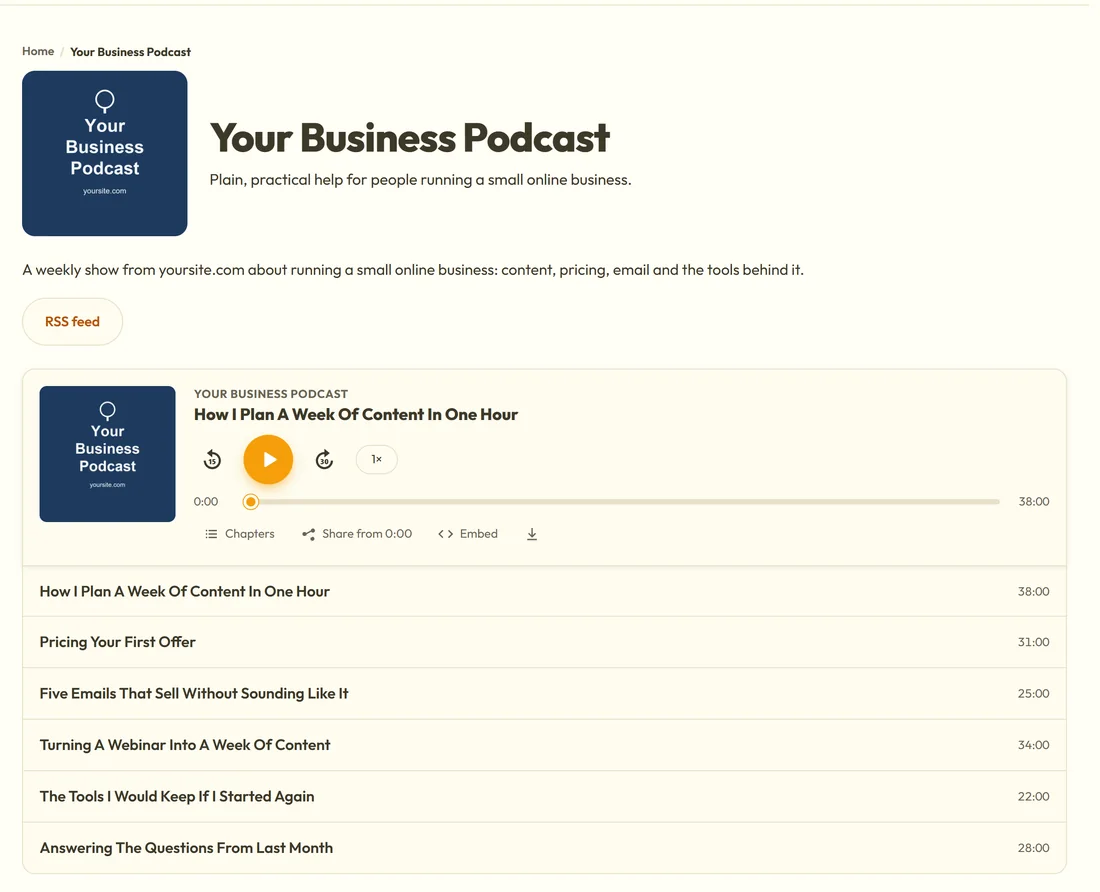
Every published show has its own page at yoursite.com/podcast/show-name/. It shows the cover and the excerpt, your description, buttons for the follow links you filled in plus RSS feed (for a public show), and the whole show as a playlist. A members-only show's page has a Listen in your podcast app button that leads to your My Podcasts page.
Feed details:
On the Settings tab, under For podcast apps, you can set the owner name and email the feeds carry (blank uses your site name and admin email), the default category, Explicit language and the language code (blank uses your site language).
A real example:
For yoursite.com you add Your Business Podcast: the excerpt "Plain, practical help for people running a small online business.", a 1400 by 1400 pixel cover, Who can listen set to Everyone, All at once, and the Business category. After publishing the first episode you copy the feed address and submit it to Apple Podcasts Connect and Spotify for Podcasters. When Apple lists the show, you paste its Apple Podcasts link into the show so the page gets that button.
Tips:
- Make the cover readable at small sizes: big words, few of them.
- Fill in the Excerpt. A show with an empty excerpt sends its first words of description to the apps instead.
- Next: Adding Episodes: Audio Files, Links And Episode Details.