The welcome email is how a listener with no login gets your show. One tap on their phone adds the private feed to their podcast app, and new episodes arrive by themselves from then on.
Where to find it:
Podcasts, Settings, in The player card, under Listeners with no login: the Send the welcome email switch and the Welcome email boxes.
The welcome email:
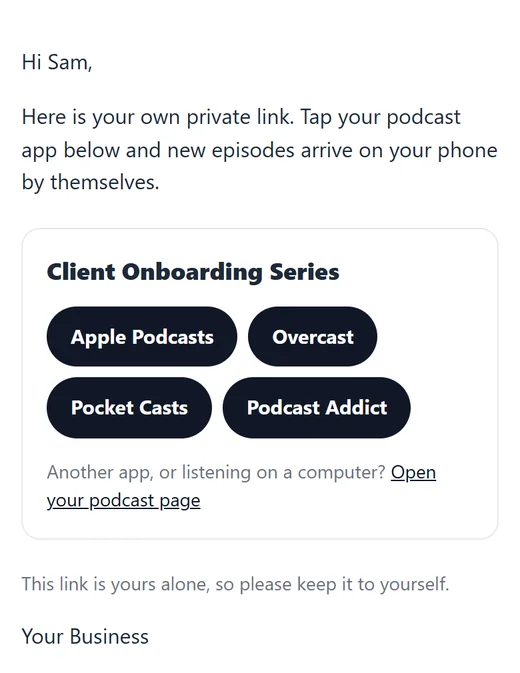
Every new listener gets a welcome email with these parts.
- Hi and their first name, then your opening lines.
- A box for each show they have, with its cover, its name and one-tap buttons for Apple Podcasts, Overcast, Pocket Casts and Podcast Addict.
- Another app, or listening on a computer? with an Open your podcast page link to their own listening page.
- A short line asking them to keep the link to themselves, and your site name.
The app buttons open a small page on your site that hands the private feed to the app. If nothing happens on that phone, the page shows the private link with a note to paste it into the app's Add by URL or Follow a show by URL.
Change the words:
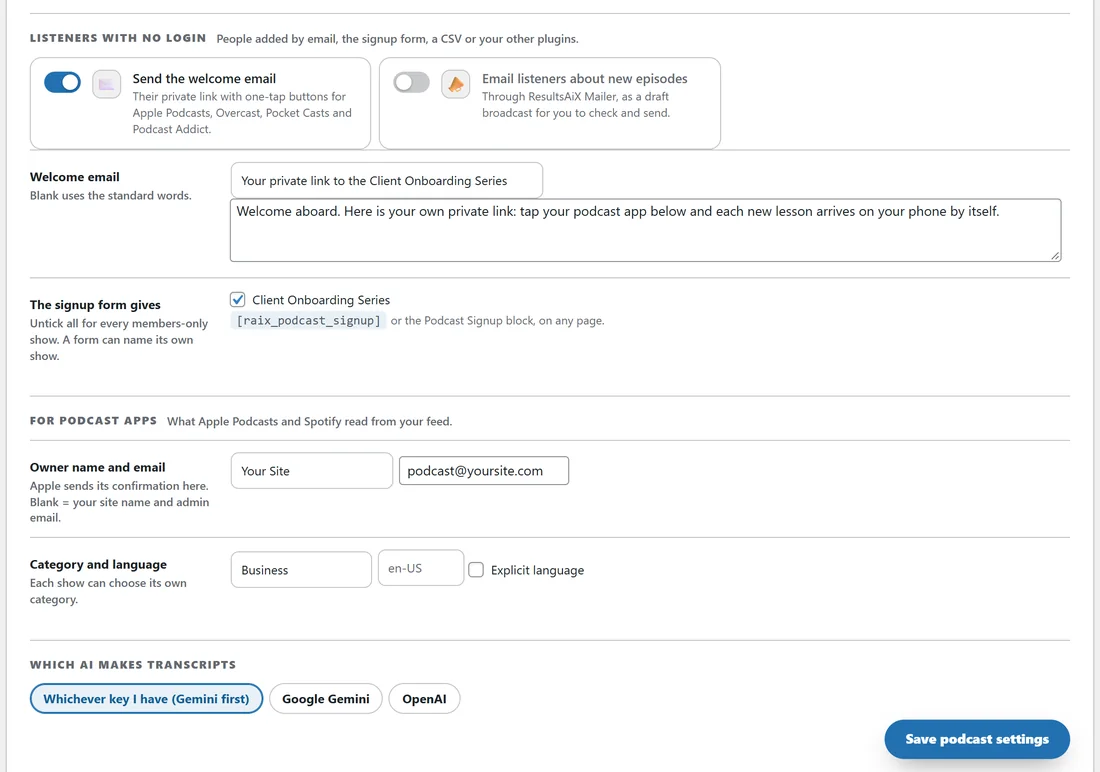
- Open Podcasts, Settings and scroll to Listeners with no login.
- Type your own subject in the first Welcome email box. Left blank, the subject is Your private podcast link.
- Type your own opening lines in the box under it. Left blank, the standard lines are used.
- Press Save podcast settings.
Switching Send the welcome email off stops the automatic welcome emails for signups, membership levels, Mailer tags and WP Sync. Add one listener still has its own Email them their private link now box, and Resend email always sends.
The listener's page:
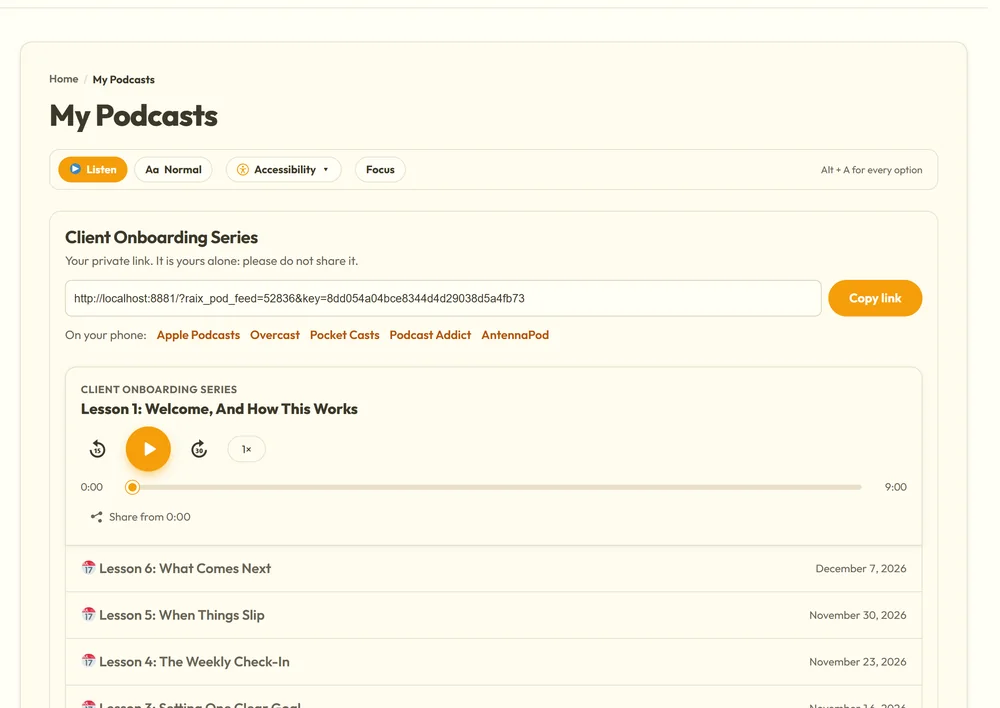
The link in the email opens the listener's own page on your site. It shows each show they have, their private link with a Copy link button, buttons for Apple Podcasts, Overcast, Pocket Casts, Podcast Addict and AntennaPod, and the show's episodes playing right there in the browser. Episodes that are not open yet show a calendar and the day they open.
It needs the My Podcasts page, which you make with one button on the Dashboard tab (Make the My Podcasts page) or on the Settings tab.
If a listener's link gets out:
The listener's page has Think your private link got out? Make me a new link. Pressing it gives them a new link straight away, emails it to them, and the old one stops working everywhere. The page reloads with the new link and a note to add it to their podcast app again. You can do the same for them from the Listeners screen with New link.
Spotify:
Spotify does not accept private feeds. Listeners with a private link use Apple Podcasts, Overcast, Pocket Casts, Podcast Addict or most other podcast apps, or listen on your site.
Email delivery:
Welcome emails go out through your site's email. With ResultsAiX Mailer installed and a sending service set up in it, they go out through the Mailer and that service instead. For the best delivery, set up a sending service in the Mailer, and ask new listeners to check Spam and add you to their contacts. The signup form's thank-you message already says so.
A real example:
For yoursite.com you set the subject to Your private link to the Client Onboarding Series and the opening lines to Welcome aboard. Here is your own private link: tap your podcast app below and each new lesson arrives on your phone by itself. A new client, Sam, taps Apple Podcasts on his phone and the series is in his library a second later.
Tips:
- Keep the opening lines short. The buttons do the work.
- Test it: add your own email as a listener and look at the email on your phone.