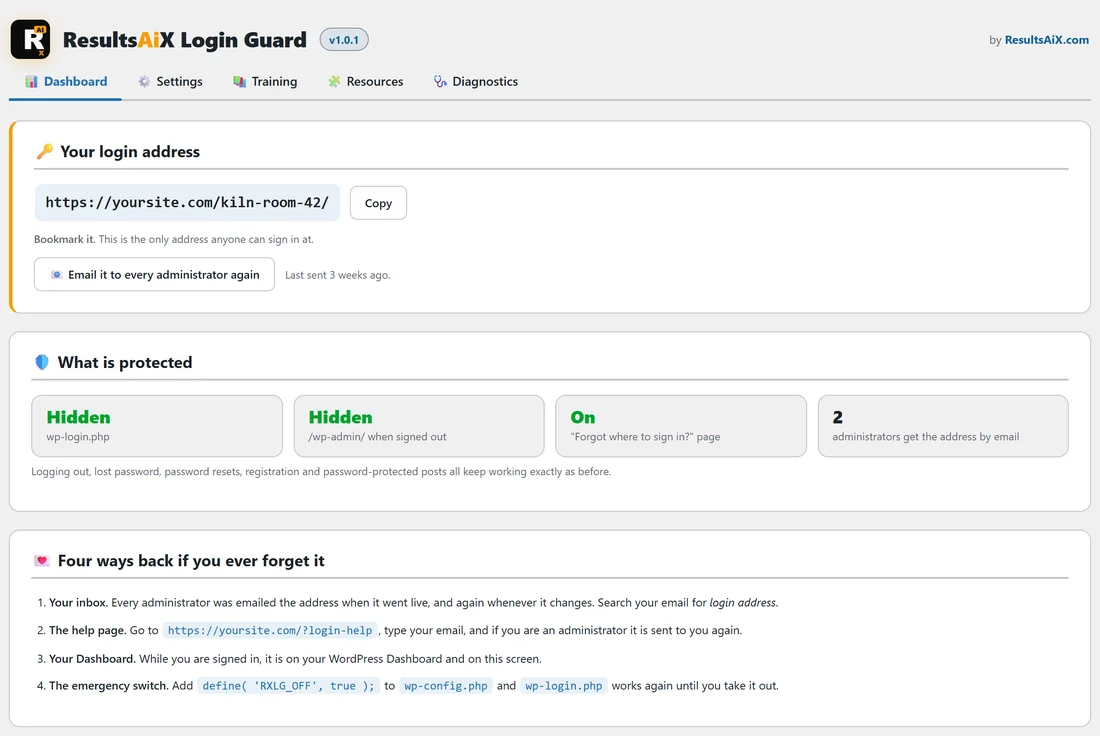
The Dashboard tab is the first screen you see when you open AiX Login Guard. In one glance it tells you where you sign in, whether the disguise is working right now, and how you would get back in if you ever forgot.
It is worth a look after any change to your site, and it is the quickest place to copy your address.
Where to find it:
Click AiX Login Guard in your WordPress sidebar. The Dashboard tab opens first. You can also click Dashboard under AiX Login Guard, or the Dashboard tab at the top of any Login Guard screen.
Your login address:

The top section shows your full login address in large type.
- Copy puts the address on your clipboard. The button says Copied for a moment.
- Bookmark it. This is the only address anyone can sign in at. If the address came from another hide-login plugin, the line also says It came across unchanged from your previous hide-login plugin.
- Email it to every administrator again sends the address to every administrator now. The screen then says Sent to every administrator.
- Last sent shows how long ago the address was last emailed, for example Last sent 3 weeks ago.
When no address is chosen yet, this section says Choose your login address to switch the protection on, with a Choose my login address button. When Hide my login is off, it says "Hide my login" is switched off, with an Open Settings button.
What is protected:

Four tiles show the state of your site right now:
- wp-login.php: Hidden in green when the disguise is working, Not hidden in red when it is not
- /wp-admin/ when signed out: the same, for the admin area
- "Forgot where to sign in?" page: On or Off
- How many administrators get the address by email
Under the tiles, a line reminds you that logging out, lost password, password resets, registration and password-protected posts all keep working exactly as before.
Both Hidden tiles show Not hidden when no address is chosen, when Hide my login is off, or when the emergency switch is on.
Four ways back if you ever forget it:

A numbered list of your four ways back in: your inbox, the help page (with your own help page address), your Dashboard, and the emergency switch line for wp-config.php. If the help page is switched off in Settings, its line says so. See Forgot Your Login Address? Every Way Back In for each one in full.
Notes that appear when something needs you:
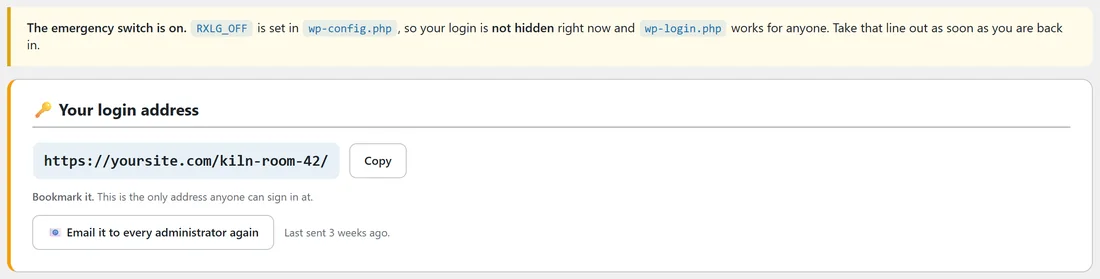
- The emergency switch is on: shown while RXLG_OFF is in wp-config.php. Take the line out as soon as you are back in.
- Another hide-login plugin is also switched on: shown when the plugin Login Guard took over from is active again, with a link to the Plugins screen.
- Sent to every administrator: shown after you press Email it to every administrator again.
The box on your WordPress Dashboard:
Login Guard also adds a small Your login address box to the main WordPress Dashboard for administrators, once an address is chosen. It shows the address and the help page address, with a Login Guard link to this tab.
A real example:
Every Monday, Sam opens the Willow Creek Pottery admin and glances at the Dashboard tab: Hidden, Hidden, On, 2 administrators. Everything is as it should be. After adding Leo as a third administrator, the last tile shows 3, and Sam presses Email it to every administrator again so Leo has the address in his inbox.
Tips:
- Press Email it to every administrator again whenever you add a new administrator.
- If a tile shows Not hidden and you did not expect it, see Troubleshooting.