If your site was built with Thrive, the Move In tab brings those pages onto the theme. It lists every page still drawn by the page builder, tells you what is on each one and whether it comes across whole, lets you look first, and then moves the pages you choose. The address of every page stays the same, and nothing the page builder saved is changed, so any move can be undone.
Where to find it:
ResultsAiX Theme, Move In. The tab appears only on a site that still has page builder pages to move. On any other site it is not shown.
What the list tells you:
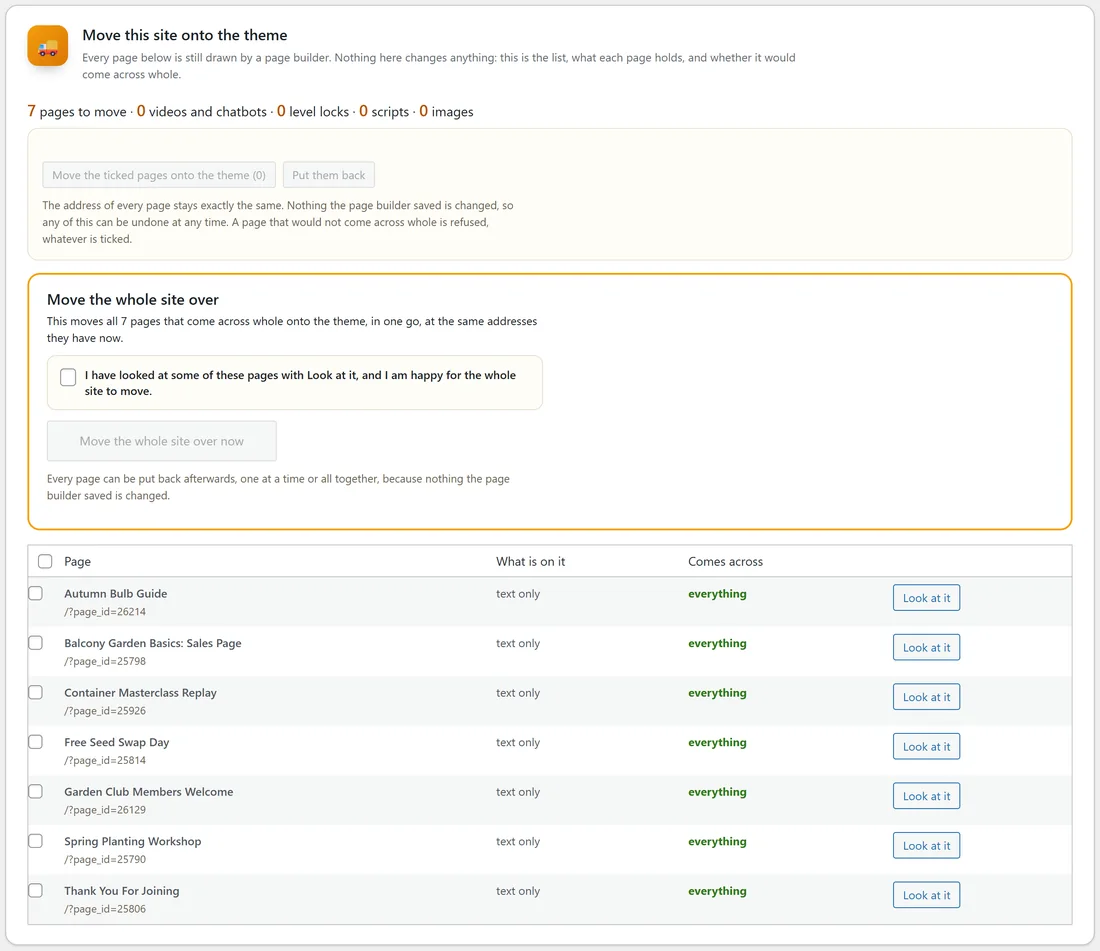
At the top, a count line: pages to move, videos and chatbots, level locks, scripts and images. Under it, each page with:
- Page: its title and address.
- What is on it: icons for videos and chatbots, scripts and images, or text only.
- Comes across: everything, or what would not come across whole.
- Look at it: a preview.
Look at a page first:
Press Look at it. The preview shows the page drawn by the theme with everything running, side by side counts for Now and After (videos and chatbots, images, level locks, scripts and words), and the HTML it would save. Nothing is changed. Open the preview full size, See the page as it is now, or go Back to the list.
Moving some pages:
- Tick the pages you want, or tick the box in the header to tick every page.
- Press Move the ticked pages onto the theme. The button shows how many are ticked.
- Each page now uses the theme at the same address.
A page that would not come across whole is refused, whatever is ticked.
Moving the whole site:
Move the whole site over moves every page that comes across whole in one go.
- Look at some pages with Look at it first.
- Tick I have looked at some of these pages with Look at it, and I am happy for the whole site to move.
- Press Move the whole site over now.
Putting pages back:
Put them back returns ticked pages to the page builder, one at a time or all together, because nothing the page builder saved was changed.
Audio in Thrive pages:
Audio in Thrive pages is turned into the theme's own podcast player as the pages move, so every clip keeps playing and looks the part.
A real example:
Jo's old site had seven Thrive pages, from Spring Planting Workshop to Autumn Bulb Guide, all text only and all coming across whole. Jo looks at the workshop page and the sales page, ticks the box under Move the whole site over and presses Move the whole site over now. Every page keeps its address, now in the Fern & Fig look.
Tips:
- Look at your busiest pages first.
- Before switching a large site from another theme, run Theme Switch Audit too. See Before You Switch A Big Site: Theme Switch Audit.