Your licence connects your TimeTrackr to your purchase. With it active, Settings can check for and install new versions.
Where to find it:
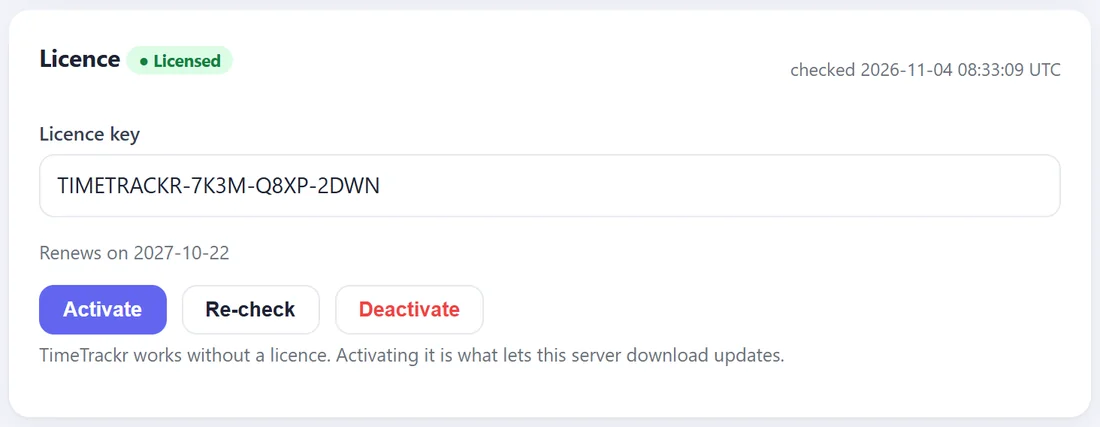
Settings, the Licence panel. Only owners and admins see Settings.
Activate your key:
- Copy your key from your purchase email or the customer portal at resultswithkevin.com/portal/.
- Paste it into the Licence key box.
- Press Activate.
- A green message confirms it, and the panel shows Licensed with the date it renews.
The buttons:
- Activate. Connects this server to your key.
- Re-check. Asks the licence server again. TimeTrackr also re-checks by itself once a day.
- Deactivate. Releases the key from this server, so you can activate it on another one. It asks you to confirm first.
Moving to a new server:
- On the old server, press Deactivate.
- On the new server, paste the key and press Activate.
One key runs one TimeTrackr server at a time, with as many staff as you like.
If you see a message:
TimeTrackr explains every message in plain words and adds a short code in brackets. If you open a support ticket, include that code and we can sort it out quickly. Diagnostics also shows your licence status and when it was last checked.