Wages & Reports turns tracked time into payroll. Owners, admins and managers can open it.
Where to find it:
Wages & Reports in the menu.
Choose the period:
At the top right, choose the start and end dates and press Update. It opens on the last seven days.
The payroll table:
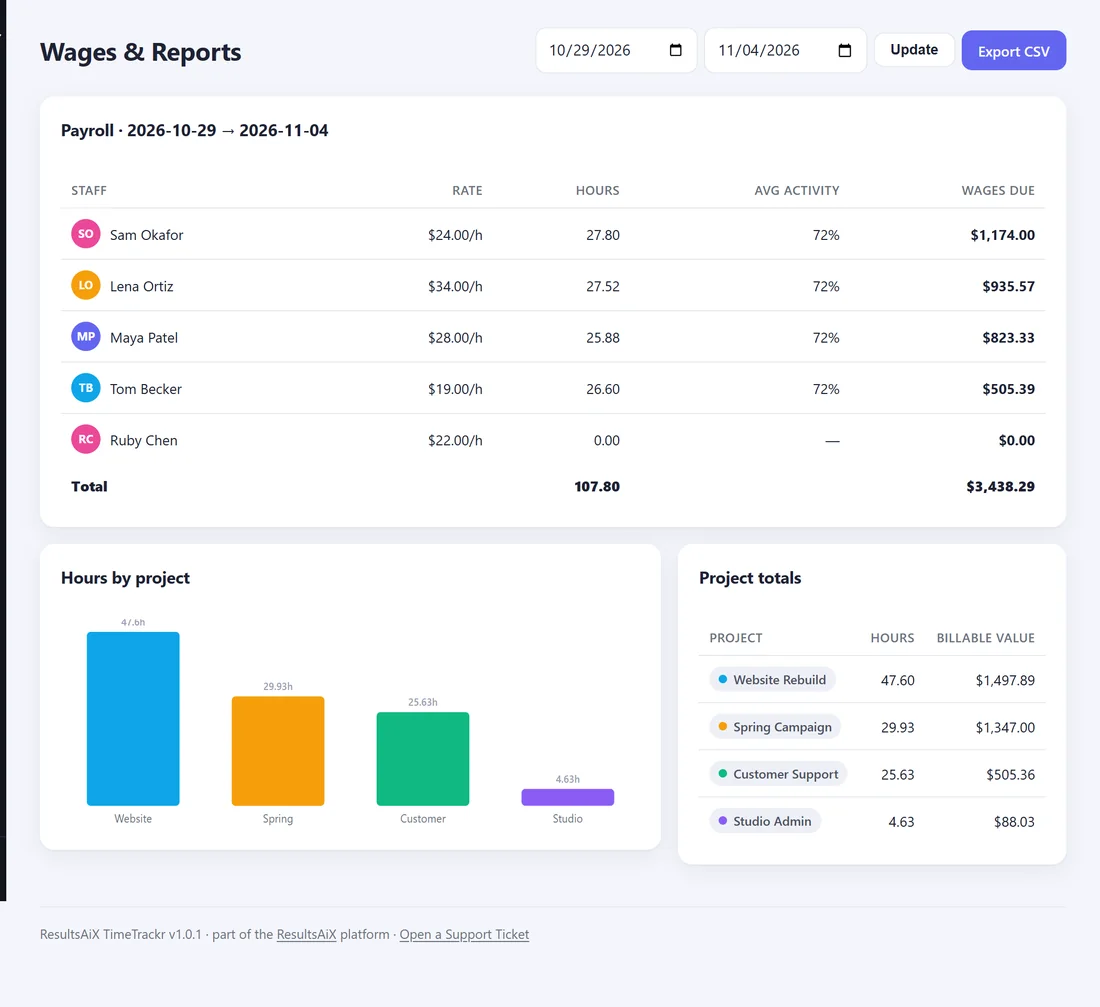
For each person:
- Rate. Their hourly rate.
- Hours. Their tracked time in the period, as a decimal.
- Avg activity. Their average activity in the period.
- Wages due. Their hours times the rate, using the project's rate override for project work that has one.
The Total row adds up hours and wages for everyone.
By project:
- Hours by project. A bar chart of where the time went.
- Project totals. Hours and value for each project.
Export for your accountant:
Press Export CSV. You get a spreadsheet with one row per person: Staff, Rate/hr, Hours, Avg activity %, Wages due, Currency, and the period's start and end dates. It opens in Excel, Google Sheets or Numbers.
A real example:
At the end of each week, Jordan at Fern & Fig Studio sets the dates to Monday to Sunday, presses Update, checks the totals and presses Export CSV. The file goes to the bookkeeper, and payroll is done in five minutes.
Good to know:
Wages use each person's current hourly rate. If you change a rate, export the earlier periods first if you want them at the old rate.