Timesheets is the full list of time entries. Owners, admins and managers see everyone; staff see their own under My Timesheet.
Where to find it:
Timesheets in the menu.
Choosing what to see:
At the top right:
- The staff list. All staff, or one person.
- The two dates. From and to. It opens on the last seven days.
- Press Filter.
The table:
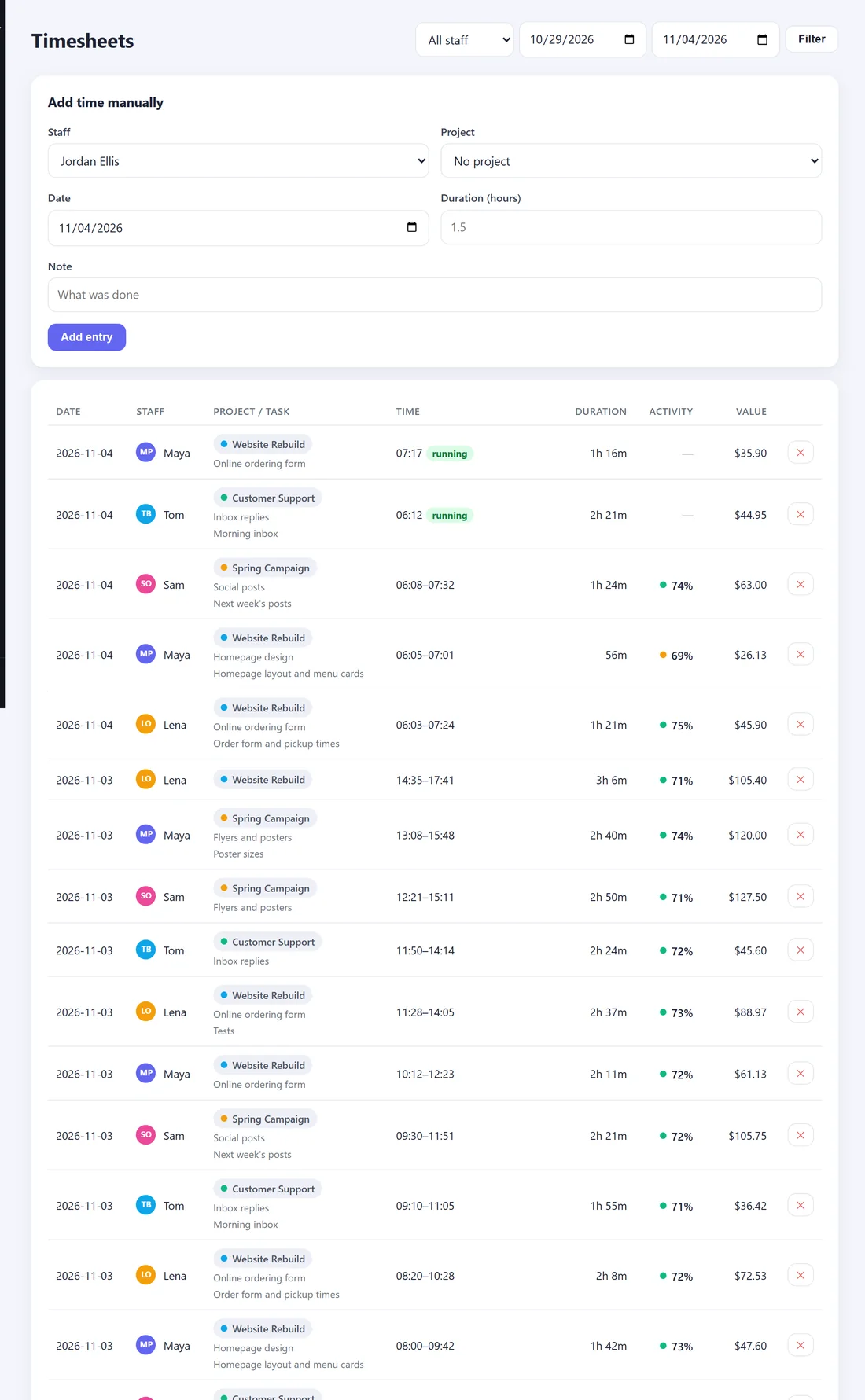
- Date and Staff.
- Project / Task, with any note the person typed.
- Time. Start and end, or running for a timer that is still going.
- Duration. For a running timer, the time so far.
- Activity. The average activity from that entry's screenshots, or a dash if none was measured.
- Value. Hours times the rate (the project's rate override, or the person's rate).
The Total row adds up the duration and value of everything shown.
Time added by hand:
Entries typed in on this page carry an added by hand tag, so you can always tell them apart from tracked time.
Add time someone forgot to track:
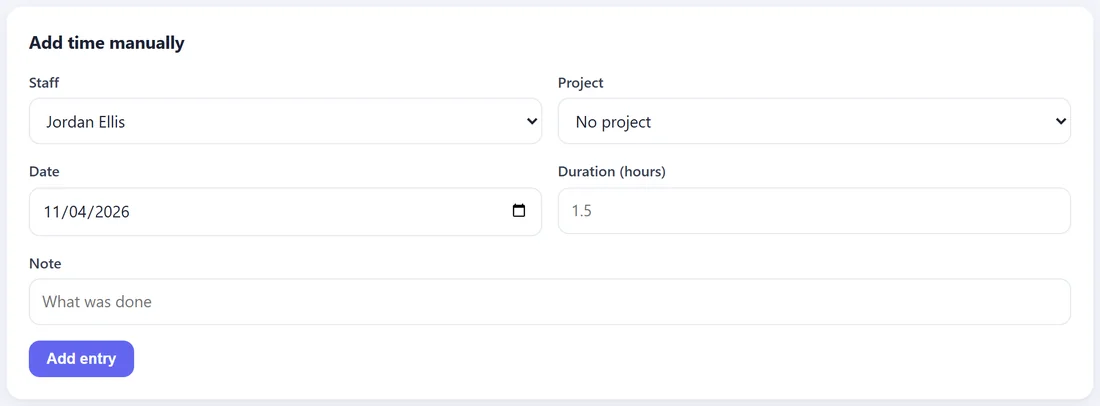
- In Add time manually, choose the Staff member and the Project.
- Choose the Date and type the Duration (hours), for example 1.5.
- Add a Note saying what was done.
- Press Add entry.
The entry is placed from 09:00 that day for the length you typed.
Remove a mistake:
Press the cross at the end of the row and confirm. Owners, admins and managers can remove any entry. Staff can remove their own. Every removal is recorded in the Audit log.
Forgotten timers:
A timer left running past the end of a shift is closed by itself (after 12 hours, unless you change it in Settings) and its note says auto-closed after 12h. Check it here and trim it if needed.