ResultsAiX Membership can sell any level through your own Stripe account. Members pay on Stripe's own checkout page, the money goes into your Stripe account, and the plugin gives them their level the moment Stripe confirms the payment.
Until you connect Stripe, none of this shows. There is no Payments tab, no price field on a level and nothing extra on your join forms, so a free members area stays exactly as it is.
Where to find it:

Go to AiX Membership, Integrations tab, and find the Stripe card at the top. Before you connect, the full connection form is right there. Once a key is saved, a Payments tab appears just after Levels, the connection form moves onto it, and the Stripe card on Integrations shows Connected with an Open Payments button.
What you need from Stripe:
- Your secret key, from your Stripe dashboard under Developers, API keys. A test key starts sk_test_ and a live key starts sk_live_.
- A webhook endpoint that you add in Stripe, pointing at the address the plugin gives you.
- The signing secret Stripe shows when you add that endpoint. It starts whsec_.
The publishable key is optional. Buyers pay on Stripe's own checkout page, so the plugin never uses it.
Connecting Stripe, step by step:
- Open Integrations, Stripe, and leave the mode on Test mode. Test mode uses Stripe's test cards and no real money moves.
- In Stripe, switch the dashboard to test mode, open Developers, API keys, and copy the secret key.
- Paste it into Test keys, Secret key.
- Copy the address under Your webhook endpoint with the Copy button.
- In Stripe, open Developers, Webhooks, and add an endpoint with that address.
- Choose these five events for it: checkout.session.completed, charge.refunded, invoice.paid, invoice.payment_failed and customer.subscription.deleted.
- Stripe now shows the endpoint's signing secret. Copy it and paste it into Test keys, Webhook signing secret.
- Click Save and test connection. "Saved, and Stripe answered. Your key works." means you are connected.
The Payments tab now appears. Put a price on a level, buy it with Stripe's test card 4242 4242 4242 4242, and watch the order arrive on the Payments tab. See Testing A Sale Without Spending Money.
Every setting on the card:
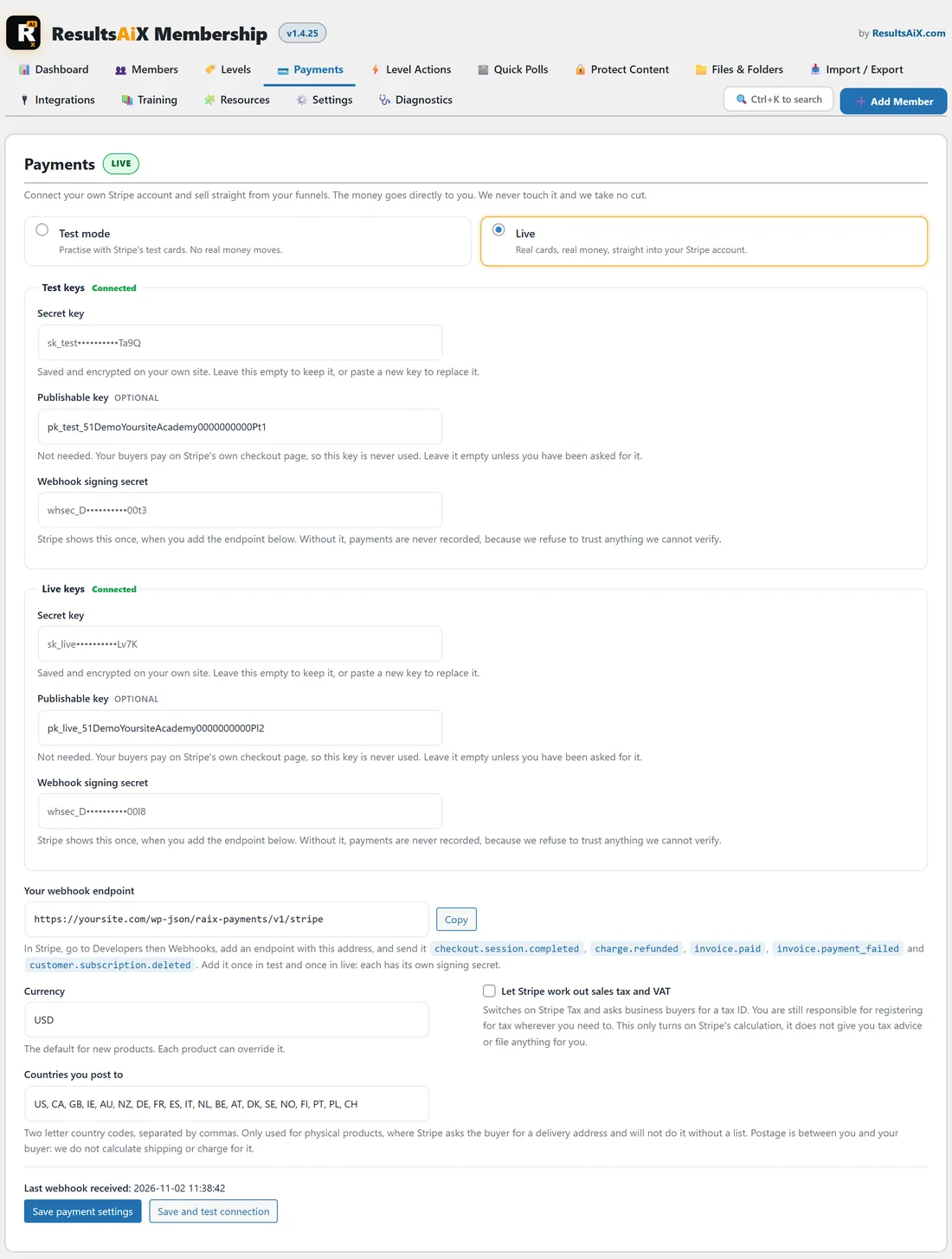
- Test mode and Live: which set of keys the site sells with. The badge beside Payments says Test mode or Live, so you always know which one is running.
- Test keys and Live keys: each has its own Secret key, Publishable key and Webhook signing secret, and shows Connected once a secret key is saved. Saved keys are encrypted on your own site and shown masked. Leave a box empty to keep what is saved, or paste a new key to replace it.
- Your webhook endpoint: the address to give Stripe. It is the same address in both modes, but Stripe gives each mode its own signing secret, so add the endpoint once in test and once in live.
- Currency: the three letter currency for new prices, such as USD, GBP or EUR. Each level can use its own.
- Let Stripe work out sales tax and VAT: switches on Stripe Tax and asks business buyers for a tax ID. It only turns on Stripe's calculation. Registering for tax where you need to stays with you.
- Countries you post to: only used for physical products sold by other ResultsAiX plugins that share this connection. A membership site can leave it as it is.
- Save payment settings, and Save and test connection, which also asks Stripe whether the key works.
The card also shows Last webhook received with a date and time once Stripe has called your site. That line is your proof the webhook is working.
A safety check on the keys:
A key pasted into the wrong box is refused. A live key will not save into the test slot, and a test key will not save into the live slot, so you can never take real money while you think you are practising.
Going live:
- In Stripe, switch the dashboard to live mode and repeat the steps for the live secret key and a live webhook endpoint with the same five events.
- Paste them into Live keys and save.
- Select Live at the top of the card. A checkbox appears: I understand that Live charges real cards and the money goes to my Stripe account. Tick it.
- Click Save payment settings.
Test orders you made earlier stay on the Payments tab, marked test, and are never counted as money anywhere.
Why card details never touch your website:
Members type their card on Stripe's own checkout page. No card number passes through your site, this plugin or your database, which keeps you out of card handling rules and lets Stripe look after bank checks such as 3D Secure.
One connection for every ResultsAiX plugin on the site:
If ResultsAiX Funnels runs on the same site, both plugins share this one Stripe connection and the one webhook endpoint. Connect once in either and the other is connected too. Each plugin keeps its own orders.
An example from Yoursite Academy:
Yoursite Academy connected Stripe in test mode first, sold itself the Photo Basics Course with the 4242 test card, saw the test order on the Payments tab, then added its live keys and live endpoint and switched to Live. Its card now shows Live, both key sets show Connected, and Last webhook received shows a time from today.
If you see a notice at the top of the Payments tab:
- No webhook signing secret for this mode: paste the signing secret for the mode you are in.
- Stripe has never contacted this site: add the endpoint in Stripe, then use Send test webhook in Stripe to prove it arrives.
- People started a paid signup and none were completed: the webhook is not reaching the site. Check the endpoint address and that its signing secret matches the mode.
Next:
- Put a price on a level with Paid Levels: Putting A Price On Access.
- Share a checkout link anywhere with Buy Links: Sell Or Share A Level From Any Page.
- Learn what happens over time in Renewals, Failed Cards, Refunds And Cancelling.