The Settings tab decides how your whole membership site behaves: what a visitor without access sees, where members land after logging in and out, how the admin screens look, and what happens if the plugin is ever deleted. The Diagnostics tab is its partner, a one glance health report for when something needs a closer look.
Most sites set these once and rarely come back. This guide goes through every card, top to bottom, with a good value for each.
Where to find it:
Open AiX Membership in the WordPress menu, then the Settings tab. The cards are, in order: your licence, Help & your account, When someone without access opens protected content, Login & redirects, Appearance, Compatibility mode, Uninstall behavior, then the Save settings button. Under that come Setup wizard, Email sending, AI Helper, API keys, The old plugin's tables (only when they exist) and the Danger Zone. Diagnostics is its own tab, the last one in the row.
Help & your account:
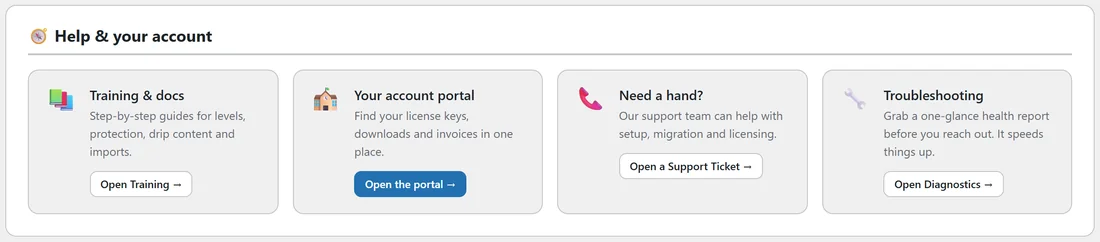
Four shortcuts: Training & docs opens the Training tab, Your account portal opens your account portal for keys, downloads and invoices, Need a hand? opens a support ticket, and Troubleshooting opens the Diagnostics tab.
When someone without access opens protected content:
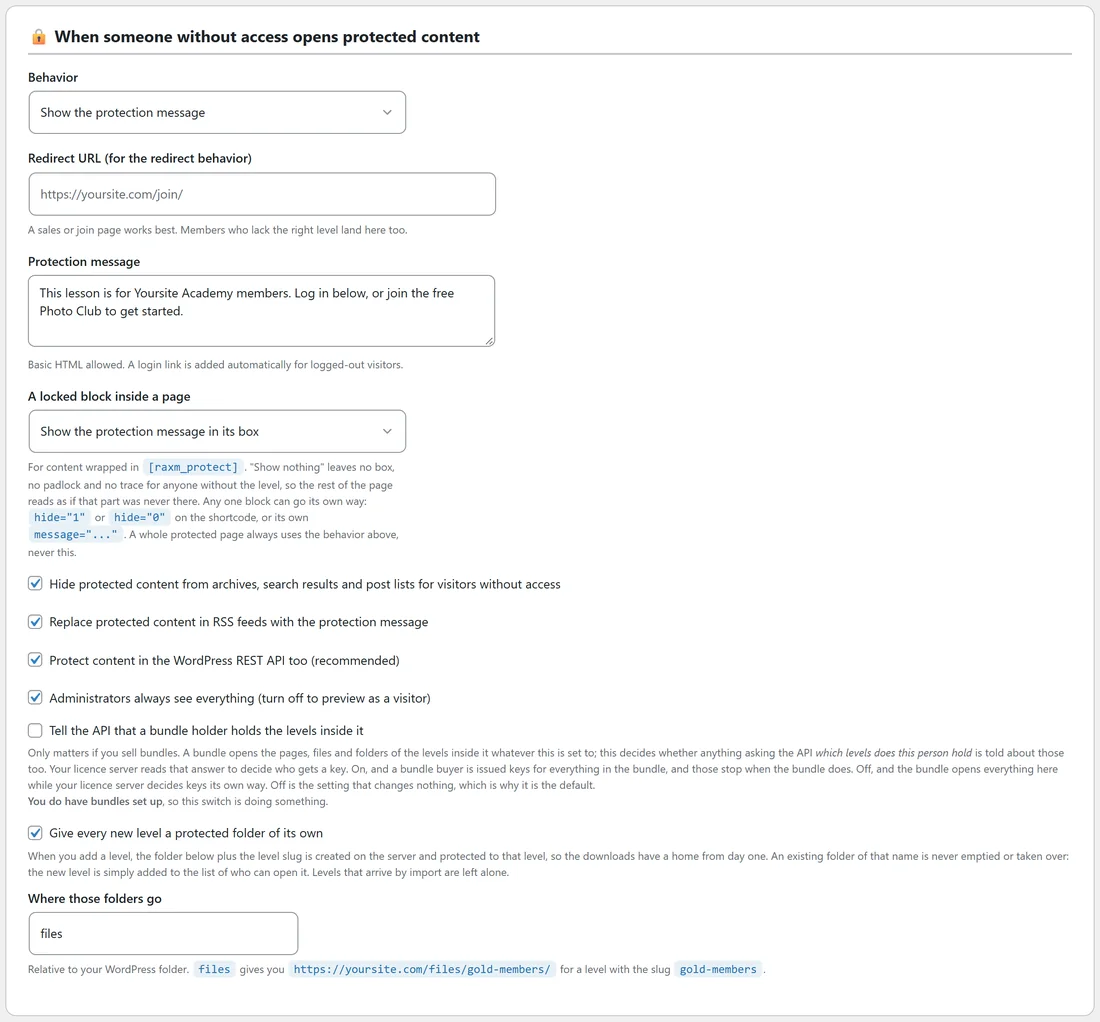
This card decides what a visitor or a member without the right level sees.
- Behavior: Show the protection message, Show the excerpt as a teaser then the message, or Redirect them to a page. A teaser works well for articles. A redirect works well when you have a strong join or sales page.
- Redirect URL (for the redirect behavior): start typing to pick one of your pages, or paste an address. A sales or join page works best. Members who lack the right level land here too.
- Protection message: the text people see. Basic HTML is allowed, and a login link is added for you when the visitor is logged out. Write it as an invitation, for example "This lesson is for Yoursite Academy members. Log in below, or join the free Photo Club to get started."
- A locked block inside a page: for content wrapped in [raxm_protect]. Show the protection message in its box, or Show nothing at all, which leaves no box and no padlock, so the rest of the page reads as if that part was never there. Any single block can go its own way with hide="1", hide="0" or its own message="..." on the shortcode. A whole protected page always uses the Behavior setting above.
- Hide protected content from archives, search results and post lists for visitors without access: on by default. Keep it on.
- Replace protected content in RSS feeds with the protection message: on by default. Keep it on.
- Protect content in the WordPress REST API too (recommended): on by default. Keep it on, so locked content cannot be read through the API.
- Administrators always see everything (turn off to preview as a visitor): on by default. Untick it for a moment to see your own site the way a visitor does, then tick it again.
- Tell the API that a bundle holder holds the levels inside it: only matters if you sell bundles. A bundle always opens the pages, files and folders of the levels inside it; this decides whether anything asking the API which levels a person holds is told about those too. Off is the default and changes nothing.
- Give every new level a protected folder of its own: on by default. Adding a level on the Levels screen creates a folder named after its slug and protects it to that level. An existing folder of that name is never emptied: the new level is simply added to who can open it. Levels that arrive by import are left alone.
- Where those folders go: relative to your WordPress folder. The default files gives yoursite.com/files/gold-members/ for a level with the slug gold-members.
Login & redirects:
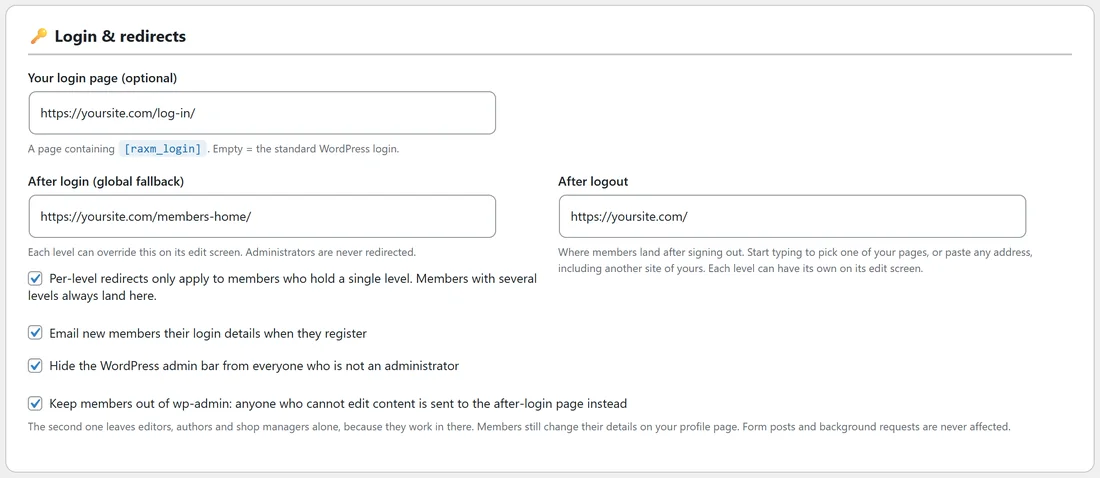
- Your login page (optional): a page containing [raxm_login]. Leave it empty to use the standard WordPress login. Yoursite Academy uses its Log In page.
- After login (global fallback): where members land after logging in. Each level can override this on its edit screen, and administrators are never redirected.
- Per-level redirects only apply to members who hold a single level. Members with several levels always land here: on by default. It stops a member with three levels landing somewhere different depending on which one was picked.
- After logout: where members land after signing out. Start typing to pick a page, or paste any address, including another site of yours. Each level can have its own.
- Email new members their login details when they register: on by default.
- Hide the WordPress admin bar from everyone who is not an administrator: off by default. Most membership sites tick it.
- Keep members out of wp-admin: anyone who cannot edit content is sent to the after login page instead. Off by default. It leaves editors, authors and shop managers alone, and form posts and background requests are never affected.
Appearance:
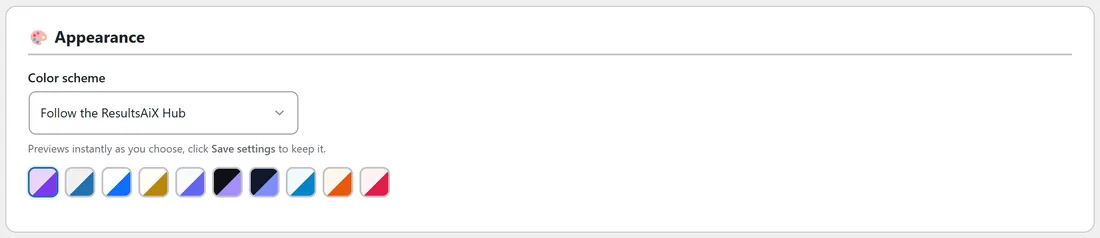
Color scheme changes the look of this plugin's admin screens only, never your site. Follow the ResultsAiX Hub is the default, so if the ResultsAiX Hub sets a scheme for every plugin at once, this one follows. You can also pick one of nine schemes yourself: WordPress Native, Clean White, Ivory Cream, Snow Light, Developer Dark, Midnight Blue, Ocean Blue, Sunset Warm and Rose Pink. The screen previews each one as you choose; press Save settings to keep it.
Compatibility mode:
For sites moving from WishList Member. See Compatibility Mode, API Keys And Retiring The Old Tables.
Uninstall behavior:

Delete all plugin data when the plugin is deleted from the Plugins screen is off by default. Off means deleting the plugin keeps your levels, members and protection, so you can reinstall safely. WordPress user accounts are never deleted either way. Tick it only on a site you are closing down.
When you have changed anything above, press Save settings at the bottom of these cards.
Setup wizard, email, AI and keys:
- Setup wizard: Open the setup wizard builds a working members area from nothing, or walks you through carrying another membership plugin across. It never duplicates a page or a level it already made. See The Setup Wizard: A Members Area In Five Minutes.
- Email sending: see Email Sending: Getting Member Emails Delivered.
- AI Helper: see AI Helper: Ask, And Build.
- API keys and The old plugin's tables: see Compatibility Mode, API Keys And Retiring The Old Tables.
The Danger Zone:
The last card removes every level, member row, protected file record, folder guard and setting from the site, for a full fresh start. WordPress user accounts stay. It asks you to tick I understand ALL membership data will be permanently deleted (user accounts stay) and type DELETE before Delete all plugin data can be pressed. Deactivating or updating the plugin never touches your data; only this button does.
Diagnostics:
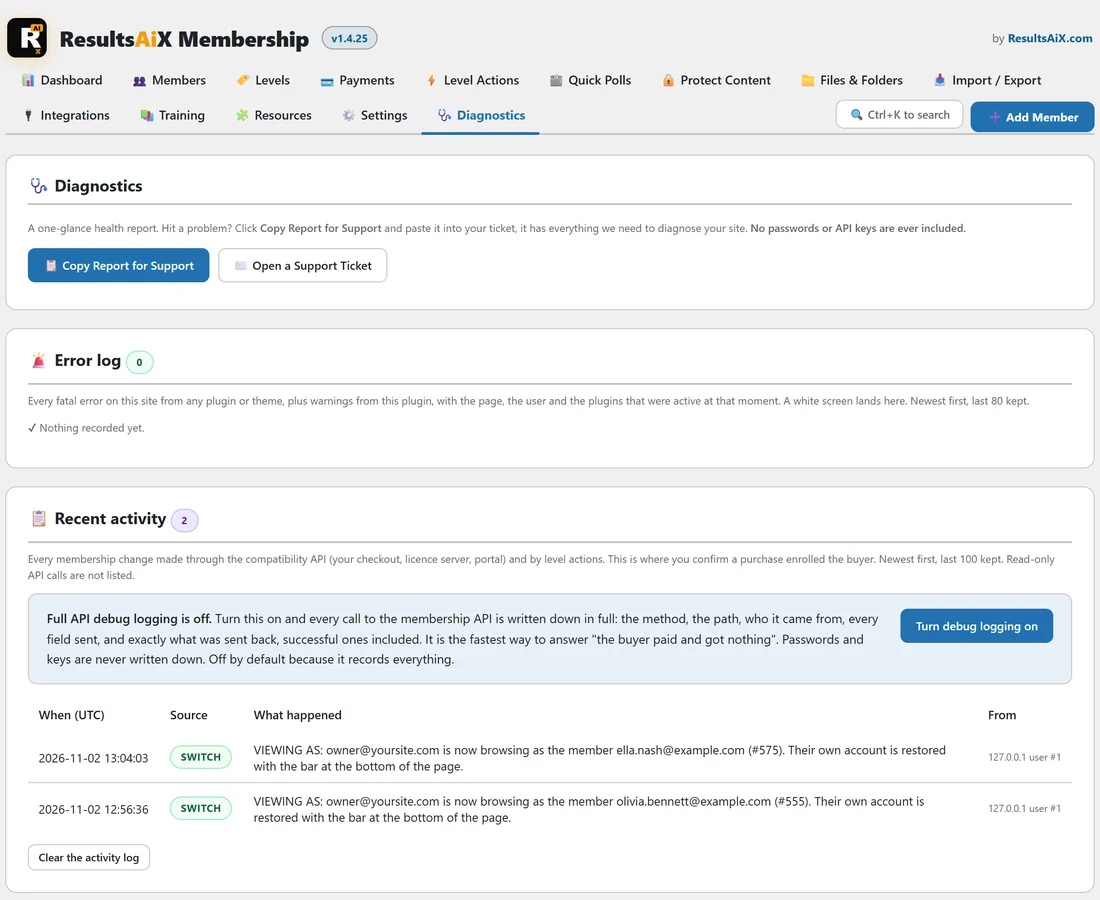
The Diagnostics tab is a one glance health report. Press Copy Report for Support and paste it into a support ticket: it holds everything needed to look into your site, and no passwords or API keys are ever included. Open a Support Ticket sits beside it.
Below that, each card covers one area.
- Error log: every fatal error on the site from any plugin or theme, plus warnings from this plugin, with the page, the user and the plugins active at that moment. Newest first, the last 80 kept. Clear the log empties it.
- Recent activity: every membership change made through the compatibility API (your checkout, licence server or portal) and by level actions, plus moments like an administrator using View as. Newest first, the last 100 kept. Clear the activity log empties it.
- Full API debug logging: off by default. Press Turn debug logging on while you chase a purchase that did not enrol, and every call to the membership API is written down in full, with passwords and keys never recorded. Press Turn debug logging off when you are done.
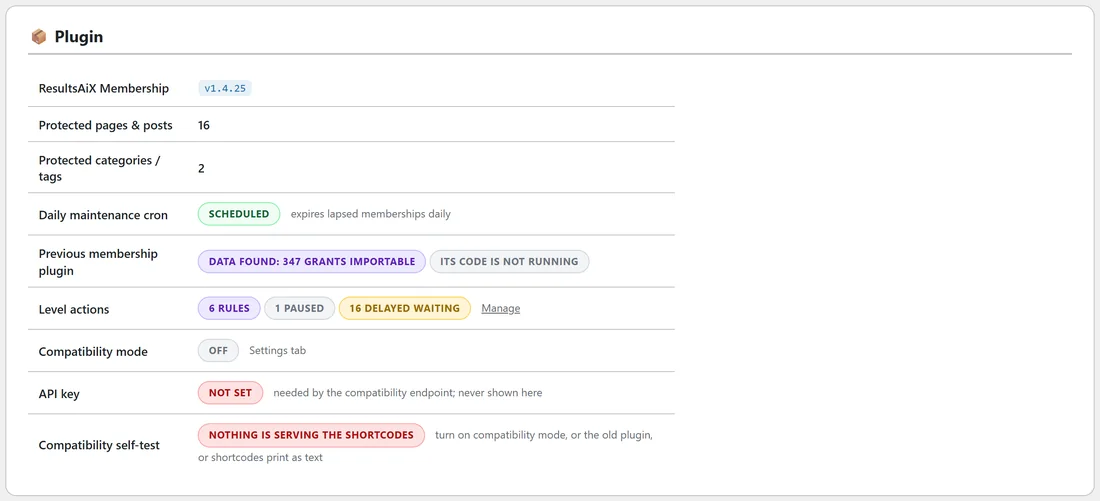
- Plugin: the version, protected pages and categories, whether the daily maintenance job is scheduled, previous membership plugin data, level actions waiting, compatibility mode, the API key and the compatibility self-test.
- File & folder protection: whether the protected uploads folder is sealed, whether uploads are writable, how many folder guards are in place, and the server type.
- Environment: WordPress, PHP and database versions, site address, HTTPS, memory limit and maximum execution time.
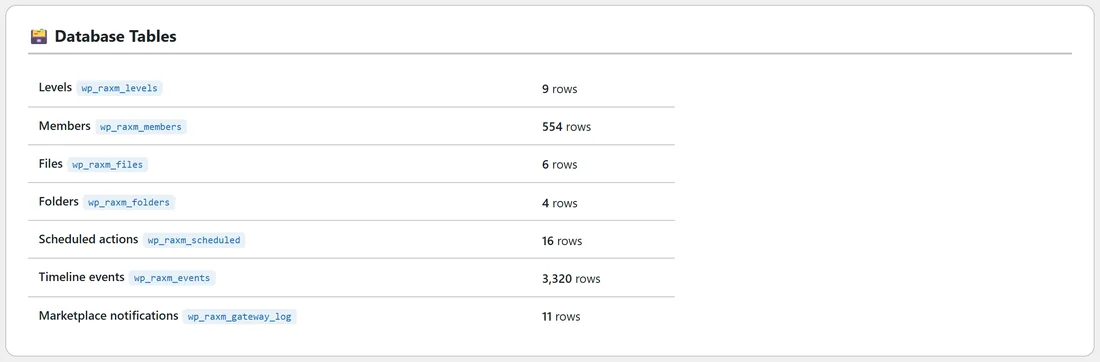
- Database Tables: every table this plugin uses, with its row count.
A worked example:
Yoursite Academy wants visitors who hit a lesson to see a friendly invitation, members to land on Members Home, and members never to see the WordPress admin bar.
- In When someone without access opens protected content, leave Behavior on Show the protection message and write the message above.
- In Login & redirects, set Your login page to the Log In page, After login to Members Home and After logout to the home page.
- Tick Hide the WordPress admin bar from everyone who is not an administrator and Keep members out of wp-admin.
- Press Save settings.
- Open a lesson in a private browser window to see the message, then log in as a member with View as on the Members tab.
If something looks wrong:
- If a protected page shows its content to you, you are probably logged in as an administrator. Use a private window, or untick Administrators always see everything for a moment.
- If members land on the wrong page after logging in, check the level's own After-login redirect on its edit screen, and the Per-level redirects only apply to members who hold a single level box.
- If you contact support, press Copy Report for Support on the Diagnostics tab first and paste it into the ticket.
Related: Protecting Pages, Posts And Categories, Login, Registration And Account Pages, and Licence, Updates And Troubleshooting.