When a member says a page is locked, the quickest way to see what is going on is to look at the site as them. View as does that in one click, without their password, and a bar at the bottom of every page brings you back to your own account.
You see exactly what they see: which pages open, which are locked, which menu items show, what their profile page lists and whether a drip lesson has opened yet.
Where to find it:
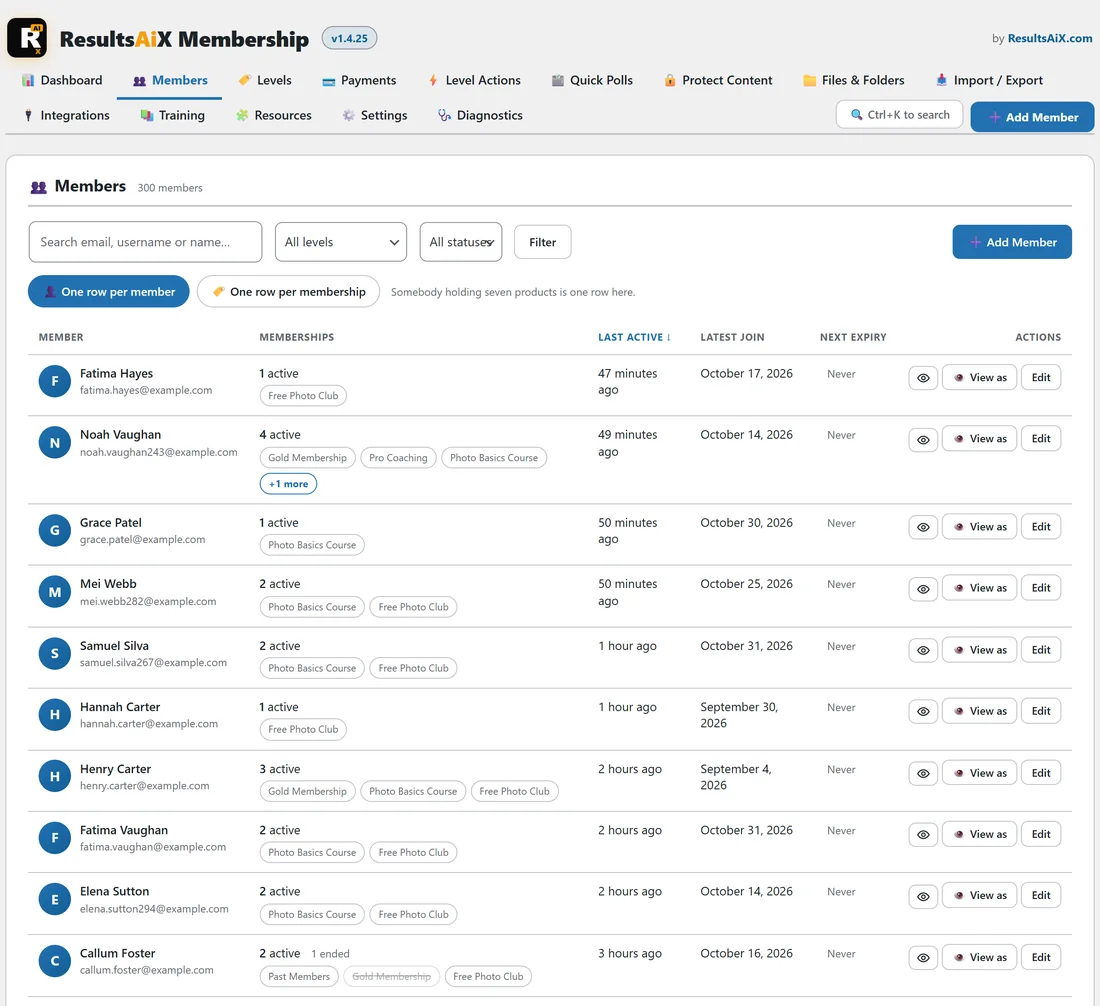
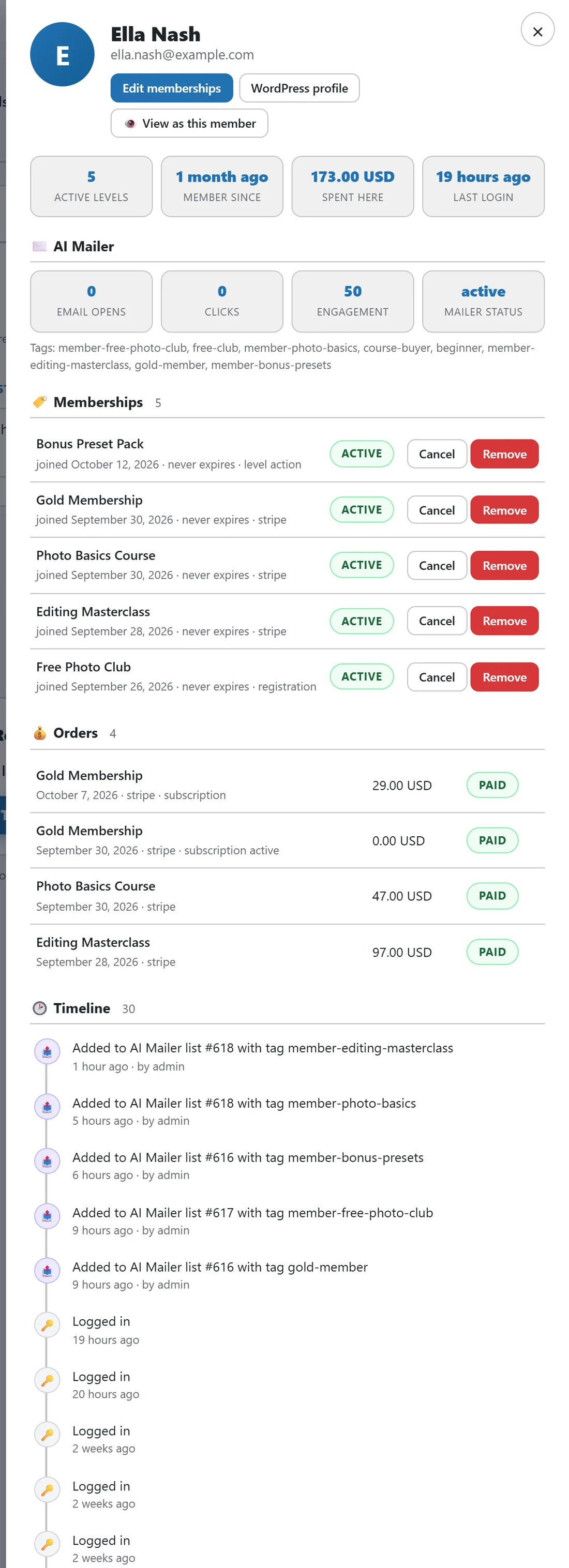
There is a View as button in three places.
- On every row of the Members tab.
- In the member side panel, as View as this member, when you click a member's name or the eye button.
- On the ordinary WordPress Users list, as a link under each user.
Looking at the site as a member, step by step:
- Open AiX Membership, then the Members tab.
- Find the member, for example by typing their email in the search box and clicking Filter.
- Click View as on their row.
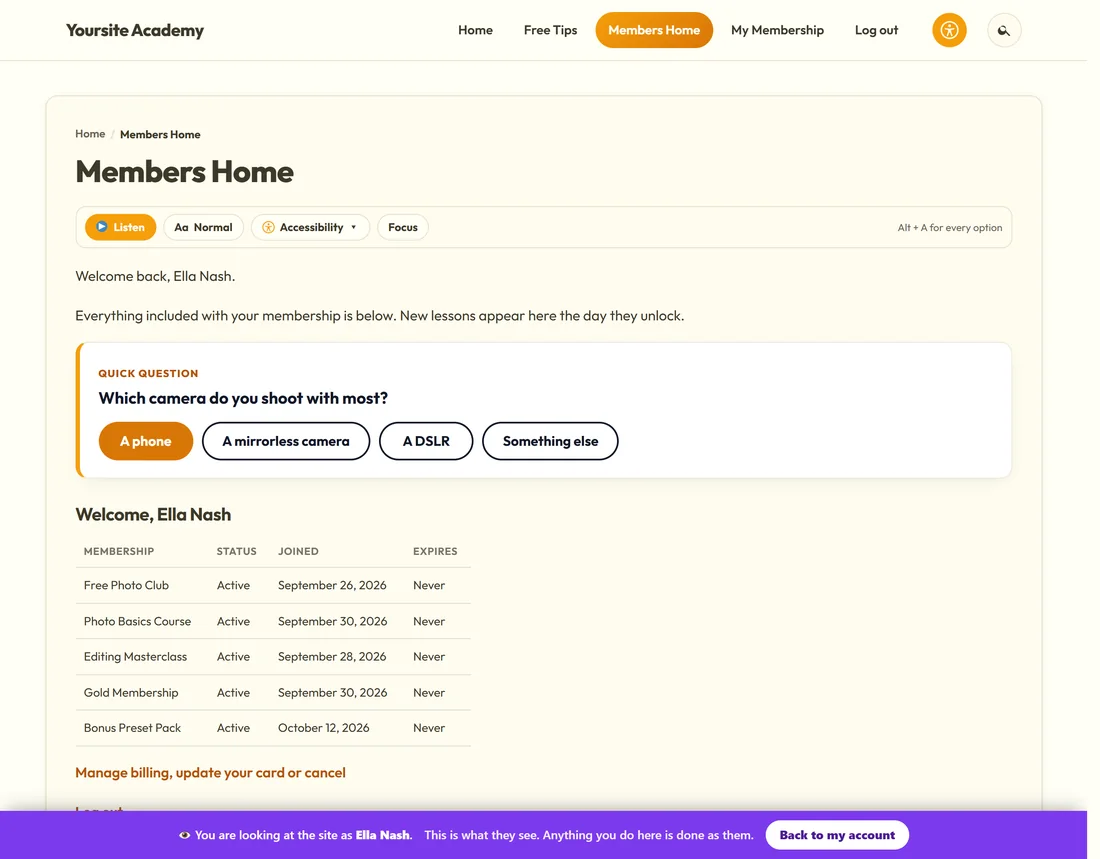
- You land on the page members go to after login, usually your Members Home, signed in as them.
- Browse the site normally. A purple bar at the bottom says You are looking at the site as, with their name.
- Click Back to my account on the bar when you are done.
You return to that member's screen in the admin, signed in as yourself again.
What you see while viewing:
- Locked pages show the same message they get.
- Menus show only the items their levels allow.
- Their [raxm_profile] page shows their memberships, downloads and recent activity.
- Quick Polls they have not answered yet appear where they would for them.
Anything you do while viewing as somebody is done as them. Answering a poll, joining a free level or changing a profile detail happens on their account, so look rather than click. The bar says so: Anything you do here is done as them.
Getting back:
- The bar is shown on any page template, including landing pages without the usual footer.
- There is also a link in the WordPress admin bar, Viewing as followed by their name, for pages where the bar does not show.
- Page caches are told to stand aside while you are viewing, so you never see a cached copy of somebody else's page.
- If the record of who you really are is ever lost, you are told so and signed out to the login screen, never left on the member's account. Log in again as yourself.
Who can use it:
- Only administrators who can manage the site. That is checked when the button is drawn and again when the link is followed, so a link copied out of the page is of no use to anybody else.
- You can never view the site as another administrator, or as yourself.
- The link is tied to the one member it was made for.
- Your browser holds one random token. The site remembers what it means and forgets it after two hours.
- Both the start and the end are written to the Recent activity log on the Diagnostics tab with both email addresses, so there is always a record of who looked at what.
A real example:
Ella Nash writes to Yoursite Academy: Lesson 6 of Photo Basics will not open. The owner finds Ella on the Members tab, clicks View as and opens Photo Basics Lesson 6: Your First Photo Walk. It shows the protection message, so the owner checks the lesson's drip: 35 days. Ella joined the course 33 days ago, so the lesson opens for her in two days. The owner clicks Back to my account and replies with the date. The whole check took under a minute and nobody needed a password.
Turning it off:
If nobody on your site should be able to do this, a developer can use the raxm_can_switch_to filter to turn it off for everyone or for particular members.
Tips:
- Use View as before announcing a new lesson or level, with a member who should have access and one who should not.
- For a quick visitor check, a private browser window is still the fastest.
- If a member cannot open something they paid for, View as shows you the page, and the side panel shows their memberships and orders, so you can usually answer in one reply.