The Payments tab is where you see the money side of your membership site: every order, how much came in, and a log of what the daily check changed. The daily check compares your members' access with their Stripe subscriptions once a day and puts right anything that has drifted apart.
Where to find it:
Go to AiX Membership, Payments tab. It appears once Stripe is connected. Under the connection card and the Paid levels table you will find the Orders card and the What the daily check changed card.
The Orders card:
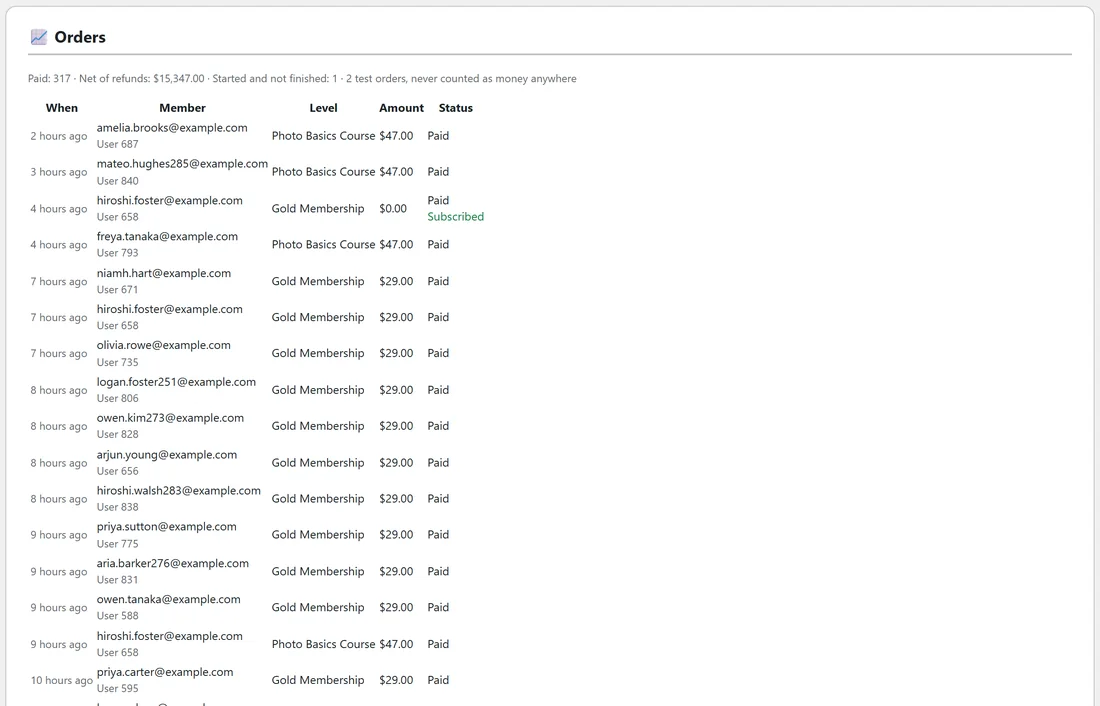
The line at the top gives the totals:
- Paid: how many paid orders there are.
- Net of refunds: the money taken, with refunds taken off.
- Started and not finished: checkouts somebody began and did not complete.
- Test orders: how many were made in test mode. These are never counted as money anywhere, here or in any other ResultsAiX plugin.
Below it, the 25 newest orders, each with:
- When: how long ago.
- Member: their email and user number, or Not reached checkout when they left before Stripe.
- Level: what they bought.
- Amount: in the order's currency. A refund shows in red with a minus sign.
- Status: Paid, Pending or Refunded, with (test) for a test order. Subscriptions also show Subscribed, Card failing, access kept, or Subscription ended.
A trial start shows as a paid order with a zero amount, because Stripe confirms the subscription before the first charge. The first real charge then arrives as a renewal.
Reading the Started and not finished number:
A few unfinished checkouts are normal: people change their minds on the card page. Those accounts are tidied away after a day if they never pay. If people keep starting and nothing ever completes, the Payments tab shows a notice at the top, because that is what a webhook that is not reaching your site looks like. See Charging For Membership: Connecting Your Own Stripe Account.
Finding one order:
Press Ctrl+K on any Membership screen and type the buyer's email, an order key or a Stripe transaction id. The payment comes up in the Payments group. See Find Anything With Ctrl+K. A member's orders are also in their side panel.
Why there is a daily check:
Levels are access. Stripe subscriptions are billing. Now and then they drift apart: a webhook is missed while your site is being updated, somebody cancels in the Stripe dashboard, or a card finally fails for good.
Once a day the plugin asks Stripe about every live subscription and fixes both directions:
- Stripe says active or trialing, but the member does not hold the level: access is given back.
- Stripe says past due, unpaid or incomplete: the order is marked Card failing, access kept. Access is never taken away while Stripe is still trying the card.
- Stripe says cancelled, or no longer has the subscription at all: the membership is set to cancelled.
The check runs with the plugin's daily maintenance job, the same one that ends memberships that have reached their end date.
What the daily check changed:
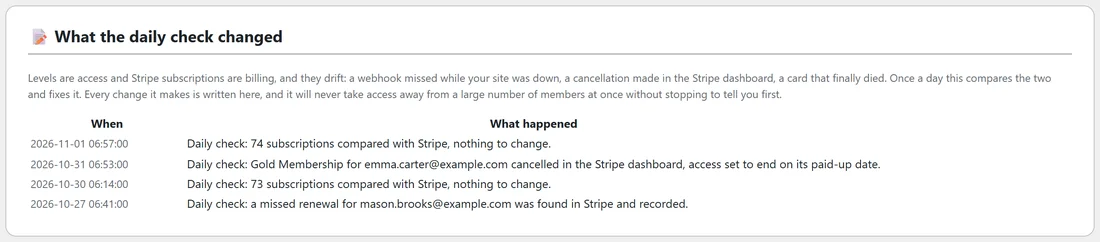
Every change the check makes is written in this card with the date and time and a plain sentence, for example that access was given back because Stripe says the subscription is active. When a run changes nothing, the card says "Nothing to report. That is the normal state."
The same log also records accounts tidied away after an unpaid sign up, accounts left alone because they had content, and anything the plugin could not do by itself, such as cancelling a subscription in Stripe for a deleted user.
It never removes access from many members at once:
If one run would take access away from more than a fifth of your live subscriptions, the check stops, changes nothing, and writes a line saying so. A wrong key or a bad hour at Stripe can look exactly like everybody cancelling at once, and your members area should never empty itself because of that. If Stripe cannot be reached, nothing is changed either, and the line says the subscription could not be checked.
If you see that line, check that the live secret key on the Payments card is the right one, then wait for the next run.
If somebody paid but has no access:
Leave it a day and the daily check finds exactly this and gives the level back, writing down what it did. If you would rather not wait, add the level by hand on the Members tab with Add Member. Then check the webhook in Stripe, because a missed webhook is what lets this happen.
An example from Yoursite Academy:
Yoursite Academy's Orders card shows hundreds of paid orders, one checkout started this morning and not finished yet, and two test orders from the week they set things up. In What the daily check changed, most days read that the subscriptions were compared with Stripe and nothing needed changing. One day it records that a Gold member had cancelled in the Stripe dashboard and their access was set to end. Another day it records a renewal that was missed while the site was being updated, found in Stripe and recorded.
Tips:
- Glance at What the daily check changed once a week. A quiet log means billing and access agree.
- Use Ctrl+K with the buyer's email when a member writes in about a payment.
- For what each event does to a member's access, see Renewals, Failed Cards, Refunds And Cancelling.