
Every screen of ResultsAiX Membership has the same menu at the top, so any page is one or two clicks away. This guide shows how the menu is laid out, how to switch to a menu down the left side if you prefer it, and the two searches: Ctrl+K inside Membership, and Search ResultsAiX across every ResultsAiX plugin on your site.
Where to find it:
The menu sits under the ResultsAiX Membership title on every Membership screen. Open AiX Membership in the WordPress sidebar and it is the coloured bar across the top. The Menu style setting is in Setup, then Settings, under Appearance.
The Top Menu:

The Top Menu is the one you see first. It puts the sections on one coloured bar:
- Dashboard: members, sales and activity at a glance.
- Members: Members and Import / Export.
- Levels: Levels, Payments (once Stripe is connected), Level Actions and Quick Polls.
- Protect: Protect Content and Files & Folders.
- Setup: Settings, Integrations and Diagnostics.
- Help: Training and Resources.
- Hub, when the free ResultsAiX Hub is installed: all your ResultsAiX plugins in one place.
At the right end of the bar are the search button (a magnifier, labelled Ctrl+K to search on wide screens) and the Add Member button.
Opening a section:

- Point at a section with a small arrow, such as Levels. Its pages drop down right under it.
- Each page has a one-line note that says what it is for, for example "What happens when someone joins or leaves" under Level Actions.
- Click a page to open it.
You can also click the section name to open its dropdown, which suits a trackpad or a tablet. Press Esc to close it, or use the arrow keys to move through the pages. Under the bar, a row shows the pages of the section you are in, with the page you are on highlighted. A member's edit screen lights up Members, and a level's edit screen lights up Levels.
Switching to the Side Menu:

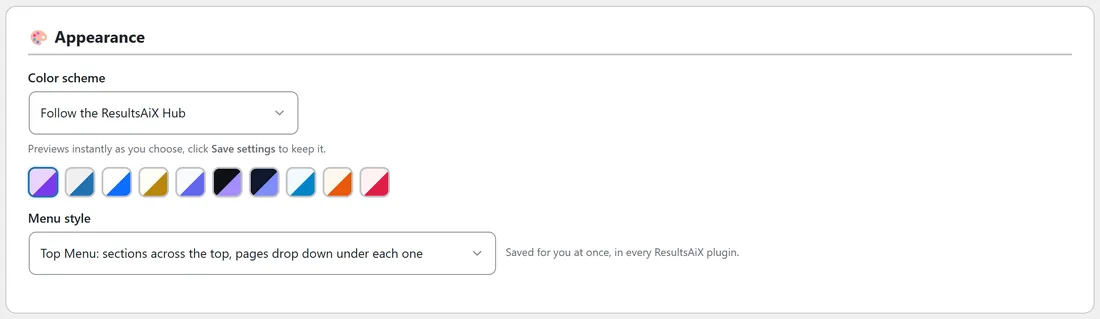
If you prefer a menu down the left side, switch to the Side Menu. Every page is in both menus.
- Point at Help, the last section in the Top Menu.
- At the bottom of the dropdown, under Prefer a menu down the side?, click Switch to Side Menu.
Or open Setup, then Settings, and pick Side Menu under Menu style in Appearance. It is saved at once, for you only, and it applies in every ResultsAiX plugin on the site.
The Side Menu:
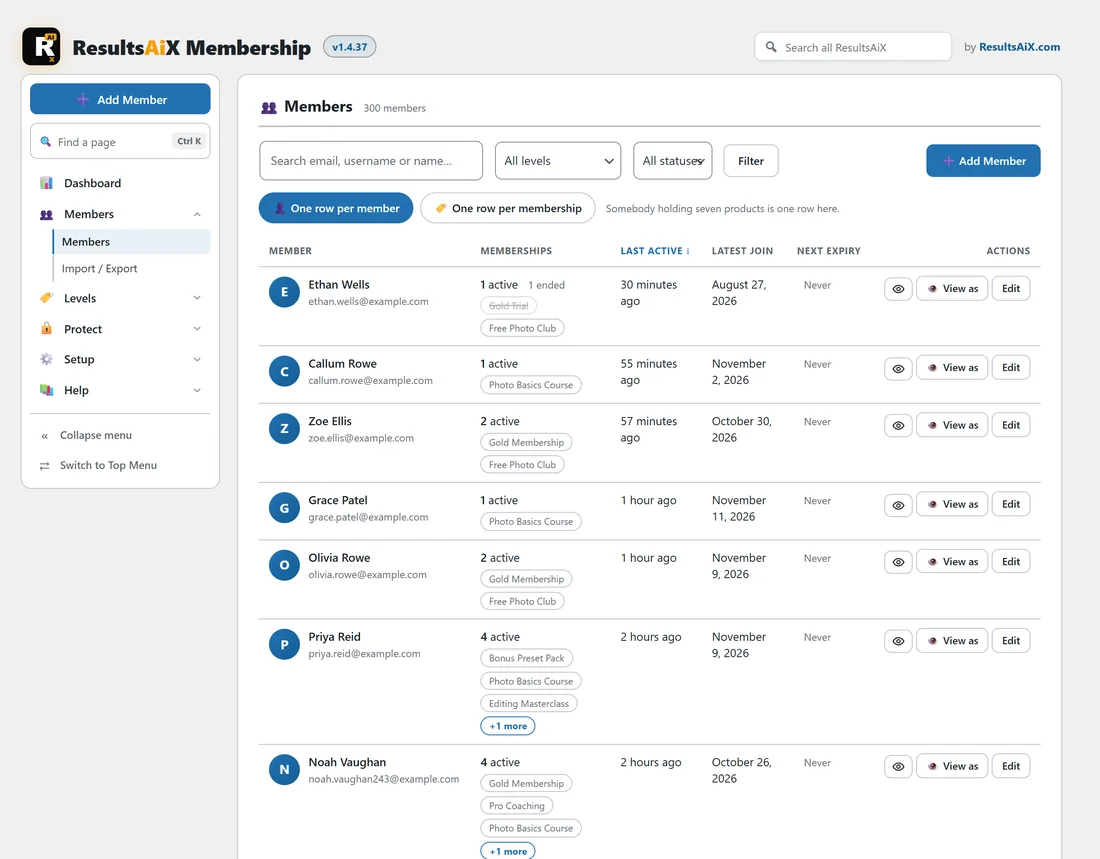
The Side Menu puts the same sections down the left of the screen:
- Add Member at the top adds a member.
- Find a page filters the menu as you type. Press Enter to open the first match.
- Ctrl K beside it opens the Membership search.
- Click a section to open or close it in place. The section you are in is always open.
- Collapse menu at the bottom folds the menu down to icons. Point at an icon and its pages pop out beside it.
- Switch to Top Menu at the bottom takes you back.
Search with Ctrl+K:
Press Ctrl+K (Cmd+K on a Mac) on any Membership screen, or click the magnifier at the right end of the menu, to find a member, a level, a payment, a page or a setting. See Find Anything With Ctrl+K.
Search every ResultsAiX plugin:
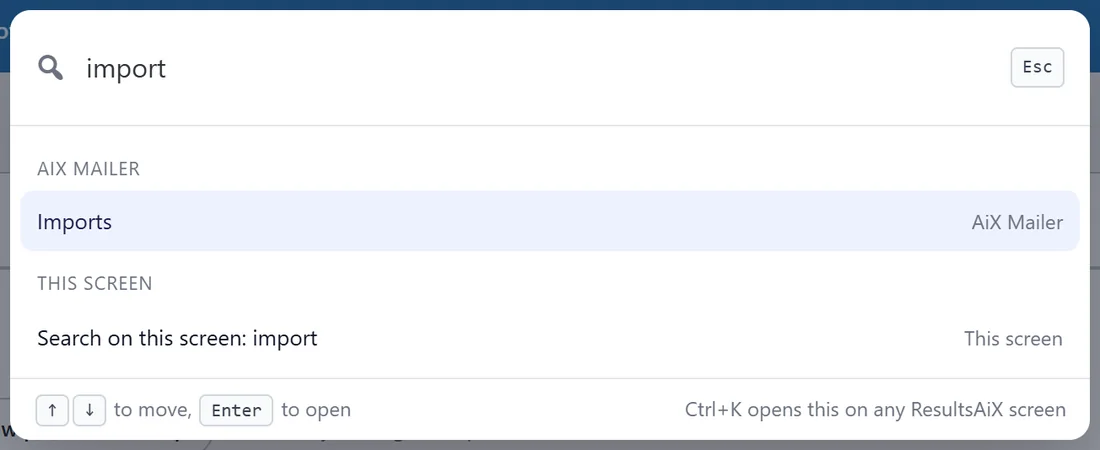
To open a page in any ResultsAiX plugin on your site, type in the Search all ResultsAiX box at the top of the screen, beside "by ResultsAiX.com", or click Search ResultsAiX in the WordPress bar at the very top. It lists every matching page, grouped by plugin. Use the arrow keys and Enter, or click a result.
AiX Brain:
When the free ResultsAiX Hub is installed, the last line of Search ResultsAiX is Ask AiX Brain, which hands your question to AiX Brain, your AI business assistant in the Hub.
A real example:
The owner of Yoursite Academy (yoursite.com) wants to add a welcome rule for Gold members. Pointing at Levels shows Level Actions with its note, and one click opens it. Later, a member writes in, so the owner presses Ctrl+K, types ella.nash and opens Ella's record straight away. On the big office screen the owner prefers the Side Menu, picks it once under Menu style, and every ResultsAiX plugin on the site follows.
Tips:
- New here? Start with Quick Start: A Working Membership Site In 10 Minutes.
- The Side Menu remembers which sections you left open and whether it was folded to icons.
- For every setting on the Settings page, see Settings, Appearance And Diagnostics.