ResultsAiX Video shares one menu with every ResultsAiX plugin, so once you know it here you know it everywhere. You can keep the menu across the top or move it down the left side, and one search box finds any ResultsAiX page on your site.
Where to find it:

The menu sits at the top of every ResultsAiX Video screen, under the ResultsAiX Video name. The Search ResultsAiX box sits on the right of that same header, next to by ResultsAiX.com. In the WordPress sidebar the plugin is called AI Video.
The Top Menu:
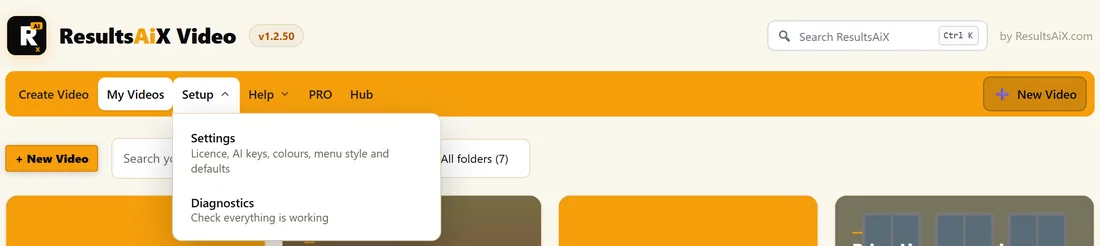
The Top Menu is what you see first. It is a coloured bar in your colour scheme.
- Create Video and My Videos open straight away.
- Setup holds Settings and Diagnostics.
- Help holds Training and Resources.
- PRO opens the PRO page, and Hub opens the ResultsAiX Hub.
- New Video, on the right, starts a fresh video.
Point at Setup or Help, or click it, and a dropdown opens right under it. Each page has a one-line note, for example Settings: Licence, AI keys, colours, menu style and defaults. The arrow keys and Esc work too.
When you are on a page inside a section, the pages of that section show as small buttons under the bar. On Settings you see Setup, then Settings and Diagnostics, so the other page is one click away.
The Side Menu:
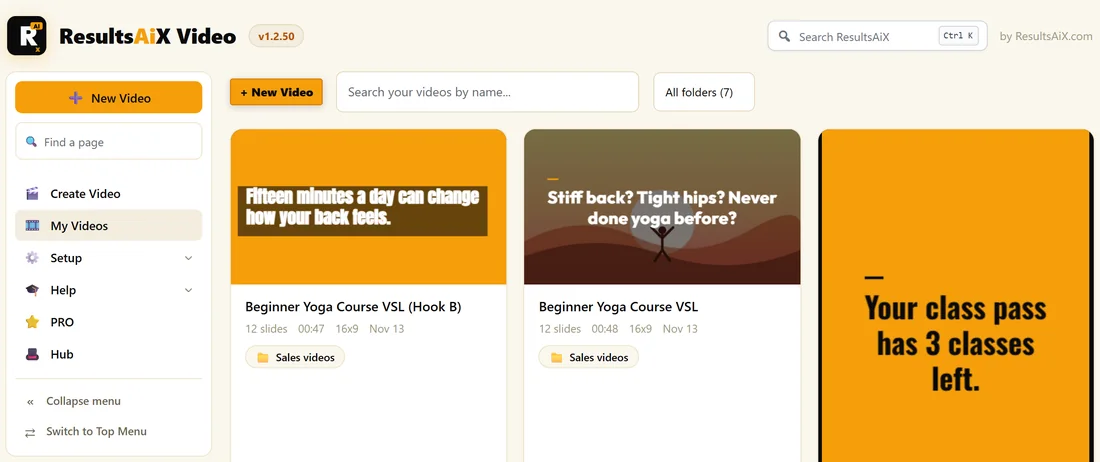
The Side Menu puts the same pages down the left side of the screen.
- New Video sits at the top.
- Find a page: type a word, such as diag, and the matching pages show at once.
- Setup and Help open and close in place, and the menu remembers which ones you left open.
- Collapse menu shrinks it to a row of icons. Point at an icon to see its pages, and click Expand menu to bring the words back.
- Switch to Top Menu, at the bottom, takes you back.
Both menus hold every page, so nothing is lost when you switch.
Switching between them:

- Open Help in the menu bar.
- At the bottom of the dropdown, click Switch to Side Menu.
- The page reloads with the Side Menu. To go back, click Switch to Top Menu at the bottom of the Side Menu.
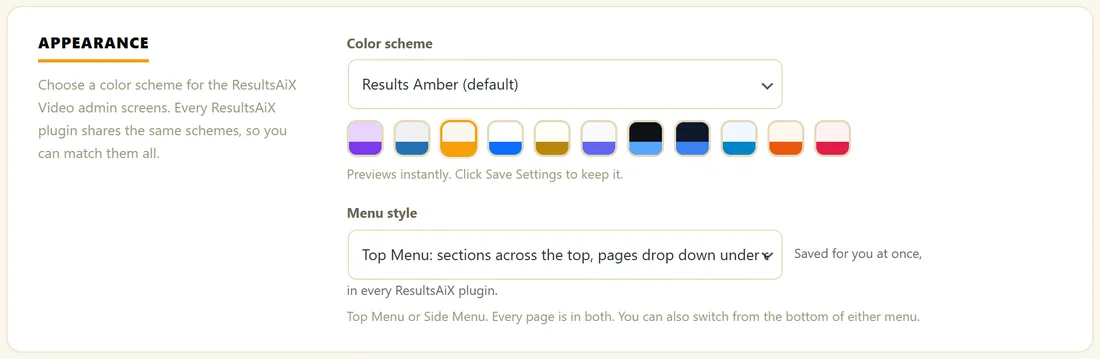
You can also choose in Settings: open Setup, then Settings, and use Menu style in the Appearance section. It saves for you at once, with no Save button. The choice is yours alone, so other people on your site keep their own, and it applies in every ResultsAiX plugin you use.
Search ResultsAiX:
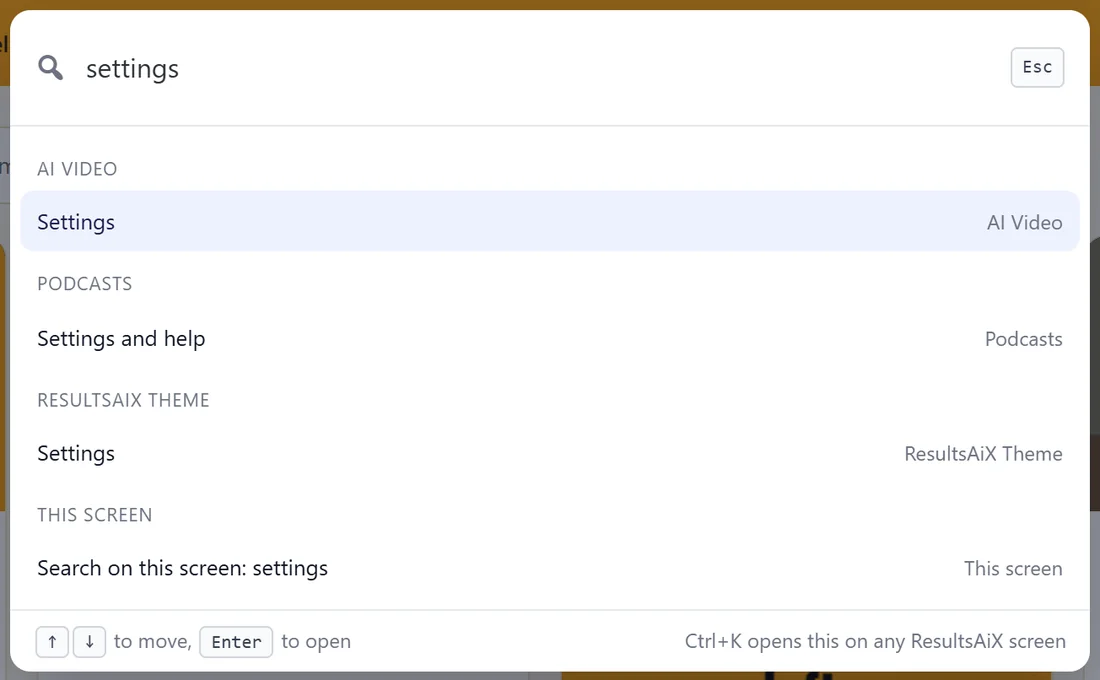
- Press Ctrl+K (Cmd+K on a Mac) on any ResultsAiX screen, or click the Search ResultsAiX box at the top right.
- Type a word, for example settings or diagnostics.
- The matching pages show, grouped by plugin. Use the arrow keys and press Enter, or click one.
The search lists the pages of every ResultsAiX plugin on your site, so you can jump from ResultsAiX Video straight to a page in another plugin. The last line, Search on this screen, looks for your words on the page you are on.
AiX Brain:
With the free ResultsAiX Hub installed, the last line of the search becomes Ask AiX Brain. Type a question about your business, pick that line, and AiX Brain opens in the Hub with your question.
A real example:
The owner of Yoursite Studio works on a laptop and likes the menu down the side. She opens Help, clicks Switch to Side Menu, and collapses it to icons so the builder has more room. When she wants the voice settings, she presses Ctrl+K, types settings, and lands on Settings without touching the menu.
Tips:
- Learn Ctrl+K first. It is the quickest way to any page in any ResultsAiX plugin.
- The Side Menu suits wide screens. The Top Menu suits laptops, because the builder keeps its full width.
- The colours of the menu follow your colour scheme. See Settings, Storage Clean Up And Diagnostics.
- Next, read Writing Or Generating Your Script and make your first video.