The Settings tab holds the details every email is signed with, the domains the link rules check, the privacy switches for the AI, and the licence. Spend one minute here before anything else: the house rules and the writer both read it.
Where to find it:
Open AiX Email and click the Settings tab, or Settings in the WordPress sidebar. The Licence link on the Plugins page opens it too.
Your licence:
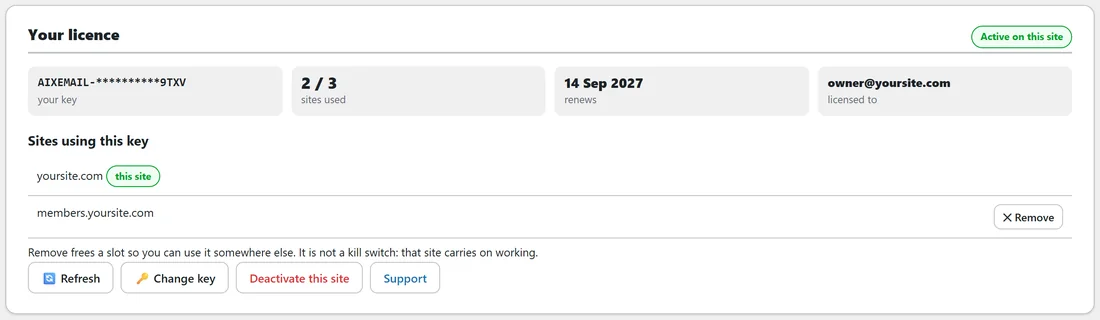
The first card on the screen. See Installing ResultsAiX Email And Activating Your Licence Key.
Your details:
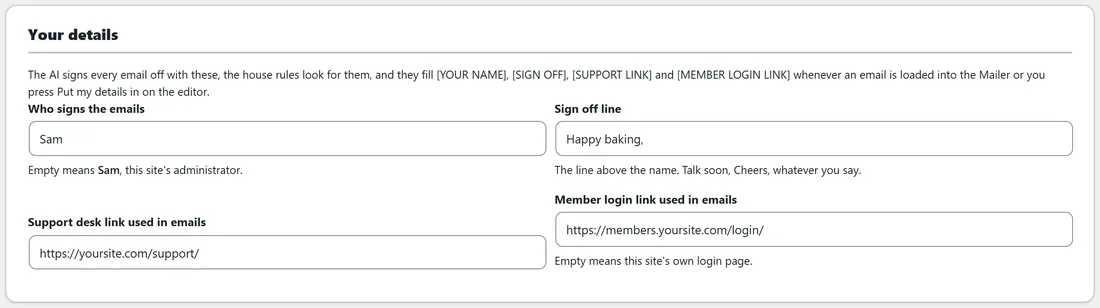
- Who signs the emails: the name at the close of every email. Empty means this site's first administrator, and the hint under the field says who that is.
- Sign off line: the line above the name, such as Talk soon or Cheers. Out of the box it is To Your Results,.
- Support desk link used in emails: the web address of your support desk.
- Member login link used in emails: where members log in. Empty means this site's own login page.
The AI signs every email off with these, the house rules look for them, and they fill [YOUR NAME], [SIGN OFF], [SUPPORT LINK] and [MEMBER LOGIN LINK] whenever an email is loaded into the Mailer or you press Put my details in in the editor.
Your domains:
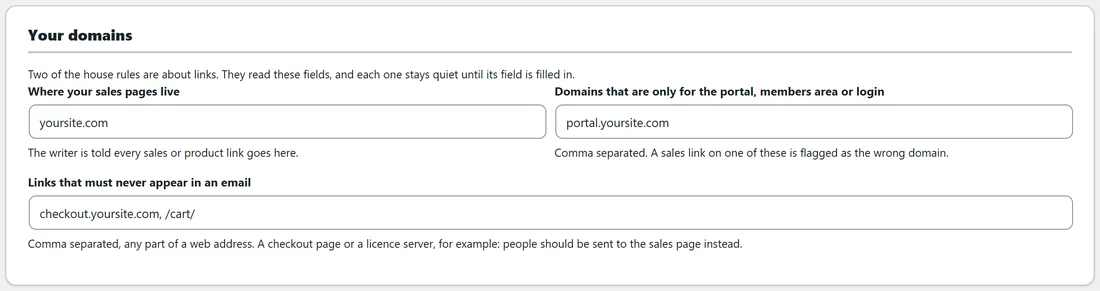
- Where your sales pages live: one domain, such as yoursite.com. The writer is told every sales or product link goes here.
- Domains that are only for the portal, members area or login: comma separated, such as portal.yoursite.com. A sales link on one of these is flagged as the wrong domain.
- Links that must never appear in an email: comma separated, any part of a web address, such as checkout.yoursite.com or /cart/. People should be sent to the sales page instead.
Each link rule stays quiet until its field is filled in. See House Rules And The Score Out Of 100.
The email folder:

Full path to the folder your .txt emails live in. Empty means the starters bundled with the plugin. Reading a folder on the Import and export tab fills this in for you.
What the AI is allowed to see:
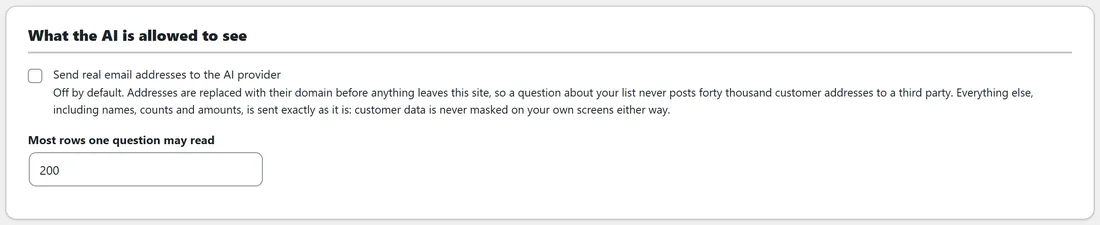
- Send real email addresses to the AI provider: off by default. Addresses in data read from your other plugins are replaced with their domain before anything leaves this site. Names, counts and amounts are sent as they are. Your own screens always show the real data either way.
- Most rows one question may read: the cap on each query Ask the family runs, from 10 to 1000. It starts at 200.
If you ever delete this plugin:

- Delete my emails too: off by default. Deleting the plugin normally removes its settings, voices, training packs, licence record, links and error log, and leaves your library, its History, the AI job log and Your products exactly where they are, so a reinstall finds every email still there. Tick this only if you want the emails, their History, the AI job log and Your products removed as well.
Press Save settings at the bottom to save every card above. The message Settings saved, and every email checked again with your details confirms it, because the sign off and the domains are part of the house rules.
Appearance:
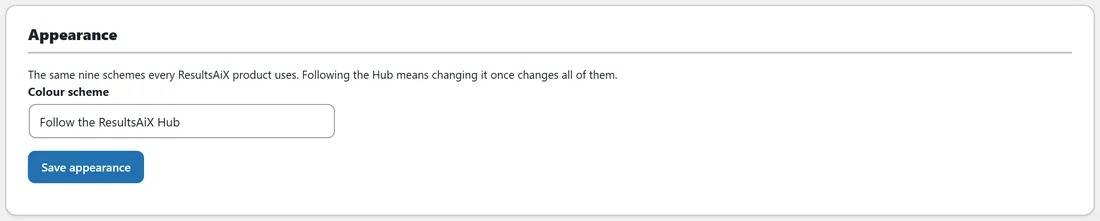
Colour scheme offers Follow the ResultsAiX Hub or one of nine schemes: WordPress Native, Clean White, Ivory Cream, Snow Light, Developer Dark, Midnight Blue, Ocean Blue, Sunset Warm and Rose Pink. Press Save appearance. Following the Hub means changing the scheme once in the ResultsAiX Hub changes every ResultsAiX product together.
Help and your account:

Four cards: Your account portal for every key and download, Need a hand for a support ticket, Troubleshooting for the Diagnostics tab, and Training and docs for the built in Training page.
A worked example:
Sam types Sam into Who signs the emails and Happy baking, into Sign off line, adds https://yoursite.com/support/ and https://members.yoursite.com/login/, sets yoursite.com as the sales domain, portal.yoursite.com as a backend domain, and checkout.yoursite.com, /cart/ as links that must never appear. After Save settings, the library is checked again and an old promotion that linked to the checkout page drops to 68, ready to fix.
Tips:
- Take a full backup on Import and export before you tick Delete my emails too.
- Keep the sign off short and the same everywhere. The voice measurements look for it.