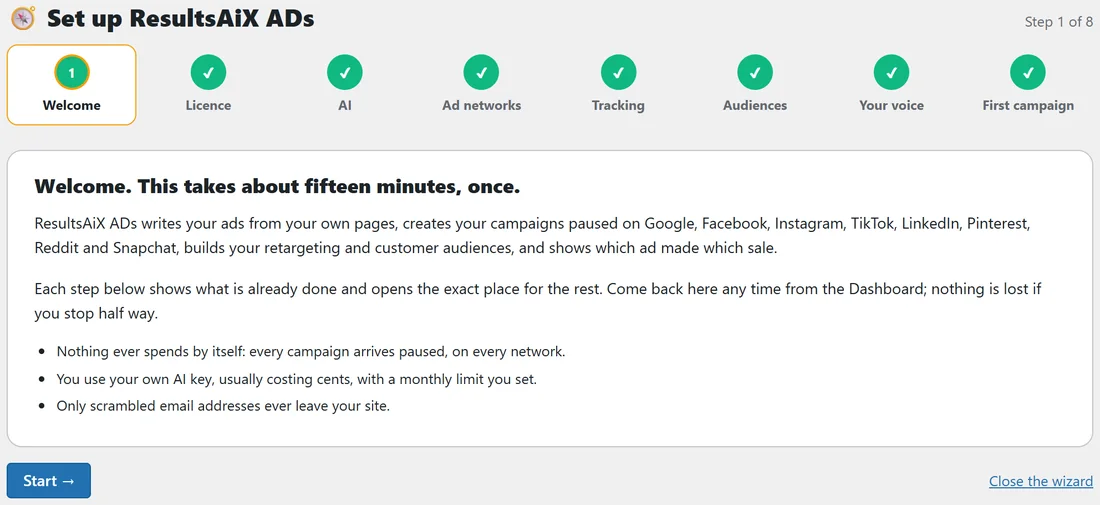
The Setup Wizard takes you from a fresh install to your first campaign in eight short steps. Each step reads your site live, shows what is already done with a green tick, and has one button that opens the exact place for the rest.
Nothing is lost if you stop half way. Close it any time and open it again later.
Where to find it:
- It opens by itself the first time, once your licence is active.
- Open it again from the Dashboard's Get set up card while setup is not finished, by clicking any step.
- At the top, the eight steps show with ticks. Click a step to jump to it.
The eight steps:
- Welcome. What ADs does, and three promises: nothing spends by itself, you use your own AI key with a monthly limit you set, and only scrambled email addresses leave your site. Press Start.
- Licence. Shows your licence status, with a link to Settings if it is not active yet.
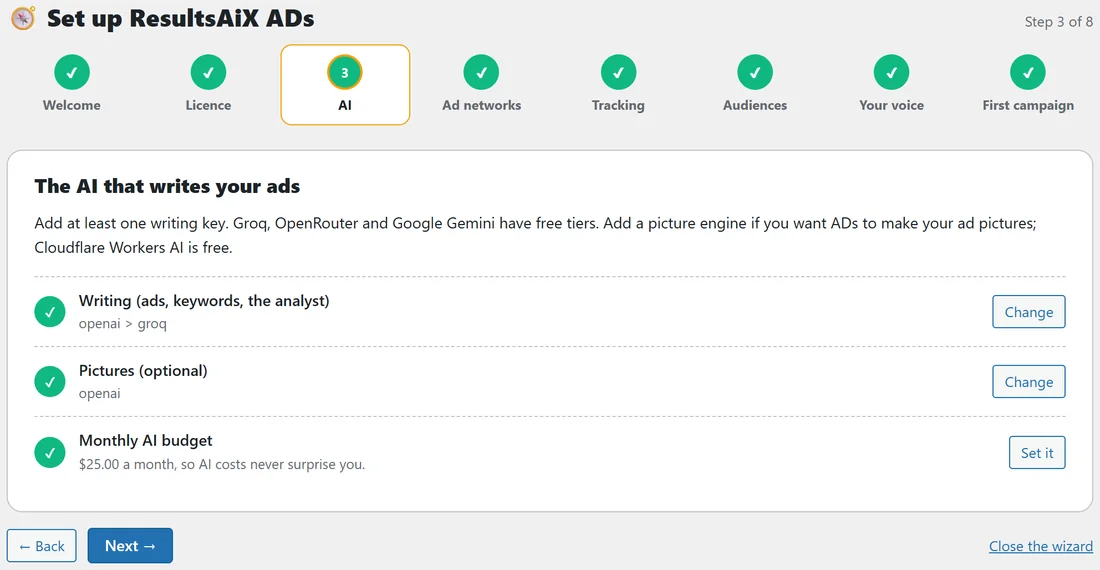
- AI. Writing (ads, keywords, the analyst), Pictures (optional) and Monthly AI budget, each with a Change or Set it button.
- Ad networks. Google Ads, Facebook & Instagram, and TikTok, LinkedIn, Pinterest, Reddit, Snapchat. Each line says how it is connected and has an Open button.
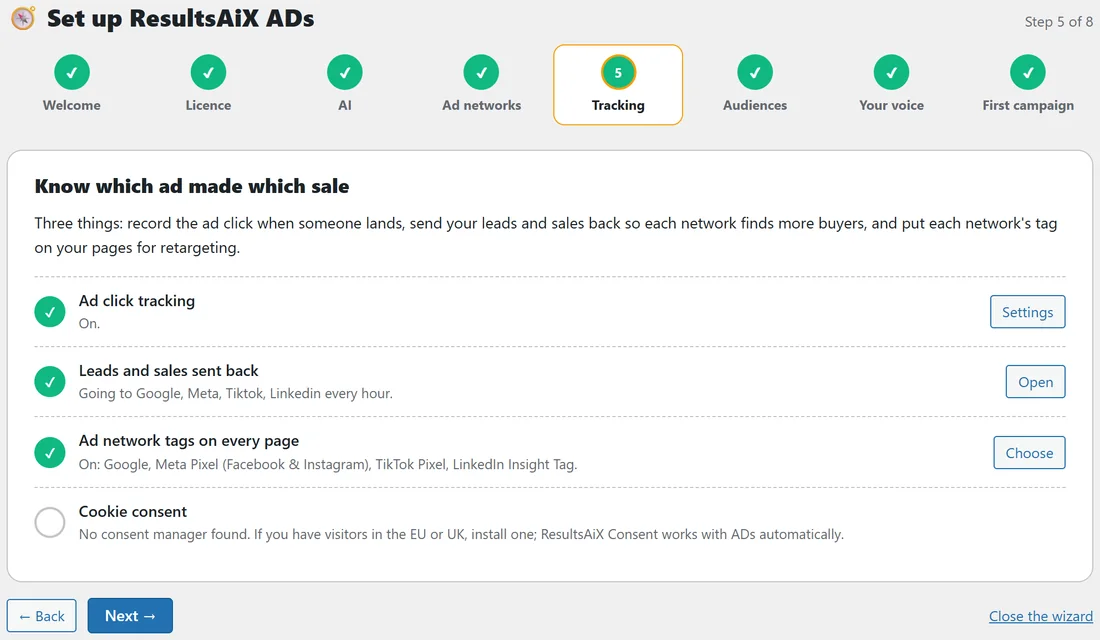
- Tracking. Ad click tracking, Leads and sales sent back, Ad network tags on every page and Cookie consent, each with its own button.
- Audiences. Your visitors, subscribers and buyers in your ad accounts.
- Your voice. A few things you wrote, so every ad sounds like you.
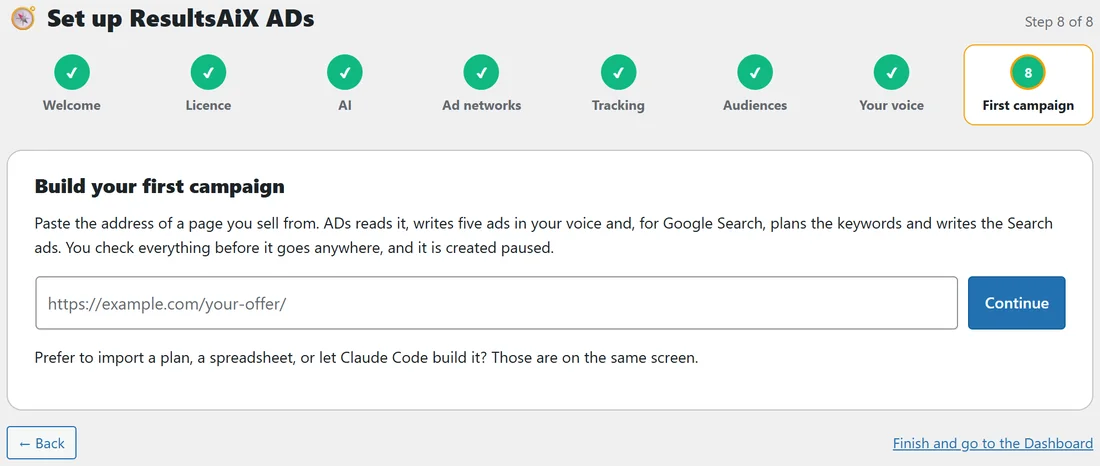
- First campaign. Paste the address of a page you sell from and press Continue, or use a plan, a spreadsheet or Claude Code on the same screen.
Moving through it:
- Next goes to the next step when this one is done. Skip for now goes on when it is not.
- Back goes one step back.
- Close the wizard returns to the Dashboard.
- On the last step, Finish and go to the Dashboard ends it.
A real example:
On yoursite.com every step showed a tick. Step 3 listed openai > groq for writing, openai for pictures and a $25.00 a month AI budget. Step 5 showed ad click tracking On, leads and sales going to Google, Meta, TikTok and LinkedIn every hour, and the Google, Meta, TikTok and LinkedIn tags on every page. The only open circle was Cookie consent, because the site had no consent banner yet.
Tips:
- Use the wizard as a checklist after any big change, for example after you connect a new network.
- A step with an open circle is not a problem; it just shows something you can add later.
- For each step in detail, see Quick Start: Your First Campaign In Five Steps, Connecting Google Ads, Connecting Facebook And Instagram and Ad Network Tags On Every Page.