Not every offer needs a popup. The In-Content Box places your campaign inside the article itself, after the paragraph you pick, so readers meet it at the natural moment and nothing covers the page.
Where to find it:
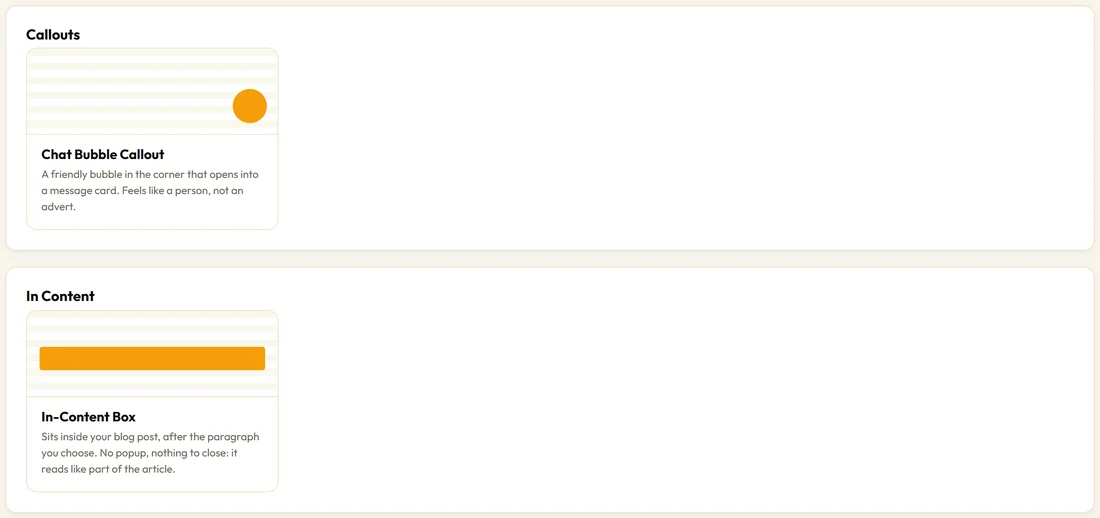
Campaigns tab, + New Campaign, then In-Content Box under In Content, or the In-Content Sign Up Box template in Grow your list.
Setting it up:
- On the Content tab write the Headline, Sub-line and an optional Icon or emoji.
- On the Opt-in tab tick Turn this campaign into an opt-in and choose your list. Or leave it off and use the Button group for a link.
- On the Design tab, under Placement, set Show after paragraph. 3 is a good start. 0 puts it at the top of the post.
- On the Targeting tab, untick Show everywhere and pick the posts it belongs on, or leave it everywhere to place it in every post.
- Click Save & Publish.
Placement settings:
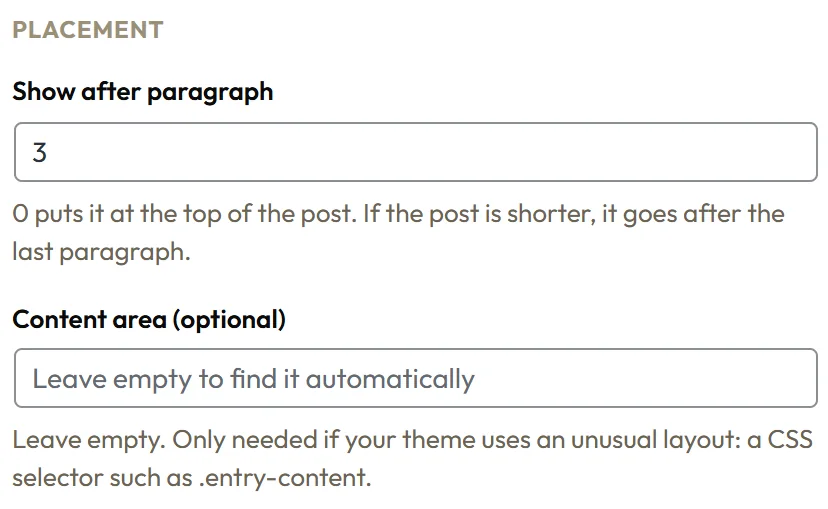
- Show after paragraph: 0 to 100. If a post is shorter, the box goes after the last paragraph.
- Content area (optional): leave it empty. Engage finds your article by itself. Only an unusual theme needs a CSS selector here, such as .entry-content.
Engage counts the running paragraphs of the article. Quotes, images, tables and asides are not counted, so the box lands where you expect.
Where it shows:
The box is placed in single posts and pages. It is not placed on your blog index, archives, search results or the not found page.
How it behaves:
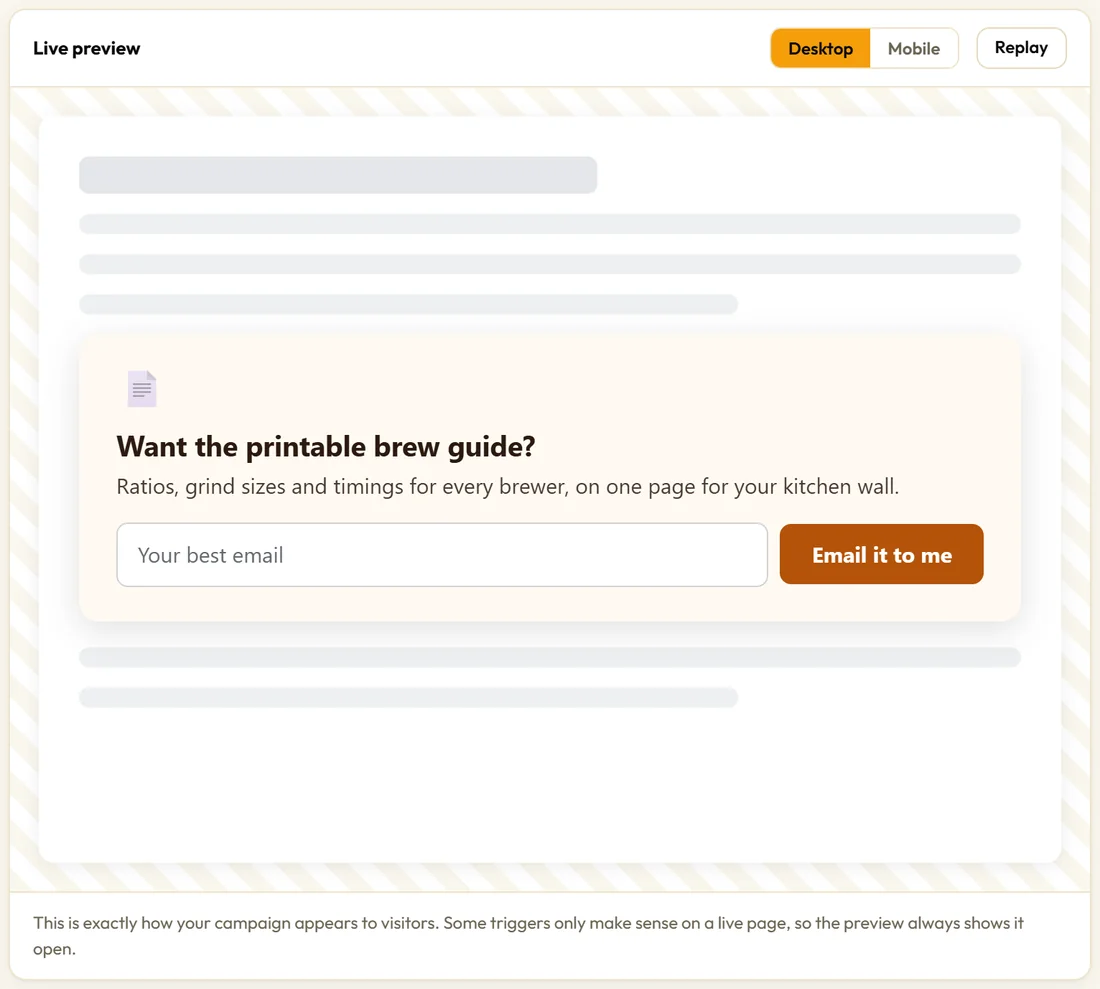
- It is in place as the page loads, so it never pushes the text the reader is on.
- Show a close button is off by default, because it reads like part of the article. You can switch it on under Behaviour.
- After an opt-in the thank you message stays in place, so the article does not jump.
- It shares the page with any bar or popup.
A real example:
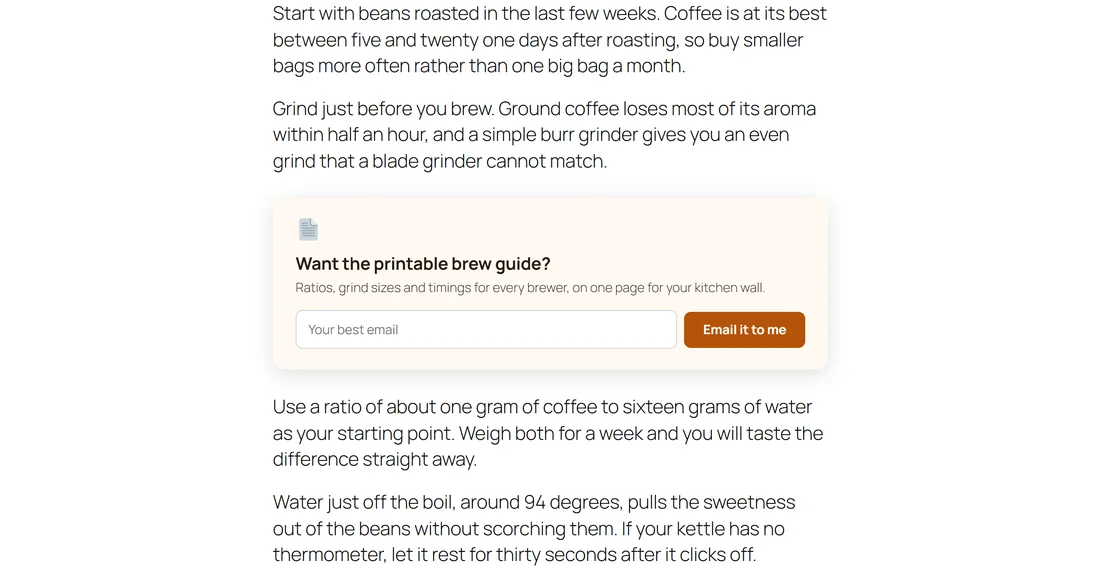
Northside adds a Brew Guide In-Content Box to How To Brew Better Coffee At Home and their single origin guide. Show after paragraph is 3, the headline is Want the printable brew guide?, and the button says Email it to me. Readers reach it right after the tips on grinding, exactly when they want the printable version.
Ideas for in-content offers:
- A printable version of the article
- A checklist that turns the article into steps
- A template or swipe file from the topic
- A short email course that goes deeper
- A discount on the product the article mentions, with a link button instead of a form
Choosing the paragraph:
Put the box just after the point where the reader has got real value: after the first tip, the first example or the first result. In most posts that is paragraph 2 to 4. On long guides, a second In-Content Box further down, after paragraph 10 for example, works well too.
Tips:
- Use Every page view on the Display tab, so the box is part of every visit to the post.
- Match the box to the post: a printable version, a checklist or a template of the thing the article teaches.
- See Turning A Campaign Into An Opt-In for the form settings.