Every Engage screen has the same menu bar at the top, so you always know where you are and where everything lives. This article shows how the menu is laid out, how to swap it for a menu down the side, and how to jump to any page with Ctrl+K.
Where to find it:

Open ResultsAiX Engage in the WordPress menu. The brand bar with Search ResultsAiX sits at the top, and the menu bar right under it.
The menu bar:
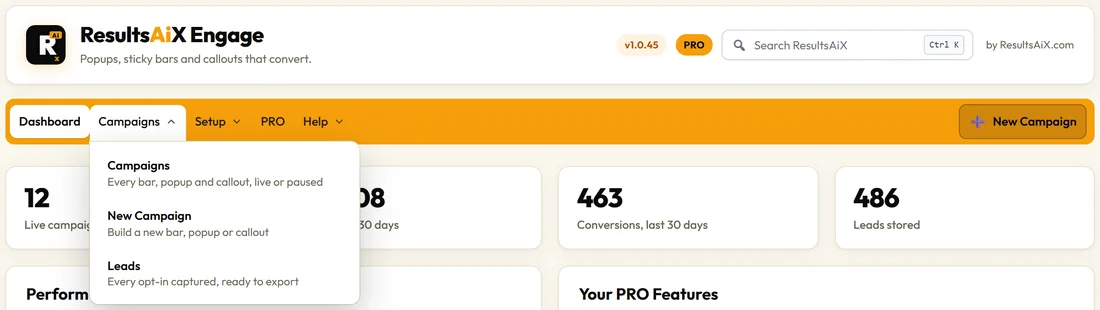
From left to right: Dashboard, the Campaigns section, the Setup section, PRO, the Help section, and the New Campaign button on the right.
- Point at a section, or click it, to open its dropdown. Each page in it has a one line note that says what it is for.
- Click a page to open it.
- Under the bar, the pages of the section you are in show as small buttons, so you can move between them in one click.
The sections:
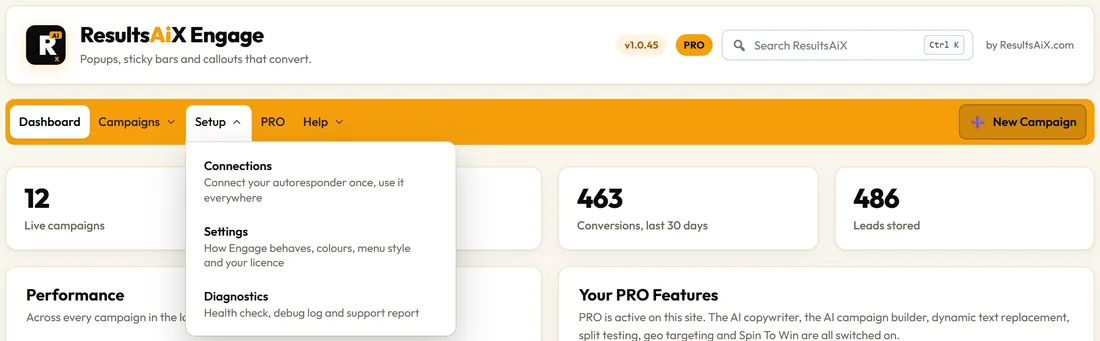
- Dashboard: your campaigns and results at a glance.
- Campaigns: Campaigns (every bar, popup and callout, live or paused), New Campaign and Leads.
- Setup: Connections, Settings and Diagnostics.
- PRO: your AI key, AI usage and the PRO features.
- Help: Training and Resources.
The campaign builder opens under Campaigns. Its own tabs, Content, Design, Triggers, Targeting, Opt-in and Display, stay inside the builder. See Inside The Campaign Builder.
Top Menu or Side Menu:
The bar across the top is the Top Menu, and it is the default. If you prefer a menu down the left side:
- Click Switch to Side Menu at the bottom of the Help dropdown.
- Or open Setup, then Settings, and pick Side Menu under Menu style in the Appearance card.
The Side Menu lists the sections down the left and opens each one in place. It has a Find a page box at the top, and Collapse menu folds it down to icons. Switch to Top Menu at its foot brings the bar back. Your choice is saved for you at once and used in every ResultsAiX plugin on the site.
Search ResultsAiX (Ctrl+K):
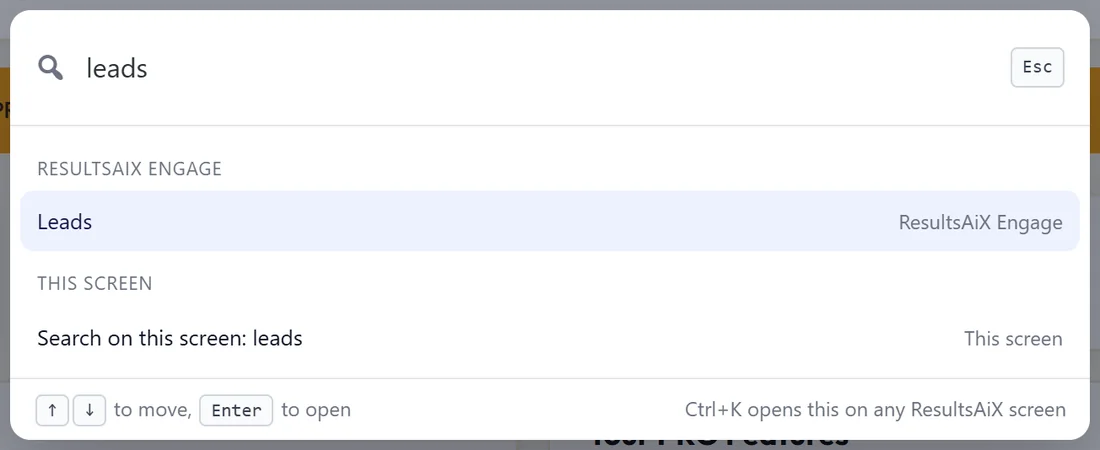
- Press Ctrl+K (Cmd+K on a Mac) on any ResultsAiX screen, or click the Search ResultsAiX box at the top right, beside by ResultsAiX.com. The WordPress admin bar has a Search ResultsAiX button too.
- Type a word, such as leads or connections.
- Use the arrow keys and press Enter, or click a result, to open that page.
The search covers the ResultsAiX plugins on your site. On some screens it also offers Search on this screen, which looks for your words on the page you are on.
AiX Brain:
With the free ResultsAiX Hub installed, the last line of the search is Ask AiX Brain. It takes what you typed to AiX Brain in the Hub, which answers questions about your business from your ResultsAiX plugins.
A real example:
The owner of Northside Coffee Roasters wants to export this week's sign ups. She presses Ctrl+K, types leads and presses Enter. The Leads page opens, and Export all as CSV is at the top right.
Tips:
- New Campaign at the right of the menu bar is the quickest way to start a campaign from any screen.
- Ctrl+K works the same in every ResultsAiX plugin, so one habit gets you everywhere.
- If you like more room for the builder preview, try the Side Menu and fold it down to icons.