Describing an offer out loud is faster than typing it, and it often produces a better brief, because you say it the way you would to a customer.
Every box where you tell the AI what you want has a Talk button beside its label.
Where the Talk button appears:
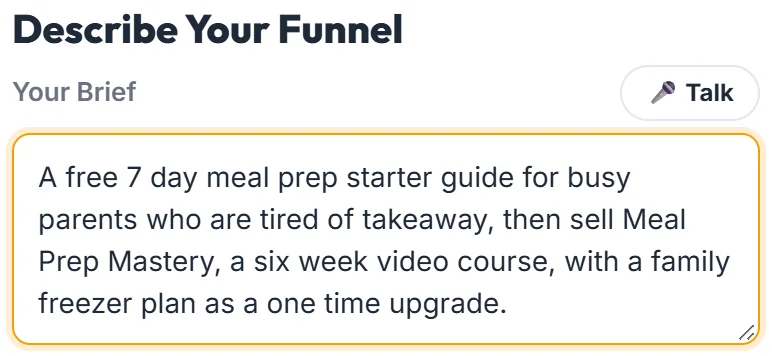
- Your Brief on Build Funnel, for the offer, who it is for and what it costs
- Your Copy For a page, when you press My Copy in Pages To Build
- Your Notes and Paste Your Copy in Rewrite A Page With AI
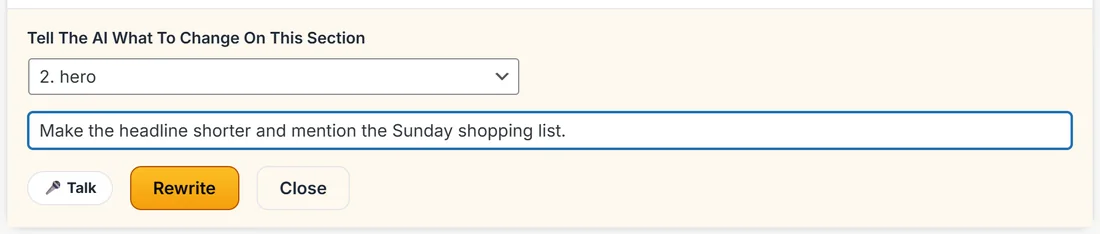
- Tell The AI What To Change On This Section in Regenerate Section
- What Should It Cover in Lead Magnet PDF
How to use it, step by step:
- Press Talk. Your browser asks for microphone permission the first time. Allow it once and it stops asking.
- Talk normally. The box shows a listening hint, and your words appear as you speak.
- Press the same button again when you are finished.
- Edit the text like any other, then carry on.
Dictation is added to whatever is already in the box, never replacing it. You can type a line, say the rest, and tidy it up afterwards.
A real example:
Sarah presses Talk beside Your Brief while making dinner and says: a free five day meal prep challenge for parents who hate cooking every night, one short video and one task a day, then sell Meal Prep Mastery at the end. The words appear in the brief, she fixes one word and presses Generate My Funnel.
Good things to say:
- In Your Brief: what you give away or sell, who it is for, what it helps them do, and what comes next
- In Your Notes for a rewrite: the one change you want most, then anything smaller
- In Regenerate Section: one short instruction, like make this warmer, or mention the shopping list
- In What Should It Cover: how many chapters, what to focus on, and anything to include, like a checklist
- In Your Copy For a page: read your sales letter aloud, a paragraph at a time
If you do not see a Talk button:
The button only appears in browsers that can do speech, so it is never a button that does nothing. Chrome, Edge and Safari can. On a phone or tablet, your keyboard's own dictation key does the same job in any box.
If the button says the microphone is blocked:
Allow microphone access for your site in your browser's address bar, then press Talk again. The message reads Microphone blocked. Allow mic access for this site in your browser, then try again.
It costs you nothing:
The speech is handled by your own browser. No audio is sent to us or to your AI provider, it does not use your API key, and it never appears on AI Usage or against your monthly budget.
Tips:
- Say the offer, the audience and the next step in one breath. That is a complete brief.
- Speak your punctuation naturally with pauses, then tidy the text before generating.
- Use Talk for Regenerate Section. Short spoken notes like make it warmer work very well.