Most reports run on your Settings and never need their own setup. When one report deserves special treatment, its Edit page is where you give it: its own list, headline, design, offer, pixels or pages. This page walks through the whole screen, top to bottom.
Where to find it:
- The Funnels tab, then Edit on a report's card.
- The Lists tab, then click a report's title.
- For custom funnels from the Funnel Builder add-on, Settings on My Custom Funnels.
The top of the page:
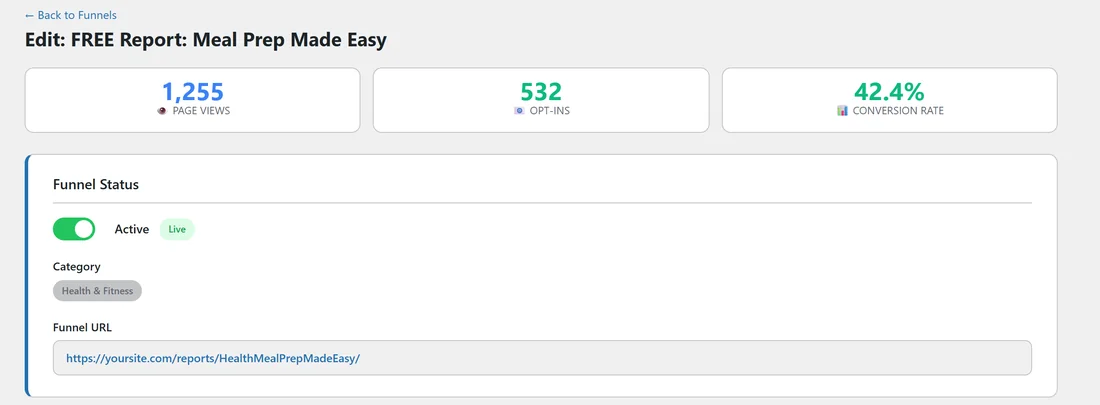
A Back to Funnels link, the heading Edit and the report's title, and three numbers for this report alone:
- Page Views: how many times its squeeze page loaded.
- Opt-ins: how many times its download page loaded.
- Conversion Rate: green at 20% and above, amber from 10%, red below 10%.
Funnel Status:
- The switch: Active with a Live badge when on, Disabled with an Inactive badge when off.
- Category: the report's niche.
- Funnel URL: the squeeze page address, as a link.
Autoresponder:
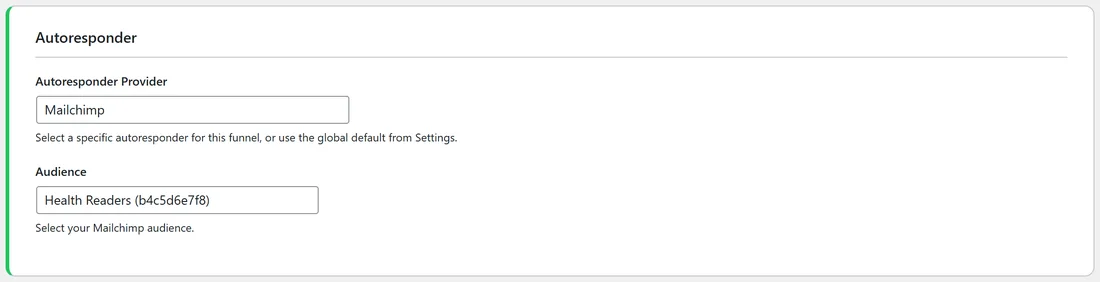
- Autoresponder Provider: Use Global Default, AWeber, or any connected service.
- The list field, named to suit the service: Audience, List, Campaign, Form / Tag, Tag, AWeber List Name, Sendiio List ID, LeadsLeap List ID (lllid) or Campaign Token.
- AWeber Tag(s): shows when AWeber is picked.
"Currently using" under the field confirms the list in use. See Connecting Your Autoresponder.
Customization:
- Squeeze & Download Page Template, with Preview, Apply To All Funnels and Restore Default.
- Conversion Boosters: the Urgency Timer and Progress Bar menus.
- Custom Headline, Background Color and Background Image URL.
- Affiliate Link Override and Geo Offer Links (Optional), with Custom Countries (this funnel only).
See Page Templates And Restyling A Funnel and Geo Smart Links And Per Country Offers.
Tracking Codes:
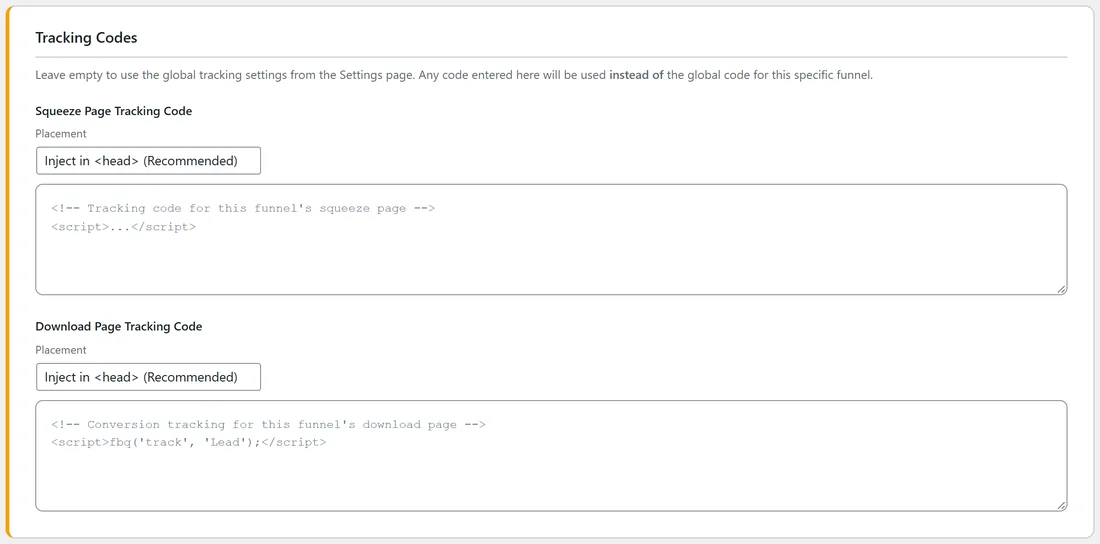
Squeeze Page Tracking Code and Download Page Tracking Code, each with a Placement menu. Code here replaces the matching code from Settings for this report. See Tracking What Works.
Download Page Resources & Banners:
Tick Override global resources & banners for this funnel to give this report its own resource cards and banners. See The Download Page And Its Offer Slots.
External URL Override:
Send this report's visitors to a squeeze page or download page you built elsewhere. See Using Your Own Squeeze Or Download Page.
Preview:
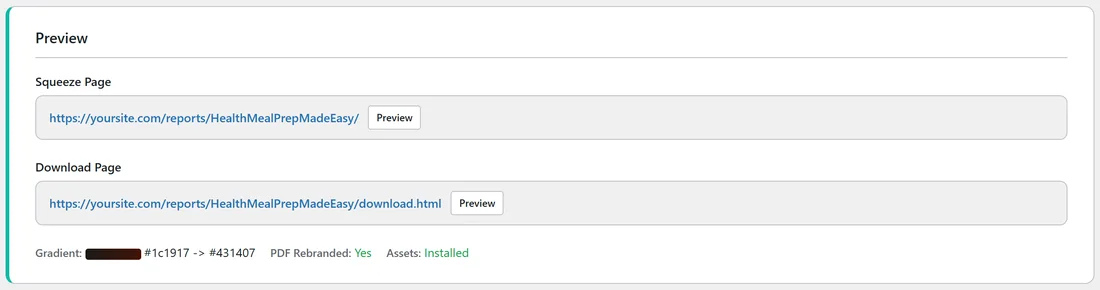
- Squeeze Page and Download Page, each with its address and a Preview button. An Override Active badge shows when the page is sent elsewhere.
- Gradient: the report's own colours.
- PDF Rebranded: Yes or No.
- Assets: Installed or Not Installed.
Save your changes:
Click Save Funnel Settings at the bottom. You see "Funnel settings saved!" at the top. Fields you changed show a small green tag, such as Customized, Active or Override active, so you can see at a glance what differs from your Settings.
Every field left blank uses your Settings. To put a field back, clear it or click its Restore Default button, then save.
A real example:
On yoursite.com, the Meal Prep Made Easy Edit page shows 1,255 page views, 532 opt-ins and 42.4%. It sends to the Mailchimp audience Health Readers, has a custom headline, a meal kit offer with UK and German links, and PDF Rebranded: Yes. Everything else, such as the boosters and tracking codes, follows Settings.
Tips:
- Change one section at a time and watch this report's Conversion Rate.
- Use Preview before and after a change, in a private browser window, to see what visitors see.