By default Bonus Builder connects straight to each AI provider. If you route AI traffic through your own gateway or proxy, you can give each provider its own address here.
Where to find it:
On the AI tab, under Your AI providers, click Advanced below the provider cards.
The settings:
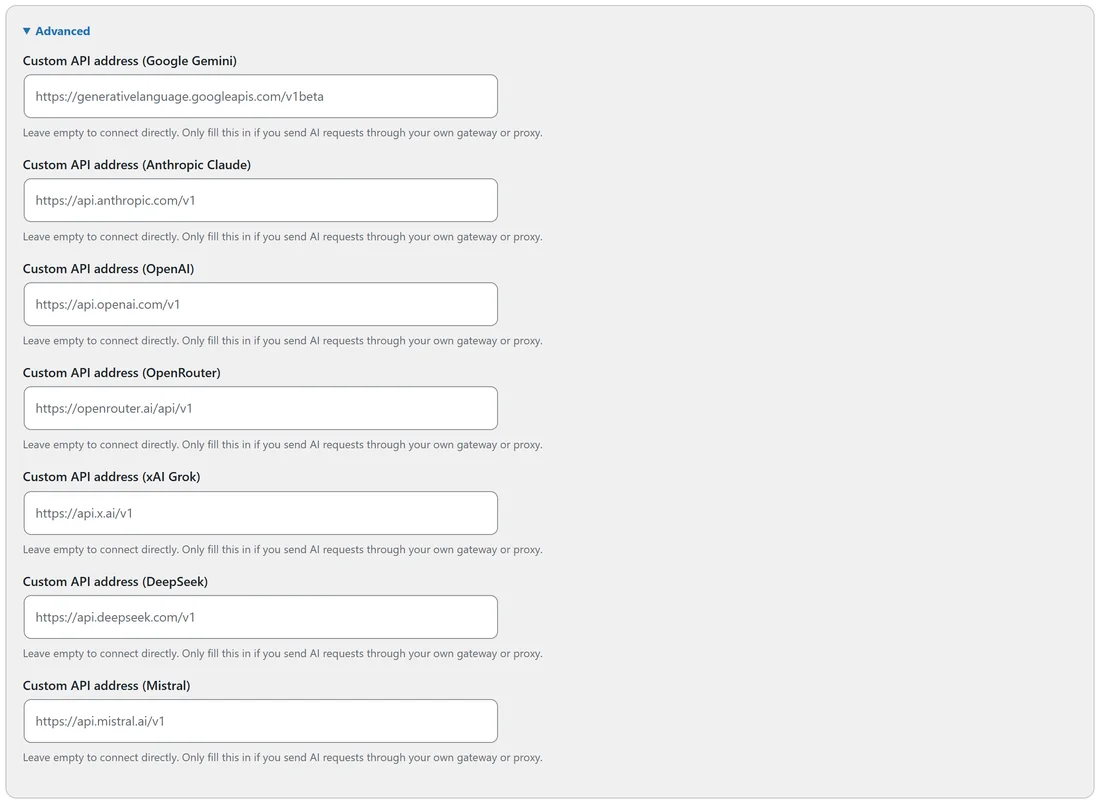
There is one box per provider, from Custom API address (Google Gemini) to Custom API address (Mistral). Each box shows the provider's normal address as a grey example.
Using it:
- Type your gateway's full address, starting with https://, for example https://gateway.example.com/v1.
- Click Save AI settings.
- The provider card now shows a small through line with the address in use.
- Click the provider's Test button to check it.
What the address needs:
- It starts with https://. A plain http:// address works only for localhost or a .local name.
- No ? or # part.
If an address does not fit, the AI tab shows a note saying which one was not saved, and your other settings are saved as normal.
Tips:
- Leave every box empty to connect directly, which is what most people want.
- An address can also be set in wp-config.php. When it is, the box says Using the address set in wp-config.php.