Every bonus you write is a finished guide, and many of them fit more than one product. Reuse lets you bring a bonus from an earlier promo into a new project in a few clicks, so a good bonus keeps working for you.
Where to find it:
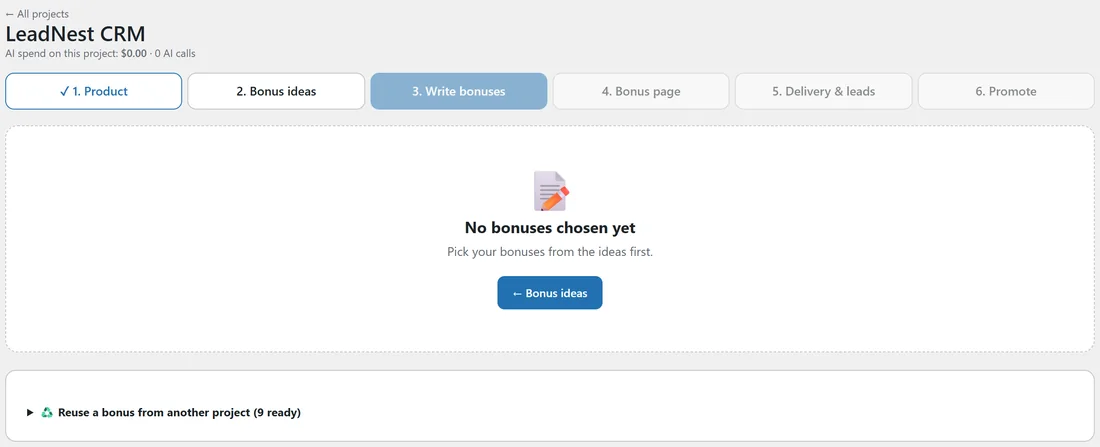
Open a project and click 3. Write bonuses. Below your bonus cards is a card called Reuse a bonus from another project, with the number of bonuses ready to copy. On a project with no bonuses yet, the same card sits under No bonuses chosen yet, so you can start a project from bonuses you already have.
What you can reuse:
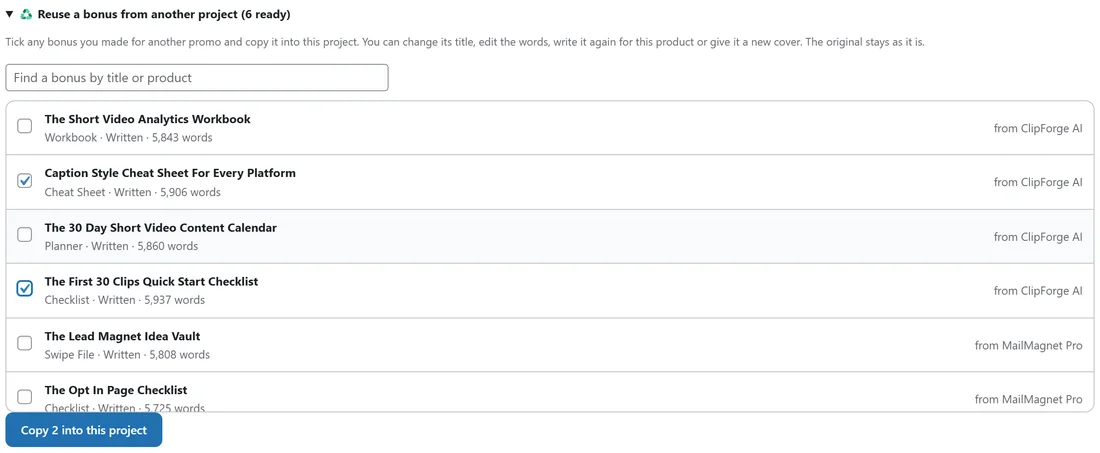
Every bonus from your other projects that has an outline or is written. Click the card to open the list. Each row shows:
- The bonus title.
- Its format, its status (Outline ready or Written) and its word count.
- From, the product it was made for.
The newest bonuses are at the top.
Copying bonuses in:
- Click Reuse a bonus from another project to open the list.
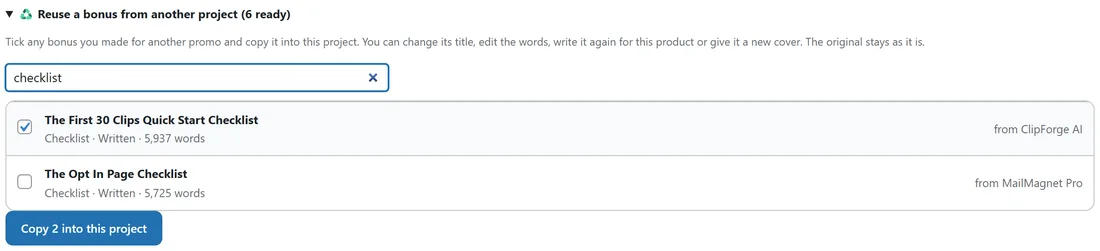
- Type in Find a bonus by title or product to narrow the list. For example, type checklist or the name of the earlier product.
- Tick every bonus you want. The button shows how many, such as Copy 2 into this project.
- Click the button. A note says how many bonuses were copied and the step reloads with them added at the end.
What a copy keeps:
- The title, format and the line on why it fits.
- The outline.
- The written words, for a written bonus.
- The cover, including AI artwork.
A bonus that was only part written comes in with its outline ready, so you can write it in full here. Each copy gets its own value, and the stack total is worked out again.
Making it fit the new product:
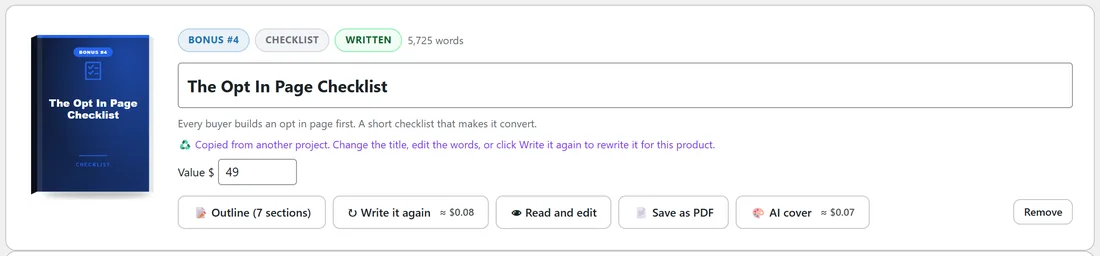
A copied bonus shows Copied from another project on its card. From there it works like any other bonus:
- Change the title in the title box.
- Click Read and edit to change any words.
- Click Write it again to have the AI rewrite it for this product, from its outline.
- Click AI cover or New AI cover for fresh artwork, or Designed cover for a cover in this page's colours.
- Click Remove to take it off this project.
The original in the other project never changes, whatever you do to the copy.
When you change your idea picks:
Going back to step 2 and changing the ticks only changes the bonuses that came from this project's ideas. Copied bonuses always stay.
A real example:
Last week Sam built a bonus package for MailMagnet Pro, an email list tool, including The Opt In Page Checklist. This week Sam promotes PageCraft Studio, a landing page builder. Buyers of a page builder build opt in pages too, so Sam typed checklist into the search box, ticked The Opt In Page Checklist and clicked Copy into this project. The written checklist arrived with its cover, and Sam clicked Write it again so it talks about PageCraft Studio templates.
Tips:
- Reuse your strongest bonuses first: a checklist or planner that fits a whole niche is easy to make fit the next product.
- A short rewrite with Write it again makes the bonus feel made for this product, which is what buyers notice.