Your bonus page is a normal WordPress page, so it gets a normal address, shows in Pages, and works with your SEO and tracking plugins.
Publishing:
- Make sure Your affiliate link is filled in under Buttons and links. Publishing needs it, so every button sends buyers through your link.
- Click Publish.
- A box says Your bonus page is live, with its address. Click Open it to see it.
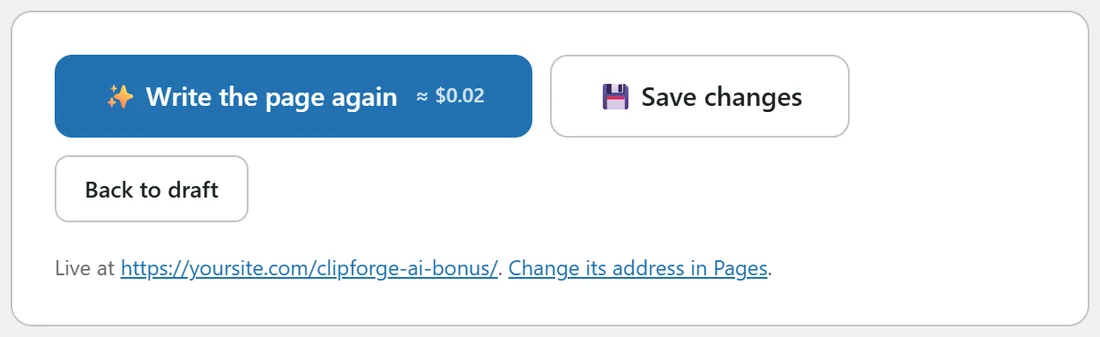
The note under the buttons now says Live at, with the address.
The buttons at the bottom of step 4:

- Write my bonus page, or Write the page again once it is written.
- Save changes. Saves the look, links and words without changing whether the page is live.
- Publish. Makes the page live.
- Back to draft. Takes a live page back to a draft only you can see.
Changing the address:
Click Change its address in Pages under the buttons. That opens the page in WordPress, where you can edit its permalink.
What is on the page:

- A bar at the top with the number of bonuses and their total value.
- The headline, sub-headline, a button and the bonus titles, with the product image beside them.
- Your opening, then What you get with the product overview and feature cards.
- This is for you if..., and a Why this page section with your name and photo.
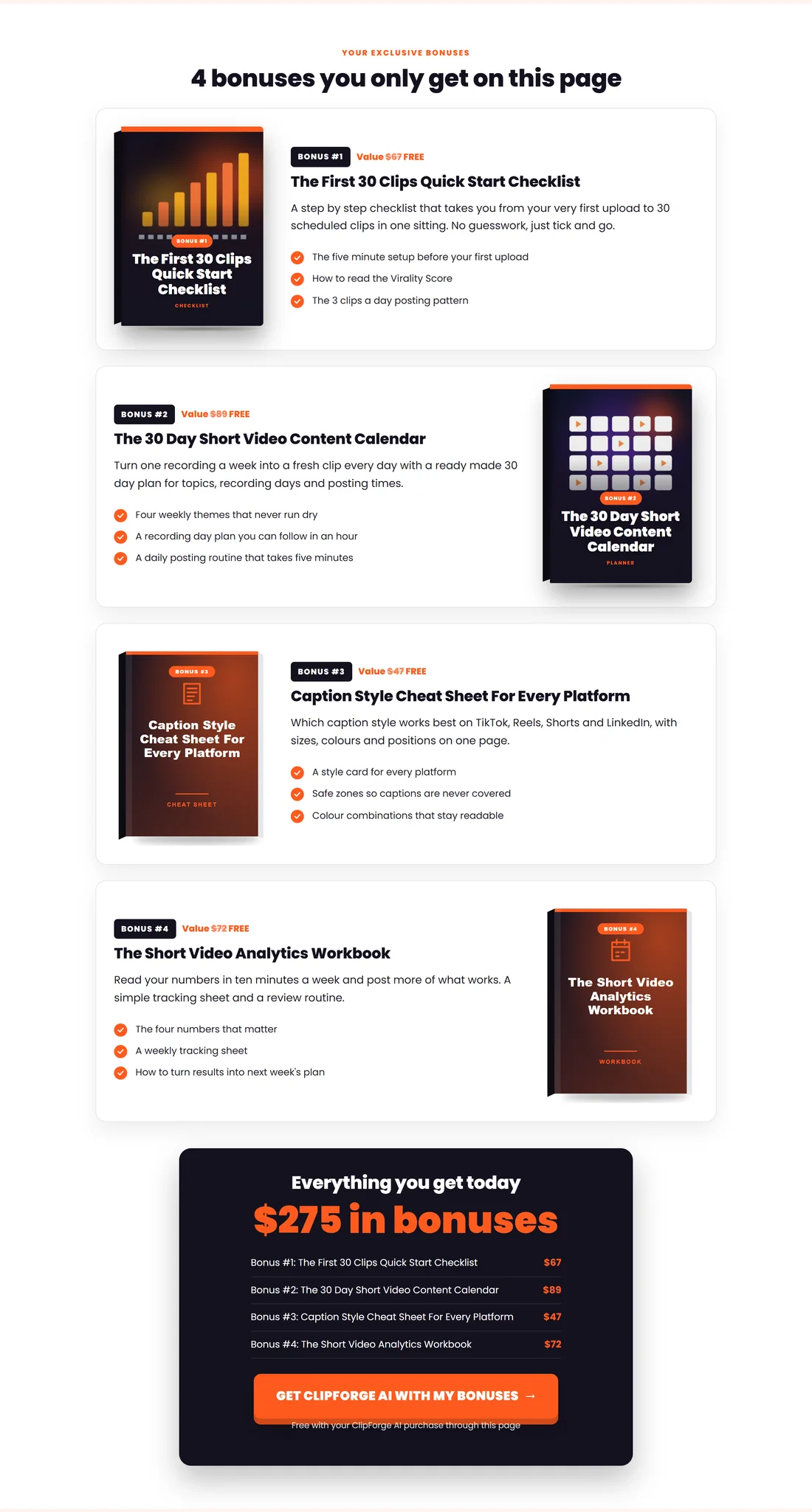
- Every bonus with its cover, its value and what is inside.
- An Everything you get today box with the total and a button.
- How to claim, the questions and answers, and a final button.
- A short affiliate disclosure with your name, and the Made with credit if you keep it on.
- If you set them on step 5: a countdown in the top bar, and a leave popup. See The Countdown Banner and The Leave Popup On Your Bonus Page.
On phones:

The page is built for small screens too, with the headline and button first and the cover images below.
A real example:
Sam published the ClipForge AI page at yoursite.com/clipforge-ai-bonus/ and put that address in every email and post.
Next, step 5 hosts the bonuses for your buyers: see Step 5: Hosting Your Bonuses On Your Own Site.