Good bonuses help a buyer get results faster with the product they just bought. In this step the AI studies the sales page and suggests bonuses it can write in full for that product.
Where to find it:
Open a project and click 2. Bonus ideas, or click Save and get bonus ideas on step 1.
Getting the ideas:
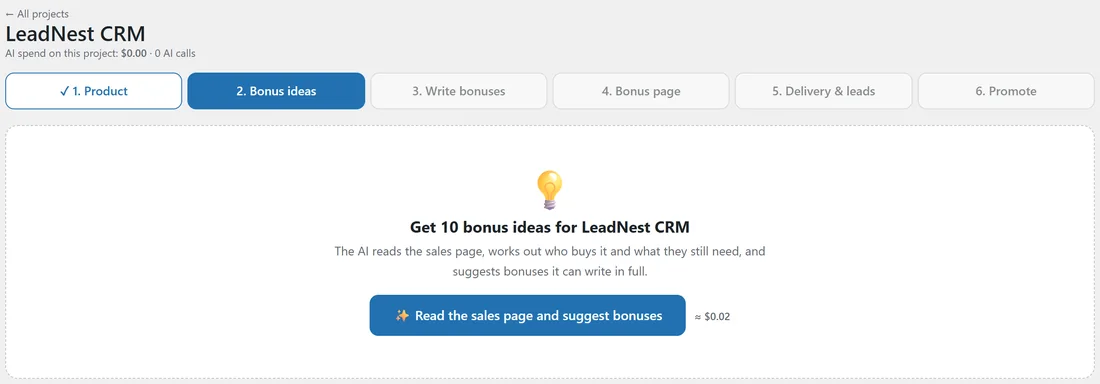
- Click Read the sales page and suggest bonuses. The cost estimate sits beside the button.
- A popup shows the AI working. It usually takes under a minute.
- The page reloads with what the AI learned and the list of ideas.
What the AI learned from the sales page:
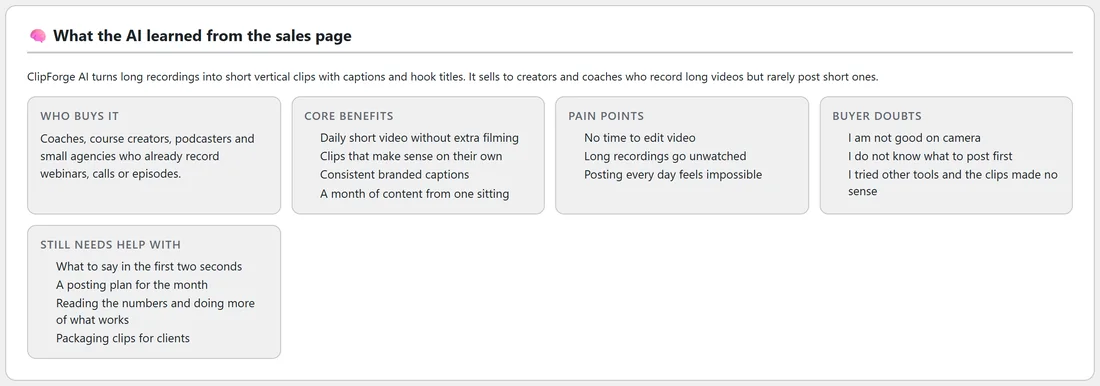
A short summary, then five cards:
- Who buys it.
- Core benefits.
- Pain points.
- Buyer doubts.
- Still needs help with. These are the gaps a bonus can fill.
Picking your bonuses:
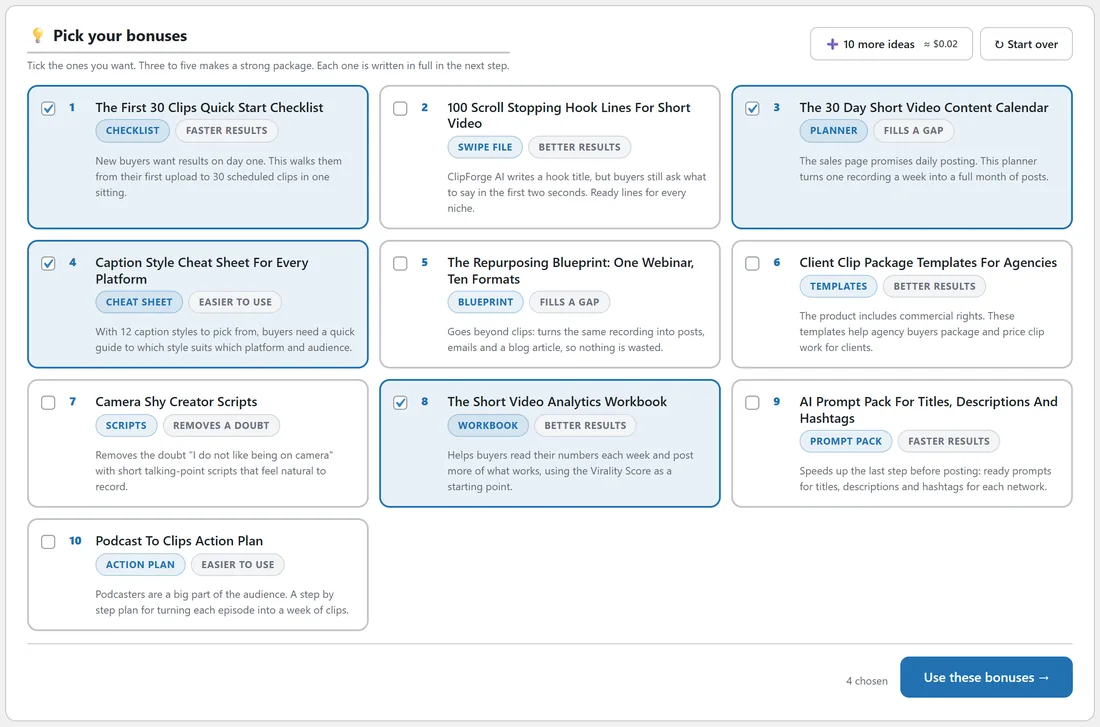
Each idea card shows a number, the title, its format (such as Checklist, Planner or Swipe File), an angle and a line on why it fits. The angles are Faster results, Easier to use, Better results, Removes a doubt and Fills a gap.
- Tick the ideas you want. The count shows at the bottom.
- Click Use these bonuses, I'll check each step. Or click Build it all for me to write every chosen bonus and then your page in one go (see Build It All For Me).
There is no limit on how many you pick. You use your own AI key, so build as many bonuses as you like.
Guide the AI:
The Guide the AI box (optional) tells the AI what kind of bonus ideas you want, before it suggests them. Type a line such as templates and swipe files for complete beginners, nothing about paid ads, or tap a chip to add it:
- Checklists and cheat sheets.
- Templates and swipe files.
- For complete beginners.
- For experienced users.
- Quick wins in the first 24 hours.
- Prompt packs.
- Traffic and getting visitors.
- Step-by-step action plans.
The box sits above the button on an empty step 2, and above the ideas once you have some, so it steers 10 more ideas and Start over too. Leave it empty and the AI picks what fits the buyers best.
Pick finished bonuses (no AI):
Next to the AI button you also see Pick finished bonuses, when you have the 100 Done-For-You Bonuses add-on or bonuses in your other projects. They are already written, so they cost nothing and are added in seconds. See Picking Finished Bonuses: Done-For-You And Your Other Projects.
More ideas:
- 10 more ideas. Adds a fresh round of ideas below the ones you have, never repeating them.
- Start over. Reads the sales page again and replaces the list. Bonuses you already chose stay in step 3.
The number of ideas per round is set on the Settings tab, from 5 to 15.
Changing your mind later:
Come back to this step, change the ticks and click Use these bonuses again. A bonus you already wrote stays as long as its idea is still ticked. Bonuses you copied in from another project always stay, whatever you tick here. See Reusing Bonuses From Another Project.
A real example:
For ClipForge AI, Sam ticked the First 30 Clips Quick Start Checklist, the 30 Day Short Video Content Calendar, the Caption Style Cheat Sheet and the Short Video Analytics Workbook: one for speed, one to fill a gap, one for ease and one for results.