The picture at the top:
In Button and picture: Automatic (the product picture with your bonus covers in front, or your covers as a 3D stack when there is no product picture), Bonus stack, Product + bonuses, Picture only, or None. The first three are free: they are drawn from your covers. Make an AI picture first turns what the product does into a picture brief, and takes your instructions.
Your bonus page is where readers see everything they get when they buy through your link. On step 4 every choice sits in one column on the left and the page itself stays in view on the right, so you see each change the moment you make it.
Where to find it:
Open a project and click 4. Bonus page, or click Build the bonus page at the bottom of step 3.
At the top:
- Edit the page live. Click any words, picture, button or section on the page itself.
- Write my bonus page (or Write the page again). The AI writes every section.
- Use a ready-made page (or Use ready-made words). Free, no AI: the words are built from your product, the sales page and your bonuses. When no AI is connected, this button leads, and Connect AI for custom words takes you to the AI tab.
- Publish, or Back to draft.
On the left, from top to bottom:
- Headline. Click Suggest six headlines for six headlines with a sub-headline each, every one from a different angle. Click one to use it, or type your own.
- Layout. Classic, Video hero, Card grid or Long-form. See Layouts, Video, Countdown And Extras That Sell.
- Style. Match the sales page and 13 more looks, each drawn as a small picture of its top and button. See Bonus Page Styles.
- Extras that sell. A video, a countdown, the sticky claim bar, moving buttons, a money-back guarantee line and the vendor's own bonuses.
- Button and picture. Your affiliate link, the button words and the picture at the top.
- Opt-in before the page. Ask visitors for their email before they see the page.
- Edit the words in a form. Every section of the page as plain boxes, if you prefer that to Edit the page live.
The preview:
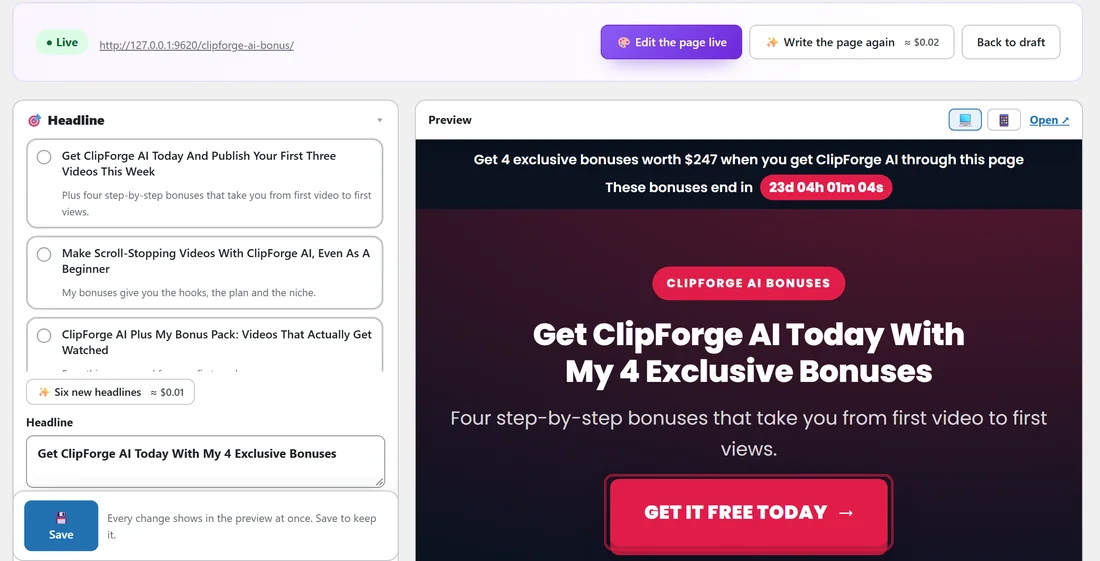
Every change shows in the preview on the right straight away, before you save. A small "not saved yet" note appears beside Preview until you click Save at the bottom of the left column. The preview keeps your place on the page, so you can scroll to the part you are changing and watch it change. Click the phone button to see the page at phone width, or Open to see it full size.
Writing the page:
- Pick a headline, a layout and a style.
- Click Write my bonus page.
- The AI writes the opening, the product overview, the features, who it is for, why buy through your link, a description of each bonus, how to claim and a few questions and answers.
- The page is saved as a draft that only you can see.
Without AI:
- Type your own headline and sub-headline, and pick a layout and a style.
- Click Use a ready-made page. Every section is filled in from what the project already knows: the product name, the sales page, your bonuses with their values and what is inside, and your name.
- Change any words with Edit the page live or Edit the words in a form, then publish.
A real example:
Sam picks a headline for ClipForge AI, clicks Video hero, pastes the link to a short review video, sets the countdown to the end of the launch and clicks Write my bonus page. Two minutes later the page is in the preview with the video in the middle of the top and a countdown in the value box.
Next, see Editing The Words On Your Bonus Page and Publishing Your Bonus Page.