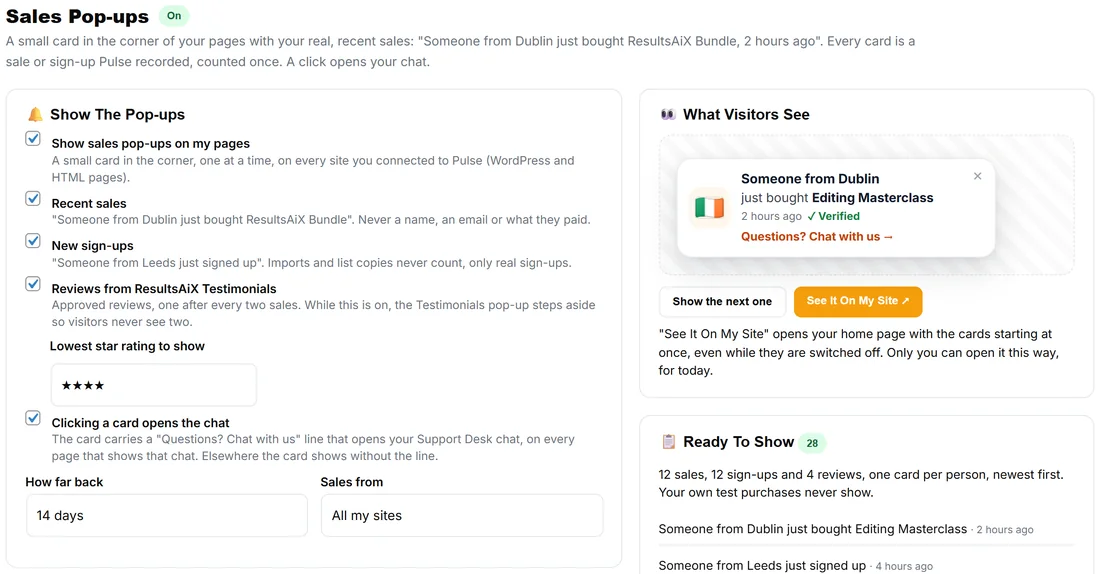
Sales Pop-ups put a small card in the corner of your pages, one at a time, about something real that just happened on your sites: "Someone from Dublin just bought Editing Masterclass, 2 hours ago, ✓ Verified". Every card is a sale or sign-up Pulse recorded, counted once. Nothing is made up.
A visitor who is thinking about buying sees that other people are buying right now, the same quiet nudge as a busy shop. Pulse already records your sales and sign-ups for the globe and for Stats, so there is nothing new to connect. You switch it on, and it works on every site you connected to Pulse.
What your visitors see:
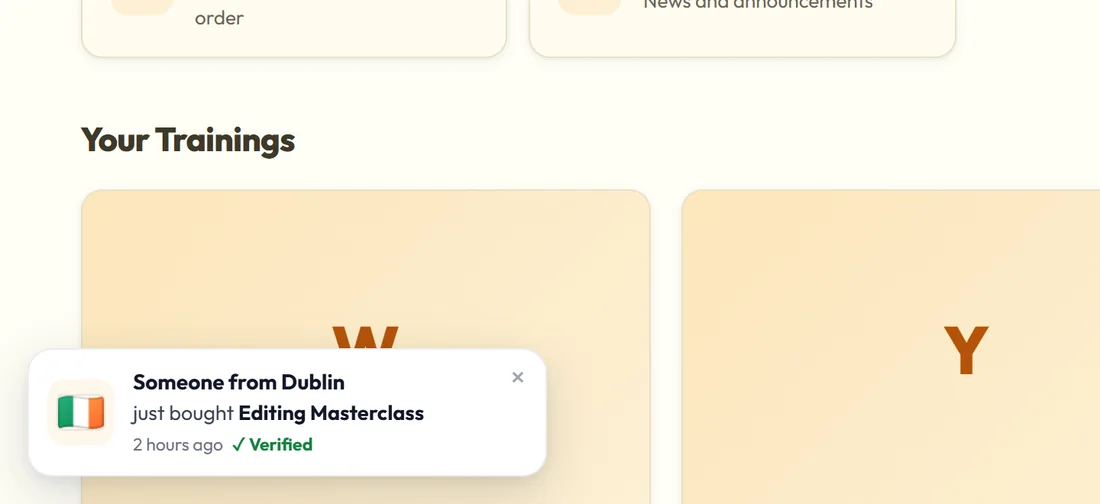
- A card slides in at the bottom left of the page, or the bottom right if you choose.
- A sale card says Someone from Dublin, just bought Editing Masterclass, how long ago and ✓ Verified, with the flag of the buyer's country on the left.
- A sign-up card says Someone from Leeds just signed up.
- With ResultsAiX Testimonials on the same site, a review card shows a short review with the first name, the last initial and the stars.
- On pages where your Support Desk chat is on, each card carries a Questions? Chat with us → line.
- The × in the top corner closes the cards for the rest of the visit.
A card never shows a buyer's name, email or what they paid. Only the product, the town (or the country, when the town is not known) and the time.
Where to find it:
WordPress menu, ResultsAiX Pulse, then 🔔 Sales Pop-ups under Chat in the menu bar, between Moments and AI Assistant. Its note in the menu says "Your recent sales in a small corner card". The pill next to the page title says On or Off.
Switch it on:
- Open 🔔 Sales Pop-ups.
- Under 🔔 Show The Pop-ups, tick Show sales pop-ups on my pages.
- Look at 👀 What Visitors See on the right. That is the card your visitors will get. Press Show the next one to go through them.
- Press Save Sales Pop-ups at the bottom of the page.
The message at the top says how many cards are ready, for example "Saved. It is live: 28 cards are ready to show." The cards start on your visitors' next page view.
Show The Pop-ups:
- Show sales pop-ups on my pages: the main switch. The cards show on every site you connected to Pulse, WordPress sites and plain HTML pages with the Pulse tracker line. It starts switched off.
- Recent sales: a card for each recent sale. On at first.
- New sign-ups: a card for each new subscriber. Imports and list copies never count, only real sign-ups. Off at first.
- Reviews from ResultsAiX Testimonials: approved reviews between the sales, see below. On at first.
- Clicking a card opens the chat: adds the chat line to each card, see The chat line below. On at first.
- How far back: The last day, 3 days, 7 days, 14 days, 30 days, 60 days or 90 days. 14 days is the default. A busy shop looks lively with 7 days; a quieter one can pick 30 days so there is always something to show.
- Sales from: All my sites, or Only the site the visitor is on. With All my sites (the default), a sale in your shop can show on your blog too.
Which sales become cards:
- One card per person, from their newest sale or sign-up. Someone who bought three things shows once.
- Newest first, up to 24 sales and sign-ups at a time.
- A sale needs an amount, so a free order does not make a card.
- Your own test purchases never show: sales from your own email addresses and your own browsers are left out.
- A product you unticked, or a product code with no name yet, is skipped. See Products below.
Reviews from ResultsAiX Testimonials:
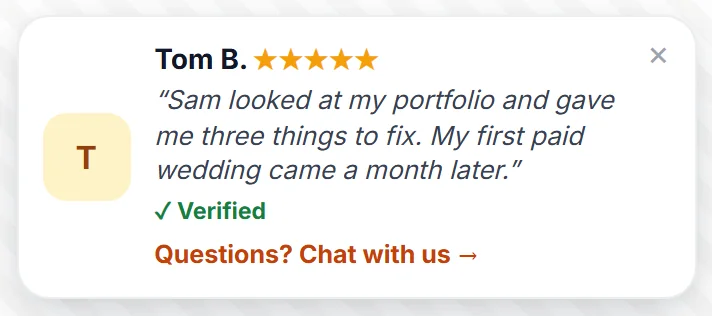
With ResultsAiX Testimonials on the same site, its approved reviews join the cards: one review after every two sales or sign-ups.
- Lowest star rating to show: from 5 stars down to 1 star. 4 stars is the default.
- Only reviews marked Featured in Testimonials: tick it to pick the exact reviews. Mark them Featured in Testimonials and only those show.
- A review written about a product you untick under Products stays off the cards too.
- Up to 8 reviews are picked at random each time the list is refreshed (about once a minute), so visitors see a mix.
- The card shows the first name and last initial (Tom B.), the stars and the words, with ✓ Verified when the review is verified. A long review is shortened to about 150 characters.
- While Pulse shows the reviews, the Testimonials floating pop-up steps aside, so visitors never see two cards at once. In Testimonials, Settings, 📱 Floating popup says "ResultsAiX Pulse is showing your reviews" with an Open Sales Pop-ups link.
Without Testimonials on the site, the screen shows a short line in place of the review switch: install ResultsAiX Testimonials and its approved reviews can show here too.
Products:
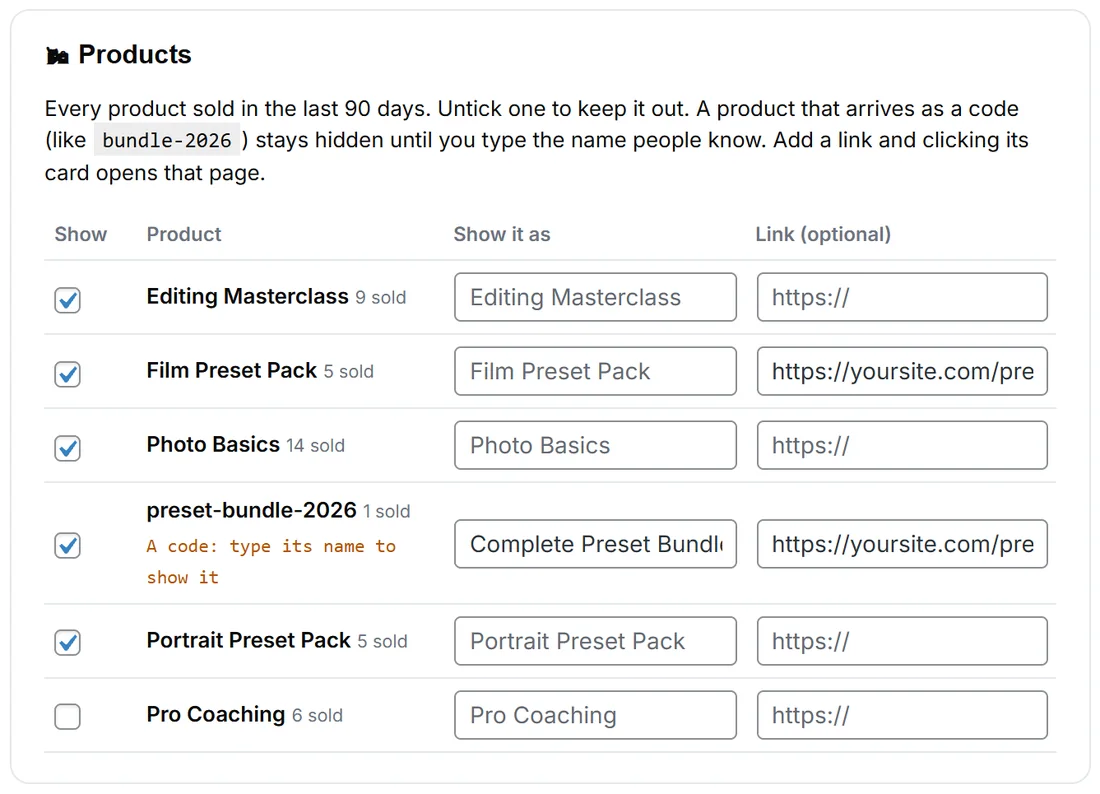
The 🛍 Products card lists every product sold in the last 90 days, with how many sold.
- Show: untick a product to keep it off the cards. Its sales still count everywhere else in Pulse.
- Product: the name as it came from your checkout. A product that arrives as a code, like preset-bundle-2026, says "A code: type its name to show it" and stays off the cards until you type a name for it.
- Show it as: the name your visitors see. Leave it empty to use the product's own name.
- Link (optional): a page address starting with https://. A click on that product's card opens the page in a new tab, for example its sales page, so your visitor keeps the page they were reading.
A product you set up stays in the list when it has not sold for a while, so your choices are kept. The same product from two checkouts, like Photo Basics and Photo Basics (EUR), is one row.
Where And When:
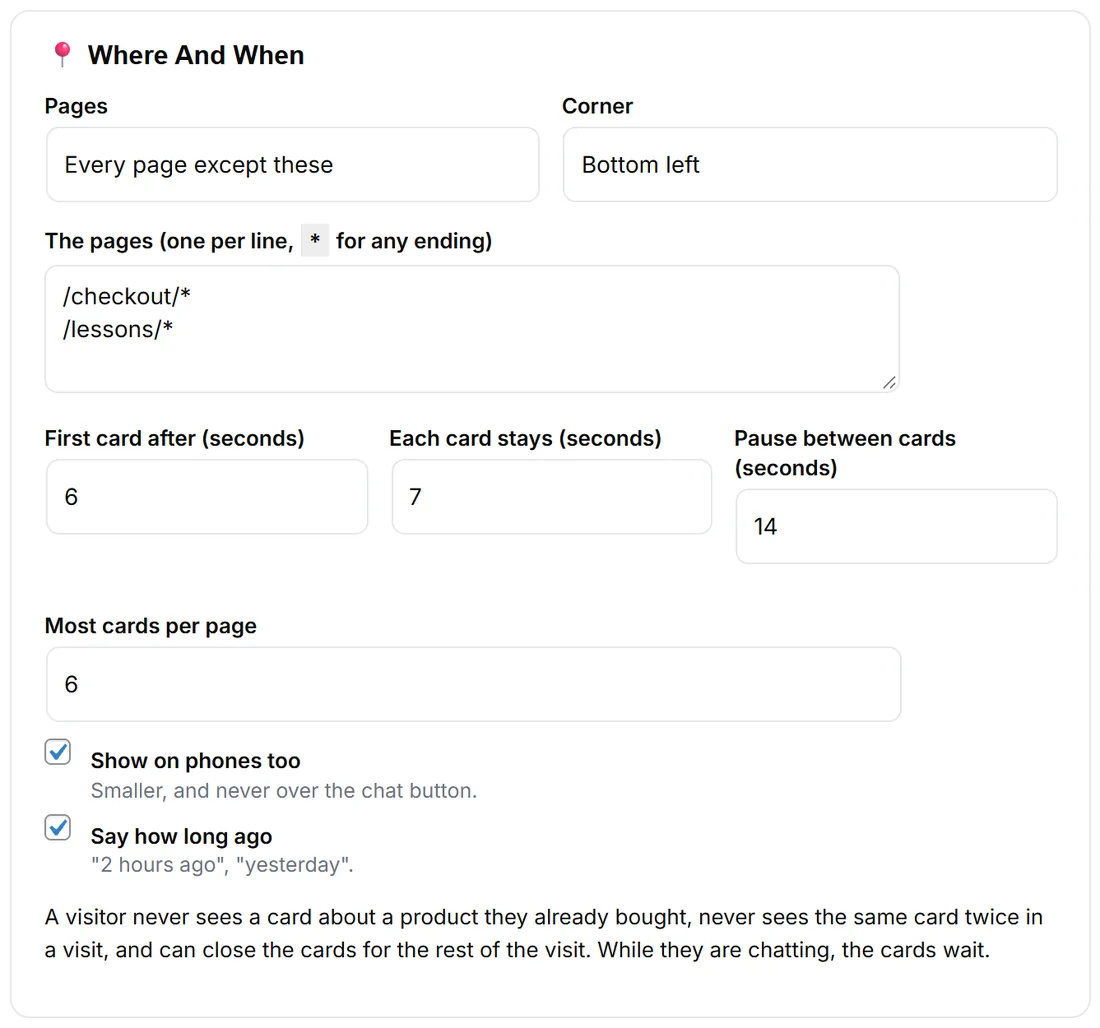
- Pages: Every page, Only these pages, or Every page except these.
- The pages: one per line, the part after your domain. * matches any ending: /checkout/* is every checkout page, and * alone is every page. Up to 60 lines.
- One site only: start a line with the domain. yoursite.com/ is that site's home page, yoursite.com/* is every page on it. A line without a domain counts on every site you connected.
- Corner: Bottom left, the default, clear of the chat button. Or Bottom right (above the chat).
- First card after (seconds): 0 to 120. The default is 6.
- Each card stays (seconds): 3 to 30. The default is 7. A card stays longer while the mouse is on it.
- Pause between cards (seconds): 3 to 300. The default is 14.
- Most cards per page: 1 to 30. The default is 6.
- Show on phones too: on a phone the card is smaller and never covers the chat button. Untick it to show the cards on bigger screens only.
- Say how long ago: adds "2 hours ago", "yesterday" or "3 days ago" to sale and sign-up cards.
Built to be polite:
- A visitor never sees a card about a product they already bought. For visitors Pulse knows, it checks its own sales and your Mailer's and Support Desk's records.
- Never the same card twice in a visit.
- The × closes the cards for the rest of the visit.
- While a visitor is chatting, the cards wait, and a card steps away when the chat opens.
- When your page is in a background tab, the next card waits until the visitor comes back.
- The cards carry nothing about the visitor, so they show while your consent banner is still asking too. Until the visitor answers, a small icon takes the place of the flag.
The Words:
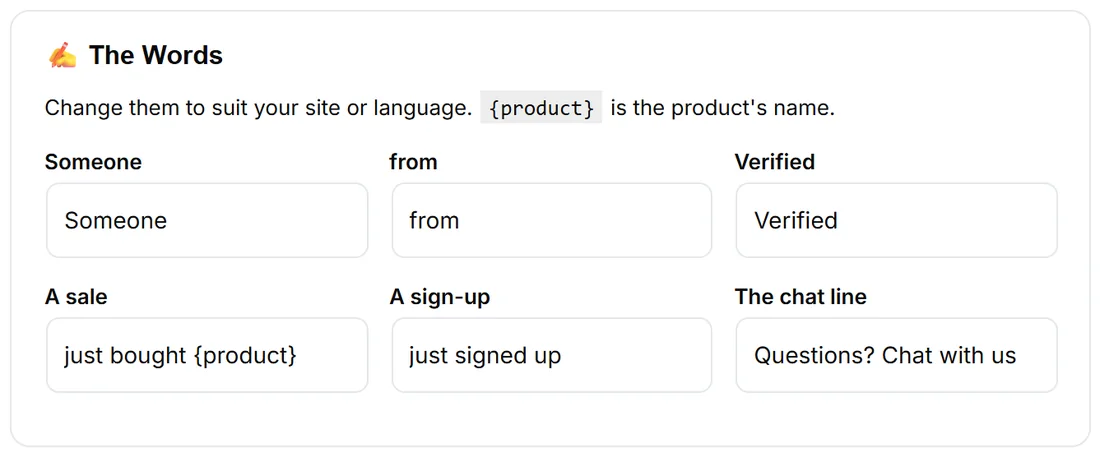
Every line on the card can be changed, to suit your site or your language. {product} is where the product's name goes.
- Someone: "Someone".
- from: "from".
- Verified: "Verified".
- A sale: "just bought {product}".
- A sign-up: "just signed up".
- The chat line: "Questions? Chat with us".
Empty a box and save, and it goes back to its default. A Spanish site could use Alguien, de and "acaba de comprar {product}".
The chat line:
With Clicking a card opens the chat ticked, each card carries a Questions? Chat with us → line. It opens your ResultsAiX Support Desk chat, on every page where that chat is on. On other pages the card shows without the line.
- A click anywhere on the card opens the chat too.
- When the product has a Link, a click on its card opens that page instead, and the chat line still opens the chat.
- The card steps away as the chat opens, and the next one waits until the chat is closed.
See it before your visitors do:
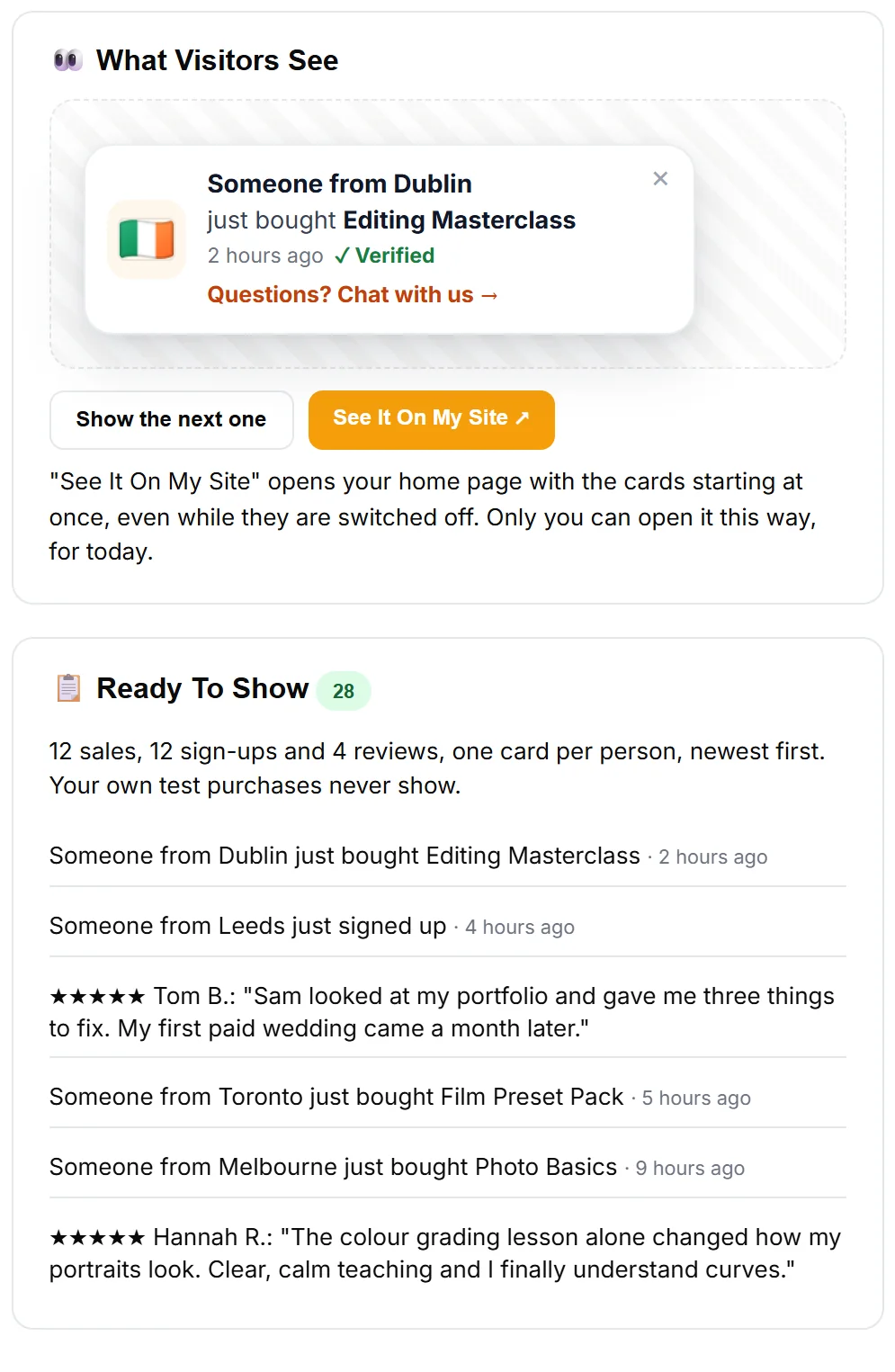
- 👀 What Visitors See shows the card as it will look, with your words and your settings. Show the next one steps through the cards.
- See It On My Site ↗ opens your home page in a new tab with the cards starting at once, even while they are switched off. Only you can open it this way, for today.
- 📋 Ready To Show counts the cards that are ready right now, for example "12 sales, 12 sign-ups and 4 reviews", and lists them, newest first.
If Ready To Show says Why nothing yet?, there is no sale (or sign-up) inside your How far back with a product that shows. Pick a longer How far back, tick a product, or type a name for a product code, and save.
In Diagnostics:
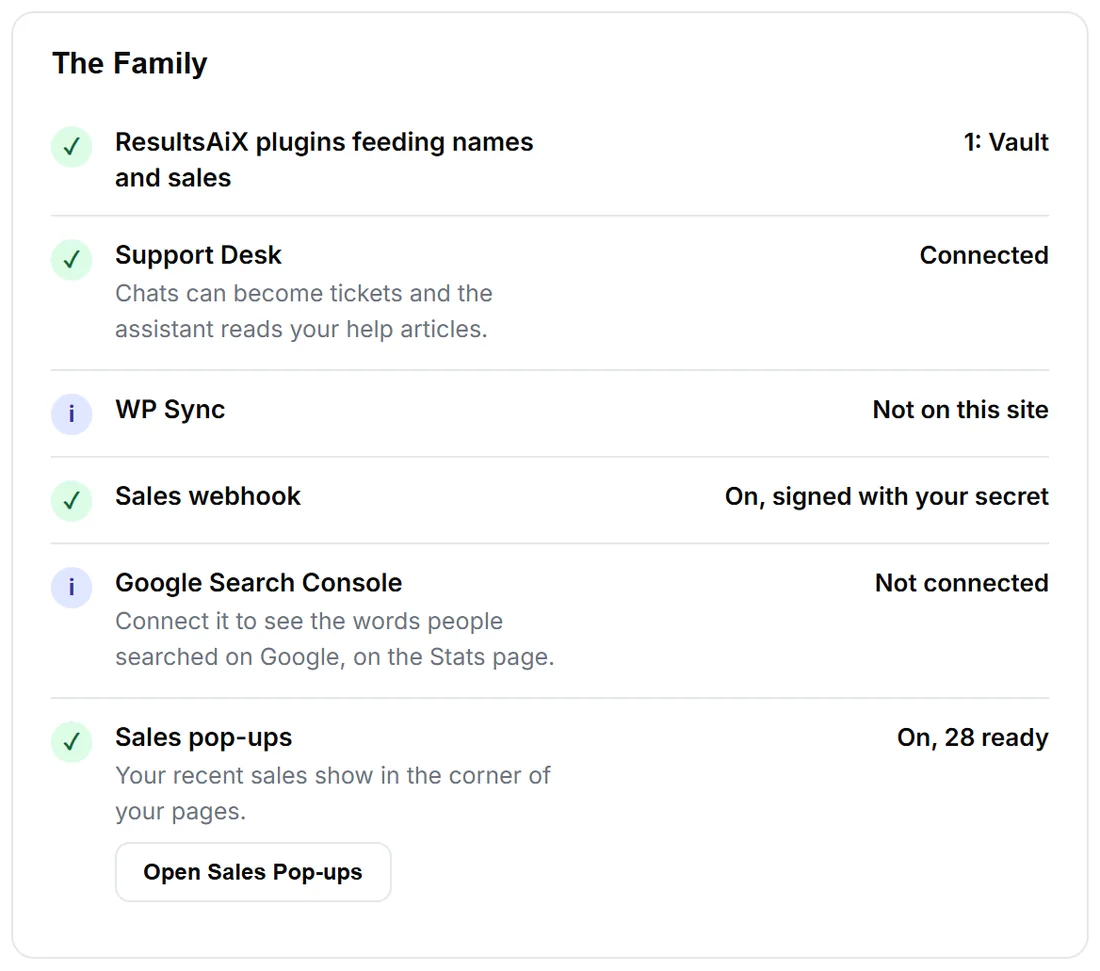
Diagnostics (under Setup in the menu) has a Sales pop-ups row in The Family card. It says Off, On with how many cards are ready (for example On, 28 ready), or On, nothing to show. Open Sales Pop-ups takes you straight to the page.
A real example:
Yoursite.com sells photography courses and presets. Sam switches on Sales Pop-ups with Recent sales, New sign-ups and reviews from ResultsAiX Testimonials, and keeps How far back at 14 days.
- In Products, the preset bundle arrives from the checkout as preset-bundle-2026. Sam types Complete Preset Bundle under Show it as and adds the bundle's page as its Link. Film Preset Pack gets a link to its page too.
- Pro Coaching is booked one to one, so Sam unticks it.
- Under Where And When, Pages is Every page except these, with /checkout/* and /lessons/*. Buyers at the checkout and members in their lessons see no cards.
- Sam presses Save Sales Pop-ups: "Saved. It is live: 28 cards are ready to show."
- See It On My Site opens the home page, and the first card slides in at once: Someone from Dublin just bought Editing Masterclass, 2 hours ago.
A visitor reading the Editing Masterclass page now sees that sale, then a sign-up from Leeds, then Tom B.'s five star review. A customer Pulse knows who already owns Editing Masterclass skips that first card and sees the next one.
Tips:
- Leave your checkout pages out with /checkout/*: a buyer there has already decided.
- Give every product code a name under Show it as, so every sale can show.
- Add a Link to your main products. A curious visitor lands on the product's page in one click.
- With only a few sales, pick a longer How far back or tick New sign-ups, so the cards keep coming.
- After any change, press See It On My Site to see it as a visitor would.
- To answer the people who press Questions? Chat with us, see With the ResultsAiX Support Desk and Visitor Chat: Talk to the People on Your Site.