Writing three legal pages from scratch takes time. The Legal tab can write them for you with AI, using your own Claude (Anthropic) or Gemini (Google) API key and the business details you entered. Each finished page goes live on every funnel straight away.
The result is a general template, not legal advice. Read it, change anything that does not fit your business, and have a qualified professional review it before you rely on it.
Where to find it:
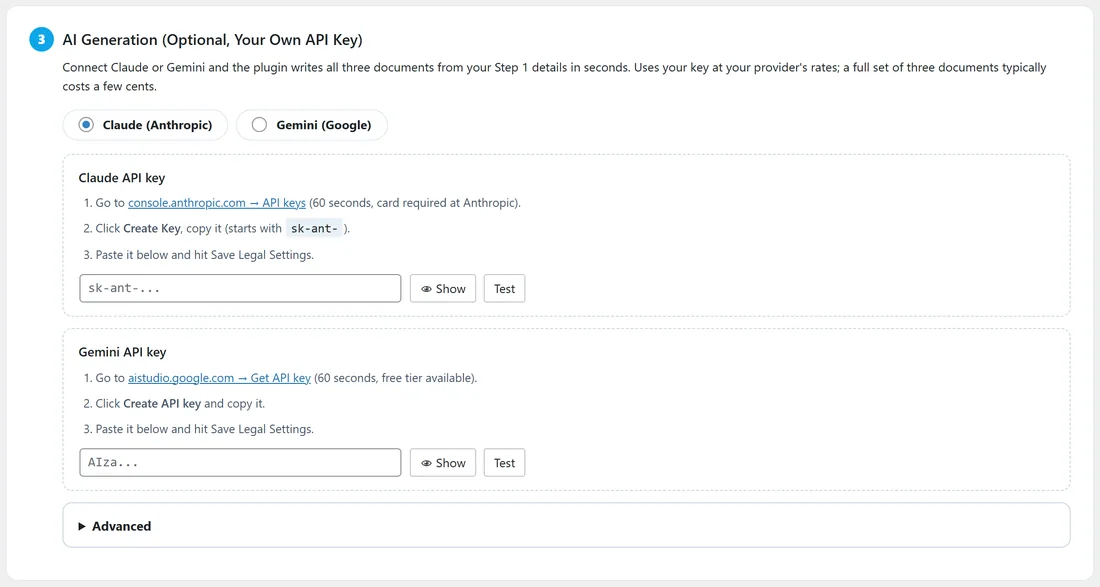
Free List Building, then the Legal tab, card 3: AI Generation (Optional, Your Own API Key).
The settings:
- Claude (Anthropic) or Gemini (Google): choose which provider writes the pages. If only one key is saved, that one is used.
- Claude API key: create a key at console.anthropic.com under API keys. It starts with sk-ant-.
- Gemini API key: create a key at aistudio.google.com with Create API key. It starts with AIza.
- Show: reveals the key you typed so you can check it.
- Test: sends a tiny request with your saved key and replies "Key works. You are ready to generate."
- Remove saved key: a tick box that appears once a key is saved. Tick it and save to delete the key.
- Advanced: an optional custom API address for each provider. Leave it empty to connect directly. Fill it in only if you send AI requests through your own gateway.
Step by step:

- Fill in card 1, Your Business Details: name, website, contact email, country and the EU / UK and California boxes that apply.
- In card 3, pick Claude (Anthropic) or Gemini (Google).
- Paste your key into the matching box and click Save Legal Settings.
- Click Test next to the key and wait for "Key works".
- Click Generate All Three Documents, or open a single document with Edit here and click Generate with AI.
- Each document is saved, switched to Edit here and is live the moment it finishes.
- Read each page in its Edit here box, change what you like and click Save Legal Settings.
What the AI is told:
The plugin sends your business name, website, contact email and country, and asks for a GDPR section when the EU / UK box is ticked and a CCPA section when the California box is ticked. It asks for clean page content to fit inside your funnel pages.
A real example:
Sam fills in Your Site, https://yoursite.com/, hello@yoursite.com and United Kingdom, and ticks the EU / UK box. Sam saves a Claude key, clicks Test, then Generate All Three Documents. A minute later all three pages are live on every funnel of yoursite.com, each with a GDPR section. Sam adds one line about the weekly workshop to the Privacy Policy and saves.
Tips:
- Your key is stored on your own site and only used when you click Test or Generate.
- Generate again any time your business details change.
- Prefer to write the pages yourself, or link to pages you already have? See Legal Pages: Privacy Policy, Terms and Disclaimer.
- If a request does not finish, the message on screen explains why, which helps you fix the key or the account.