The Diagnostics tab checks everything the plugin depends on and shows it on one page: the plugin's own setup, the key files, PHP, WordPress, the database and other plugins. Green chips mean all is well. Copy the full report into a support ticket and you save a lot of back and forth.
Where to find it:
Free List Building, then the Diagnostics tab. You can also reach it from Settings, Help & your account, Troubleshooting, Open Diagnostics.
What each section shows:
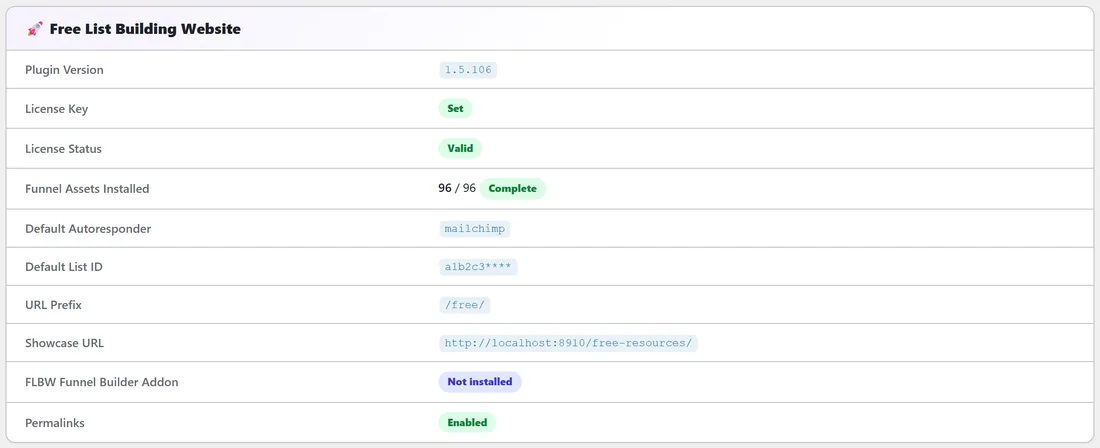
- Free List Building Website: Plugin Version, License Key (Set or not), License Status, Funnel Assets Installed (for example 96 / 96 Complete), Default Autoresponder, Default List ID (masked), URL Prefix, Showcase URL, FLBW Funnel Builder Addon (Active with its version, or Not installed) and Permalinks (Enabled, or a red chip if set to Plain).
- Critical Plugin Files: pdf.php, capture.php and the uploads/listbuilderpro-assets/ folder, each Present or Missing.
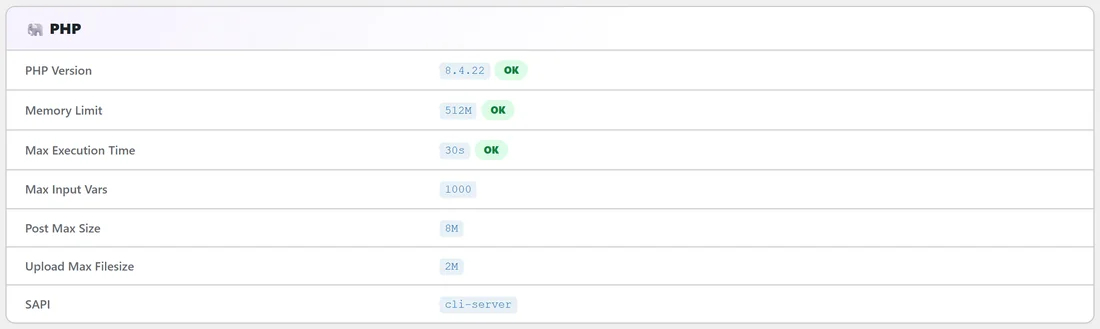
- PHP: PHP Version (OK from 8.0), Memory Limit (OK at 128M or more, needed for PDF rebranding), Max Execution Time, Max Input Vars, Post Max Size, Upload Max Filesize and SAPI.
- Required PHP Extensions: curl, json, mbstring, mysqli, openssl, zip, dom, xml, gd and imagick, each Loaded or Missing. The others show a red chip when missing; gd and imagick show a yellow one.
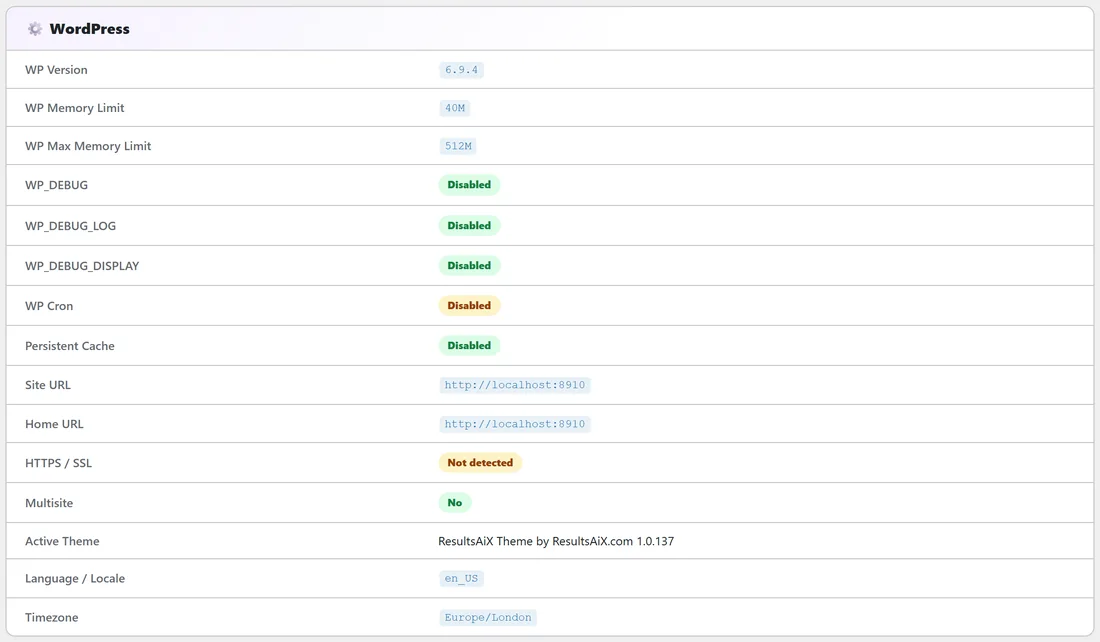
- WordPress: version, memory limits, the debug settings, WP Cron, Persistent Cache, Site URL, Home URL, HTTPS / SSL, Multisite, Active Theme, Language / Locale and Timezone.
- Database: MySQL or MariaDB version, Table Prefix, Charset and Collation.
- Plugin Database Tables: row counts for Funnels (per-funnel settings), Collected Emails, Page Views (detailed) and Stats (aggregate).
- Detected Potential Conflicts: shown only when a known caching plugin is active, such as WP Super Cache, W3 Total Cache, WP Rocket or LiteSpeed Cache, with what to exclude.
- Active Plugins: every active plugin on the site.
Step by step: send a report to support:

- Open the Diagnostics tab.
- Scroll to the bottom and click Copy Full Report To Clipboard.
- The button reads "Copied! Paste into support ticket".
- Paste the report into your ticket. Your license key itself is never included, only whether one is set.
A real example:
Sam's PDF rebranding stops part way on a new host. On the Diagnostics tab the Memory Limit row shows a yellow chip, "Recommend 128M+ for PDF rebranding". Sam asks the host to raise the memory limit to 256M, reloads the tab, sees OK, and the rebranding finishes.
Tips:
- Look for yellow or red chips first. Each one names what to change.
- If a caching plugin is listed under Detected Potential Conflicts, add the exclusions it suggests.
- Pair the report with the Debug Log for the fastest help (see Built-in Debug Logger and How to Get Support).