Sendibl is marked BETA in the plugin. It connects with an API key, and your Sendibl audiences appear in the dropdowns. New subscribers are added to the audience straight away, with no confirmation email step.
Where to find it:
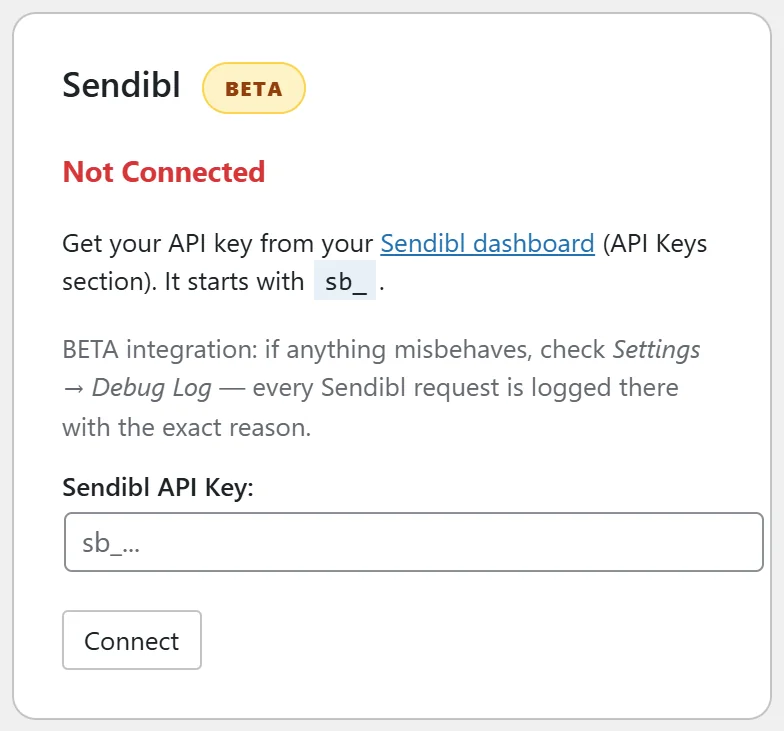
Go to Free List Building → Autoresponders and find the Sendibl card with the BETA badge.
Where to find your API key:
In your Sendibl dashboard, open the API Keys section and create a key. It starts with sb_.
Step by step:
- Paste the key into Sendibl API Key. Stray spaces or line breaks from the paste are removed for you.
- Click Connect, then Test Connection.
- Under Default Audience, pick the audience new subscribers should join. Click Refresh Audiences if you just made it.
- Use Apply to Funnels Without an Audience or Apply to ALL Funnels.
What happens on each opt-in:
The contact is added to the chosen audience with their email and first name (when you collect names). If the email is already in that audience, it counts as a success.
Per funnel:
On a funnel's edit page choose Sendibl (BETA) in Autoresponder Provider. The field is called Audience. Pick the audience for that funnel or leave it on the default.
A real example:
A course creator who sends with Sendibl picks the audience Free Guides as the default, and a second audience Workshop for the webinar funnels. Each group gets its own welcome emails from Sendibl.
Tips:
- Every Sendibl request is written to Settings → Debug Log with the exact reason when something goes wrong.
- If your Sendibl monthly quota is used up, the log says so, and new opt-ins are still saved in your Lists tab.
- See Collected Emails to export anything that needs adding later.