ResultsAiX Surveys builds and runs surveys, quizzes and feedback forms inside your own WordPress site. You describe what you want to learn, AI drafts the whole survey for you (or you write it yourself), and you publish it as a shortcode, on its own page, as an embed on another website, or as a polite exit popup.
Every answer is stored in your own WordPress database. Opt-ins can go straight to your email list, and the results come back to you as charts, a printable report and, with your own AI key, a plain English reading of what people told you.
This guide is the map. Each section below has its own article with real screenshots, step by step tasks and a worked example.
Where to find it:

After you activate the plugin, look for AiX Surveys in the WordPress menu. It opens on the Dashboard. A row of tabs runs along the top: Dashboard, Surveys, Responses, AI Insights, Integrations & AI, Training, Resources, Settings and Diagnostics, with a New Survey button at the end. The Help / Training button in the top right corner opens the built in guide at the part that covers the screen you are on.
What you can do with it:
- Build a survey with AI from one sentence, typed or spoken, or question by question by hand.
- Use seven question types: multiple choice, checkboxes, star rating, a 0 to 10 score, yes or no, short answer and long answer.
- Show a question only to the people whose earlier answer matches, so one survey can follow several paths.
- Save every answer the moment it is given, so people who stop half way still count.
- Publish with a shortcode, a clean page of its own, a one line embed for any other website, or a desktop exit popup.
- Ask for an email at the end and send opt-ins to ResultsAiX Mailer, to the email service you already use, to WP Sync, or to any address with a webhook.
- Route people by their answers: a different list, different tags and a different thank-you page per answer.
- Read the results on the Responses tab, filter them, export them as CSV, print a PDF report, and get an AI written summary with findings and next steps.
The guides, in order:
- Quick Start: Your First Survey In Five Minutes.
- Your Admin Screens At A Glance.
- Drafting A Survey With AI, By Typing Or By Talking.
- Building And Editing Surveys By Hand.
- The Seven Question Types.
- Different Questions For Different People, And Saving Answers As They Go.
- Publishing A Survey With The Shortcode.
- Popup Mode And Its Built In Manners.
- Email Opt-Ins: Turning Answers Into Subscribers.
- Sending Survey Opt-Ins To ResultsAiX Mailer.
- Sending Survey Opt-Ins To AWeber, Mailchimp, ActiveCampaign And More, With Tags.
- What Each Autoresponder Needs: Keys, Lists And Tags By Service.
- Sending Survey Opt-Ins To Your Autoresponder With WP Sync.
- Preview, Its Own Page, Embed Anywhere And PDF Reports.
- Sending A Survey By Email, With No Name Or Email To Type.
- Responses: The Summary, Every Answer, Filters And The CSV Export.
- AI Insights: Charts Free, Written Analysis With Your Key.
- Connecting Your AI Key, And What It Costs.
- Appearance, Notifications, Spam Protection And Privacy.
- Writing Surveys People Actually Finish.
- The Diagnostics Tab: A Health Report For Support.
- Developer Hooks, Data Model And Troubleshooting.
- Works With Your Other Plugins, And Perfectly Well Without Them.
- Sending Responses Anywhere With A Webhook.
The example used in these guides:
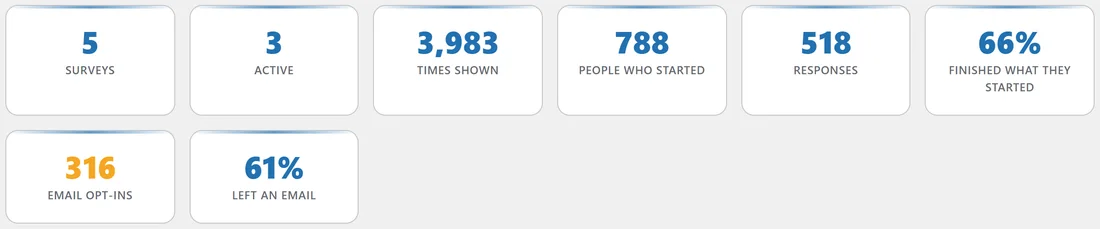
The screenshots come from a made-up online course business called Yoursite Academy at yoursite.com. It runs five surveys: a customer feedback survey with a 0 to 10 recommend question, a course finder quiz that sends each person to a different list and page, a two question exit popup for blog readers, a draft workshop poll, and a closed waitlist survey. The people answering are all made up, at example.com.
Do I need an AI key?
No, not to start. Building surveys by hand, publishing them, collecting responses, the Responses tab, the CSV export, the PDF report and every chart work with no AI key at all. Your own Google Gemini, Anthropic Claude or OpenAI key adds two things: AI drafting of a whole survey, and the AI written reading of your results. Gemini has a free tier. See Connecting Your AI Key, And What It Costs.
Do I need any other plugin?
No. ResultsAiX Surveys is complete on its own. When ResultsAiX Mailer, WP Sync, ResultsAiX Membership, the ResultsAiX Theme, AI Support Desk, WP Conversion Tracker or the ResultsAiX Hub are on the same site, they are found automatically and extra options appear. See Works With Your Other Plugins, And Perfectly Well Without Them.
Tips:
- New here? Start with the Quick Start, then Writing Surveys People Actually Finish.
- Want subscribers from your survey? Read Email Opt-Ins: Turning Answers Into Subscribers next.
- Running a quiz funnel? The routing rules in Sending Survey Opt-Ins To ResultsAiX Mailer are the part to read.