The Settings tab is short and simple. It has four sections: License, Help and your account, Appearance and Danger Zone.
Where to find it:
Open WP Sync and click the Settings tab, or Settings in the WP Sync sidebar menu.
License:
The License panel shows your key, status, licensed email, renewal date and the sites using your key, with buttons to refresh, change the key or deactivate this site. It has its own article, License Tiers And Site Limits.
Help and your account:
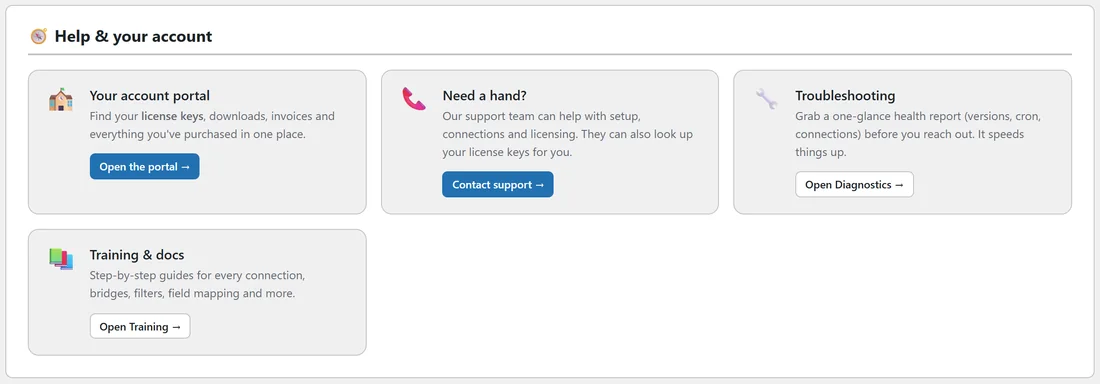
Four cards, each with one button:
- Your account portal: licence keys, downloads, invoices and everything you have purchased. Open the portal.
- Need a hand: setup, connections and licensing help from the support team, who can also look up your keys. Contact support.
- Troubleshooting: a health report before you reach out. Open Diagnostics.
- Training and docs: step by step guides inside the plugin. Open Training.
Appearance:
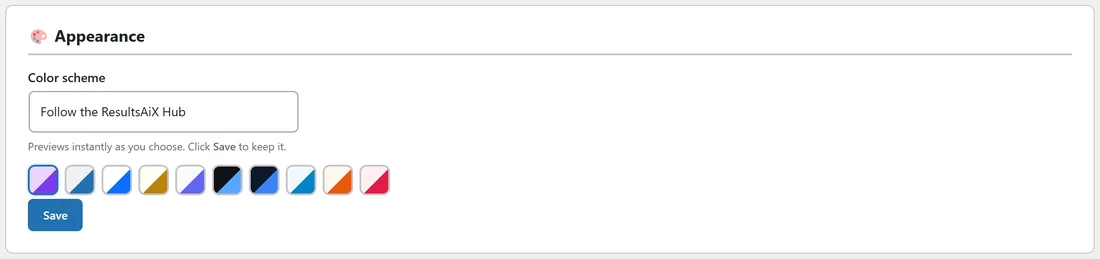
WP Sync can match the rest of your admin, or wear its own colours.
- Open the Color scheme box, or click a swatch below it.
- The screen previews the scheme straight away.
- Click Save. A Saved tick confirms it.
The choices are Follow the ResultsAiX Hub, WordPress Native, Clean White, Ivory Cream, Snow Light, Developer Dark, Midnight Blue, Ocean Blue, Sunset Warm and Rose Pink.
Follow the ResultsAiX Hub:
This is the default. When the free ResultsAiX Hub plugin is installed and you pick a scheme there, every ResultsAiX plugin follows it, WP Sync included. Without the Hub it looks like WordPress Native. Picking any other scheme here sets WP Sync on its own.
Danger Zone:

Clear Activity Log empties the whole Activity Log after you confirm. Your bridges, connections and settings stay exactly as they are. The Dashboard charts start again from the next sync.
When to clear the log:
- After a round of testing, so your charts show only real activity.
- When your privacy policy says to keep personal data for a set time.
Read or note anything you need first, since cleared entries cannot be brought back.
A real example:
yoursite.com tested its bridges for a week with plus addressed test contacts. On launch day the owner opened Settings, clicked Clear Activity Log and confirmed. From then on, the Dashboard showed only real customers.
Matching your team's taste:
The colour scheme is stored for WP Sync on this site, so everybody with access sees the same scheme. For dark mode in all ResultsAiX plugins at once, set it in the ResultsAiX Hub and leave WP Sync on Follow the ResultsAiX Hub.
Tips:
- Developer Dark is easy on the eyes for long sessions.
- The same Clear Log button sits on the Activity Log tab.