If your site runs the ResultsAiX Theme, AiX Brain can work on your website too. Ask it to write a blog post or a page and it uses the Theme's own AI writer, with your saved writing style, and saves it as a draft for you to read. It can also publish a draft when you say so, and change a few look settings, with Undo.
Where to find it:
Ask in any AiX Brain chat. The four Theme actions are on the AiX Theme card in What I can do, under Visitors and website:
- Write a draft blog post
- Write a draft page
- Change one Theme look setting
- Publish a draft post or page
They only work when the ResultsAiX Theme, or a child theme of it, is the active theme. On any other theme the AiX Theme card says Not on this site.
What the Theme needs:
To write, the Theme needs an active licence and AI: a key on the Theme's AI Connect tab, or your AiX Studio connected on the Hub's AiX Studio tab. If something is missing, AiX Brain says exactly what, such as The Theme has no AI set up yet. A Theme that is too old for this says to update it first.
Step by step: a draft blog post:
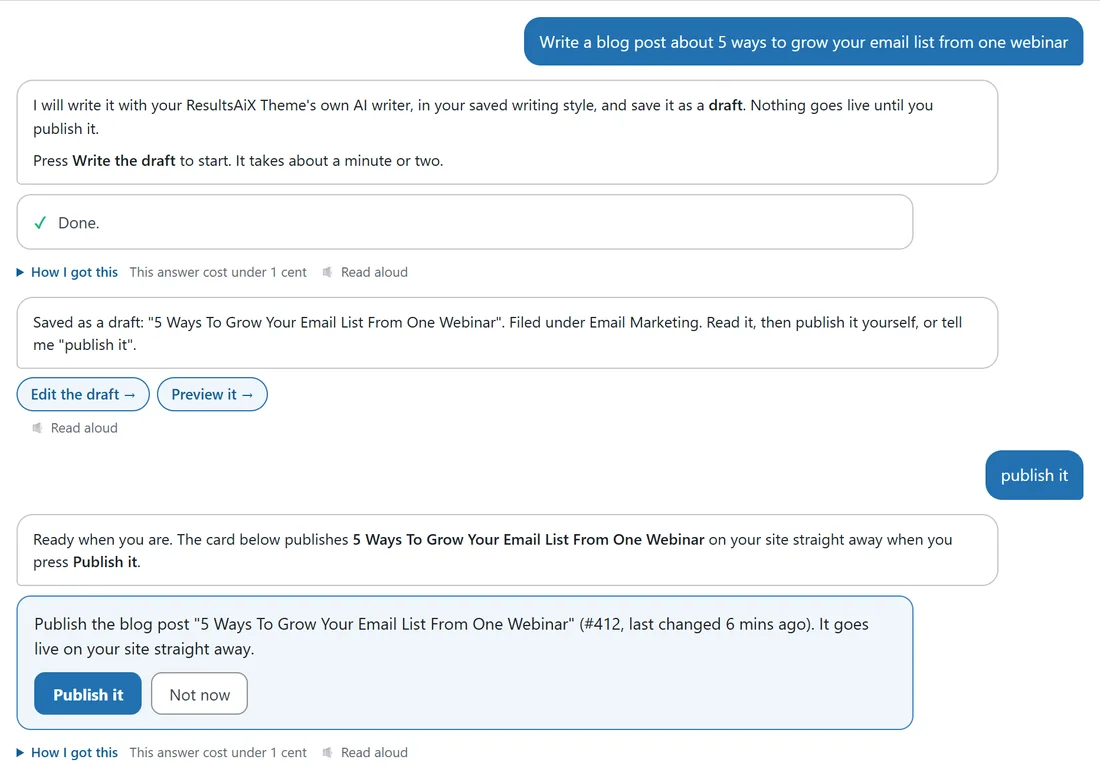
- Ask, for example Write a blog post about 5 ways to grow your email list from one webinar. Add a keyword, an angle or a link if you have one.
- Read the card. It says what it will write about, the length, that it is in your Theme's saved writing style, which category it goes in, how many pictures, and that it is saved as a DRAFT.
- Press Write the draft. Writing takes about a minute or two.
- The next message says Saved as a draft, with its title and category, and two buttons: Edit the draft and Preview it.
- Read it. Publish it yourself from the editor, or tell AiX Brain publish it.
You can say more when you ask:
- Length: short, standard, long or in depth, or a number of words. Without one, your Theme's saved length is used
- Category: the name of a category you already have. Without one, it is filed in the best category you already have. A category that does not exist is never made up: AiX Brain lists the ones you have
- Pictures: 0, 1 or 2, the first one becomes the featured image. A post gets one picture by default when the Theme has an image service set up; a page gets none unless you ask
- Opt-in: say add my opt-in form to put the Theme's opt-in form at the end
The post is written by the same engine as the Theme's Create With AI panel and its AI Publisher: with your saved tone, key takeaways, a FAQ, links to your own posts, an SEO title and an SEO description. It is always saved as a draft, whatever your AI Publisher is set to do.
A draft page:
Ask for a page the same way, for example Write an about page for YourSite Academy, or Make a page for the coaching service. Give it a title if you like. The card's button says Make the draft page. AiX Brain only ever makes new drafts: it never changes a page that is already live.
Publishing a draft:
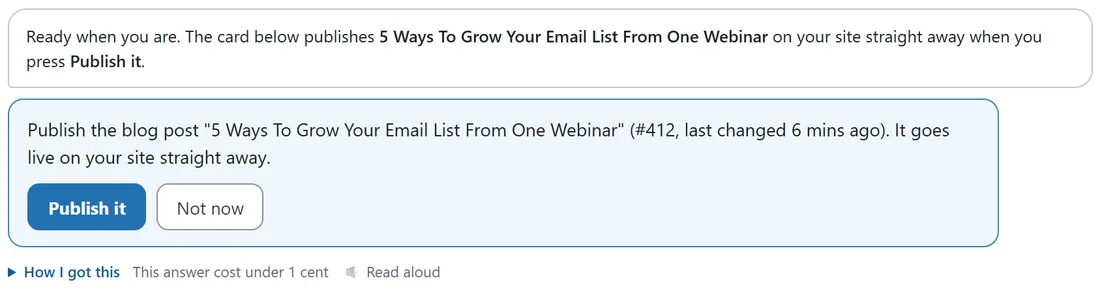
Say publish it right after a draft is written, or name it, such as publish the draft about webinars. The card says which post or page, its number, and when it was last changed, and that it goes live straight away. Press Publish it.
Undo after publishing offers to put it back to draft. You can also ask unpublish followed by the title to take a post AiX Brain published back off your site.
Changing a look setting:
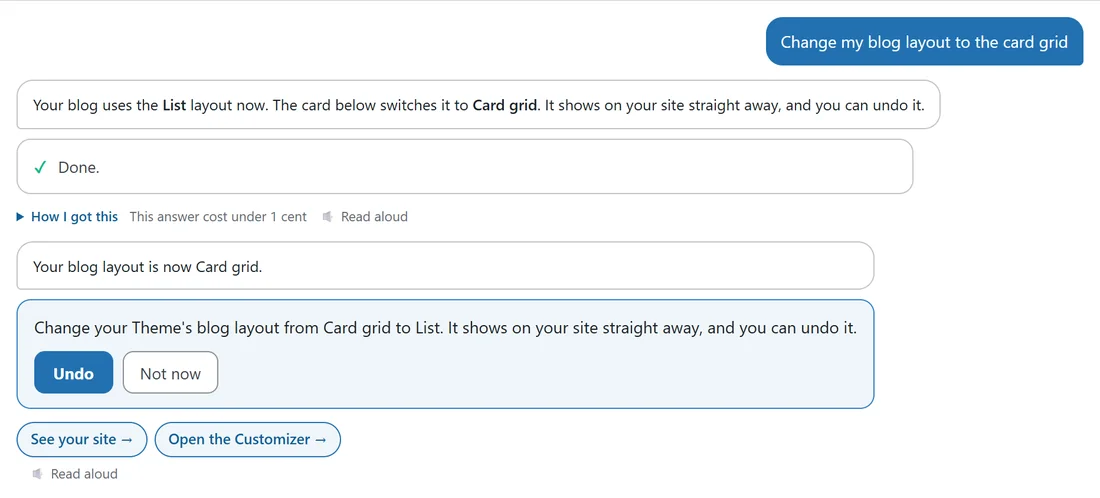
AiX Brain can change six Theme settings, each with Undo:
- Colour scheme
- Site layout
- Blog layout: List, Card grid, Magazine (featured post + grid) or Classic (narrow centered list)
- Members dashboard heading
- Members dashboard intro line
- Footer text
Ask, for example Change my blog layout to the card grid. The card says Change your Theme's blog layout from List to Card grid, that it shows on your site straight away, and that you can undo it. Press Change it. The result has See your site and Open the Customizer buttons, and an Undo card that puts the old setting back. Anything else lives in Appearance, Customize.
What it never touches:
It never changes a live page, never deletes anything, and never touches your menus, your Theme licence, your AI keys, code or the Customizer's custom CSS.
A real example:
Jamie asks AiX Brain to write a blog post about 5 ways to grow your email list from one webinar. The card says Standard (about 1,200 words), in the Theme's saved writing style, filed in the best category, with 1 picture as the featured image, saved as a draft. Jamie presses Write the draft. A minute later: Saved as a draft: "5 Ways To Grow Your Email List From One Webinar", filed under Email Marketing. Jamie opens Preview it, reads it, comes back and types publish it. The next card offers Publish it, and Jamie presses it. The day before, Jamie had switched the blog to the Card grid layout the same way.
What it costs:
Writing uses your Theme's AI, so a post or page costs a few cents, plus the pictures. The card says so before you press the button. Changing a setting or publishing uses no AI beyond the answer itself.
Tips:
- Read every draft before you publish it. AI writes fast, and your eye makes it yours.
- Give an angle in your request, such as for coaches who run a weekly webinar, for a more useful post.
- Ask AiX Brain to try a look setting, look at your site, and press Undo if you prefer the old one.