AiX Brain can do things for you across your ResultsAiX plugins, not just answer questions: write a broadcast draft, resend an email to the people who did not open it, tag a subscriber, reply to a support ticket, pause a split test, give a member a level and much more. Over 200 kinds of change across the ResultsAiX family.
It is built so you are always in charge. Every change is shown to you first, on a card that says exactly what will happen, and nothing happens until you press the button on that card.
Where to find it:
Everywhere you can ask AiX Brain: the AiX Brain tab, the AiX Brain box on the Overview, and the AiX Brain bubble on every other ResultsAiX screen. There is no separate screen for actions. You ask in your own words, the same way you ask a question. The full list of what it can do on your site is on the What I can do tab (see What I Can Do: Everything AiX Brain Can Read And Do On Your Site).
Step by step: ask for a change:
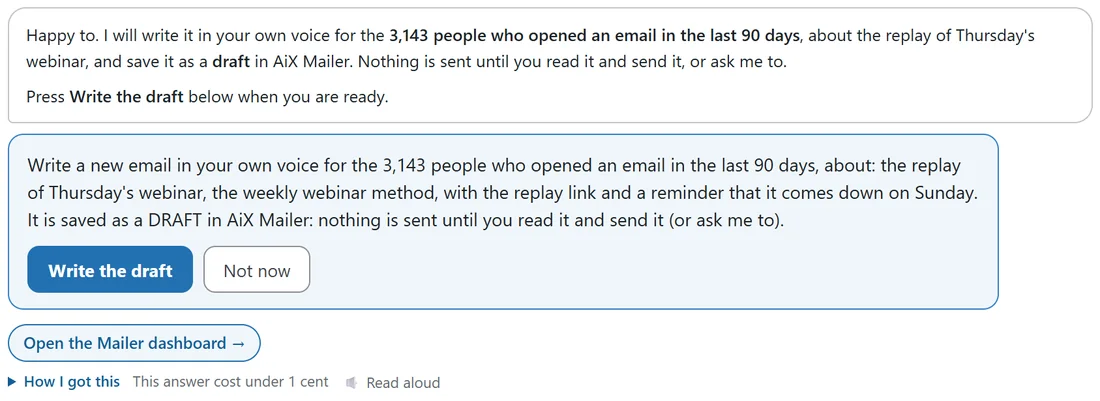
- Type what you want done, the way you would ask a person, for example Write a new broadcast to the engaged people about the replay of Thursday's webinar, or Resend the case study email to everyone who didn't open it, tomorrow at 9am.
- Press Ask. AiX Brain looks up what it needs, finds the item you mean, and prepares the change. Preparing it changes nothing.
- Read the answer and the card under it. The card says exactly what will happen, with the real names and numbers from your site.
- Press the card's button to do it, or Not now to leave it.
- The card turns into Done, and the next message says what was done, with buttons to the screens where you can see it.
If something is missing, AiX Brain asks for it in one short sentence, for example who an email should go to, what it should say, or which of several broadcasts you mean. Answer in a few words, such as only engaged or the first one, and it prepares the card. If several items fit your words, it lists up to five, newest first, and asks which one.
What the card shows:

- The summary: one or a few plain sentences saying exactly what will happen, such as Resend "Case study" (sent 22 Nov) to the 1,729 people who did not open, same email and subject, on Wed 25 Nov, 9:00 am, Europe/London
- The button: its words say what it does, such as Write the draft, Schedule it, Send it now, Give the level, Publish it or Change it. When an action has no words of its own, the button says Do it
- Not now: closes the card with Not done. Ask again whenever you want it
Only the person who asked can press the button. The change runs exactly as the card showed it: the details are kept on your site, never sent back from your browser. A card waits up to two hours. After that, or once it has been pressed, pressing it again says it was already done or waited too long, and to ask again so it is prepared fresh.
Cards that send to people:
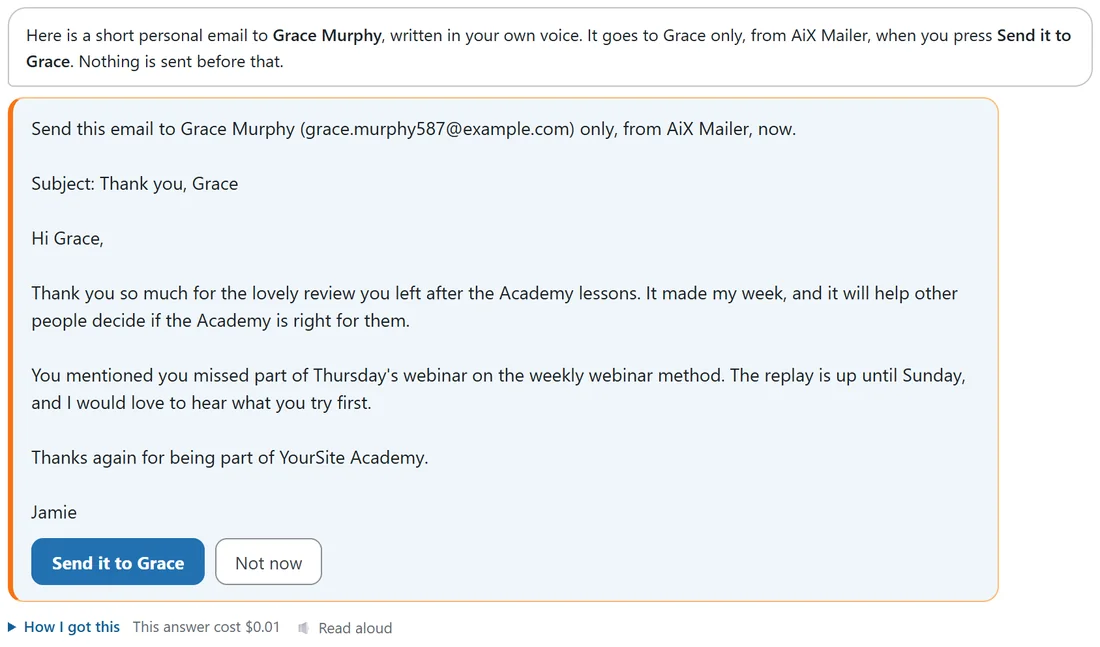
A card that sends an email, a message or a reply to people has an orange edge, so you can tell at a glance that pressing it reaches your subscribers, members or customers. Examples are resending a broadcast, sending or scheduling a draft, emailing one person, replying to a ticket and sending a member a login link. Cards that only change something on your site, such as a tag, a setting or a draft, have a plain edge.
Big sends carry an extra line. When a broadcast card would reach more than 5,000 people, it reminds you that mail to people who have not opened in months is what gets reported as spam: for a new broadcast it suggests writing it for the people who opened in the last 90 days instead, and before sending a draft it asks you to check your spam rate first.
Undo:
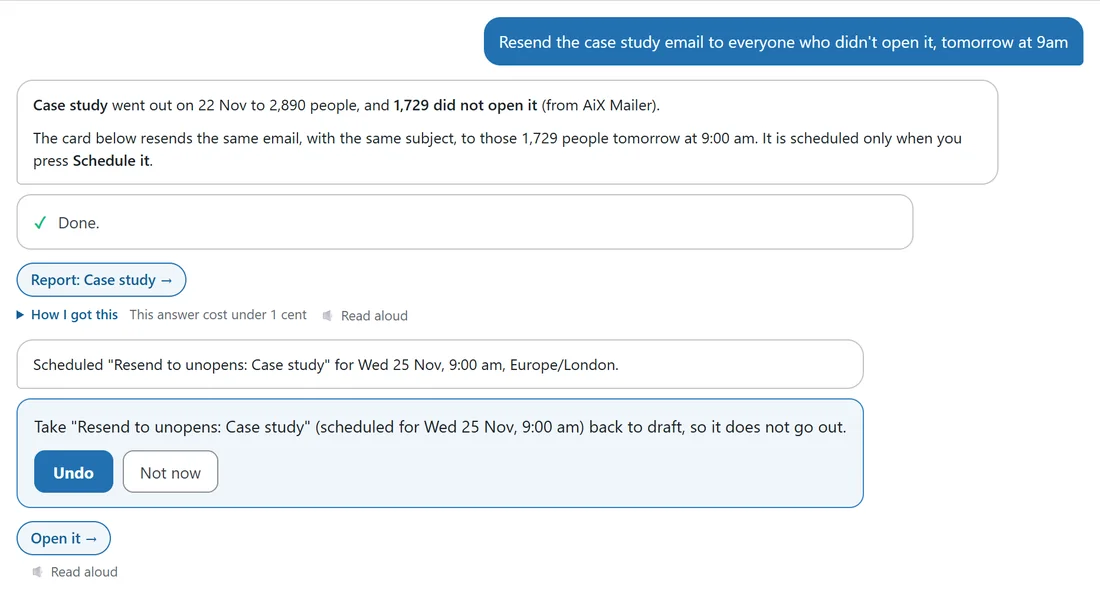
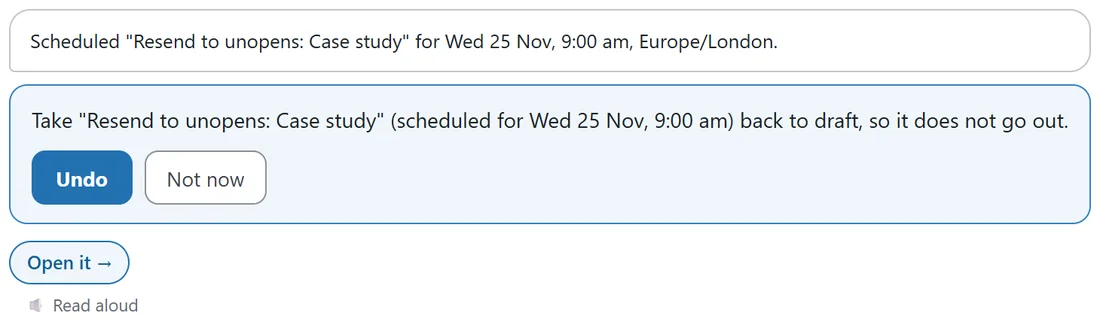
Many changes can be put back. When one can, an Undo card appears right after the result: it says what Undo will put back, for example Take "Resend to unopens: Case study" back to draft, so it does not go out. Press Undo to do it, or Not now to keep the change. Undo is prepared the same way as any other action: nothing happens until you press it.
Examples of changes that can be undone:
- Scheduling a broadcast: Undo takes it back to draft
- Changing a look setting in the ResultsAiX Theme: Undo puts the old setting back
- Giving a member a level: Undo takes the level away again
- Publishing a draft post or page: Undo puts it back to draft
What AiX Brain never does:
- Move money. It never prepares a payment change of any kind; ask for one and it says so in one sentence and gives you the exact steps to do it yourself
- Delete anything for good. At most it archives or moves something to the bin
- Act on its own. It only works when you ask, and only changes things when you press the button
- Send an AI-written email you have not read. A new broadcast is saved as a draft first
Every action uses the plugin's own code, the same code that plugin's own buttons run, and checks that you are allowed to do it there. An action only exists while its plugin is switched on.
A record of every change:
Every pressed card is written to the Hub's activity record with what was asked, what the card said and the result. The chat keeps the card too: open the chat later from Chat history and the card still shows Done, followed by what was done.
A real example:
Jamie asks AiX Brain on yoursite.com to resend the case study email to everyone who did not open it, tomorrow at 9am. The answer says Case study went out on 22 Nov to 2,890 people and 1,729 did not open it, and the card under it, with an orange edge because it sends, reads Resend "Case study" (sent 22 Nov) to the 1,729 people who did not open, same email and subject, on Wed 25 Nov, 9:00 am. Jamie presses Schedule it. The card says Done, the next message says Scheduled "Resend to unopens: Case study" with an Open it button, and an Undo card offers to take it back to draft. Jamie leaves the Undo card alone.
What it costs:
Preparing a change is part of the answer, so it costs about the same as any answer, shown under it. Pressing the button costs nothing extra, except where the action itself uses AI, such as a broadcast or a blog post written by AI: the card says so.
Tips:
- Be specific about who and when: to everyone who did not open it, tomorrow at 9am gives a card that is ready to press.
- Read the summary before you press. It names the exact item and the exact number of people.
- Changed your mind after pressing? Look for the Undo card right under the result.
- More: Emailing One Person From AiX Brain, AiX Brain And The ResultsAiX Theme: Draft Posts, Pages And Look Settings, and Making Changes On A Linked Site From Your Main Hub.