AiX Brain does more than answer questions. It reads every ResultsAiX plugin on your site, and it can prepare over 200 kinds of change across the ResultsAiX family, from writing a broadcast draft to giving a member a level. The What I can do tab is the full list, built live from the same lists AiX Brain itself uses, so it is always up to date with the plugins you run.
Use it when you want to know whether AiX Brain can do a job for you, or just to discover what is possible.
Where to find it:
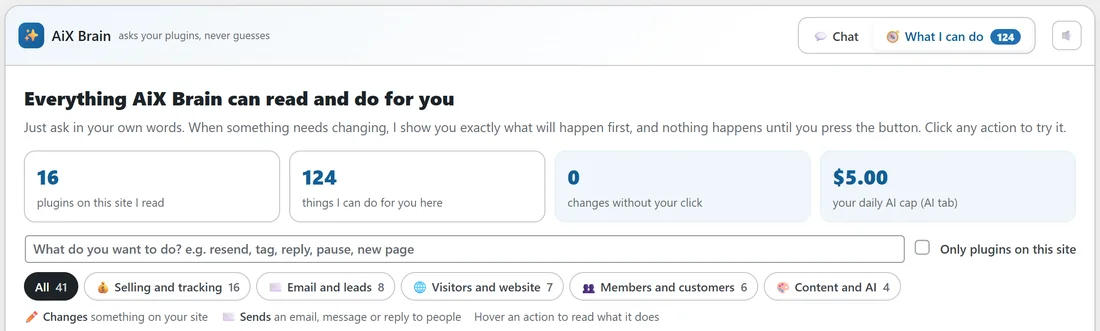
- On the AiX Brain tab, click What I can do at the top of the chat, beside Chat. The number on the button is how many things AiX Brain can do on this site
- In the AiX Brain box on the Overview, What I can do opens the AiX Brain tab with the list already open
- In a new chat, See all followed by the number of things I can do for you, under the example questions, does the same
Click Chat to go back to your conversation. The list takes the full width of the page while it is open, and Chat history steps aside.
The four numbers at the top:
- Plugins on this site I read: how many of your ResultsAiX plugins AiX Brain can read here
- Things I can do for you here: how many actions it can prepare on this site
- Changes without your click: always 0. Nothing changes until you press the button on a card
- Your daily AI cap: the AiX Brain daily spending cap you set on the AI tab, or No cap
On yoursite.com the numbers read 16 plugins, 124 things, 0 changes without your click and a $5.00 daily cap.
The plugin cards:
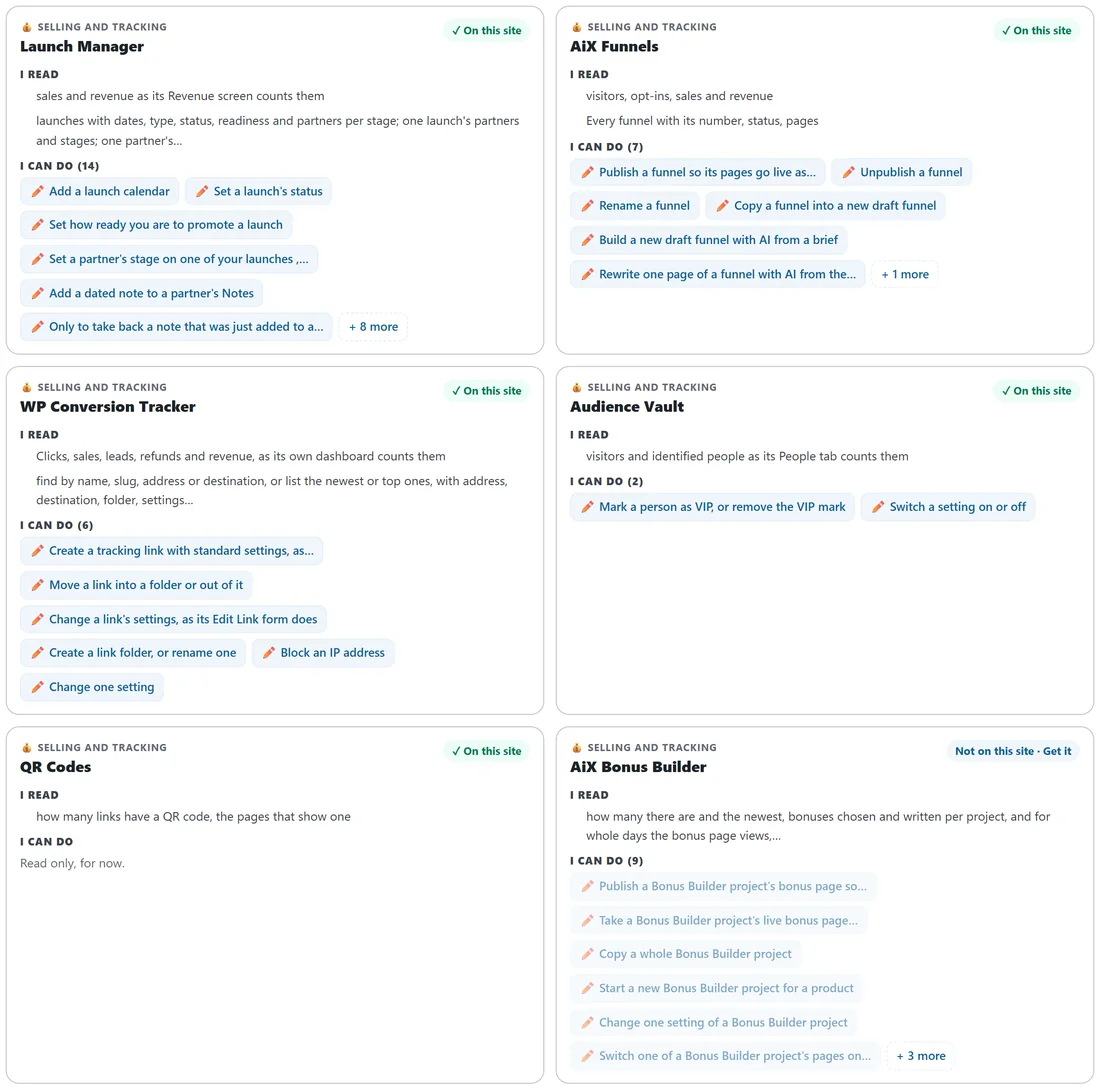
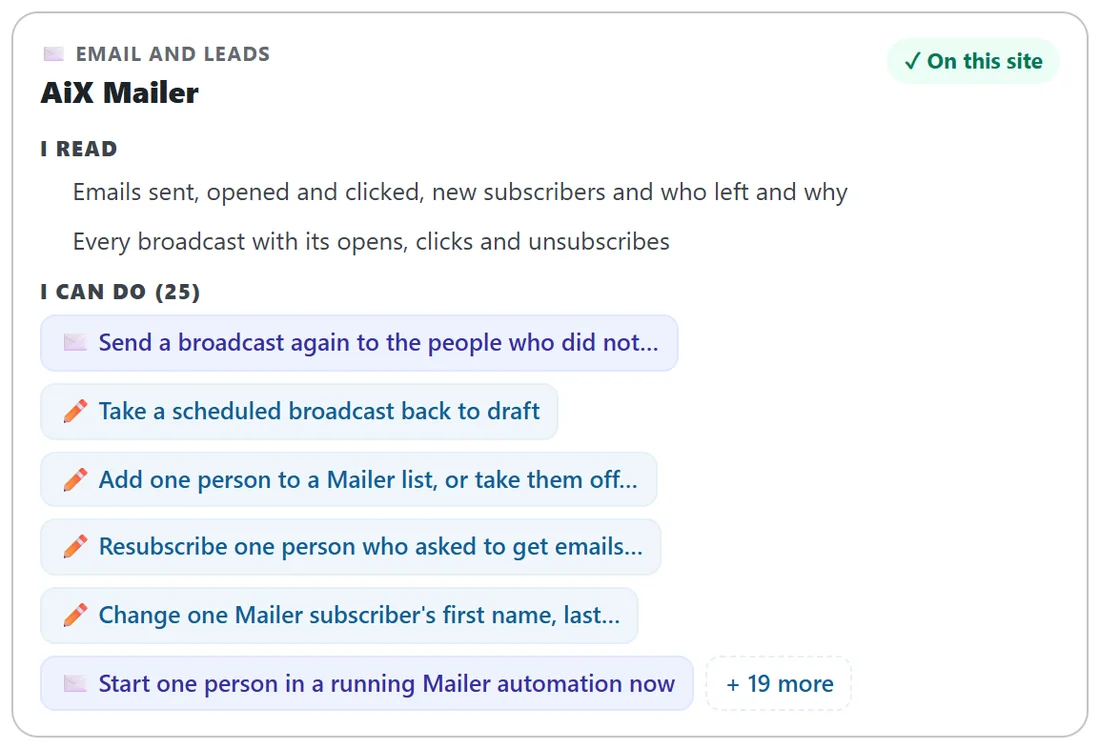
Every ResultsAiX plugin has one card. Each card shows its area, its name, and on the right ✓ On this site when it is switched on here. Below that:
- I read: a line for each kind of data AiX Brain reads from that plugin, for example emails sent, opened and clicked for AiX Mailer, or tickets waiting for a reply for the Support Desk
- I can do: every action it can prepare in that plugin, with how many there are. The first six show; + more opens the rest
- Read only, for now: for a plugin AiX Brain reads but has no actions for yet, such as QR Codes
Each action is a small button with a sign in front:
- A pencil: it changes something on your site, such as tagging a subscriber, pausing a split test or publishing a draft
- An envelope: it sends an email, a message or a reply to people, such as resending a broadcast or replying to a ticket. These also get an orange edge on their card in the chat
Hover over an action to read the full description of what it does.
Plugins that are not on this site:
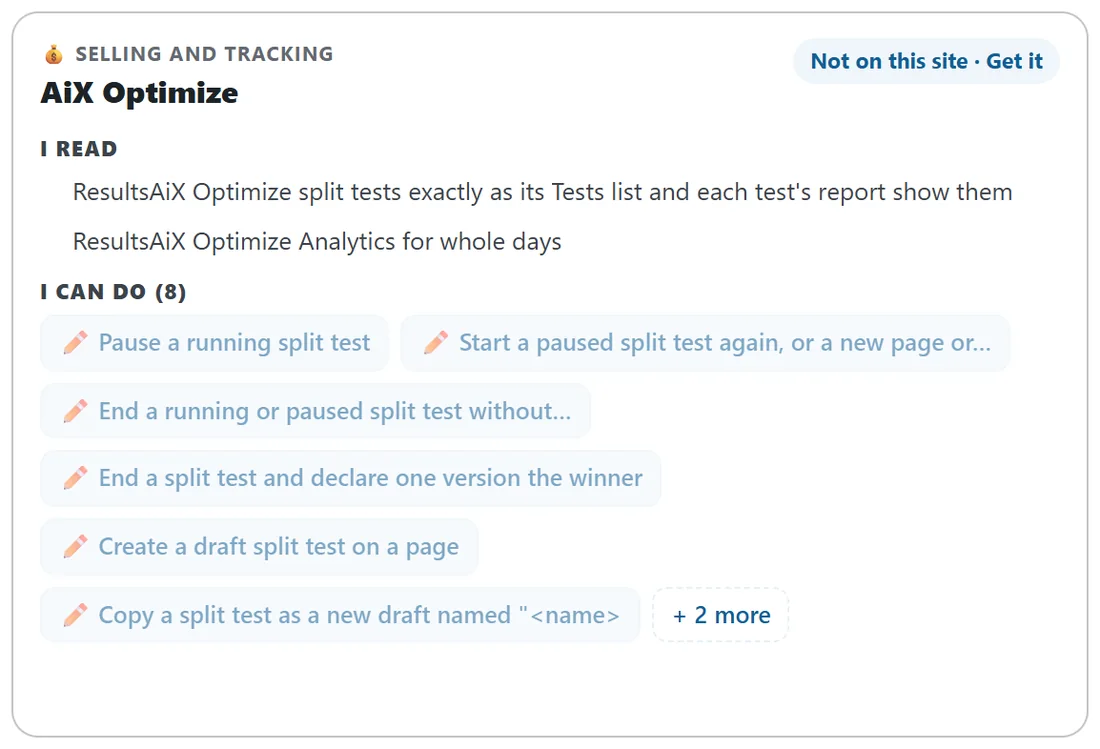
Cards for ResultsAiX plugins you do not have here are shown greyed out, with Not on this site · Get it in the corner. Get it opens the Get More tab. Their actions are listed so you can see what you would gain, but you cannot try them here.
Filter by area:
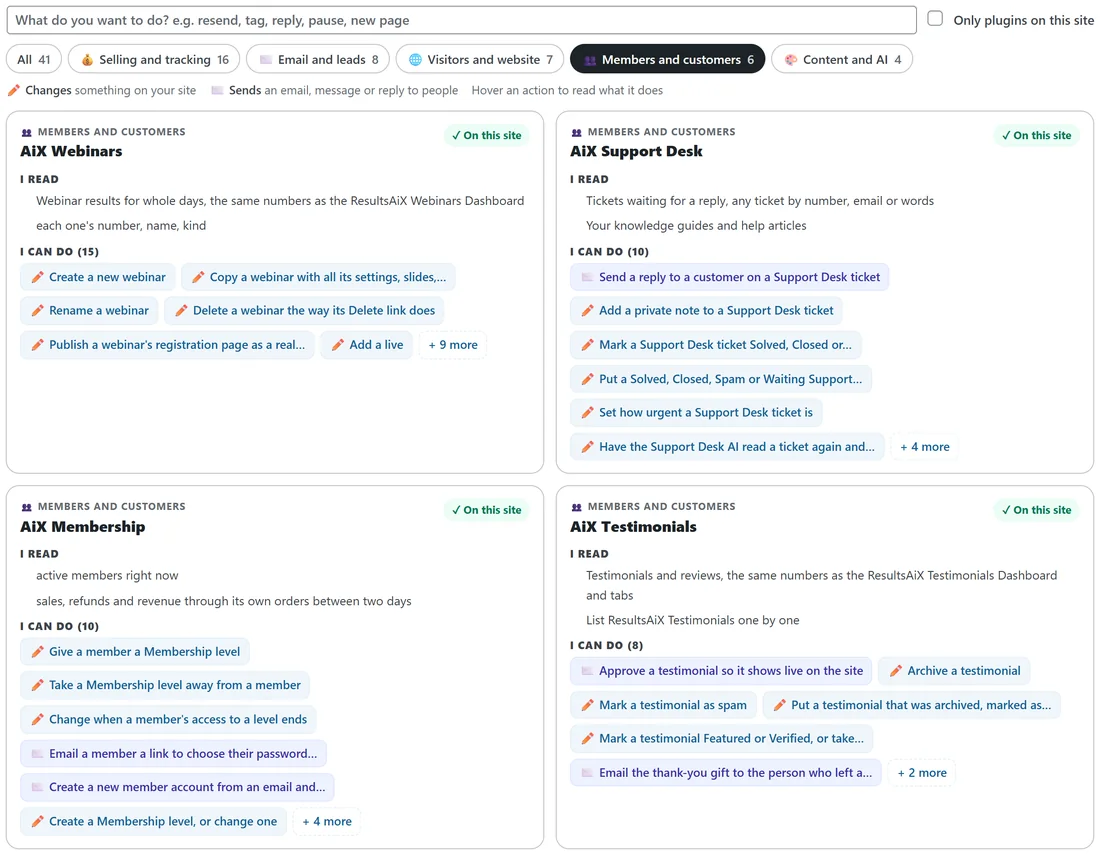
The pills under the search box group the plugins into five areas, each with how many plugins it holds:
- Selling and tracking: WP Conversion Tracker and its add-ons, Funnels, Launch Manager, Bonus Builder, ADs, Optimize and Sign
- Email and leads: AiX Mailer, Email, WP Sync, Forms, Surveys and Engage
- Visitors and website: Pulse, Search, Consent, Accessibility, WP Record With Privacy, the ResultsAiX Theme, and the Hub's own linked sites action
- Members and customers: Membership, the Support Desk, Testimonials, Webinars, Podcasts and Community
- Content and AI: Video, Image and Publisher
Click All to see every card again.
Only plugins on this site:
Tick Only plugins on this site, beside the search box, to hide every greyed card. The list then shows only what AiX Brain can read and do right here.
Search for what you want to do:
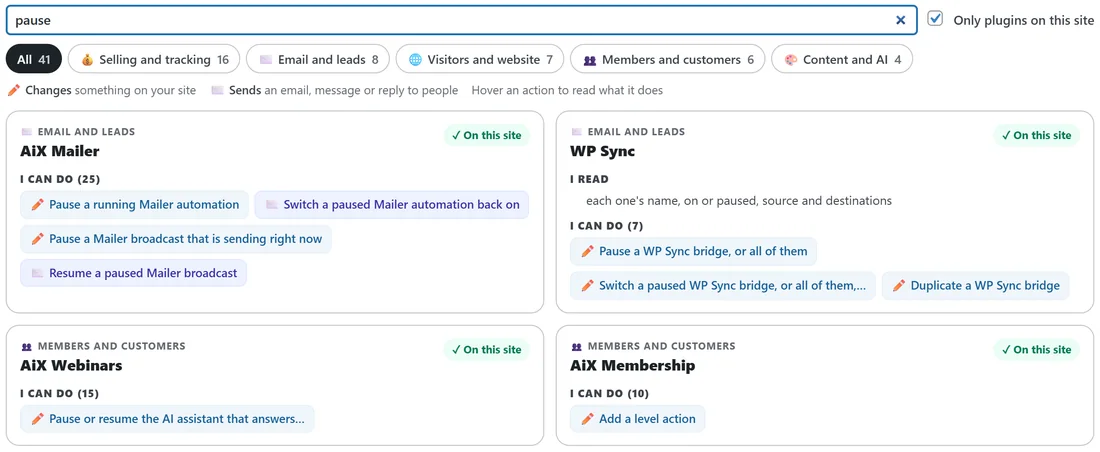
Type in What do you want to do? Words such as resend, tag, reply, pause or new page narrow the cards to the actions and reads that match, and every match shows, not just the first six. If nothing matches, the list says it cannot do that one yet, and to ask anyway: AiX Brain then tells you the exact clicks.
Try any action:
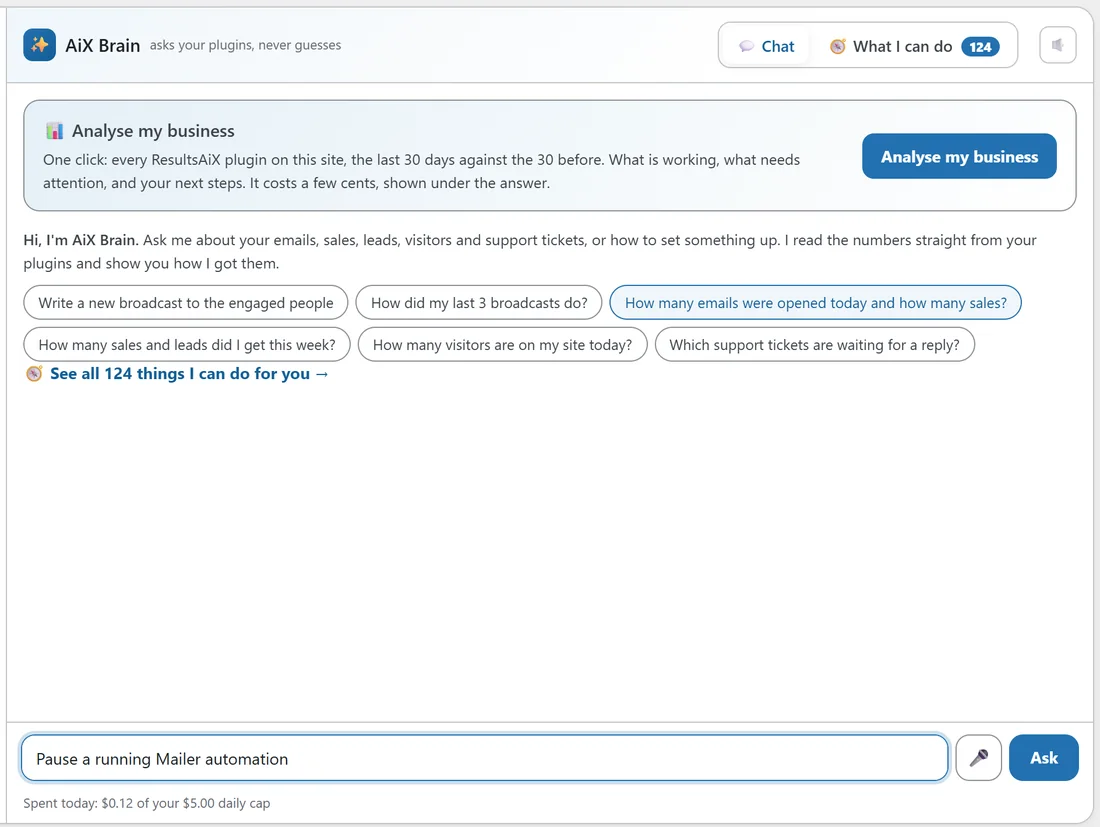
Click any action on a card for a plugin on this site. The list closes, the chat opens, and the action's words wait in the question box. Finish the sentence with the details, for example who, which broadcast or when, and press Ask. AiX Brain prepares the change as a card, and nothing happens until you press its button. See Letting AiX Brain Do Things For You: The Card, Do It And Undo.
What I never do:

The box at the bottom of the list says what AiX Brain never does:
- Move money: no refunds, charges or cancelled payments. It gives you the exact steps instead
- Delete anything for good. At most it archives or moves something to the bin, and many actions can be undone
- Act on its own. It only works when you ask, and only changes things when you press the button
- Send AI-written emails you have not read: they are saved as drafts first
A real example:
Jamie wants to stop a Mailer automation over the holidays, but is not sure AiX Brain can do that. On the AiX Brain tab Jamie clicks What I can do, ticks Only plugins on this site and types pause. The AiX Mailer card shows Pause a running Mailer automation, and other plugins show their own pause actions. Jamie clicks it, adds the name of the automation, Welcome series, and presses Ask. A card appears saying exactly which automation will be paused, and Jamie presses its button.
How the list stays current:
The list is built each time you open it, from the same lookups and actions AiX Brain uses when you ask. A plugin you switch on today appears with ✓ On this site straight away, and new actions arrive with each Hub update. Building the list only reads: opening it never changes anything.
Tips:
- Skim the list once after you install a new ResultsAiX plugin: its actions are ready to use at once.
- You do not need the list to use an action. Ask in your own words, such as tag grace.murphy587@example.com as VIP, and AiX Brain picks the right one.
- What every action card shows, and how Undo works, is in Letting AiX Brain Do Things For You: The Card, Do It And Undo.