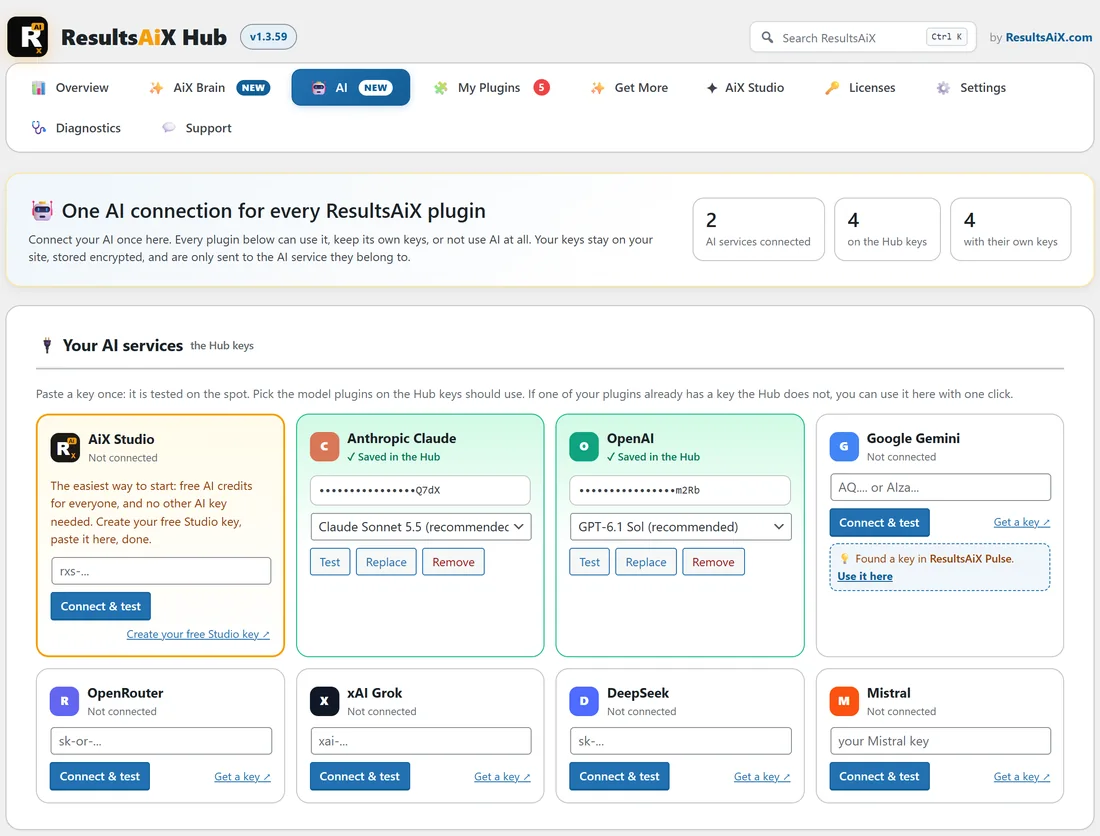
Many ResultsAiX plugins use AI, and each one used to need its own key. The AI tab is one place for all of them. Connect an AI service once as a Hub key, then decide for each plugin whether it uses the Hub keys, keeps its own, or uses no AI at all. It also shows what your plugins spend on AI each month and keeps a record of every change, with an undo.
Your keys stay on your site, stored encrypted, and are only sent to the AI service they belong to. No key is ever shown in full: only its last four characters.
Where to find it:
Open ResultsAiX Hub and click the AI tab. The cards, top to bottom: the summary, Your AI services, Your plugins and their AI keys, AI costs, AiX Brain daily spending cap, and Changes you made.
The summary:
The top of the tab says how many AI services are connected, how many plugins are on the Hub keys, and how many use their own keys.
Your AI services:
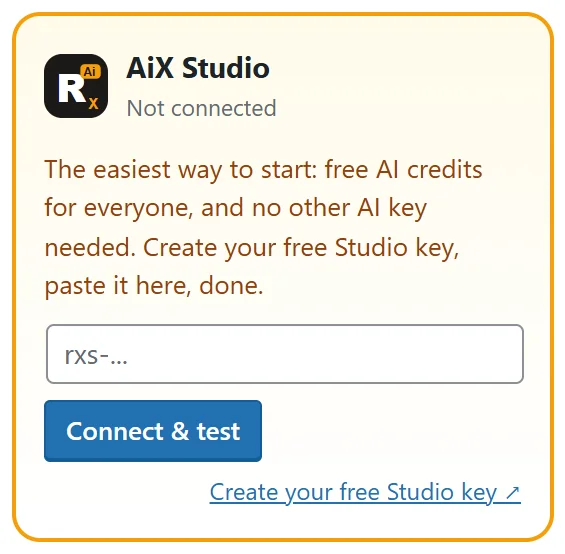
One card for AiX Studio first, then one for each of the seven services the ResultsAiX plugins work with: Anthropic Claude, OpenAI, Google Gemini, OpenRouter, xAI Grok, DeepSeek and Mistral.
The AiX Studio card is the easiest start: free AI credits for everyone, and no other AI key needed. Press Create your free Studio key on that card, make your key in your Studio, then paste it into the card and press Connect & test. Answers come off your Studio credits.
There is an even quicker way: connect your Studio on the Hub's AiX Studio tab and allow your plugins' AI to use your Studio credits. The Hub then saves this site's own Studio key on the AiX Studio card for you, within the monthly limit you picked in your Studio. A key you saved on the card yourself is left alone. See The AiX Studio Tab And One-Click Connect.
Step by step: connect a service:
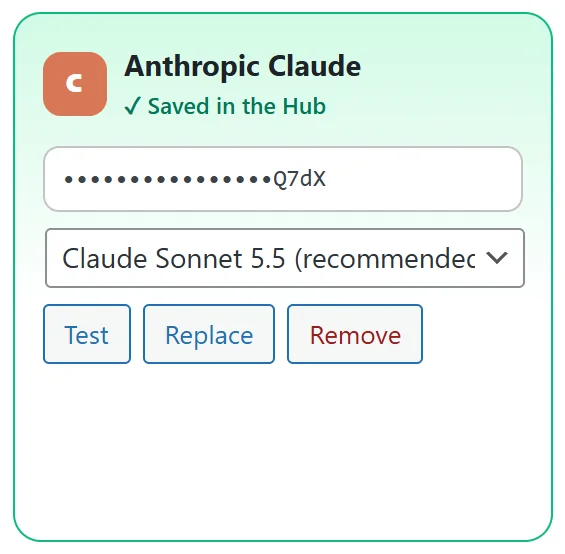
- On the service's card, press Get a key ↗ (Create your free Studio key ↗ on the AiX Studio card) if you do not have one yet. The service's own key page opens.
- Paste the key into the box.
- Press Connect & test. The key is saved, encrypted, and tested on the spot: the message says Saved and tested, and which model answered and how fast.
- Pick the model in the list under the key. Plugins on the Hub keys use it unless they picked their own.
A connected card shows Saved in the Hub, the key's last four characters, the model list, and three buttons:
- Test asks the service to answer again, to check the key still works
- Replace opens the box for a new key, with Save new key and Cancel
- Remove takes the key out of the Hub after you confirm. Plugins on the Hub keys stop using that service, and you can undo it
A key can also come from elsewhere on your site. The card then says From the ResultsAiX theme, when the theme's AI Connect holds it, or From ResultsAiX Mailer for a Claude or OpenAI key saved in the Mailer. A key you save on the card comes first.
Found a key in a plugin:
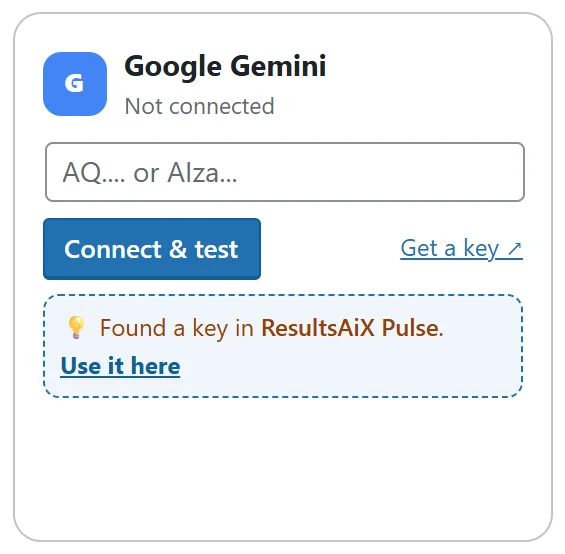
When a plugin already has a key for a service the Hub does not, the card says Found a key in that plugin, with Use it here. One click makes it a Hub key too, and the plugin keeps it.
Your plugins and their AI keys:
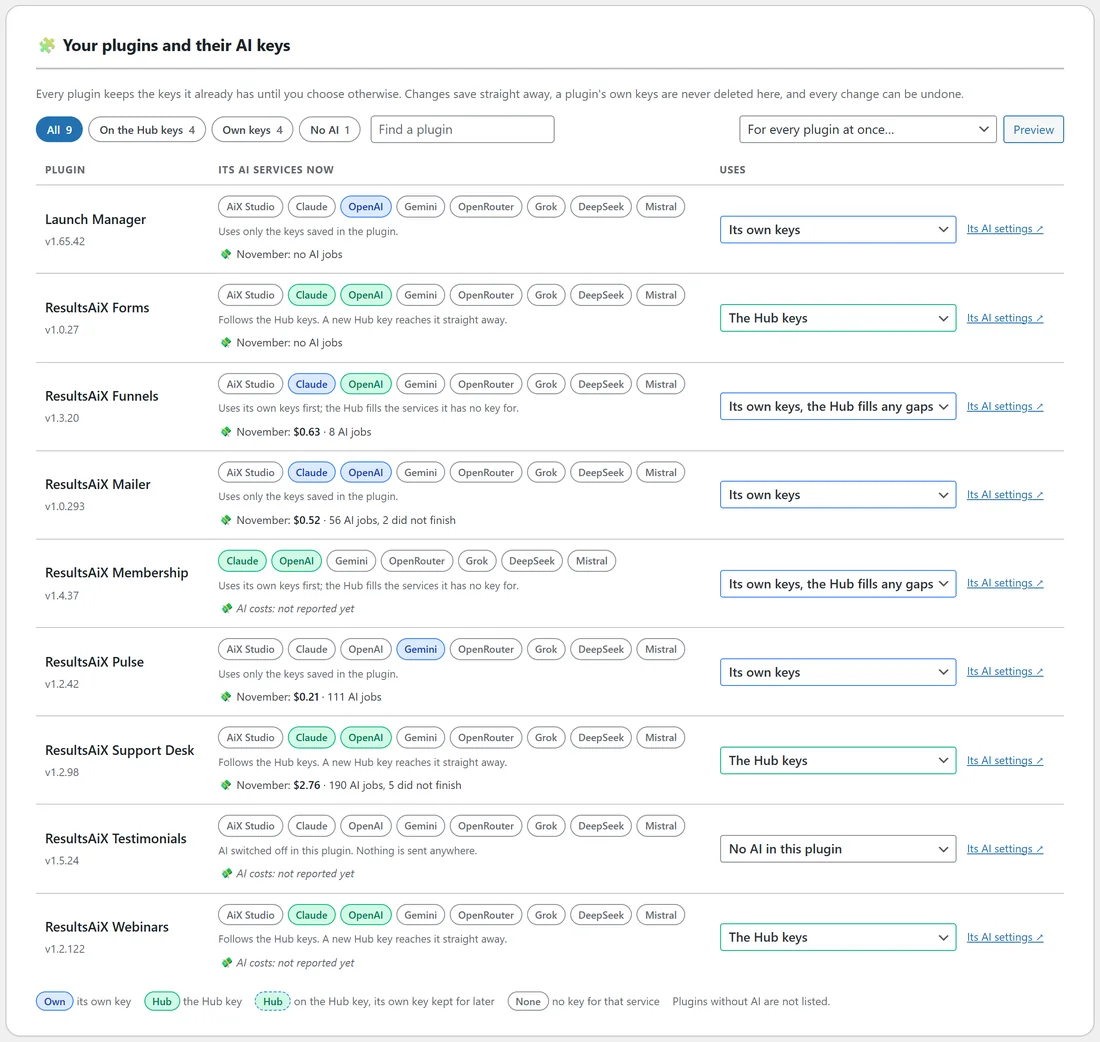
A table of every ResultsAiX plugin on this site that uses AI. Plugins without AI are not listed. Each row shows:
- The plugin and its version
- Its AI services now, one chip per service: Own for its own key, Hub for the Hub key, Hub with its own key kept for later, or None
- What it uses, a choice you change right there
- Its AI settings ↗, which opens the plugin's own AI settings
- What it spent on AI this month, with how many AI jobs, or no AI jobs, or AI costs: not reported yet for a plugin that does not tell the Hub its AI costs
The four choices:

- Its own keys: only the keys saved in the plugin
- Its own keys, the Hub fills any gaps: its own keys first, and the Hub key for any service it has no key for
- The Hub keys: follows the Hub, so a new Hub key reaches it straight away
- No AI in this plugin: AI switched off, nothing is sent anywhere
Every plugin keeps the keys it already has until you choose otherwise. A change saves straight away, a plugin's own keys are never deleted here, and switching back brings them back.
A plugin that needs an update to be managed here says Update this plugin, with an Update button. One whose AI settings show once its licence is active says so, with an Open button.
Finding a plugin:
The chips above the table filter it: All, On the Hub keys, Own keys and No AI, plus Needs an update and Licence not active when any plugin is in that state, each with a count. Find a plugin narrows the list as you type.
Step by step: change every plugin at once:
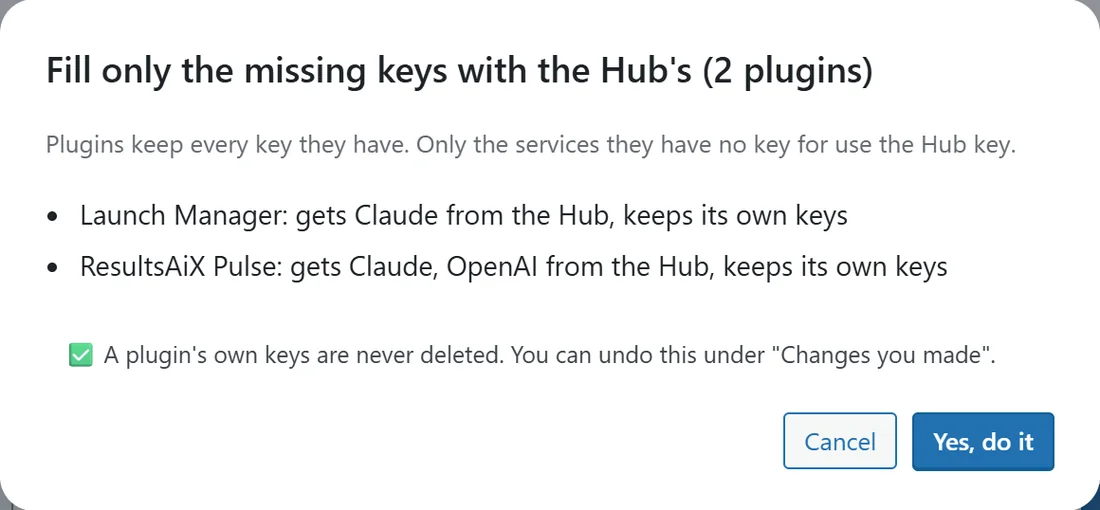
- Open For every plugin at once and pick one:
- Fill only the missing keys with the Hub's: each plugin keeps its own keys and gets the Hub key for any service it has no key for
- Use the Hub keys everywhere: every plugin follows the Hub keys, and keeps its own keys saved for later
- Every plugin back to its own keys: every plugin uses only the keys saved in it again
- Press Preview. A box lists every plugin that would change and what it would get, before anything is changed.
- Press Yes, do it, or Cancel. Changed rows glow for a moment, and the whole change is one line in Changes you made, with Undo.
AI costs:
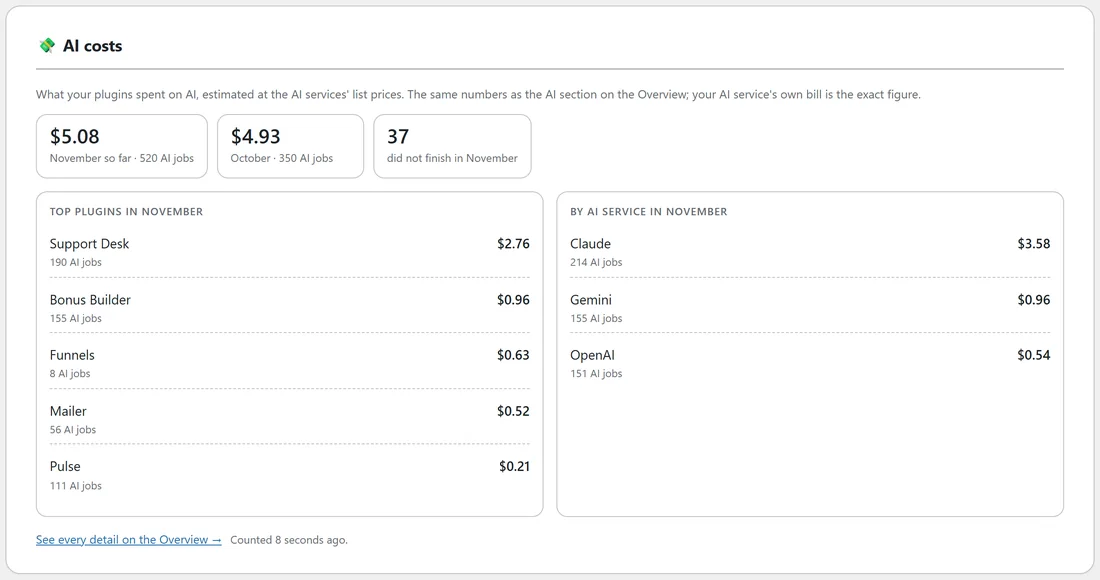
What your plugins spent on AI, estimated at the AI services' list prices: this month so far with how many AI jobs, last month, and how many jobs did not finish this month. Below them, Top plugins and By AI service for this month. These are the same numbers as the AI section on the Overview, and See every detail on the Overview → takes you there. Your AI service's own bill is the exact figure. See AI Costs: What Every Plugin Spent.
AiX Brain daily spending cap:
The cap for AiX Brain, with today's spend. See How AiX Brain Gets Its Numbers, And What Each Answer Costs.
Changes you made:
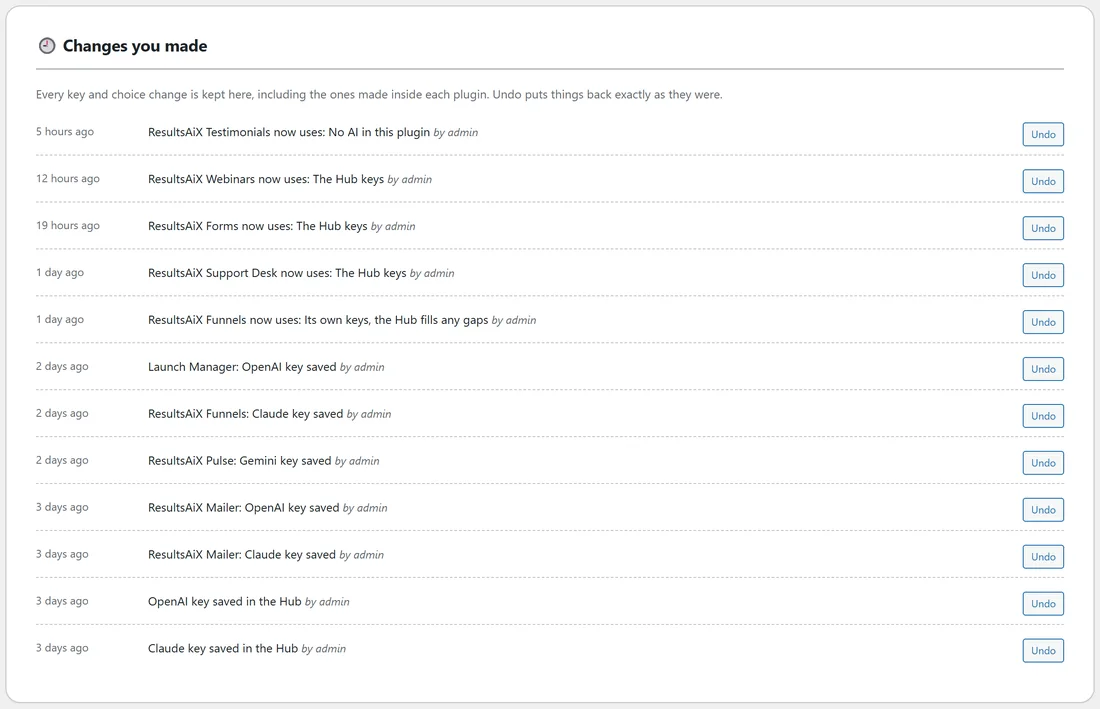
Every key and choice change, including the ones made inside each plugin, with when it happened and who made it. Undo puts things back exactly as they were. A change made to several plugins at once is one line, with each plugin listed under it. After any change, a message at the bottom of the screen says what happened, with its own Undo.
A real example:
On yoursite.com the summary says 2 AI services connected, 4 plugins on the Hub keys and 4 with their own keys. Claude and OpenAI are saved in the Hub. ResultsAiX Pulse has its own Gemini key, so the Google Gemini card says Found a key in ResultsAiX Pulse. The Support Desk, Forms and Webinars follow the Hub keys, Funnels and Membership use their own keys with the Hub filling the gaps, the Mailer, Pulse and Launch Manager use their own keys, and Testimonials has AI switched off. Jamie picks Fill only the missing keys with the Hub's and presses Preview: Launch Manager would get Claude and Pulse would get Claude and OpenAI from the Hub, each keeping its own keys.
Tips:
- Connect two services, such as Claude and OpenAI. Plugins with a backup service then carry on if one is busy.
- Use Preview before any change to every plugin at once: it shows exactly what would change.
- Changed your mind? Undo in Changes you made puts it back exactly.