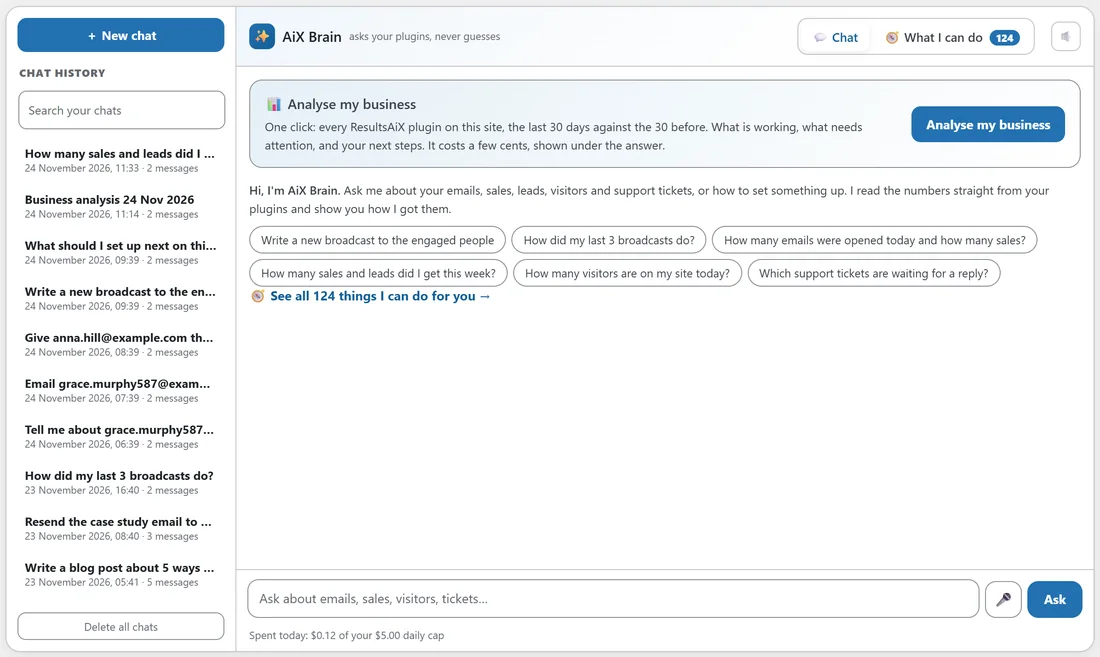
AiX Brain is the AI assistant inside the ResultsAiX Hub. You ask about your business in your own words, by typing or with your voice, and it answers with the numbers your ResultsAiX plugins hold: emails sent, opened and clicked, sales and leads, visitors, support tickets, members, webinars, or how to set something up.
It can also do things for you. Ask it to write a broadcast, resend an email to the people who did not open it, tag a subscriber, reply to a ticket or give a member a level, and it prepares the change as a card that says exactly what will happen. Nothing happens until you press the button on that card.
It never guesses. For every question it reads the numbers straight from your plugins, writes the answer from those numbers only, and shows you how it got them under the answer.
Where to find it:
AiX Brain is one assistant with the same saved chats in four places:
- The AiX Brain tab at the top of every Hub page, with the full chat, your Chat history beside it, and What I can do
- The AiX Brain box on the Overview, right under the greeting, with the same Chat and What I can do tabs
- The AiX Brain bubble in the bottom right corner of every other ResultsAiX screen (see The AiX Brain Bubble On Every ResultsAiX Screen)
- Ask AiX Brain, the last line of Search ResultsAiX when you press Ctrl+K (see Search ResultsAiX: Ctrl+K To Any Page, And Ask AiX Brain)
Only administrators can use it, like every Hub screen.
Before your first question:
AiX Brain uses the Hub's AI keys. Connect one on the Hub's AI tab first: AiX Studio (free AI credits for everyone), Anthropic Claude, OpenAI, Google Gemini, OpenRouter, xAI Grok, DeepSeek or Mistral. Connecting your AiX Studio account on the AiX Studio tab, with your plugins' AI on Studio credits, sets this up for you. Until then, the chat says Connect an AI key on the Hub's AI tab first, with a link straight there. See The AI Tab: One Place For Every Plugin's AI Keys.
The top of the chat:

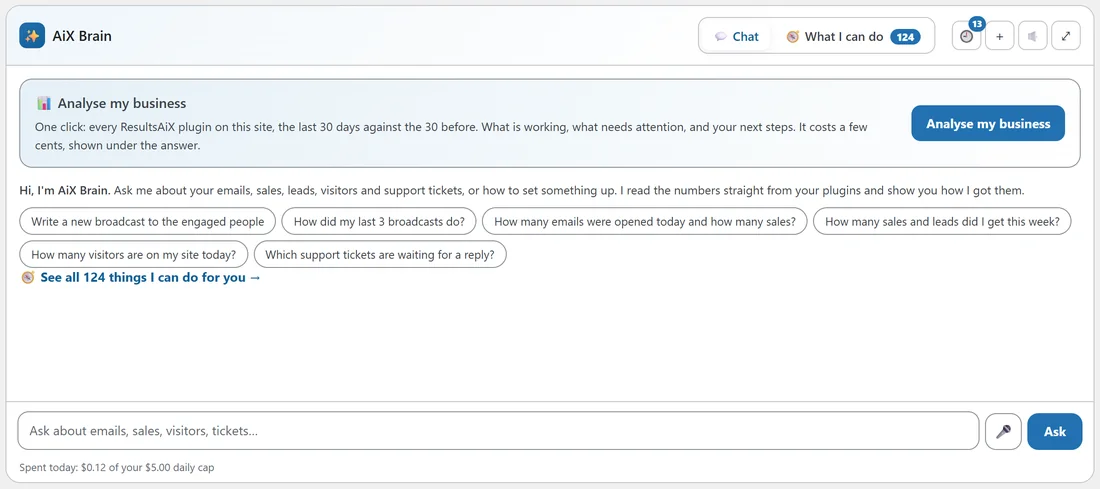
- AiX Brain, with asks your plugins, never guesses
- Chat and What I can do, with the number of things it can do on this site. What I can do lists every plugin it reads and every action it can prepare (see What I Can Do: Everything AiX Brain Can Read And Do On Your Site)
- The clock button opens Chat history in the box and the bubble, with how many chats you have
- The plus button starts a new chat in the box and the bubble
- The speaker button reads every new answer aloud
- The arrow button opens the full AiX Brain tab from the box and the bubble
Step by step: ask a question:

- Open the AiX Brain tab, or the box on the Overview.
- Type your question in the box that says Ask about emails, sales, visitors, tickets.
- Press Ask, or press Enter. Shift and Enter starts a new line instead.
- While it works you see what it is doing, such as Picking what to look up, Asking your plugins and Writing the answer, with the seconds so far. The Ask button turns into Stop if you change your mind.
- Read the answer. Under it you find buttons to the screens it read, How I got this, what the answer cost, and Read aloud.
- Ask a follow-up in the same chat. AiX Brain remembers the conversation, and still reads fresh numbers for every question about numbers.
A new chat starts with Analyse my business, a few example questions that fit the plugins on your site, such as Write a new broadcast to the engaged people or How many sales and leads did I get this week?, and See all followed by the number of things it can do for you. Click an example to ask it.
What you can ask:
- Sales and revenue for any days: today, yesterday, this week, last month, this year, or two dates you name
- New people and where they came from, each person counted once
- Email results: sent, opened, clicked, who joined and who left, and how your latest broadcasts did
- Visitors on your site today, in the last 24 hours or the last 7 days, and how long visits last, from ResultsAiX Pulse
- One person, by their email address: you get their person card (see The Person Card: Everything About One Person In One Answer)
- Support tickets waiting for a reply, one ticket's story, or a draft reply
- How to set something up, answered from the Support Desk knowledge
- What to set up next on this site, which updates are waiting, and what your AI costs
- Each plugin's own results, such as webinars, funnels, members, form entries, testimonials, split tests, WP Sync deliveries, Launch Manager sales or your community
- Your linked sites, by the name you gave each one, such as the members on your members site
What you can have it do:
Over 200 kinds of change across the ResultsAiX plugins, for the plugins switched on here. A few examples:
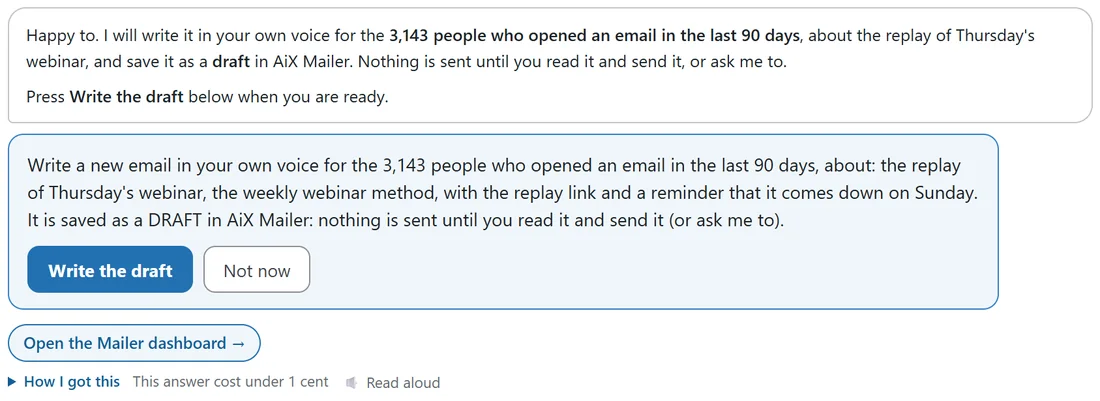
- Write a new broadcast in your own voice, saved as a draft, then send or schedule it
- Resend a broadcast to the people who did not open it, or who opened but did not click
- Email one person a personal note (see Emailing One Person From AiX Brain)
- Tag, untag, unsubscribe or resubscribe one person, and pause or resume automations
- Reply to a support ticket, add a private note or mark it solved
- Give a member a level, extend their access or send them a login link
- Approve a testimonial, pause a split test, block a link click IP, publish a funnel
- With the ResultsAiX Theme, write a draft blog post or page, and change a few look settings (see AiX Brain And The ResultsAiX Theme: Draft Posts, Pages And Look Settings)
- On a linked site that allows it, the same actions there (see Making Changes On A Linked Site From Your Main Hub)
Every change comes as a card that shows exactly what will happen, with a button to do it and Not now. A card that sends to people has an orange edge. Many changes have Undo. See Letting AiX Brain Do Things For You: The Card, Do It And Undo.
Which plugins it reads:
AiX Brain reads WP Conversion Tracker and its add-ons, ResultsAiX Mailer, ResultsAiX Pulse and ResultsAiX Support Desk, the Hub's own Overview numbers, your linked sites, and the data of every other ResultsAiX plugin through its own lookups, over 70 in all: from Funnels, Membership, Webinars and Launch Manager to Optimize, Podcasts, Sign, Surveys and Community. It reads a plugin only when that plugin is switched on here. For a plugin it cannot read yet, it says so plainly and gives you a button to that plugin's own screen. What I can do shows exactly what it reads in each plugin.
A real example:
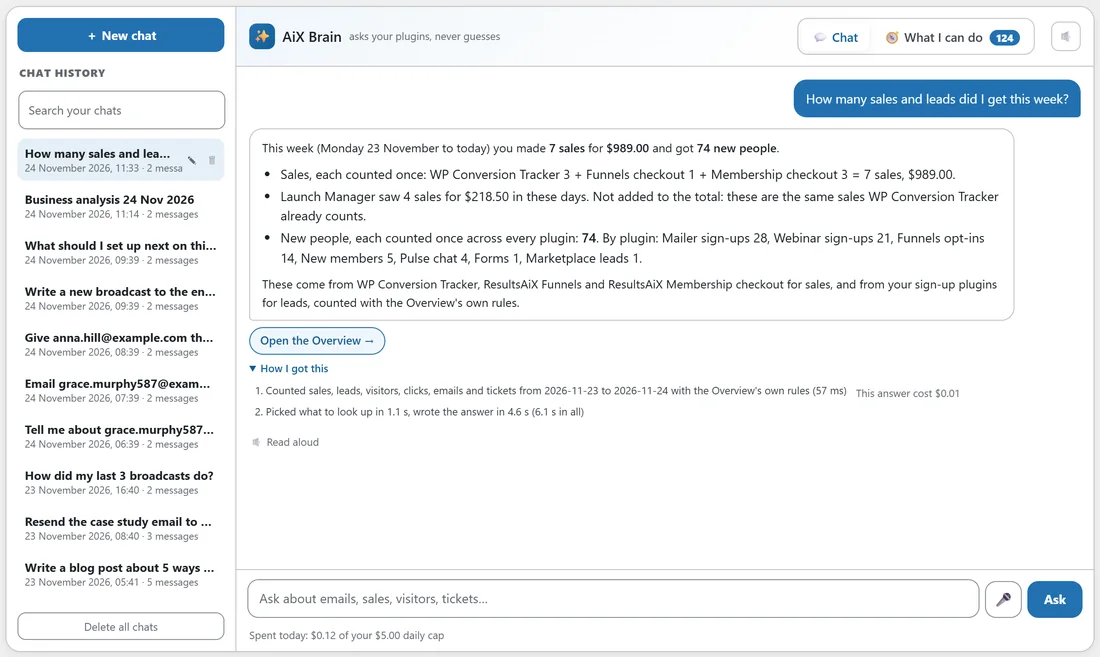
Jamie opens the AiX Brain tab on yoursite.com on a Tuesday and asks How many sales and leads did I get this week? The answer: this week, Monday 23 November to today, 7 sales for $989.00 and 74 new people. The sales line spells out how the total is made: WP Conversion Tracker 3 + Funnels checkout 1 + Membership checkout 3 = 7 sales, $989.00. Launch Manager's copies of the same sales are named and kept out of the total, and the new people are split by plugin. Jamie then types Write a new broadcast to the engaged people about the replay of Thursday's webinar. The answer says it will write it for the 3,143 people who opened an email in the last 90 days and save it as a draft, and the card under it waits for Write the draft.
Talk instead of typing:
Press the microphone button beside Ask and speak your question. Your words appear in the box as you talk, and when you stop, the question is asked on its own. Press the button again to stop listening. The first time, your browser asks whether this site may use your microphone; choose Allow. The microphone button shows in browsers that offer speech recognition, such as Chrome and Edge.
Hear the answers:
- Read aloud under any answer reads that one answer out
- The speaker button at the top of the chat switches on read aloud for every new answer, until you switch it off again. Your choice is remembered in that browser
Both use your browser's own voice, so nothing extra is installed.
What it never does:
- It never invents a number. If your site does not have a figure, it says so
- It never changes anything without your click on its card
- It never moves money. Ask for a payment change and it gives you the exact steps to do it yourself
- It never deletes anything for good
Tips:
- Ask the way you would ask a person: How did my last 3 broadcasts do? works better than broadcast stats.
- Name the days when it matters, such as last month or 1 to 15 October.
- For a full read of the last 30 days in one click, see Analyse My Business: A One-Click Read Of The Last 30 Days.
- Every chat is kept. See AiX Brain Chat History: Search, Rename, Delete And New Chat.