Many owners keep their members, or another part of the business, on a second WordPress site. Linking it to your main Hub shows its numbers on your main Overview (see Linked Sites: Show Another Site On Your Main Hub). This goes one step further: switch it on on the other site, and AiX Brain on your main Hub can also make that site's changes for you, such as giving a member a level, without you signing in there.
It is off by default, and every change still shows you a card first and waits for your click.
Where to find it:
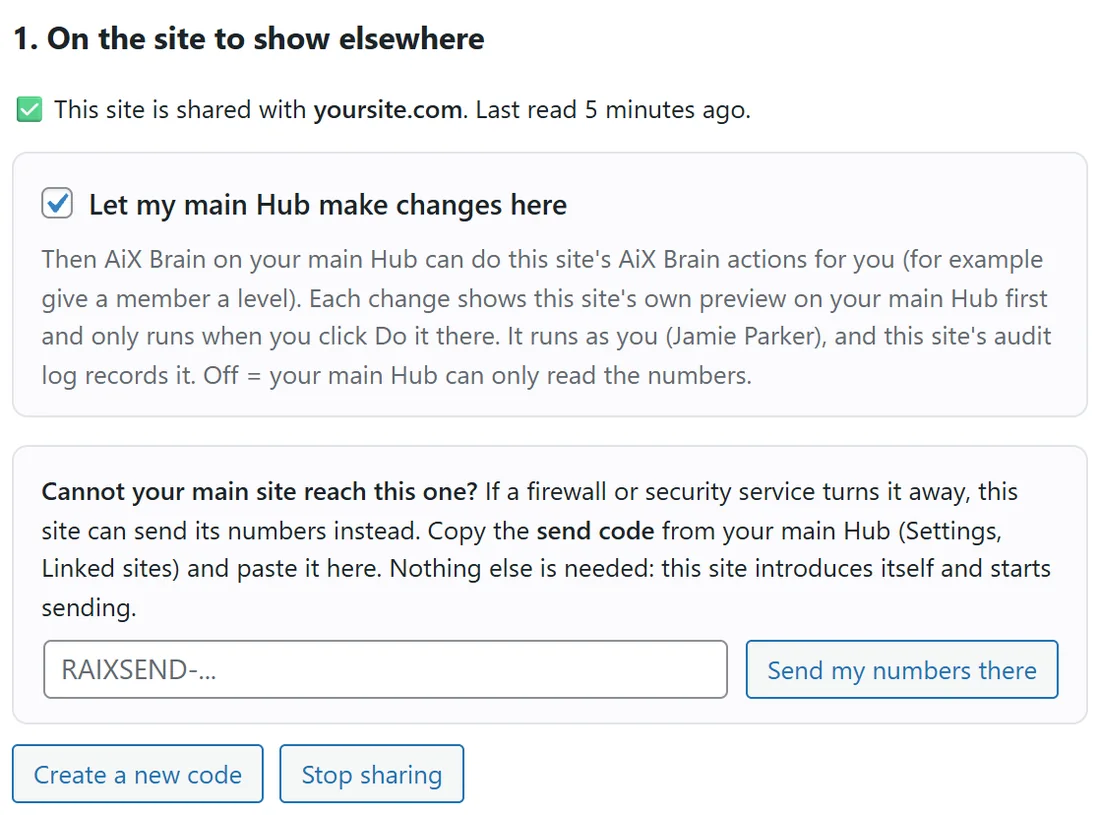
On the other site, the one you want changed: ResultsAiX Hub, Settings, Linked sites. Under 1. On the site to show elsewhere, once this site is shared with your main Hub, a box says Let my main Hub make changes here.
On your main site, there is nothing to set. Ask AiX Brain as usual.
Step by step: switch it on:
- Link the two sites first, if you have not yet: create a link code on the other site and paste it on your main site.
- On the other site, open the Hub, then Settings, then Linked sites.
- Tick Let my main Hub make changes here. It saves on the click, and the message says your main Hub can now prepare changes here, and that each one shows on your main Hub first and only runs when you click Do it there.
- On your main site, wait for the next read of that site, or press Refresh on the Overview. The main Hub learns which actions that site allows each time it reads it.
The box shows who the changes run as: you, the administrator who ticked it.
Step by step: make a change:
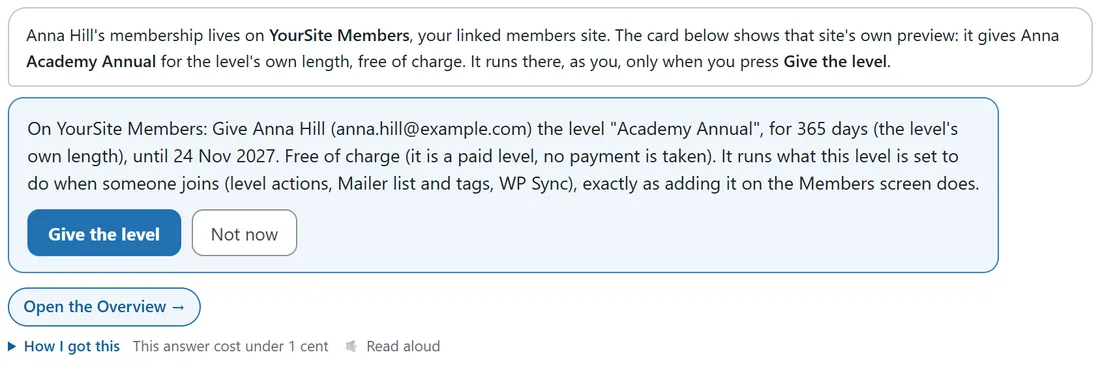
- On your main Hub, ask AiX Brain, naming the linked site by the name you gave it, for example Give anna.hill@example.com the Academy Annual level on YourSite Members.
- AiX Brain asks that site for its own preview. The card shows exactly what that site says will happen, starting with On YourSite Members.
- Press the card's button, such as Give the level.
- The linked site runs the change itself and sends back the result, which shows as the next message, again starting with the site's name. Buttons in the result open the right screen on that site, and an Undo card appears when the change can be undone.
When a question is about something that only lives on the linked site, such as its members and levels, AiX Brain uses that site's actions even if you do not name it. With more than one linked site that allows changes, it asks which one.
What it can do there:
The same AiX Brain actions as that site's own AiX Brain, for the plugins switched on there, for example the Membership actions on a members site: give a member a level, take a level away, change when access ends, send a login link or add a new member. The Hub's own settings, licences, AI keys and links are not actions, so they can never be changed this way. A linked site never passes a request on to a third site.
How it stays safe:
- It is off until the other site's owner ticks the box, and unticking it stops it at once
- Your main Hub can only ask that site to preview or to run one of the actions that site allows
- Every request is signed with the link's secret over the time, the site's address and the exact request, is refused after five minutes, and each request works only once
- That site runs its own preview and its own action code, as its own administrator, and checks the preview again before it runs
- That site's activity record notes every change, as well as your main Hub's
- A site that only sends its numbers to your main Hub, because your main Hub cannot reach it, cannot be changed this way
What the names are:
Each linked site is called by the name you gave it on your main site, under Call it in Linked sites, for example YourSite Members instead of members.yoursite.com. AiX Brain uses that name in its answers and on the cards.
A real example:
YourSite Academy runs its members on members.yoursite.com, linked to yoursite.com as YourSite Members. Jamie signs in there once, ticks Let my main Hub make changes here, and goes back to yoursite.com. A week later Anna Hill pays for the annual plan by bank transfer. On yoursite.com, Jamie asks AiX Brain to give anna.hill@example.com the Academy Annual level on YourSite Members. The card says On YourSite Members: Give Anna Hill the level Academy Annual, for 365 days, free of charge, and that it runs what the level is set to do when someone joins. Jamie presses Give the level, and the next message confirms it from the members site.
Switching it off:
On the other site, untick Let my main Hub make changes here. The message says changes from your main Hub are switched off and that it can still read the numbers. Your main Hub stops offering that site's actions after its next read.
Tips:
- Give every linked site a clear name under Call it, such as YourSite Members: it is how you name it to AiX Brain.
- Name the site in your request when you run more than one.
- To see a linked site's numbers without changing anything, just ask: reading needs no switch.