Every conversation with AiX Brain is saved, so you can come back to an answer, carry on where you left off, or compare this month's business analysis with last month's. Chat history is the list of those chats.
Where to find it:
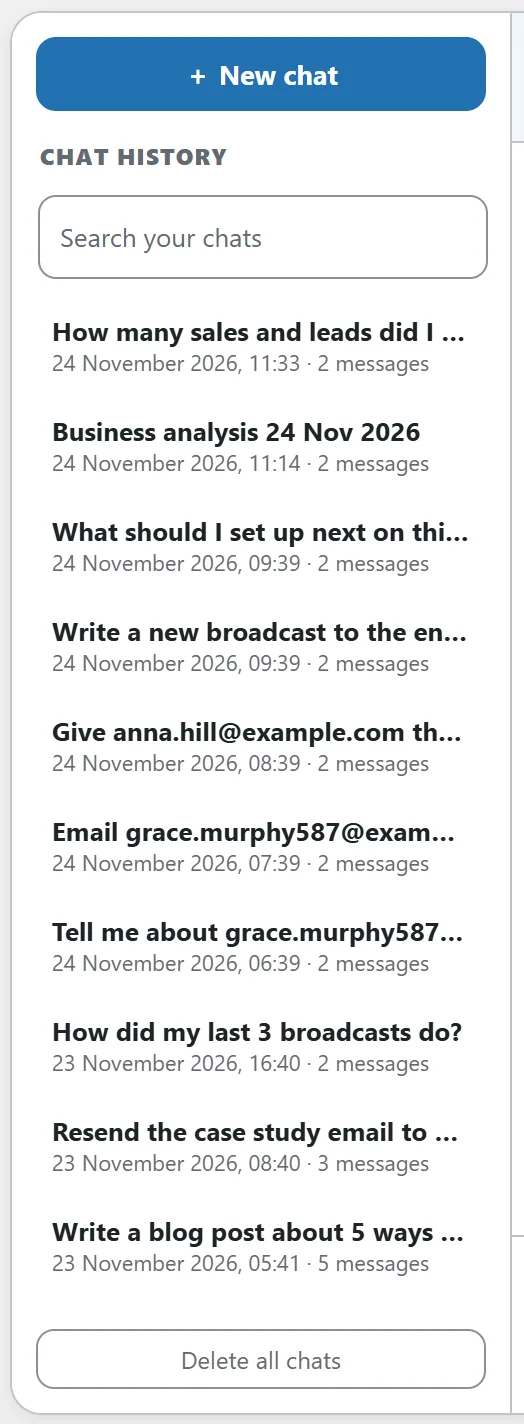
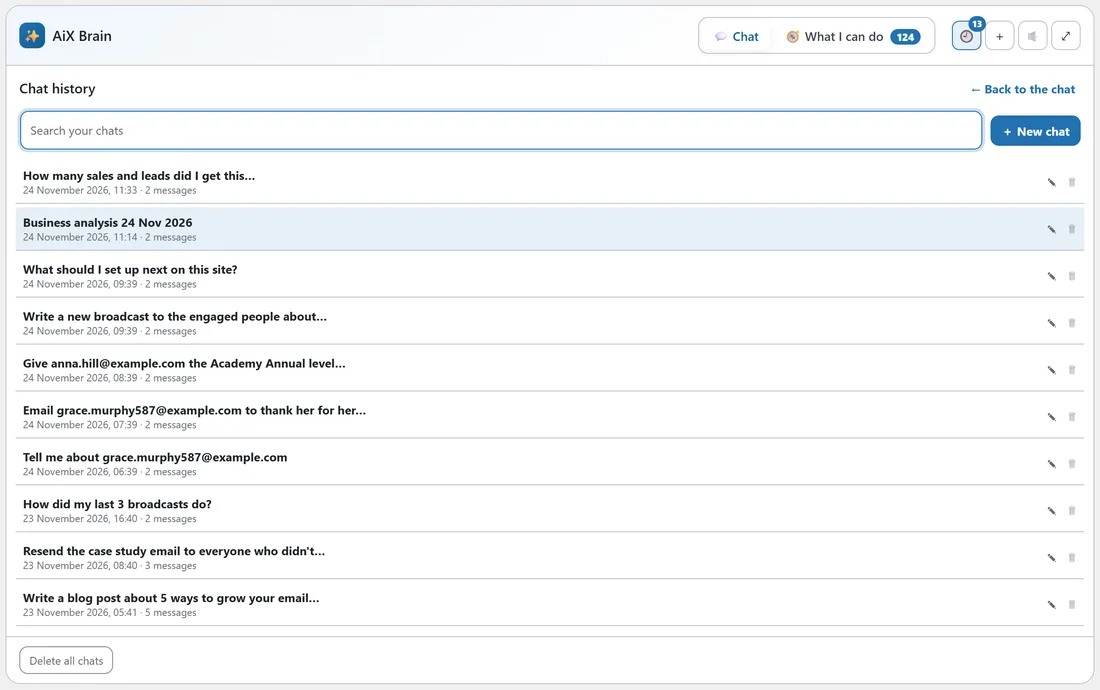
- On the AiX Brain tab, Chat history is the column on the left, with New chat at the top and Delete all chats at the bottom
- In the box on the Overview and in the bubble, press the clock button at the top. A small number on it says how many chats you have. Press it again, or ← Back to the chat, to return
Each chat is listed with its name, when it was last used and how many messages it holds, newest first. The chat you have open is highlighted.
Your chats are yours:
Chats are saved per WordPress user. Each administrator sees only their own chats, and the same chats appear in all three places: the tab, the Overview box and the bubble. A chat started in the bubble on the Mailer's screen is there on the AiX Brain tab too. Business questions passed over from the ResultsAiX theme's AI Help bubble are saved as chats as well.
Open a chat:
Click it. The whole conversation opens and you can ask a follow-up straight away. Cards stay as they were: a card you pressed shows Done, with what was done after it, and a card you left still waits for its button, for up to two hours after it was made. AiX Brain uses the chat's earlier turns, so you can ask And last week? without repeating yourself. The chat you had open last is opened again the next time you come back in the same browser.
Search your chats:
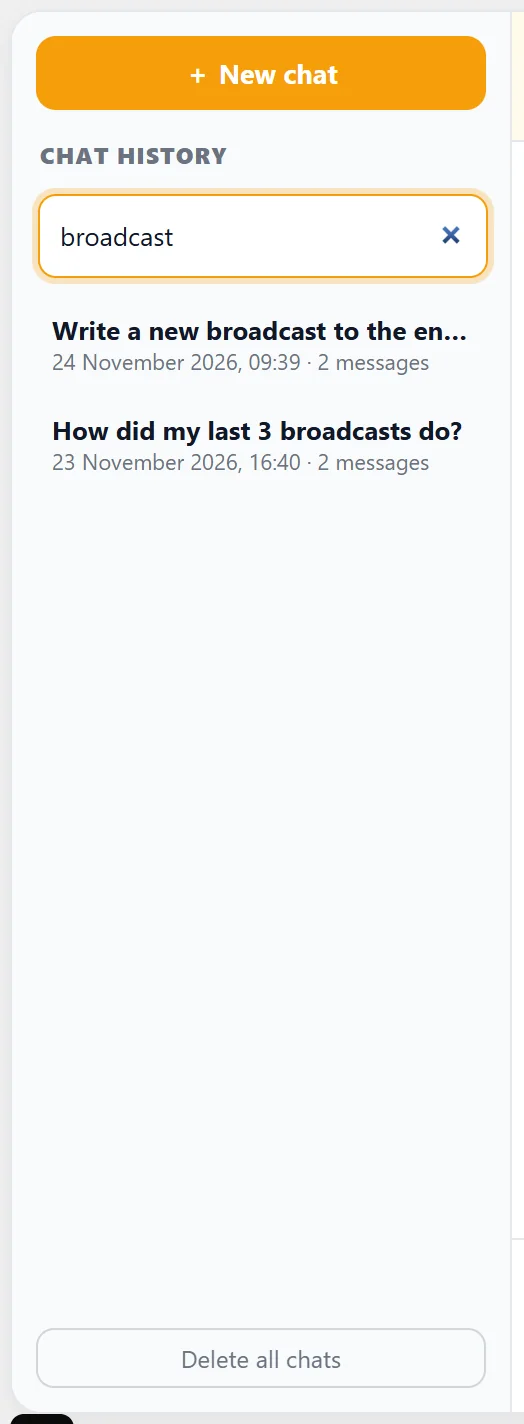
Type in Search your chats. The list narrows as you type, matching both chat names and anything said in them, so searching for broadcast finds a chat about your broadcasts even when its name says something else. Clear the box to see every chat again. If nothing matches, the list says No saved chat matches that.
Name a chat:
A new chat is named after its first question, cut to its first nine words. A business analysis is named Business analysis and the date. To give a chat a better name:
- Hover over the chat and press the pencil.
- Type the new name in Name this chat and press OK.
Delete a chat:
- Hover over the chat and press the bin.
- Confirm Delete this chat?.
To clear everything, press Delete all chats and confirm. Deleted chats cannot be brought back, so keep the ones you may want to compare later.
Start a new chat:
Press New chat on the tab, or the plus button in the box or the bubble. A new chat starts with Analyse my business and a few example questions. Your earlier chat stays in the list.
A real example:
On yoursite.com, Jamie's Chat history holds 13 chats, from How many sales and leads did I get this week and Business analysis 24 Nov 2026 to Tell me about grace.murphy587@example.com and Write a blog post about 5 ways to grow your email list. One older chat, Weekly webinar, November, was renamed from How did the weekly webinar do this month. Typing broadcast in Search your chats leaves two: the chat that wrote a new broadcast, and How did my last 3 broadcasts do?
Tips:
- Rename the chats you will come back to, such as a monthly analysis, so they are easy to find.
- Start a new chat for a new topic: answers stay focused when the earlier turns are about the same thing.
- On a phone, the AiX Brain tab shows Chat history behind the clock button, like the box.