AiX Studio is the ResultsAiX home for AI work: expert AI coaches, ready-made workflows that build a whole job, and every top AI model with one login. The AiX Studio tab in the Hub connects your free AiX Studio account to your WordPress site in one click, shows your credits, and opens any coach, workflow or model straight in your Studio.
It replaces the old Results With Kevin AI tab. The old address of that tab now opens the AiX Studio tab, so any bookmark still works.
Where to find it:

Open ResultsAiX Hub and click the AiX Studio tab, or AiX Studio under ResultsAiX Hub in the sidebar. The AiX Studio card at the bottom of every Hub page, with Get It Free →, opens it too; once you are connected that button says Open AiX Studio.
The top of the tab:
- The headline and a short line on what you get: sales pages, emails, ebooks, pictures and whole launches, with pages and emails able to go straight onto this site as drafts
- Connect my Studio →, before you connect. Under it, a line says that if you have no account yet, the next screen makes your free one, with free AI credits to start and no card
- Open my Studio → and Top up credits, once you are connected
- Ask anything: type what you want, such as write 5 emails to sell my ebook about keto, and press Ask in Studio →. Your Studio opens in a new tab with that already typed in
Step by step: connect your Studio:
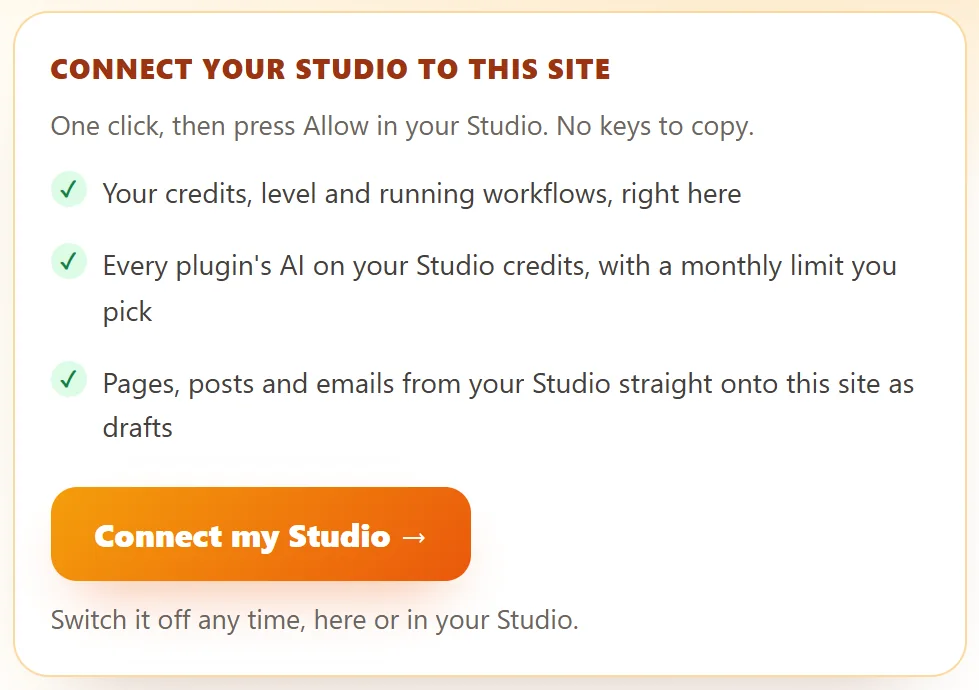

- Press Connect my Studio →.
- Your Studio opens on its Allow screen. Sign in, or make your free account there.
- Tick what this site may do (below), and press Allow. Press Cancel to leave things as they are.
- You come back to the AiX Studio tab, with a message saying Connected to your AiX Studio as your email address, and what this site can now do.
There are no keys to copy. The Studio sends this site its own key, which the Hub keeps sealed: it never shows on screen or in the page's source.
What you can let this site do:
The box beside the headline lists what connecting gives you:
- Your credits, level and running workflows, right here
- Every plugin's AI on your Studio credits, with a monthly limit you pick
- Pages, posts and emails from your Studio straight onto this site as drafts
You choose these on your Studio's Allow screen. With your plugins' AI on Studio credits, this site's Studio key becomes the Hub's AiX Studio key on the AI tab, and the message says to choose AiX Studio there. Every plugin set to use the Hub keys, or set to AiX Studio, then answers on your Studio credits, up to the monthly limit you picked. A key you already saved on the AI tab yourself is left alone.
With drafts, the Hub makes a WordPress Application Password named AiX Studio and gives it to your Studio, so work you make there lands on this site as drafts. Application Passwords need https, and some security plugins switch them off; if so, the message says drafts are not on yet, and why.
Once you are connected:
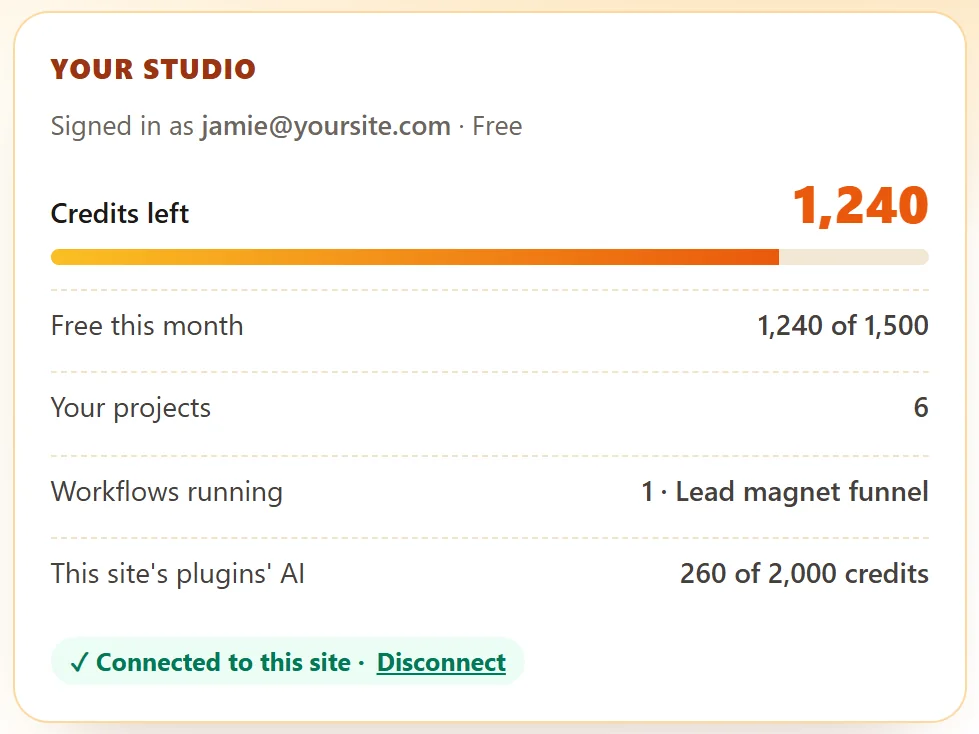
The box becomes Your Studio:
- Signed in as, with your email and your level
- Credits left, in large figures, with a bar
- Free this month, how many of your free monthly credits are left
- Your projects
- Workflows running, with the name of the first one
- This site's plugins' AI: the credits your plugins used this month, out of your monthly limit, when you allowed it
- ✓ Connected to this site, with Disconnect
The Studio's figures are kept for ten minutes, so the tab opens fast. If your Studio does not answer for a moment, the box says so and to try again in a minute.
Press Run, get a whole job done:
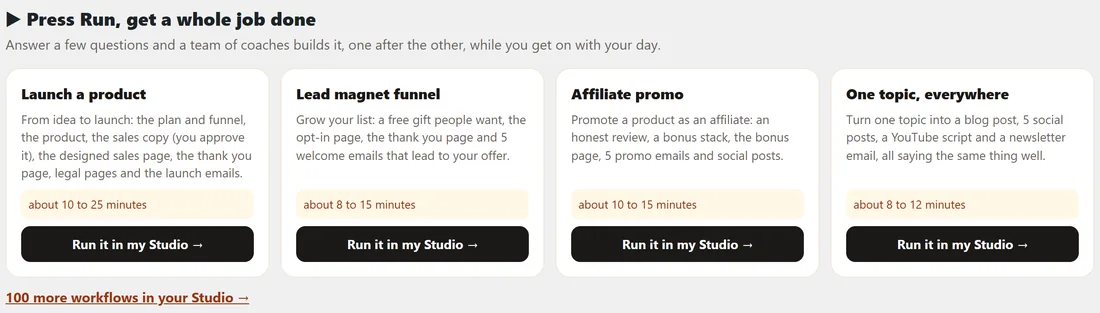
Four workflows where a team of coaches builds a whole job, one after the other, after you answer a few questions: Launch a product, Lead magnet funnel, Affiliate promo and One topic, everywhere. Each card says what it builds and about how long it takes, and Run it in my Studio → starts it there. A link under them opens the rest of your Studio's workflows.
Your coaches:
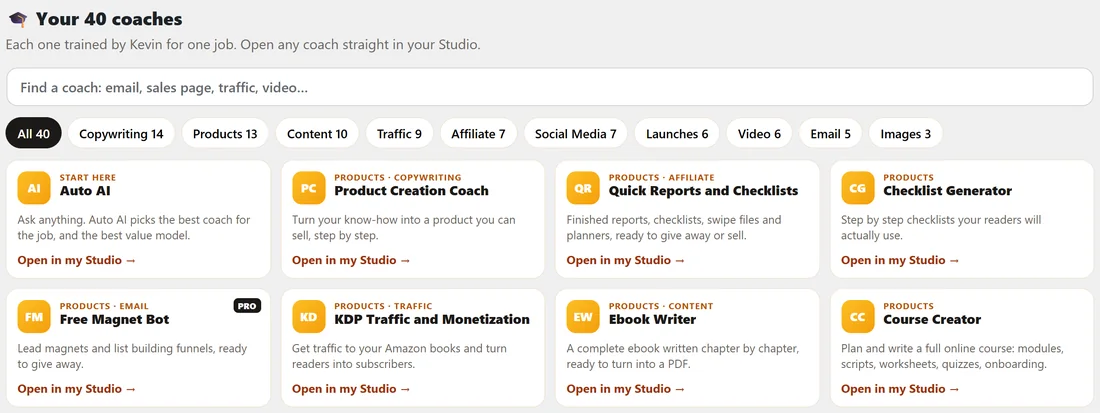
Every AI coach in your Studio, each trained for one job, with its initials, its kind of job, its name and a line on what it does. Above them sit a Find a coach box and a pill for each kind of job, such as Copywriting, Products, Traffic or Email, with how many coaches each holds. Open in my Studio → opens that coach in your Studio. Some coaches carry a PRO label.
Every top AI model, one login:

The models your Studio offers, from fast and cheap to the most powerful, plus picture makers. You use them in your Studio with no AI accounts or keys of your own.
The coaches, workflows and models come from your Studio itself, so new ones show up here on their own. The list is kept for twelve hours, and when the Studio cannot be reached the last good copy is shown.
Disconnect:
Press Disconnect beside ✓ Connected to this site and confirm. The site stops seeing and using your Studio: its key is removed, the Application Password for drafts is deleted, and the AiX Studio key on the AI tab is cleared when it was this connection's key. You can also switch it off from your Studio. If the key is removed in your Studio, the Hub notices on its next check and disconnects too.
A real example:
Jamie presses Connect my Studio → on yoursite.com, signs in to AiX Studio, ticks all three options with a monthly limit of 2,000 credits, and presses Allow. Back on the tab, the message says Connected to your AiX Studio as jamie@yoursite.com, and that pages, posts and emails made there now land on the site as drafts. Your Studio shows 1,240 credits left, 6 projects, the Lead magnet funnel workflow running, and 260 of 2,000 credits used by the site's plugins this month. Jamie then types write 5 emails to sell my ebook about keto in the Ask box and presses Ask in Studio →.
Hiding the sidebar row:
The AiX Studio row under ResultsAiX Hub in the sidebar can be hidden in Settings, with Hide AiX Studio from the WP sidebar. The tab stays in the tab strip at the top of every Hub page. See Settings: Menu Consolidation And Per Plugin Overrides.
Tips:
- Connect once on each site where you want your plugins to use Studio credits.
- Pick a monthly limit for your plugins' AI that leaves room for your own work in the Studio.
- Use Ask anything as a shortcut: it opens your Studio with the task already typed in.