The plugin keeps a short record of every AI job it runs with your key, so you always know what your AI features are doing and roughly what they cost at your provider.
Where to find it:
Open AiX Search, then Settings, click PRO Settings, and scroll to AI Usage, under AI Connection.
The AI Usage panel:
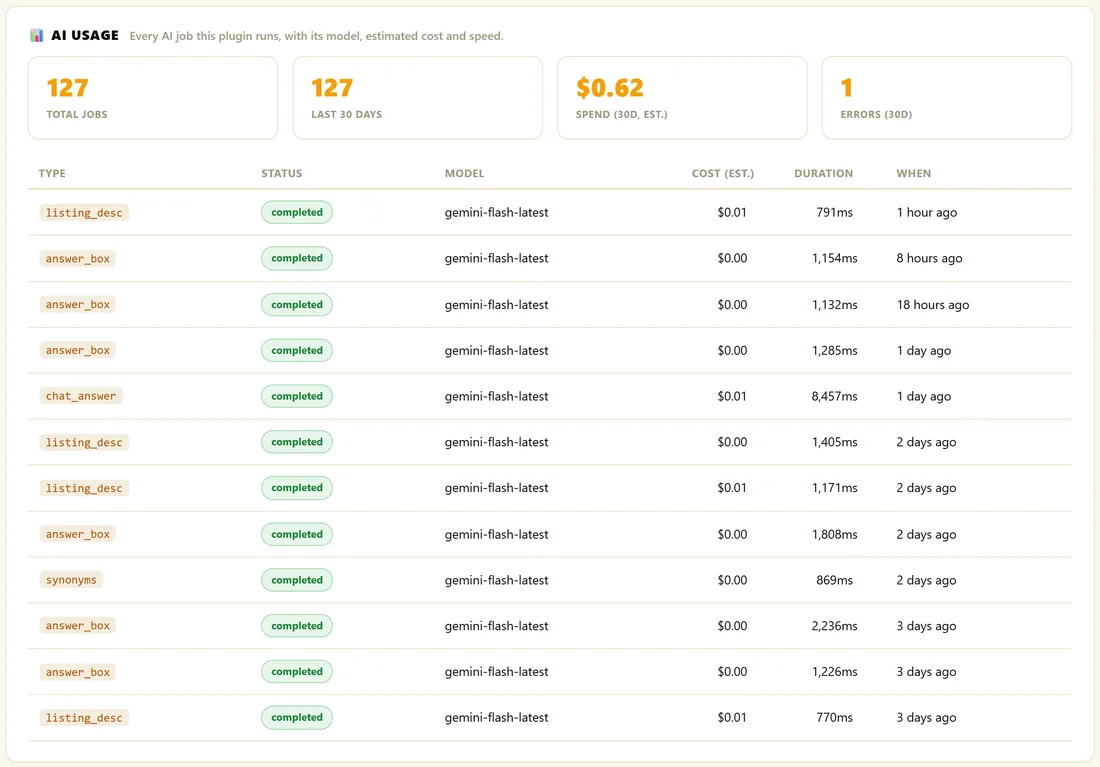
- Total Jobs: every AI job recorded
- Last 30 Days: jobs in the last 30 days
- Spend (30d, est.): the estimated cost of those jobs
- Errors (30d): jobs that did not complete
Below the numbers, a table lists the 12 most recent jobs with Type, Status, Model, Cost (est.), Duration and When.
The job types:
- answer_box: an AI Answer Box answer
- listing_desc: one description from the AI Listings Writer
- synonyms: an AI Synonym Suggestions run
- analyst_report: an AI Analyst Report
- chat_sql and chat_answer: the two steps of an Ask AI Anything question
- member_read: an AI read on a member report
- digest: the AI read in the weekly digest
- test: a Test connection click
Costs are estimates worked out from each model's published token prices. Treat them as a guide. Your provider's billing page is the real invoice. Only the shape of each job is stored, never the prompts or the answers, and the log trims itself so it stays light.
A fallback provider:
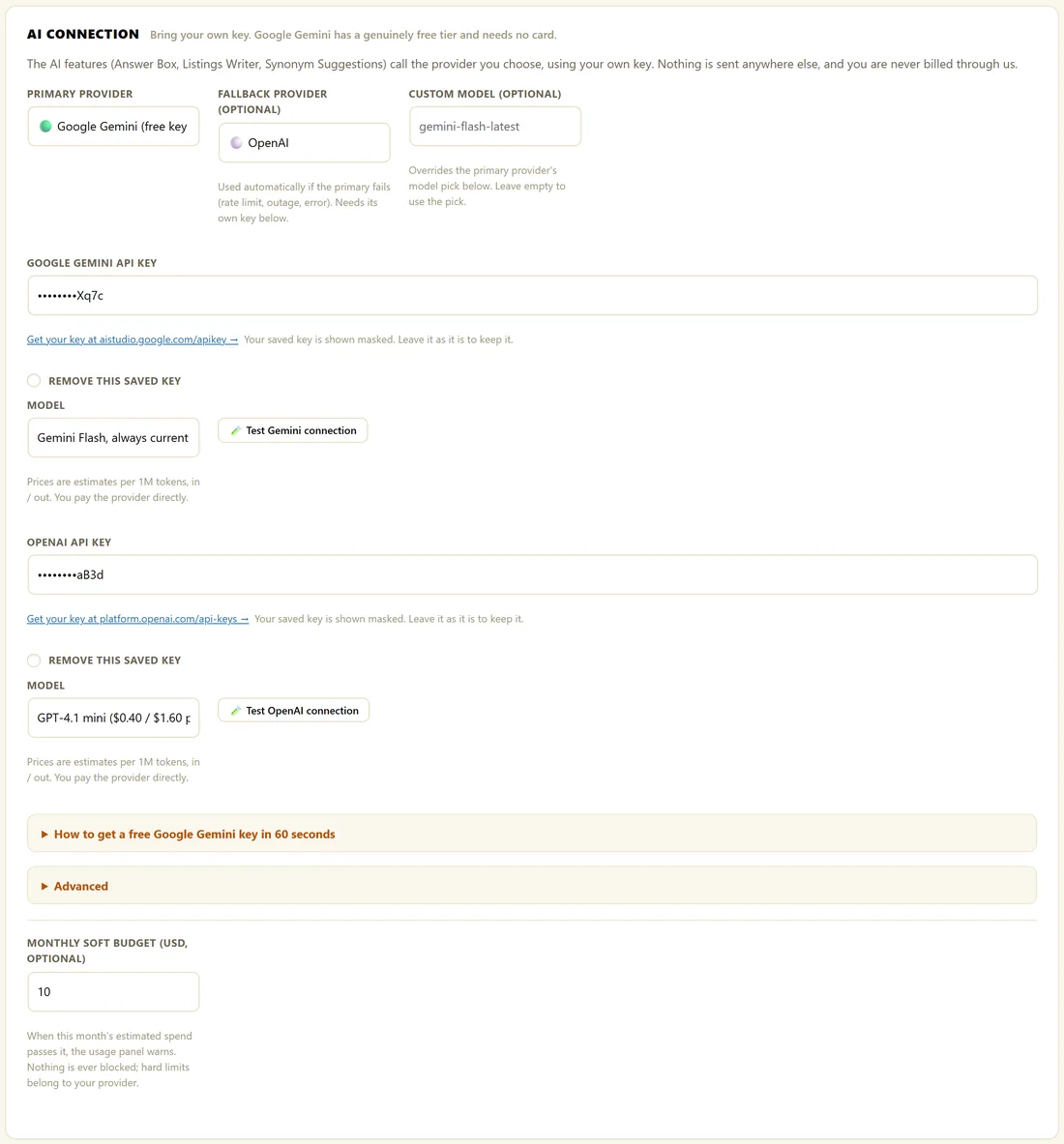
If your primary provider fails, for example because of a rate limit or an outage, the plugin tries the fallback automatically, so the answer or report still arrives.
- Under AI Connection, choose a Fallback provider (optional).
- Paste that provider's own key in the box that appears for it.
- Click Save PRO Settings.
The fallback is used only when it is a different provider from your primary and has a key saved. If both fail, the message leads with the primary provider's error, since that is the one to fix.
A monthly soft budget:
Type an amount in US dollars into Monthly soft budget (USD, optional). When this month's estimated spend passes it, the AI Usage panel shows an Over budget note with both figures. Everything keeps working; it is a heads up only. Leave it empty or set 0 to switch the note off. Hard limits belong in your provider's own dashboard.
A real example:
The Home Bakery Club shows 127 AI jobs in the last 30 days, almost all of them Answer Box answers, with a small estimated spend on Gemini. The owner set a monthly soft budget of 10 and added OpenAI as the fallback.
Tips:
- Leave Cache answers for a day switched on in the Answer Box settings. It is the biggest saver.
- Use Test connection after adding or changing any key.