When a visitor searches for something you do not have, you would normally lose them. Lead capture offers to tell them when you do cover it, and keeps the search they made, so you know exactly what to send them.
Where to find it:
Open AiX Search, then Settings, click PRO Settings, and scroll to Zero-Result Lead Capture. Your leads are on the Leads tab.
Turn it on:
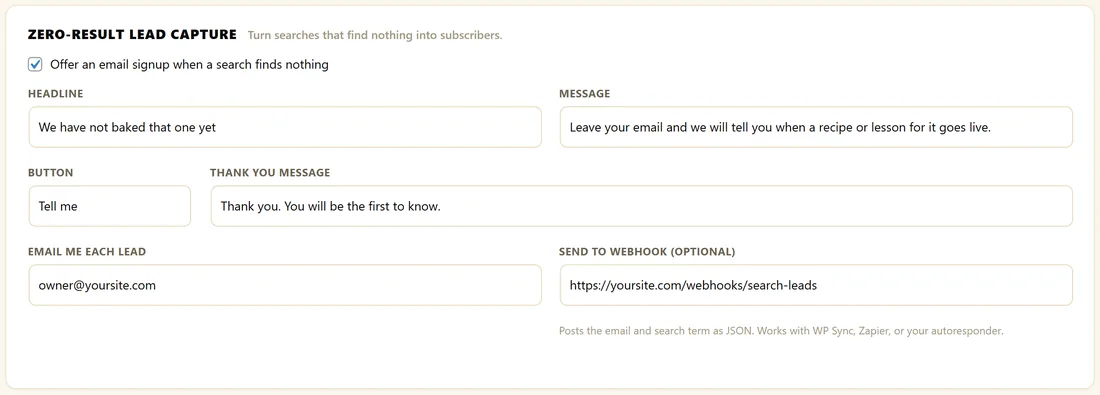
- Tick Offer an email signup when a search finds nothing.
- Write your Headline, Message, Button and Thank You Message.
- Optionally fill in Email Me Each Lead and Send To Webhook (optional).
- Click Save PRO Settings.
The fields:
- Headline: the bold line on the form. Default: We could not find that
- Message: the line under it. Default: Leave your email and we will let you know when we cover it.
- Button: default Notify me
- Thank You Message: replaces the form after signup. Default: Thank you. We will be in touch.
- Email Me Each Lead: an address that gets an email for every lead
- Send To Webhook (optional): a web address that receives each lead as JSON
What the visitor sees:
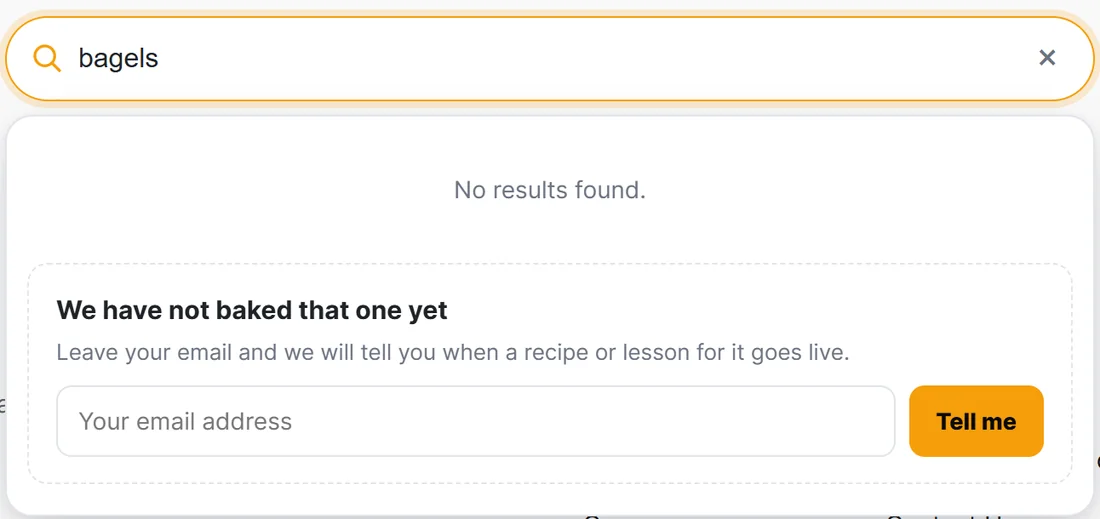
When a search finds nothing, a small form appears under No results found, in the dropdown and on the full results page. It has your headline, message, a Your email address box and your button. After they submit, your thank you message replaces the form. If the address is not accepted, the box is marked and the cursor goes back to it so they can correct it.
Where the leads go:
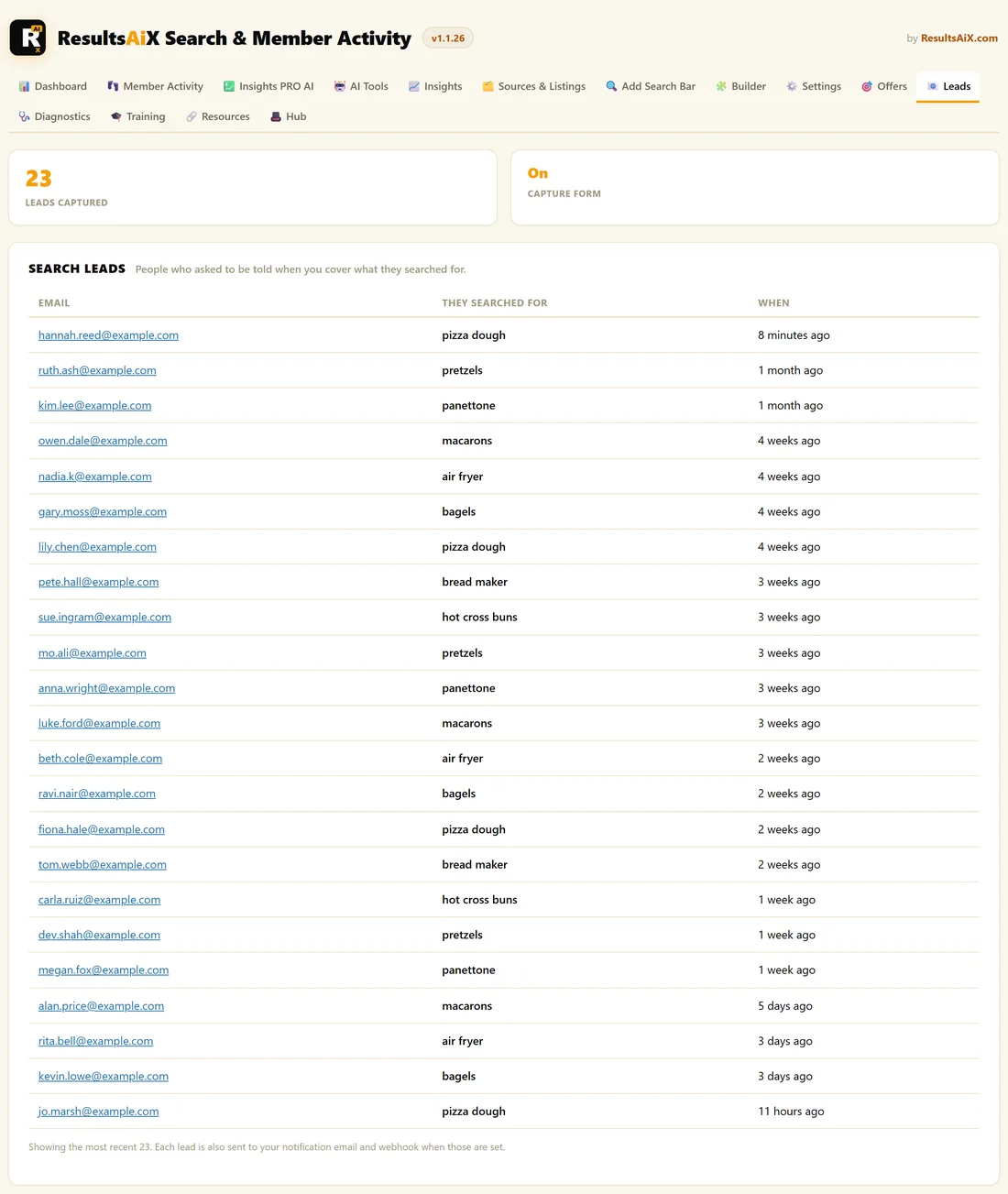
- The Leads tab: Leads Captured, the Capture Form status, and a table of Email, They searched for and When, newest first, up to 300
- Your inbox, if you set Email Me Each Lead. The subject reads New search lead: followed by the search
- Your webhook, if you set one
The webhook:
Each lead is posted as JSON with the email, the search query, the source results-ai-search, your site address and the time. That works with WP Sync, Zapier or any autoresponder that accepts a webhook, so leads can join a list or an automation straight away. The plugin sends it in the background and does not wait for a reply, so test your webhook address with its own tool first.
Built in protection:
The form's address only accepts posts while lead capture is switched on, and accepts one signup per visitor per minute, so it cannot be used to flood your inbox.
A real example:
The Home Bakery Club changed the wording to We have not baked that one yet, Leave your email and we will tell you when a recipe or lesson for it goes live, and a Tell me button. In a month, 23 people left their email, three of them after searching pizza dough. When the pizza dough recipe goes live, those three get the first email.
Tips:
- Make the thank you message warm and specific.
- Group your leads by search term in your email tool, so each person hears about the thing they asked for.
- Your Insights tab shows the same searches. See Zero-Result Searches: Your Content Roadmap.