Two pages shape the time between sign-up and the start: the thank-you page right after the form, and the waiting room people see if they open their link early. Both are set on one panel.
Where to find it:
Registration tab, the Thank-You Page and Waiting Room panel, under the form and preview.
The thank-you page:
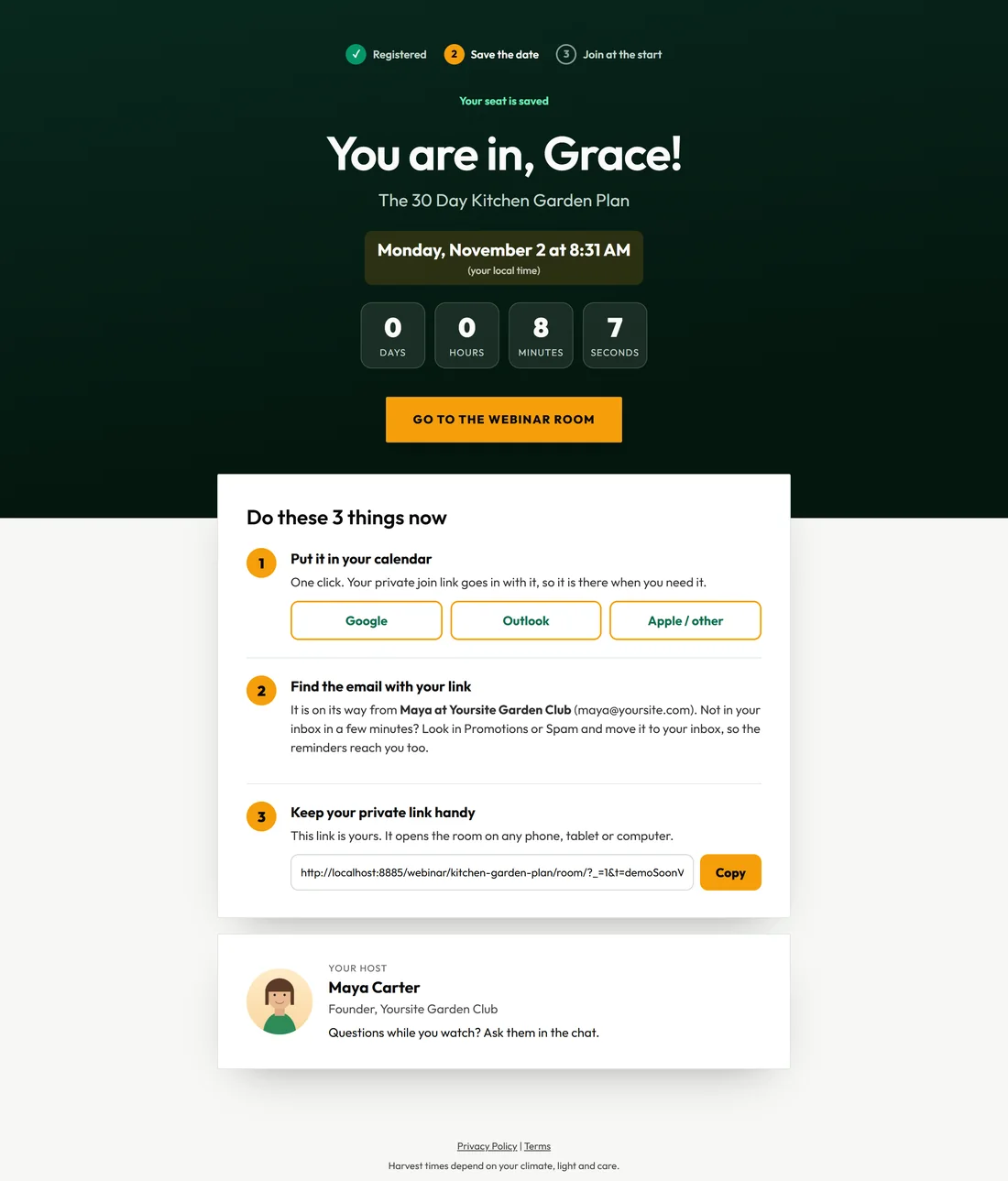
After sign-up, visitors see:
- A progress line: Registered, Save the date, and a third step
- "You are in" with their first name, the webinar title and their session time in their own time zone
- A countdown, and a button into the webinar room
- Do these 3 things now: add it to the calendar (Google, Outlook or Apple and others), find the email with their link, and keep their private link handy with a Copy button
- A host card when a presenter name is set
Its wording:
- Step 3 of the progress line. Empty uses wording that fits the webinar, live or automated, chat on or off.
- Line under your name (host card). Empty uses wording that fits the webinar.
Type a single dash to hide either line.
The waiting room:
People who open their link before the start see this on the stage, with the chat beside it, until the show starts. It never appears once the webinar is running or on the replay.
The five styles:
- Classic. The countdown on the stage.
- Spotlight. Dark, centred, big countdown boxes.
- Poster. Your image full screen, with the words on top.
- Split. Image on one side, details on the other.
- Minimal. Light and clean.
The waiting room fields:
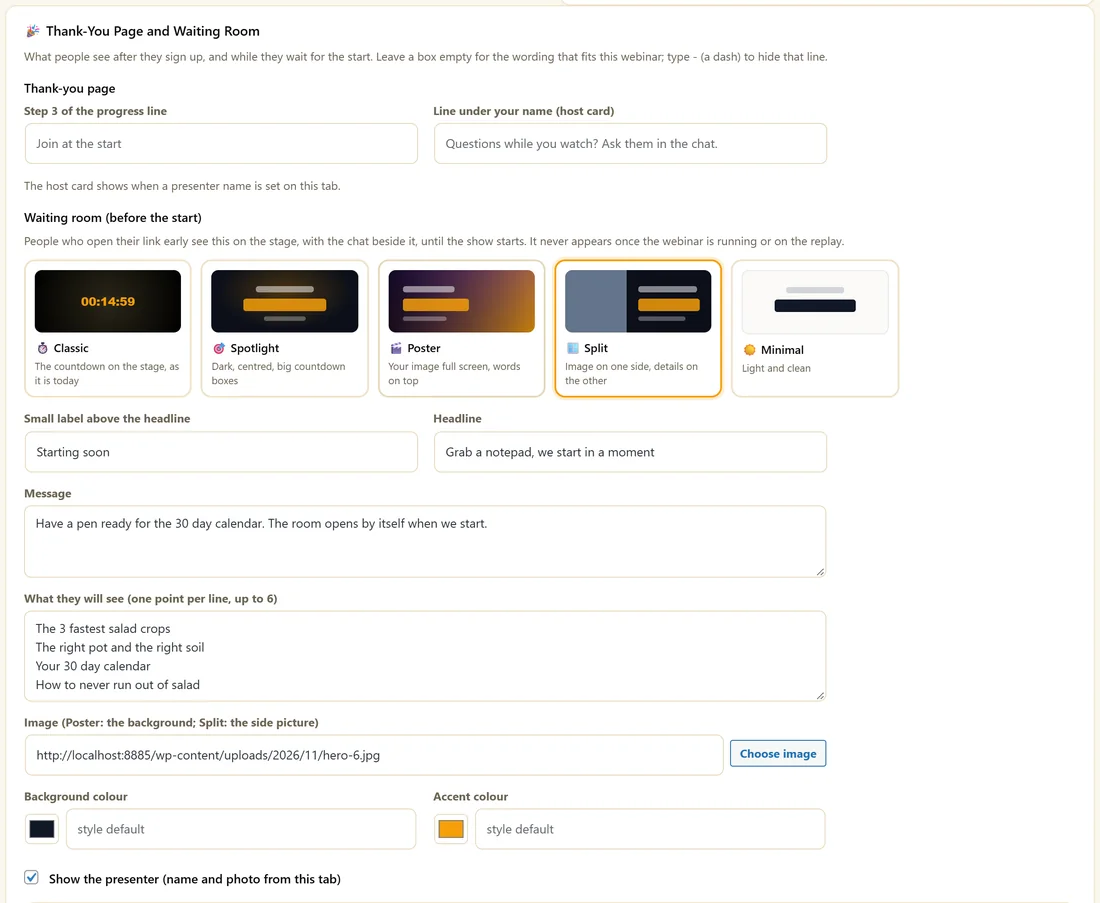
- Small label above the headline
- Headline
- Message
- What they will see, one point per line, up to six
- Image, for Poster as the background and for Split as the side picture. Use Choose image.
- Background colour and Accent colour. Empty uses the style's own.
- Show the presenter (name and photo from this tab)
The Preview shows your waiting room counting down to a start 15 minutes away, with Open full screen.
Setting it up:
- Fill in the thank-you lines, or leave them empty.
- Click a waiting room style.
- Write the label, headline, message and points.
- Choose an image if the style uses one.
- Click Save.
A real example:
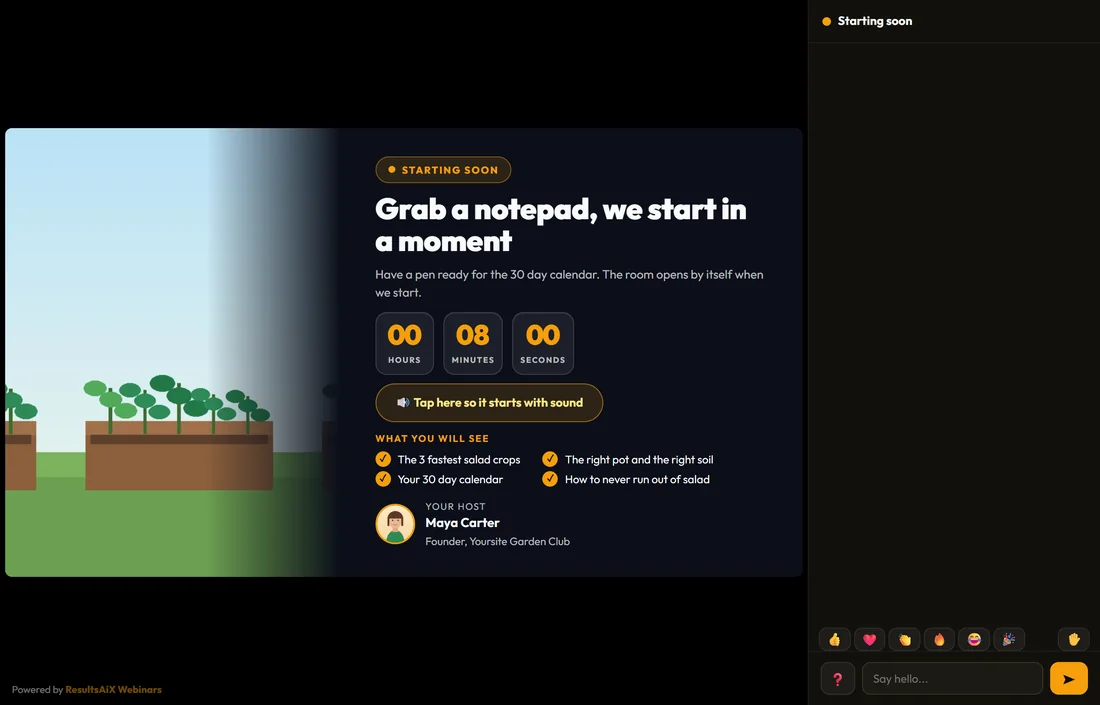
Maya uses Split with her raised bed picture, the label Starting soon, the headline "Grab a notepad, we start in a moment", four points about what they will learn, and her name and photo. Early arrivals see the countdown and can say hello in the chat.
Tips:
- The room asks for one tap before the start so the sound plays. The waiting room shows that button for you.
- See The Webinar Room And Live Chat for what happens once it starts.
Choosing a waiting room style:
- Classic: simple and quick, the countdown alone
- Spotlight: a dramatic dark look with big countdown boxes
- Poster: your image full screen, good with a strong photo
- Split: image and details side by side, good for an agenda
- Minimal: light and calm
Writing the waiting room:
- Label: a few words, such as Starting soon.
- Headline: what to do now, such as "Grab a notepad, we start in a moment".
- Message: one or two sentences, such as reminding them the room opens by itself.
- What they will see: three to six short points from your webinar.
Why the waiting room matters:
People who arrive early are your keenest viewers. A waiting room with an agenda, your photo and a chat gives them a reason to stay and say hello, and the first chat messages warm up the room for everyone who joins at the start.
What happens at the start:
The waiting room disappears and the show begins on the stage. Nobody needs to refresh. If they tapped for sound, the narration or video plays with sound straight away.
The host card:
When a presenter name is set on the Registration tab, the thank-you page shows a card with the name, title and photo, and a line under it. On a webinar with chat, the default line invites questions. On a webinar with chat off, the wording changes to fit.
What to do next:
- The Webinar Room And Live Chat
- Confirmation And Reminder Emails
Common questions:
Do replay viewers see the waiting room?
No. It only shows before a session starts.
Can I preview the waiting room?
Yes. The Preview on the panel counts down to a start 15 minutes away, and Open full screen shows it at full size.