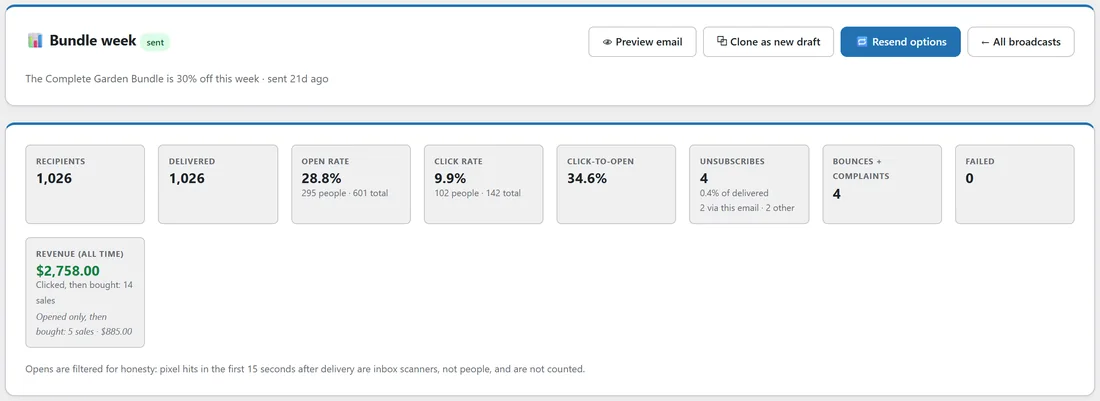
Every broadcast you send gets its own report. It answers the questions you actually ask after a send: did people open it, what did they click, did it make sales, and who exactly were they.
The numbers are not the end of it. Each one opens on the list of the people behind it, so you can tag the people who clicked, look at who bought, and send a follow-up to the people who did not open.
Where to find it:
Emails, then Broadcasts, then press Report on any sent broadcast. You can also click the "opened" or "clicked" link under a rate on the Broadcasts list to land on that list of people.
The top of the report:
The first card shows the broadcast's name, its status, the subject line and when it went out, with four buttons:
- Preview email shows the email the way recipients received it.
- Clone as new draft copies everything into a new draft you can change and send again.
- Resend options opens the follow-up choices (see Resend options below).
- All broadcasts takes you back to the list.
The tiles underneath:
- Recipients and Delivered: how many people the send was aimed at and how many it reached.
- Open rate and Click rate: the share of delivered emails that were opened or clicked, with the number of people and the total number of opens or clicks under it.
- Click-to-open: of the people who opened, the share who clicked. It tells you how well the email itself worked once read.
- Unsubscribes: the people who left after this email, as a share of delivered. When some left through this email's link and some by another route, the split shows underneath.
- Resubscribed: appears only when someone came back after unsubscribing.
- Bounces + complaints and Failed: emails that bounced, were marked as spam, or never went out.
- Revenue (all time): the sales this email is credited with. The big figure is what people bought after clicking this email; sales from people who only opened it are shown on their own line underneath.
Opens are counted honestly: an open in the first 15 seconds after delivery comes from an inbox scanner, not a person, so it is not counted.
If any emails failed, a card lists why, grouped by what the sending service said, with a plain hint for the common causes and a link to Diagnostics for the full detail.
While a broadcast is still sending:
A progress card shows how many are sent, how many are waiting and when it should finish. It has Pause, Resume, Send the rest now and Discard the rest, plus a box to set this broadcast's own speed in emails per hour. Discarded people are set aside, not deleted, so they can be queued again later. A broadcast sent in waves also shows its waves card here (see Sending A Broadcast In Waves).
Who opened, who clicked, who bought:
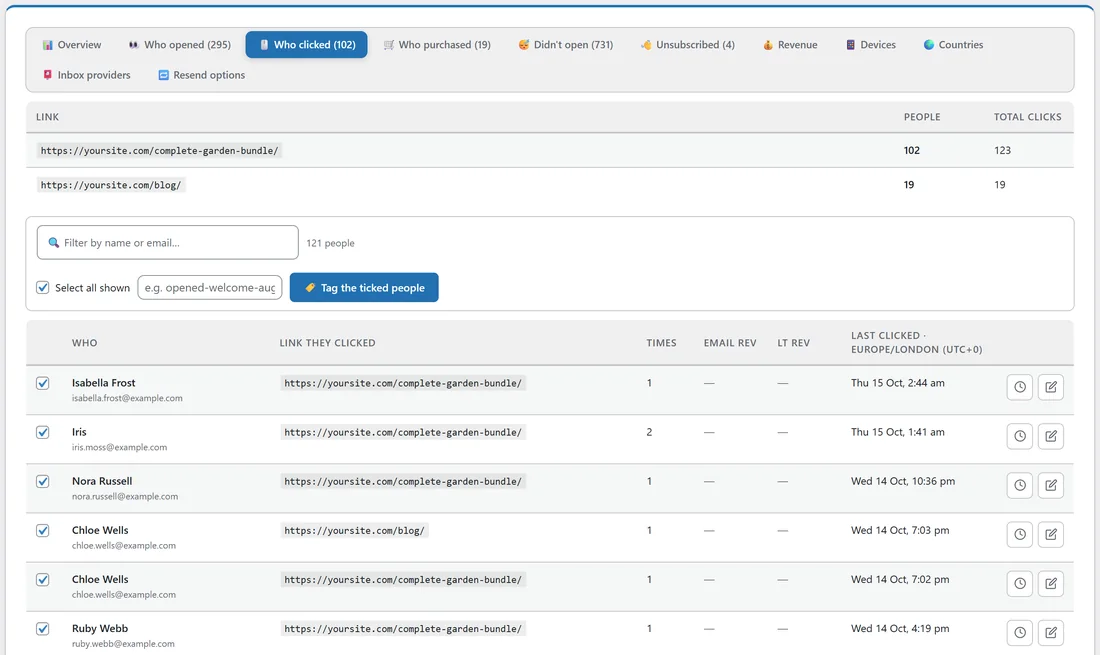
The tabs across the middle turn every number into people: Who opened, Who clicked, Who purchased, Didn't open, Unsubscribed, Revenue, Devices, Countries, Inbox providers and Resend options. The counts in brackets match the tiles. Who purchased shows once sales are recorded on your site, and a Resubscribed tab appears when someone came back.
Each people tab works the same way.
- The list shows each person's name and email, when they did it, Email rev (what this email is credited with for them) and LT rev (everything they have ever spent).
- Who clicked also shows each link with the number of people and clicks, and which link each person clicked.
- Type in Filter by name or email to narrow the list. Tick or untick people; Select all shown works on the visible rows only.
- Type a tag and press Tag the ticked people. The tag is added quietly, so it never starts a tag-triggered automation by itself.
- The clock icon on a row opens that person's timeline of purchases and emails; the pencil opens their subscriber record.
The lists show the most recent 1,000 people.
The Revenue tab:
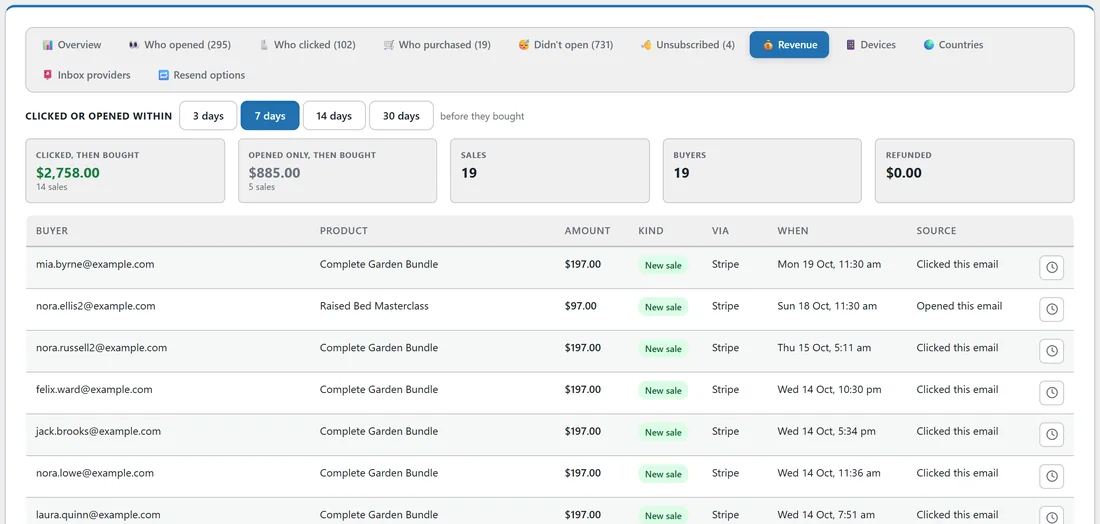
Revenue shows the sales this email earned and who made them. Choose how long before the purchase the click or open may be: 3 days, 7 days, 14 days or 30 days. The tiles show Clicked, then bought and Opened only, then bought, with Sales and Buyers.
Every sale is credited to one email only: the last one the buyer clicked before buying, or, with no click, the last one they opened. That means the same sale is never counted twice across two emails. The table lists each buyer, the product, the amount, the kind of sale, where it was paid, when, and whether they clicked or only opened this email.
Charts and top links:
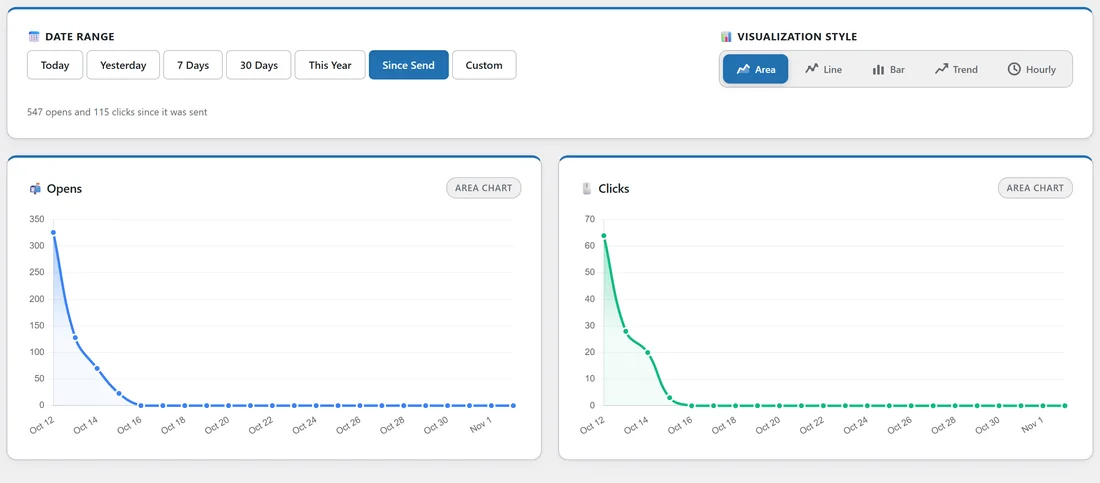
Below the tabs, the Opens and Clicks charts show when people engaged. Pick a date range (Today, Yesterday, 7 Days, 30 Days, This Year, Since Send or Custom) and a style (Area, Line, Bar, Trend or Hourly). Hourly is handy for seeing what time of day your readers open.
Top links ranks every link in the email by clicks and by people, so you can see which offer, button or article pulled the most interest.
Devices, countries and inbox providers:
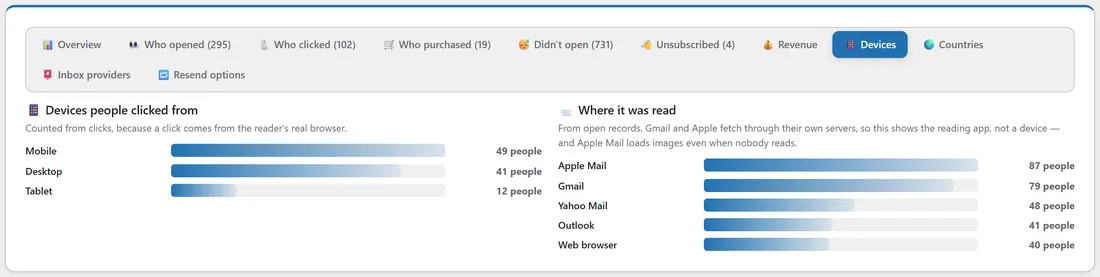
- Devices shows the devices people clicked from (mobile, desktop, tablet), and where the email was read (Apple Mail, Gmail, Outlook and so on).
- Countries shows where opens happened and where the recipients are.
- Inbox providers groups the send by mailbox provider (Gmail, Microsoft, Yahoo, AOL, Apple iCloud, Proton, GMX and Web.de, and your own domains), with recipients, delivered, opened, clicked, failed and bounced for each. If one provider opens far less than the others, that is the place to look at your deliverability.
Resend options:
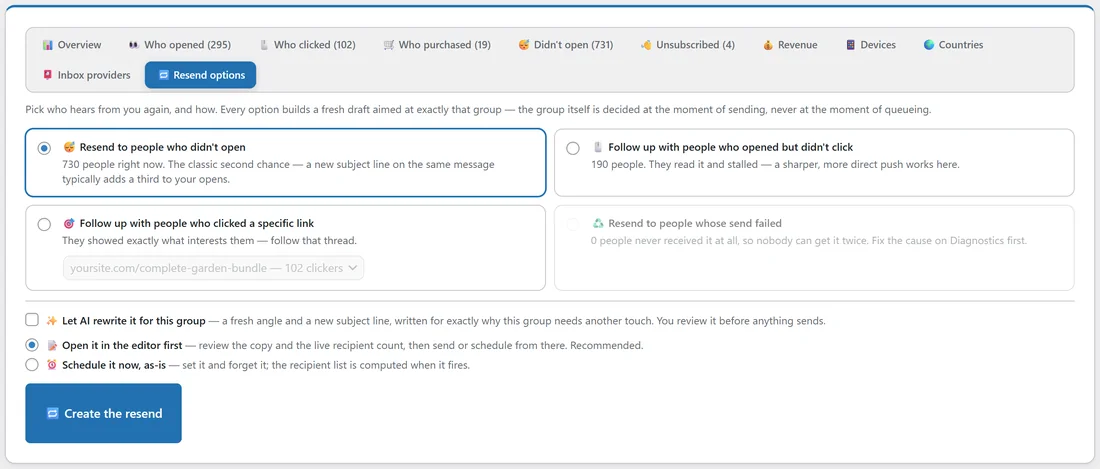
Resend options builds a fresh draft aimed at one group from this send.
- Resend to people who didn't open.
- Follow up with people who opened but didn't click.
- Follow up with people who clicked a specific link (pick the link).
- Resend to people whose send failed.
Tick Let AI rewrite it for this group to get a new angle and subject line (it needs an AI key). Then choose Open it in the editor first, which is the recommended way, or Schedule it now, as-is with a date and time. Press Create the resend. The group is worked out at the moment the resend goes, so anyone who opens in the meantime is not mailed again.
A real example:
Leafwise Gardening sent "Bundle week" to 1,026 people. The report shows a 28.8% open rate and a 9.9% click rate, and Revenue (all time) shows the Complete Garden Bundle sales that came from clicks, with the opened-only sales underneath.
- Anna opens Who clicked. 102 people clicked the bundle link and 19 clicked the blog link.
- She filters to the bundle link clickers, types "bundle-interested" and presses Tag the ticked people.
- On Revenue she sees which of them bought, and on the clock icon she checks one buyer's timeline.
- On Resend options she picks Follow up with people who clicked a specific link, chooses the bundle link and opens the draft in the editor to write a short reminder for the people who looked but did not buy.
Tips:
- Compare Click-to-open across broadcasts. A good open rate with a low click-to-open usually means the subject worked and the email needs a clearer next step.
- Use the Hourly chart on two or three past sends to choose a better send time.
- Tag clickers right after a send, while the interest is fresh, then let an automation follow up (see Behavior Tagging: Tag People By What They Do).
- Use Clone as new draft on your best performers to keep a layout and audience that already works.