Every page of ResultsAiX Mailer is one click away from the menu at the top of the screen. This guide shows how the menu is laid out, how to switch to a menu down the left side if you prefer, and the two searches that open any page, person or email in a second.
Where to find it:
The menu sits at the top of every Mailer screen. Open AiX Mailer in the WordPress sidebar and it is the coloured bar across the top. The menu style setting is in Setup, then Settings.
The Top Menu:

The Top Menu is the one you see first. It puts the Mailer's sections side by side on one coloured bar:
- Dashboard: your numbers at a glance.
- Get Started: the setup checklist. It sits next to Dashboard until every step is done, then leaves the menu.
- Emails: Broadcasts, Automations, 25 Prebuilt Automations and Templates.
- Audience: Subscribers, Verify Leads, Tidy Names, Scoring, Lists, Segments and Imports.
- Reports: one long page of results.
- Forms: your sign-up forms.
- Delivery: Sending, Deliverability and Safety.
- AI Setup: AI Studio and Train Your AI.
- Training: the guides inside the plugin.
- Setup: Settings, Integrations, Diagnostics, Upgrades and Resources.
- Hub: all your ResultsAiX plugins in one place.
At the right end of the bar are the search button and the New Broadcast button, which starts a new email straight away.
Opening a section:
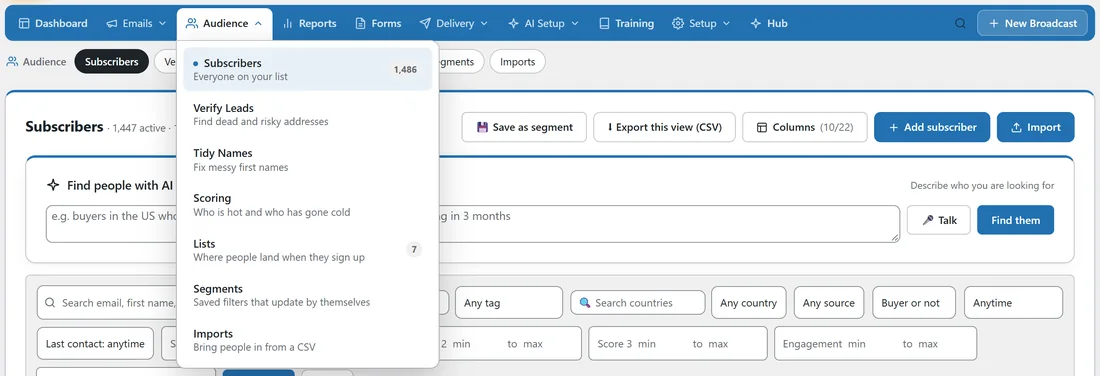
- Point at a section with a small arrow, such as Audience. Its pages drop down right under it.
- Each page in the dropdown has a one-line note that says what it is for, for example "Find dead and risky addresses" under Verify Leads. Some pages also show a count, such as how many subscribers you have.
- Click a page to open it.
You can also click the section name to open its dropdown, which suits a trackpad or a tablet. Press Esc to close it, or use the arrow keys to move through the pages.
Under the bar, a white row shows the pages of the section you are in, with the page you are on highlighted. On Reports, that row jumps to each part of the page instead: Overview, Engagement, List growth, Top links, Sign-up sources, Broadcasts and List health.
Switching to the Side Menu:
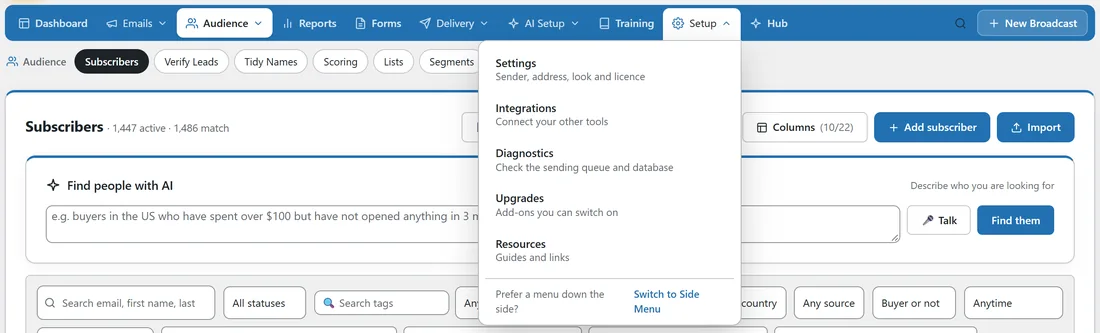

If you prefer a menu down the left side, switch to the Side Menu. Every page is in both menus, so nothing moves out of reach.
- Point at Setup in the Top Menu.
- At the bottom of the dropdown, under Prefer a menu down the side?, click Switch to Side Menu.
Or open Setup, then Settings, choose Side Menu in Menu style and click Save Settings. The choice changes the menu for you only. Everyone else who signs in to your site keeps their own choice.
The Side Menu:
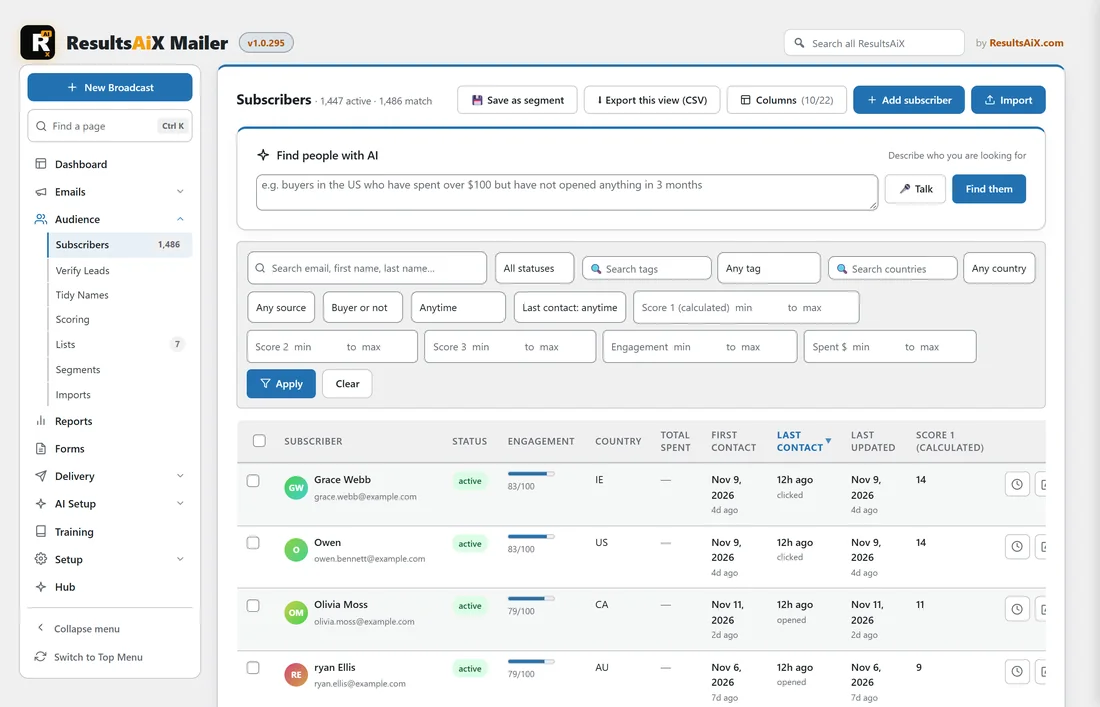
The Side Menu puts the same sections down the left of the screen:
- New Broadcast at the top starts a new email.
- Find a page filters the menu as you type. Press Enter to open the first match. If no page matches, Enter hands your words to the full search.
- Click a section to open or close it in place. The section you are in is always open, and the others stay as you left them.
- Collapse menu at the bottom folds the menu down to icons, which gives the page more room. Point at an icon and its pages pop out beside it. Click Expand menu to bring the words back.
- Switch to Top Menu at the bottom takes you back to the Top Menu.
Search with Ctrl+K:
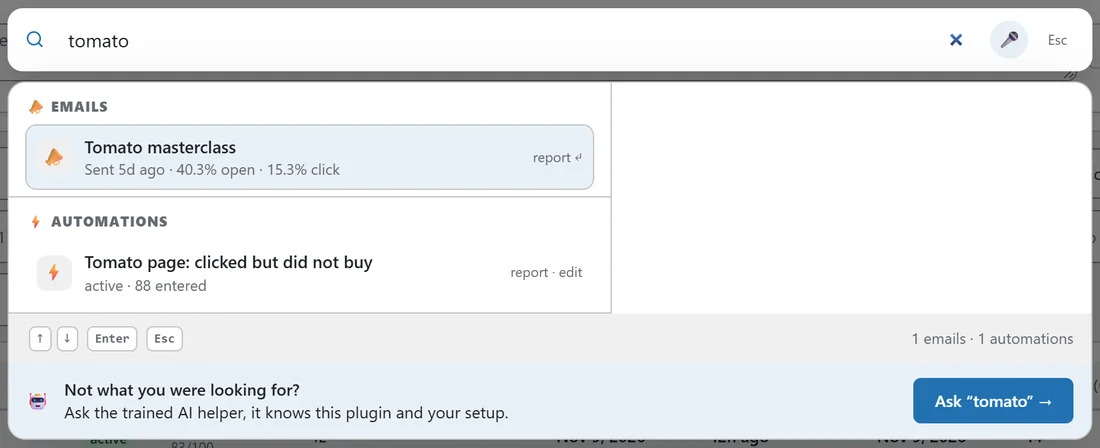
Press Ctrl+K (Cmd+K on a Mac) on any Mailer screen, or click the search button at the right end of the menu, to open the Mailer's own search. Type an email address, a name, an IP address, a list, a tag, a setting or a question. The results are grouped, for example Emails and Automations, and each one opens with a click or the Enter key. The microphone button lets you say it instead of typing. Press Esc to close the search.
Search every ResultsAiX plugin:
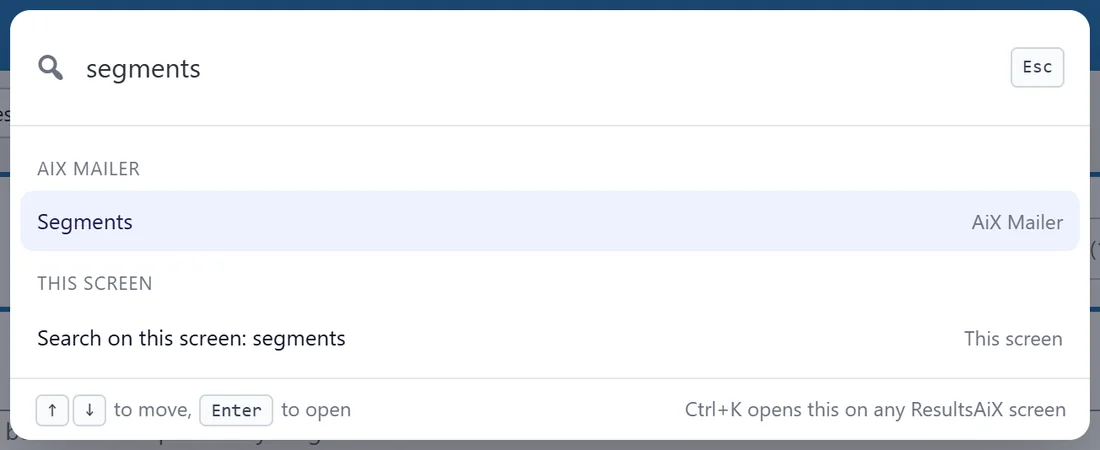
To open a page in any ResultsAiX plugin on your site, type in the Search all ResultsAiX box at the top of the Mailer screen, beside "by ResultsAiX.com". You can also click Search ResultsAiX in the WordPress bar at the very top. It lists every matching page, grouped by plugin. Use the arrow keys and Enter, or click a result. On the screens of other ResultsAiX plugins, Ctrl+K opens this search too; on Mailer screens Ctrl+K keeps opening the Mailer's own search.
AiX Brain:
When the free ResultsAiX Hub is installed, the last line of Search ResultsAiX is Ask AiX Brain, which hands your question to AiX Brain, your AI business assistant in the Hub.
A real example:
Anna at Leafwise Gardening (yoursite.com) wants to tidy the first names on her list. She points at Audience, sees Tidy Names with the note "Fix messy first names" and clicks it. A week later she switches to the Side Menu, because she likes the menu down the left while she works on a big screen. When she wants the Tomato masterclass report, she presses Ctrl+K, types tomato, and opens the report from the first result.
Tips:
- New to the Mailer? Work through Get Started first. See The Setup Screen.
- The Side Menu remembers which sections you left open, and whether it was folded to icons, so it looks the same next time.
- Use Search all ResultsAiX when you run several ResultsAiX plugins, so you never have to hunt through the WordPress sidebar.
- For every setting on Setup, then Settings, see Settings And Colour Schemes.