The Appearance tab makes the members' app look like your brand. Every change shows in a small preview before you save.
Where to find it:
Open AiX Community, then Setup, then Appearance.
Your members' app:
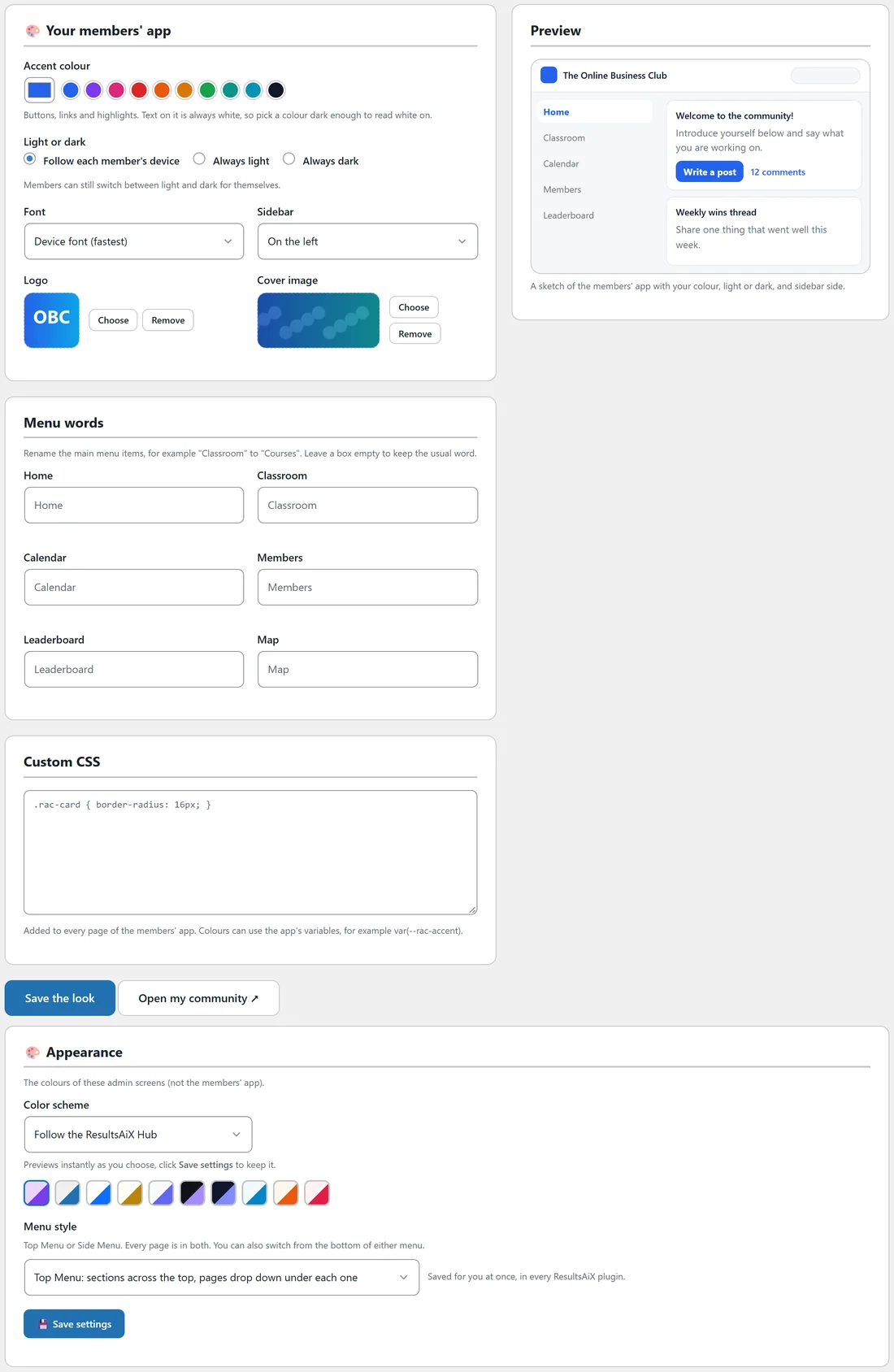
- Accent colour: used for buttons, links and highlights. Text on it is always white, so pick a colour dark enough to read white on. Click a swatch or pick your own.
- Light or dark: Follow each member's device, Always light, or Always dark. Members can still switch between light and dark for themselves.
- Font: Device font (fastest), Inter, Plus Jakarta Sans, Outfit or Serif (Georgia).
- Sidebar: On the left or On the right.
- Logo and Cover image: click Choose to pick an image, Remove to clear it.
Menu words:
Rename the main menu items: Home, Classroom, Calendar, Members, Leaderboard and Map. For example, rename Classroom to Courses. Leave a box empty to keep the usual word.
Custom CSS:
Added to every page of the members' app. Colours can use the app's variables, for example var(--rac-accent).
Preview:
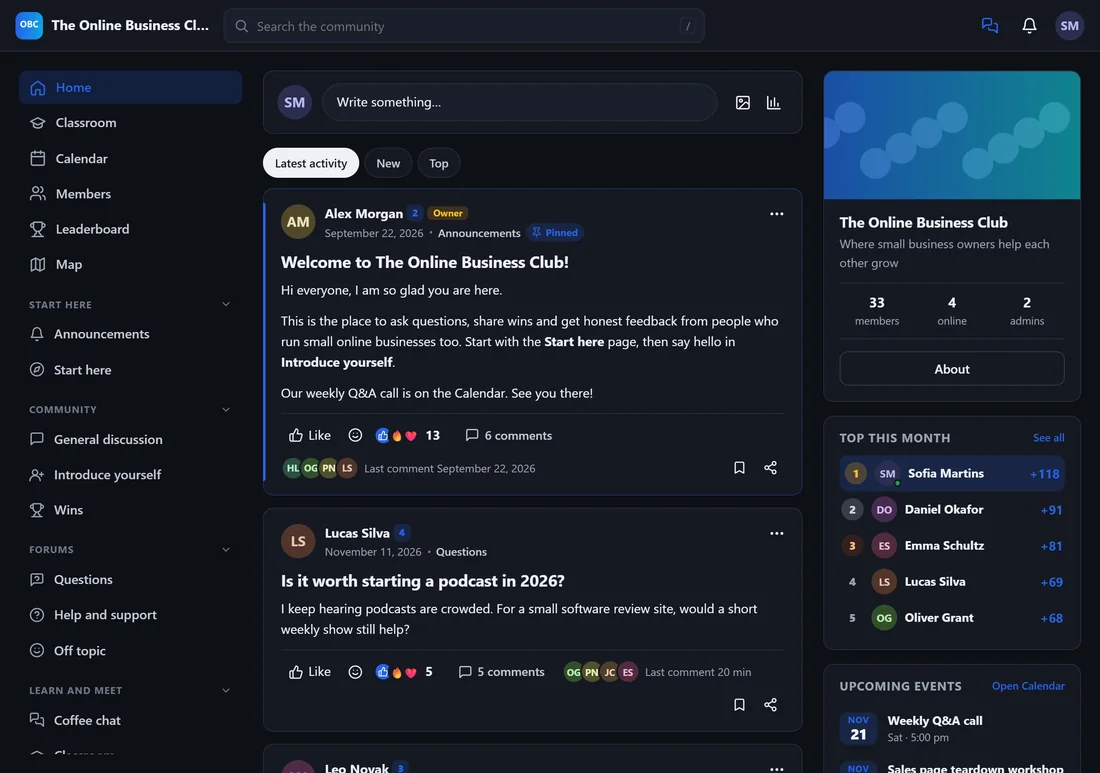
The sketch on the right shows your colour, light or dark, and the sidebar side as you change them. Click Save the look, then Open my community to see the real thing.
The admin colours:
The Appearance section further down sets the colours of these admin screens, not the members' app.
- Color scheme: Follow the ResultsAiX Hub, or a scheme such as WordPress Native, Clean White, Midnight Blue or Ocean Blue. It previews instantly; click Save settings to keep it.
- Menu style: Top Menu, with sections across the top and pages dropping down, or Side Menu, with sections down the left. Your choice is saved for you in every ResultsAiX plugin.
A real example:
Alex picked the blue swatch to match the yoursite.com logo, kept Follow each member's device, chose Inter, and renamed Calendar to Live calls.
Tips:
- Use a square logo for the app. It also becomes the phone app icon.
- Keep custom CSS small. Bigger layout changes can make updates harder.