ResultsAiX Community has two places: the admin screens in WordPress, which only you and your team see, and the members' app, which is what your members use. This article shows where everything is in both.
The admin menu:
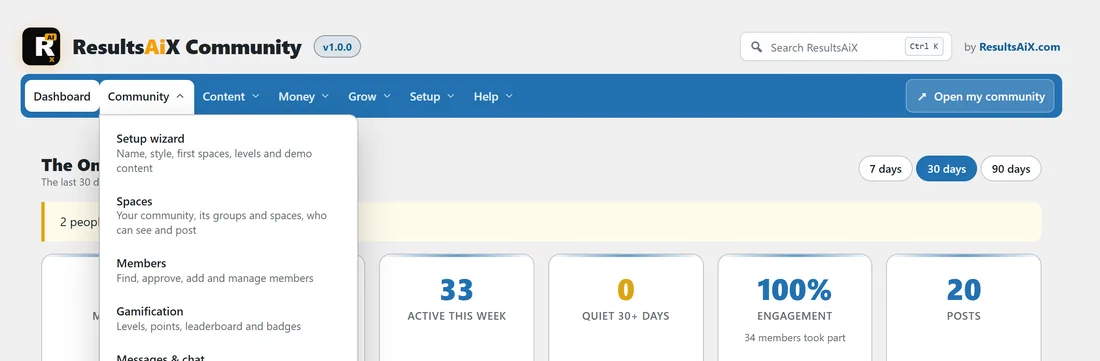
Open AiX Community in the WordPress menu. A coloured menu runs across the top of every screen. Point at a section to see its pages.
- Dashboard: members, activity and money at a glance.
- Community: Setup wizard, Spaces, Members, Gamification, Messages and chat, Moderation.
- Content: Classroom and Events.
- Money: Plans and payments, Affiliates.
- Grow: Emails, Integrations, AI, Import and export.
- Setup: Appearance, Settings, Diagnostics.
- Help: Training and Resources.
Open my community, on the right of the menu, opens the members' app in a new tab.
Prefer a menu down the side:
Open Setup, then Appearance, and under Menu style pick Side Menu. Your choice is saved for you in every ResultsAiX plugin.
Search ResultsAiX:
The search box at the top right (Ctrl K) finds any screen or setting across your ResultsAiX plugins.
The members' app:
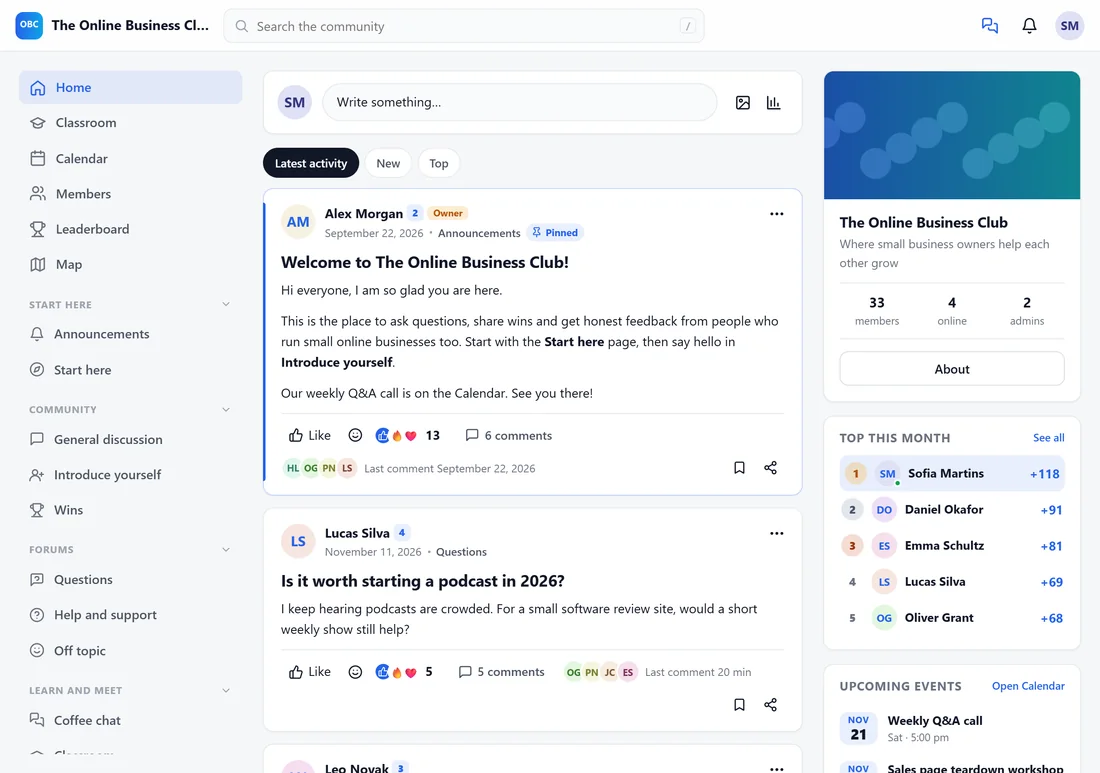
Your members go to yoursite.com/community/. The address can be changed under Settings.
- The top bar has the community name, a search box, messages, the notification bell and the member's picture, which opens their account menu.
- The left sidebar has Home, Classroom, Calendar, Members, Leaderboard and Map, then your spaces in their groups.
- The middle shows the screen you are on: the feed, a space, a post, a course or an event.
- The right rail shows the community card, the top members this month and upcoming events.
On a phone the sidebar folds away behind the menu button and the app fills the screen.
What only you see:
When you are logged in as the owner or an admin, the app shows extra buttons: Edit on courses, New event on the calendar, the three-dot menu on every post with pin, move and lock, and a Moderation screen with a shield in the sidebar. Moderators see the moderation tools for their spaces too.
The Training tab:
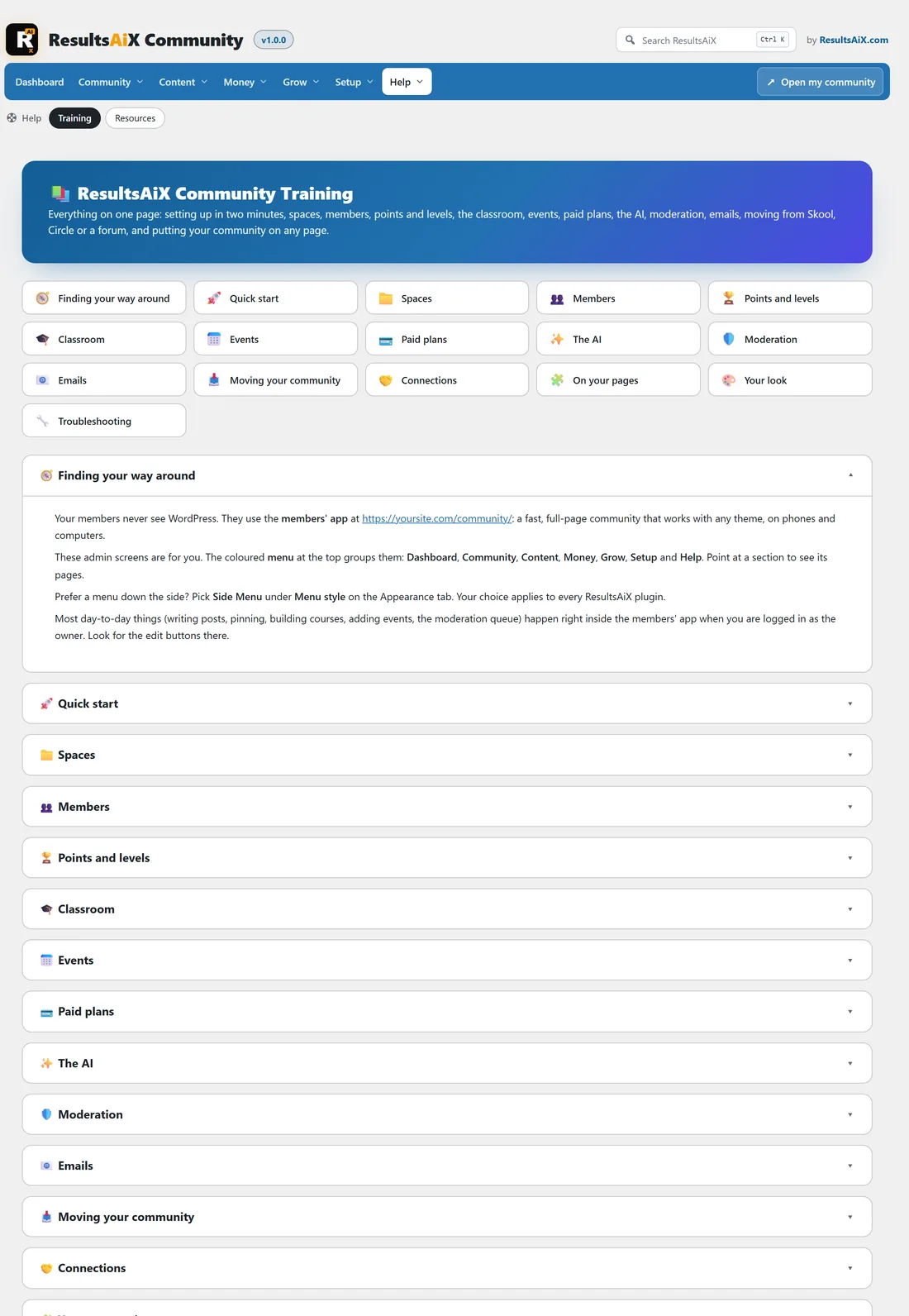
Help, then Training, has a one-page guide to every part of the plugin, from the quick start to troubleshooting. Each section links to the right screen.
A real example:
Alex keeps two browser tabs open: AiX Community in WordPress for settings, and the community itself for posting and moderating. Most weeks Alex only uses the second tab.
Tips:
- Bookmark yoursite.com/community/ for yourself and share it with members.
- If a screen mentions a setting you cannot find, use the Search ResultsAiX box.
- See What ResultsAiX Community Does for the full list of features.